
Installation
You will require to install MageDelight Base Extension first. If it is not installed then please download it from https://www.magedelight.com/pub/extensions/magedelight-base.zip and unzip the package file into the root folder of your Magento 2 installation.
Before installing the extension, please make sure to Backup your web directory and store database
You will require to install MageDelight Base Extension first. If it is not installed then please download it from https://www.magedelight.com/pub/extensions/magedelight-base.zip and unzip the package file into the root folder of your Magento 2 installation.
Root Directory is - "app/code/magedelight/#YourExtensionName#"
- Unzip the extension package file into the root folder of your Magento 2 installation.
- Connect to SSH console of your server:
- Navigate to the root folder of your Magento 2 setup
Run command as per below sequence,
php bin/magento setup:upgrade
php bin/magento setup:di:compile
php bin/magento setup:static-content:deploy
php bin/magento cache:clean
- log out from the backend and log in again
If you are using Magento 2.3 or later then you do not need to activate license. Extension will be activated with silent activation mechanism and does not require activation keys to be entered manually.
Installation with Composer
Composer repository using this command:
composer config repositories.magedelight-repo composer https://packages.magedelight.com/
Replace repo public key and private key with your public and private key
composer config http-basic.gitlab.magedelight.com $PUBLIC_KEY $PRIVATE_KEY
composer require mage_delight/storepickup_module:*
composer require mage_delight/storepickupgraphql*
composer require hyva-themes/hyva-magento2-magedelight-storepickup:*
To obtain your public and private keys, please navigate to the "My Account" section. In the "Download Extension Packages" tab, you will find the keys available for your access.
Backend Configuration (Admin side)
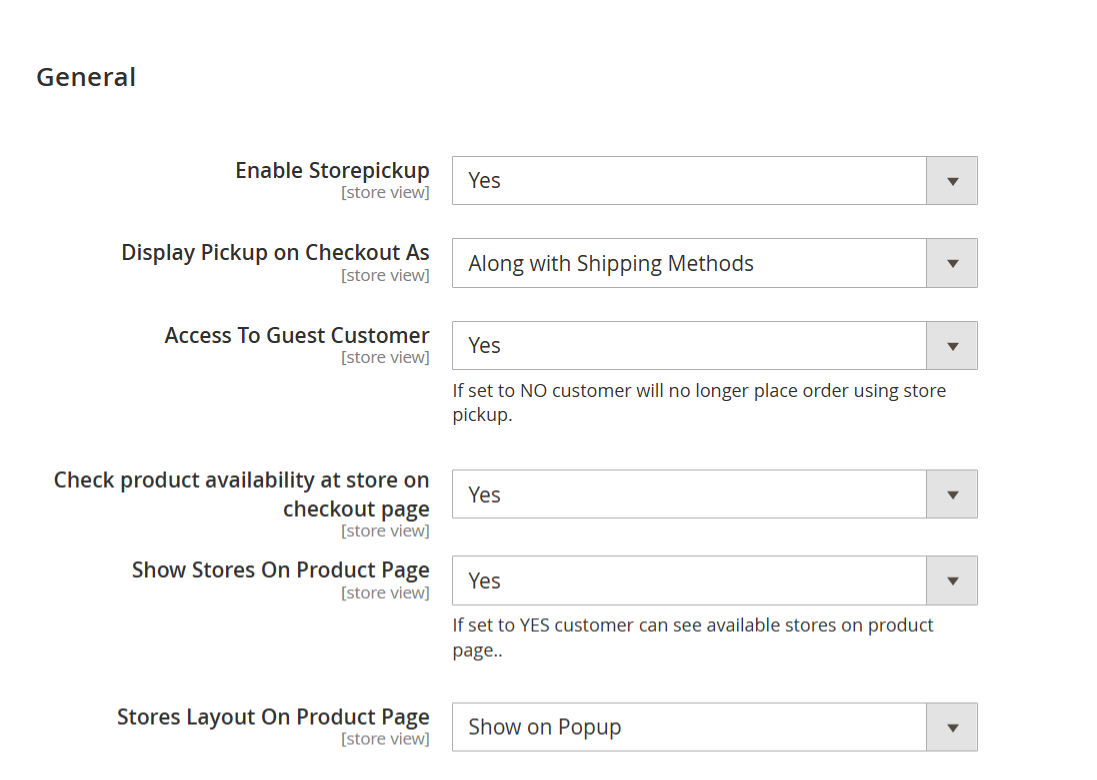
| Field | Description |
|---|---|
| Enable Store Pickup | Select Yes to enable the store pickup feature. Customers will be able to select a physical store for order pickup during checkout. |
| Display Pickup on Checkout As | Choose how the store pickup option is displayed during checkout:
|
| Access to Guest Customer | Select Yes to allow guest users (non-logged-in customers) to use the store pickup option. If set to No, only registered users can choose store pickup during checkout. |
| Check Product Availability at Store on Checkout Page | Select Yes to show product availability per store at the checkout. This helps customers choose stores where the product is currently in stock. Please note that this option will not manage any stock/inventory at the store. |
| Show Stores on Product Page | Select Yes to display available store pickup locations on the product detail page. This provides visibility to customers on where the product can be picked up before they reach checkout. |
| Store Layout on Product Page | Choose how the list of available stores appears on the product detail page:
|
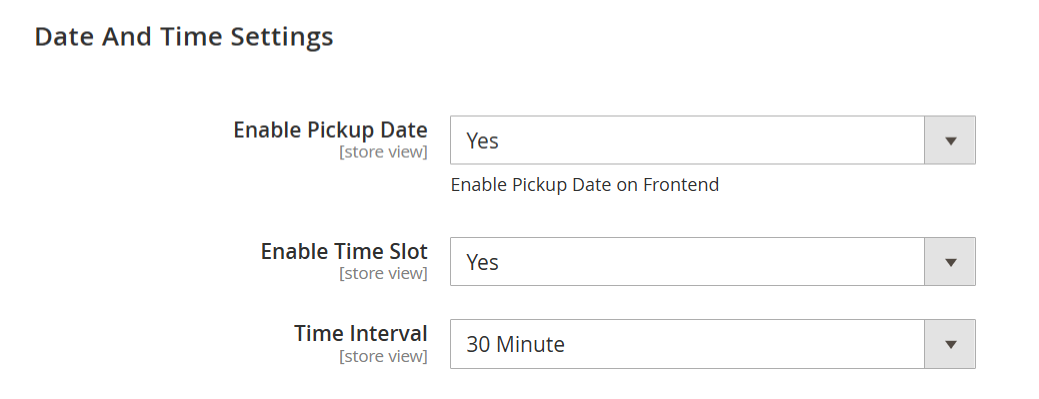
| Field | Description |
|---|---|
| Enable Pickup Date | Set this option to "Yes" to allow customers to select a pickup date during the checkout process. This feature enables customers to choose a specific date for product pickup from the store. |
| Enable Time Slot | Set this option to "Yes" to allow customers to select a time slot during the checkout process. This feature enables customers to choose a specific time for product pickup from the store. |
| Time Interval | Specify the time interval between available time slots. This setting will determine the duration of each selected interval in minutes when displaying the time slots. |
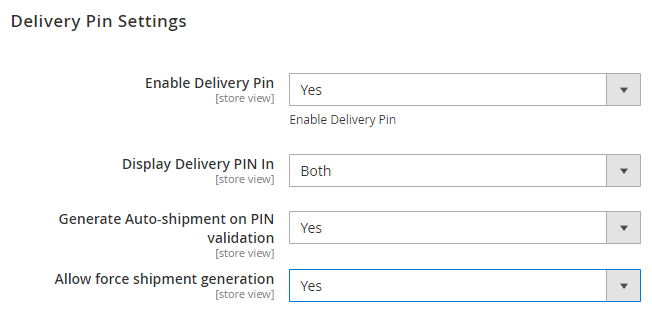
| Field | Description |
|---|---|
| Enable Delivery Pin | Set this option to "Yes" to activate the delivery PIN feature. |
| Display Delivery PIN In | Choose where the delivery PIN will be displayed by selecting either "Email," "My Account" section, or both. |
| Generate Auto-shipment on PIN validation | Set this option to "Yes" to automatically generate a shipment when the admin validates the delivery PIN. |
| Allow force shipment generation | Set this option to "Yes" to enable the generation of shipments without the need to verify the delivery PIN. |
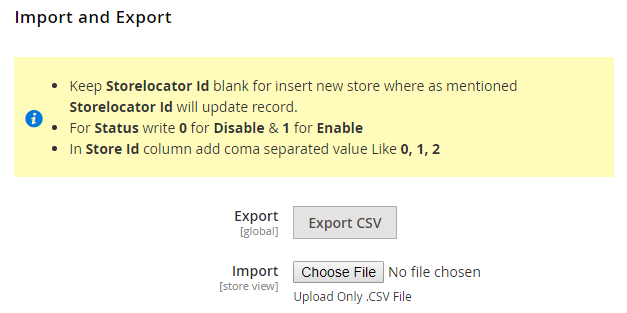
| Field | Description |
|---|---|
| Export | Click the "Export" button to download a CSV file containing data for all stores. |
| Import | Click the "Import" button to manually import stores. The previously exported CSV file can be utilized as a sample for this import process. |
Backend Functionality
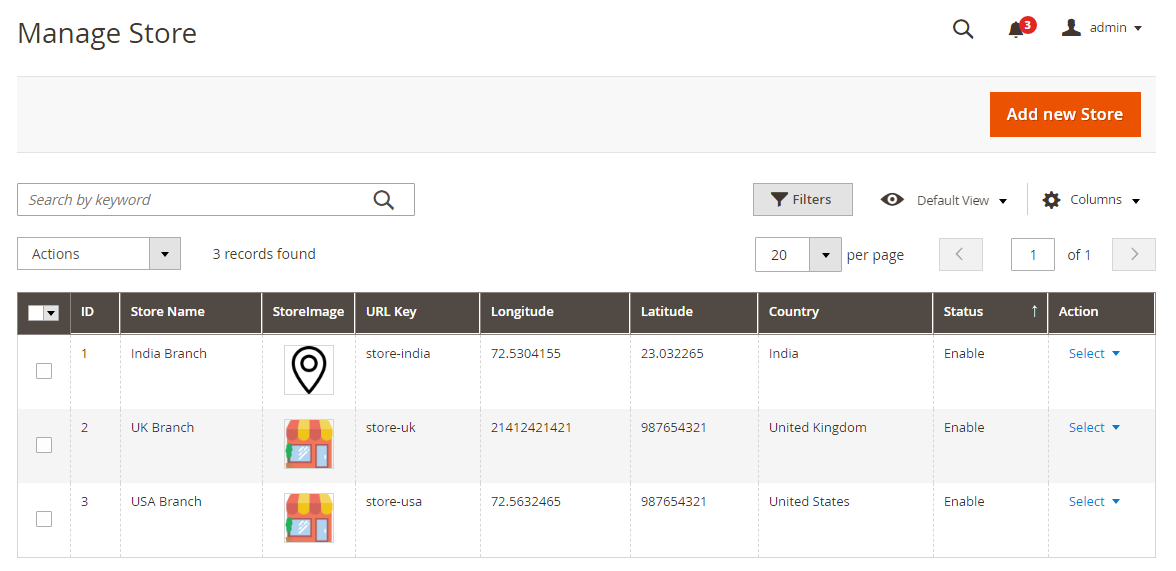
- The Manage Store page allows administrators to view, manage, and configure physical store locations for in-store pickup functionality.
| Field | Description |
|---|---|
| ID | Unique identifier for each store. |
| Store Image | An icon or image representing the store. |
| Store Name | Name of the physical location. |
| URL Key | Unique slug used for routing or SEO purposes. |
| Longitude & Latitude | Geolocation coordinates (used for mapping and store locator). |
| Country | The store's country of operation. |
| Status | Indicates if the store is currently enabled or disabled. |
| Action | Drop-down menu with options to edit, delete, or manage store settings. |
| Add New Store / Import MSI Store |
|
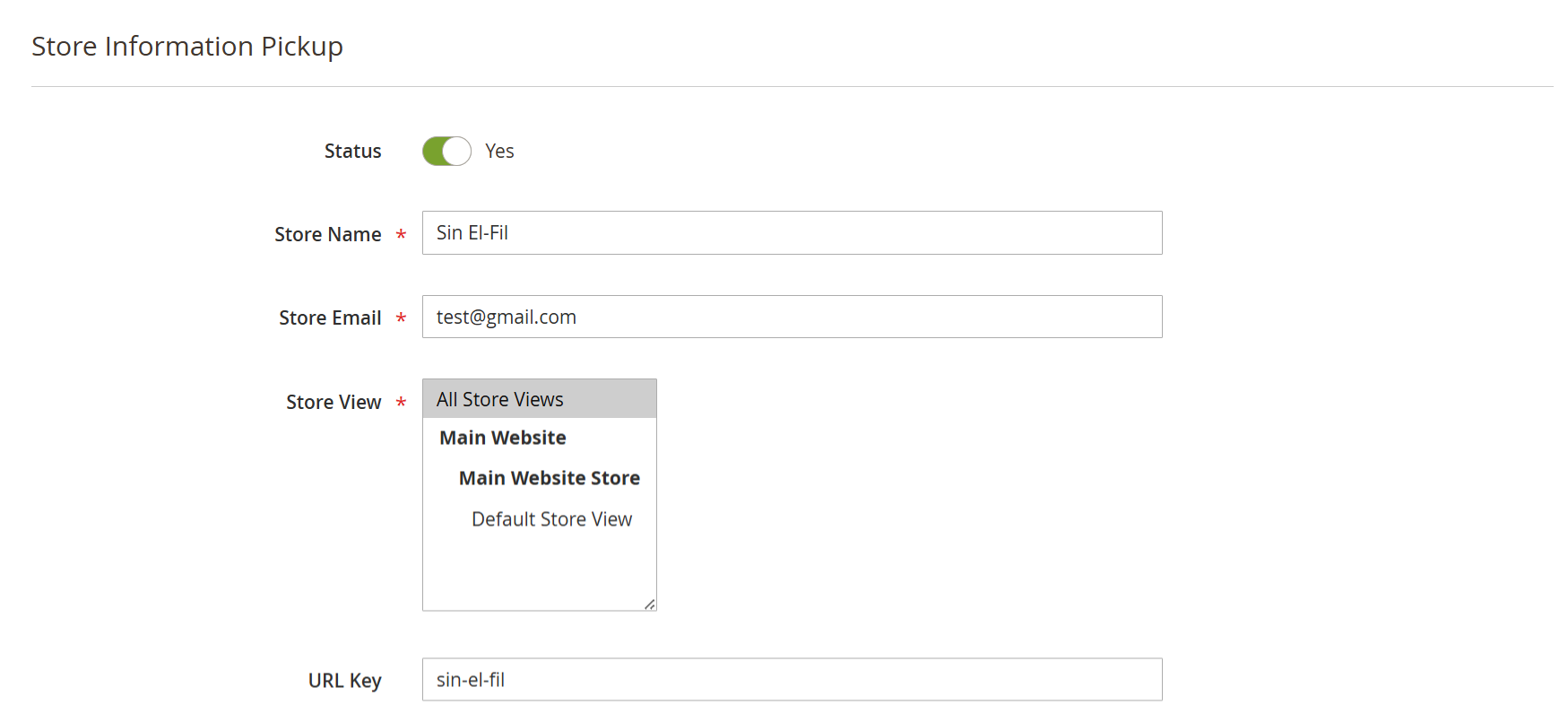
| Field | Description |
|---|---|
| Store Name: | Provide the store name to be displayed on the front-end. |
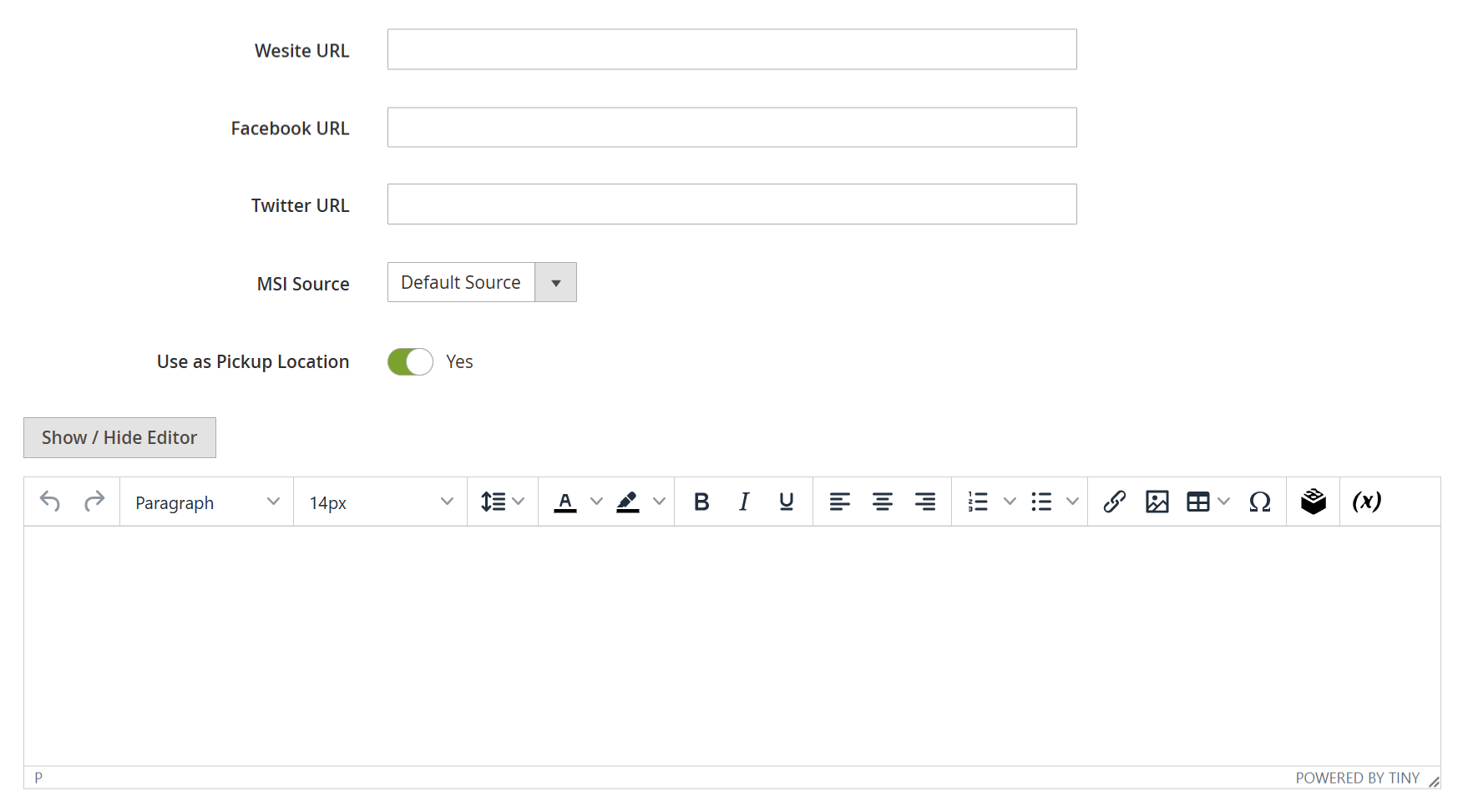
| Field | Description |
|---|---|
| Website URL | Enter the store's website URL, if available. |
| Facebook URL | Provide the URL to the store’s Facebook page, which will be shown on the store details page |
| Twitter URL | Provide the URL to the store’s Twitter page, which will be displayed on the store details page |
| MSI Source | Select the inventory source from the dropdown to manage stock based on different warehouse locations. |
| Use as Pickup Location | Option to enable or disable the store as a pickup location. When enabled, customers can choose this store to pick up their orders. |
| Description | Use the built-in rich text editor to add detailed descriptions, special instructions, or promotional content related to the store. This content can be displayed on the storefront to inform or attract customers |
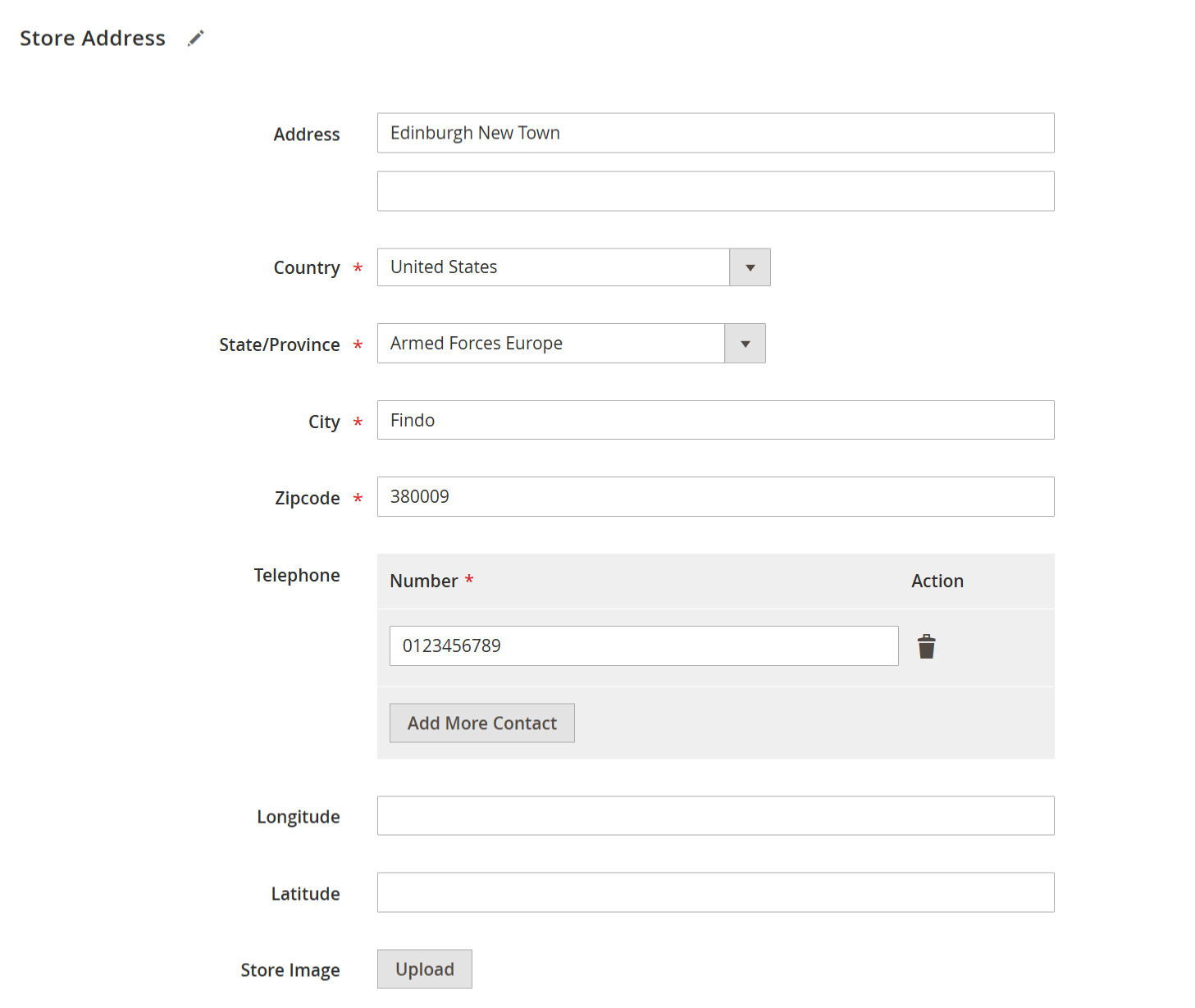
| Field | Description |
|---|---|
| Address | Enter the detailed street address of the store location, including both line 1 and line 2 if applicable. |
| Country | Select the country where the store is located. |
| Enter the name of the state or province for the store location. | |
| City | Enter the city in which the store is situated. |
| Zipcode | Provide the postal/ZIP code for the store's location. |
| Telephone | Enter the store's contact number. You can add multiple contact numbers using the Add More Contact button. |
| Longitude | Specify the store’s longitude to accurately place a marker on the map. |
| Latitude | Specify the store’s latitude for precise geolocation display on the map. |
| Store Image | Upload an image of the physical store, which may be displayed on store locator pages or in pickup options. |
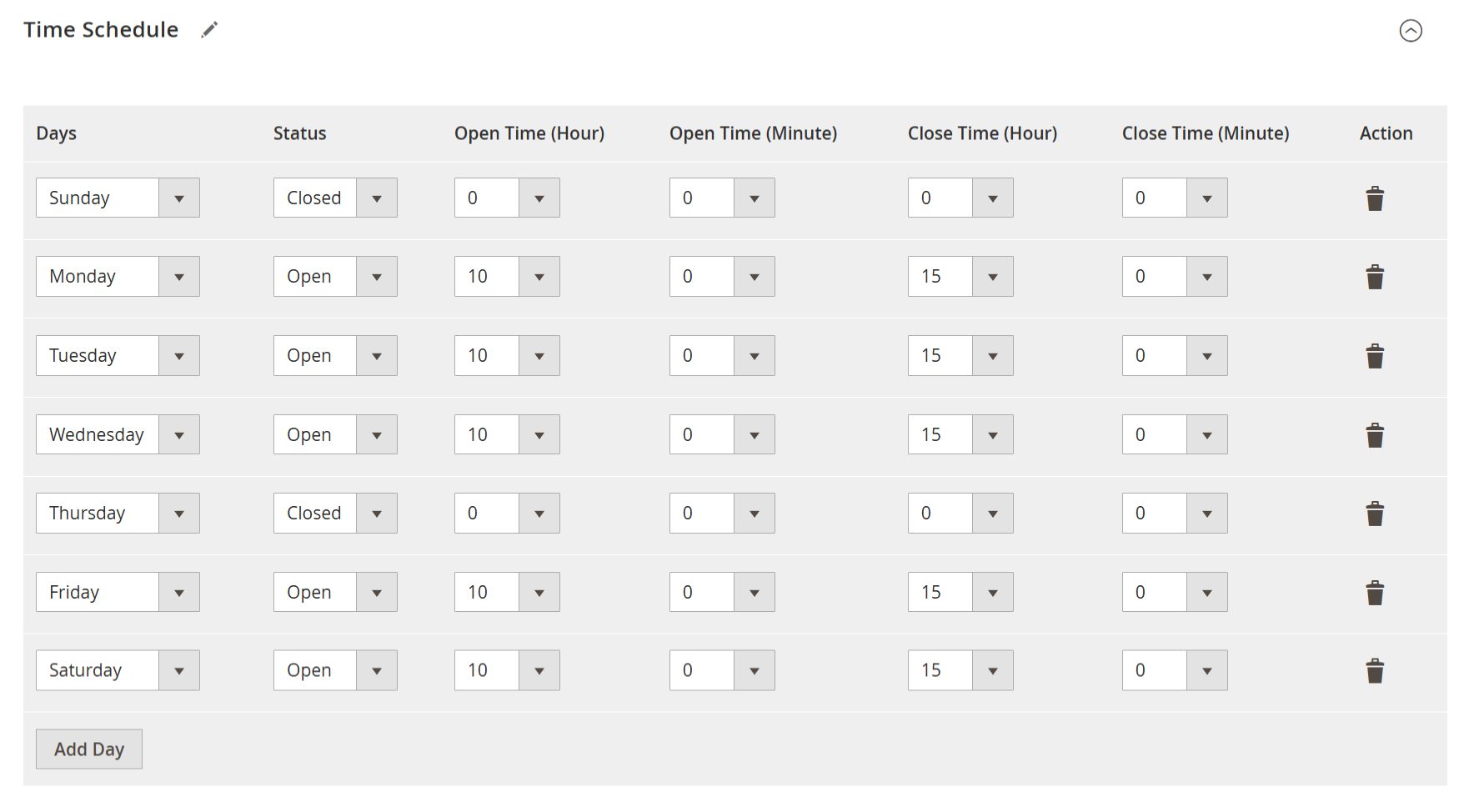
| Field | Description |
|---|---|
| Days | Select the day of the week for which you want to configure store hours. |
| Status | Set the store's status for the selected day as either Open or Closed. |
| Open Time (Hour) | Select the hour at which the store opens for the selected day. |
| Open Time (Minute) | Select the minute at which the store opens. |
| Close Time (Hour) | Select the hour at which the store closes for the selected day. |
| Close Time (Minute) | Select the minute at which the store closes. |
| Action | Click the trash icon to delete that day's schedule entry. |
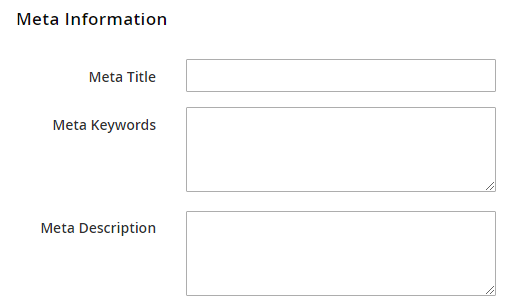
| Field | Description |
|---|---|
| Meta Title | Enter a meta title for the store. This title helps improve the store’s visibility in search engine results. |
| Meta Keywords | Provide comma-separated keywords relevant to the store. These keywords assist in enhancing SEO and search engine indexing. |
| Meta Description | Enter a brief description of the store (up to 150 characters). This text may appear in search engine result pages beneath the store title. |
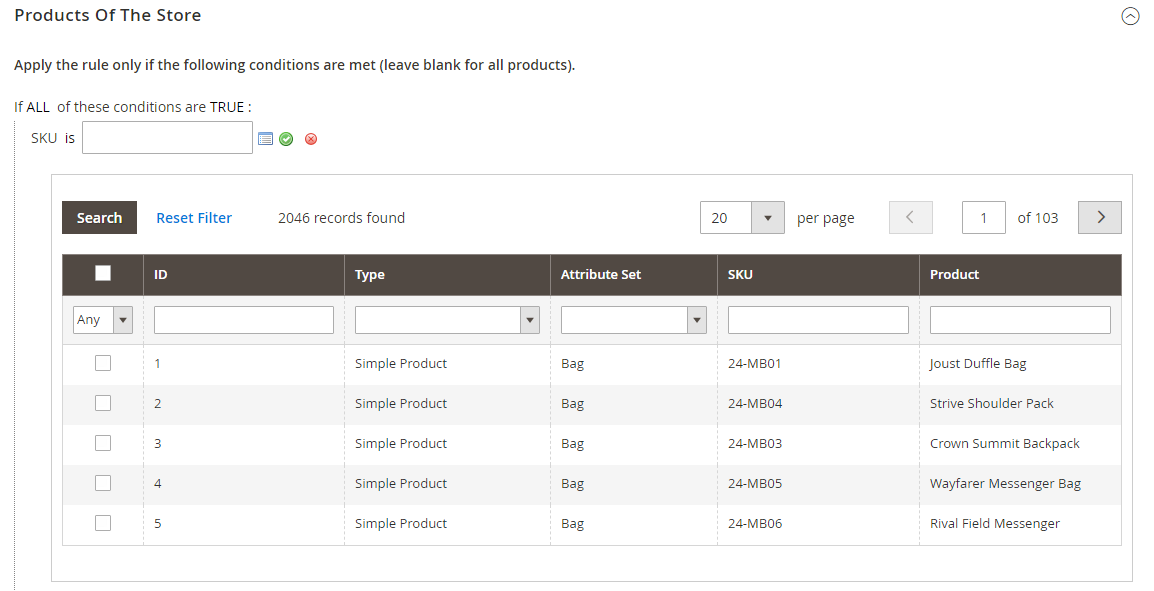
| Field | Description |
|---|---|
| ID | Unique product ID |
| Type | Product type (e.g., Simple Product, Virtual Product). |
| Attribute Set | Associated attribute set (e.g., Bag, Gear). |
| SKU | Stock Keeping Unit is used for product identification. |
| Product | Product name for easy identification. |
| Search & Filter | Use the filters and search bar to quickly locate products by ID, SKU, name, or other attributes. |
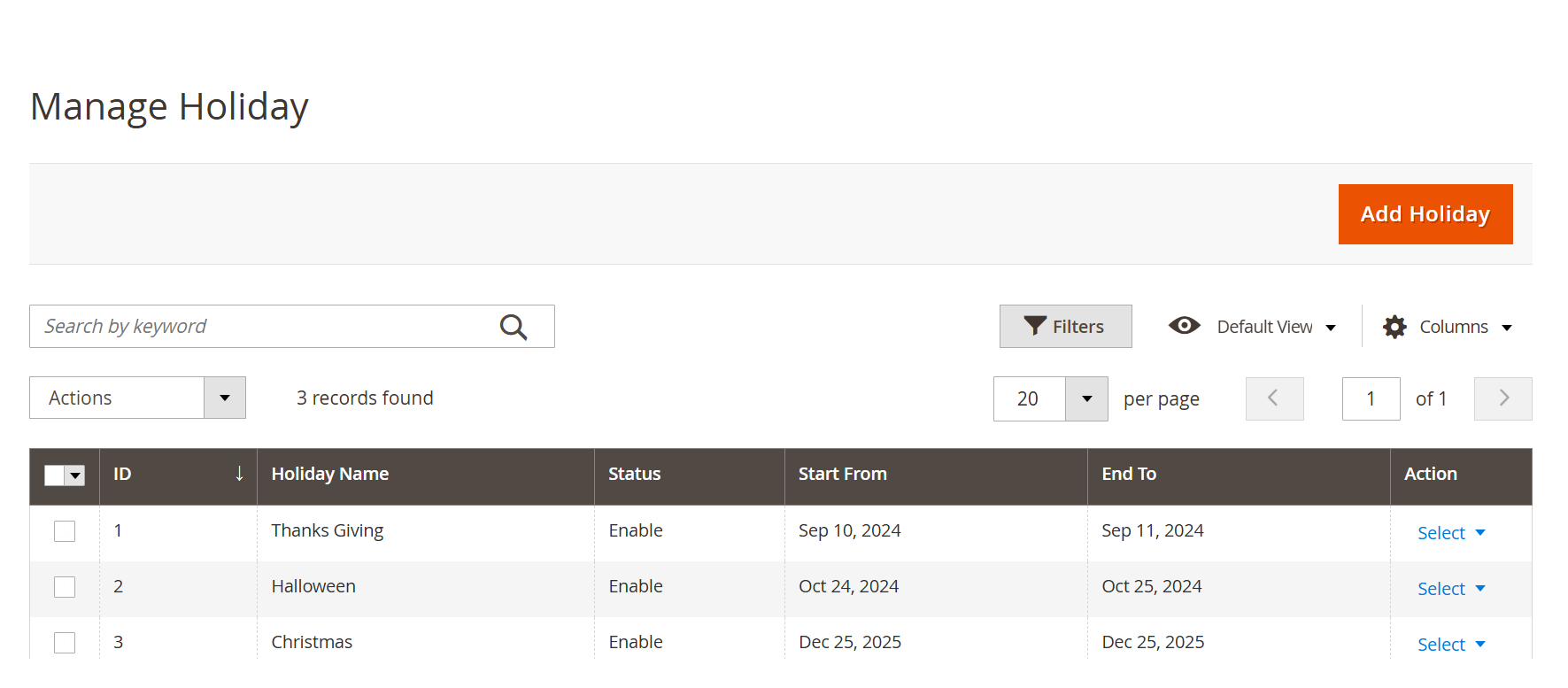
- The Manage Holiday section allows you to define and manage holidays during which store pickup services are unavailable. These holidays override regular time schedules, helping ensure accurate availability for both customers and store operations.
| Field | Description |
|---|---|
| ID | Unique identifier for each holiday. |
| Holiday Name | The name of the holiday (e.g., Christmas, Halloween). |
| Status | Indicates whether the holiday is currently enabled or disabled. |
| Start From / End To | Defines the start and end dates for the holiday. |
| Action | Options to edit or delete each holiday entry using the Select dropdown. |
| Add Holiday | Click the Add Holiday button to create a new holiday entry. |
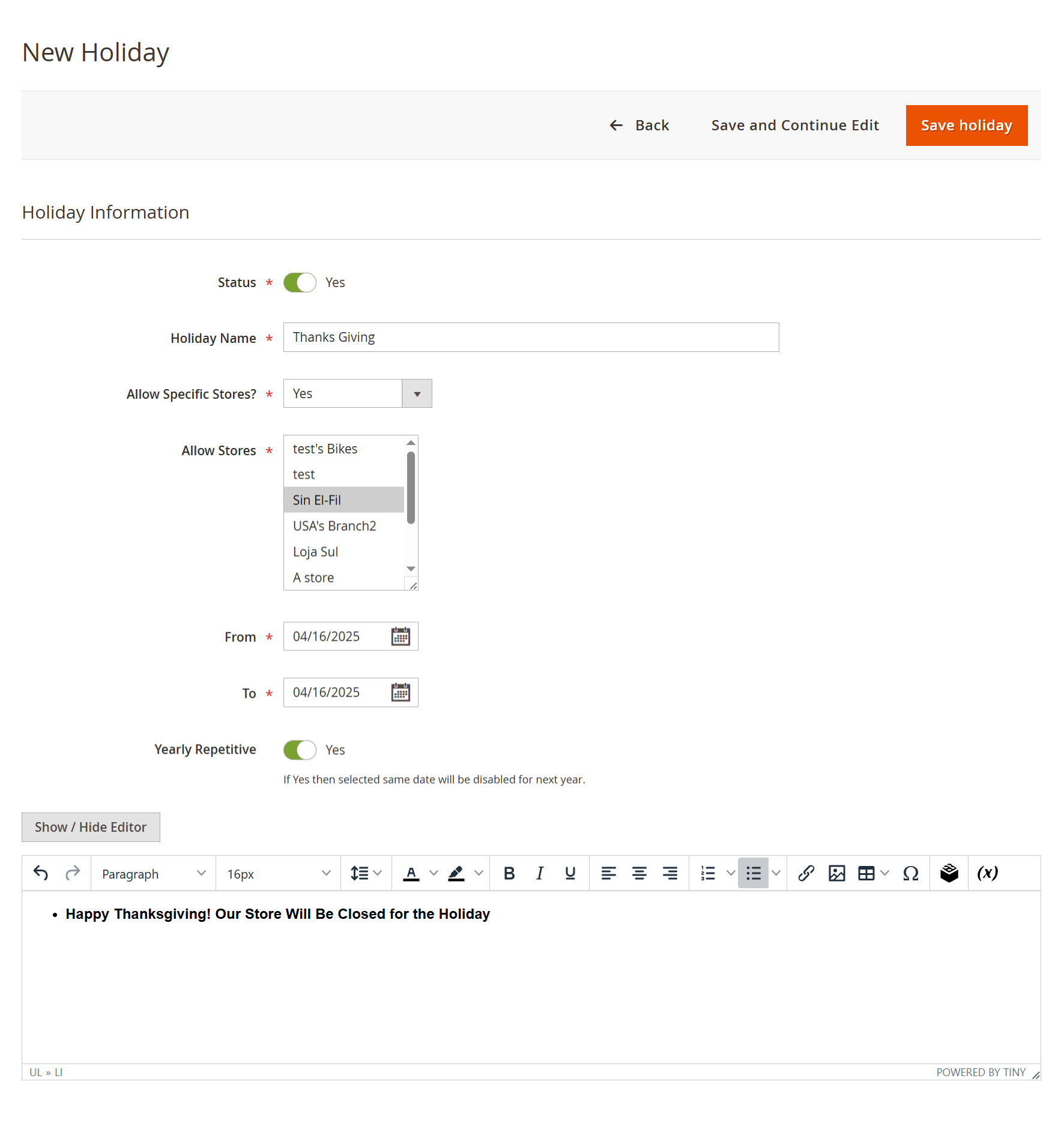
- This section allows you to create and configure holidays during which selected store locations will be marked as closed for pickup. Holidays can be one-time or set to repeat annually.
| Field | Description |
|---|---|
| Status | Select "Yes" to enable the holiday. Once enabled, the selected date range will be marked as unavailable in the store calendar. |
| Holiday Name | Enter the name of the holiday for identification and display purposes. |
| Allow Specific Stores? | Select "Yes" to apply the holiday only to specific store locations. |
| From | Choose the start date when the holiday begins. |
| To | Choose the end date when the holiday ends. |
| Yearly Repetitive | Select "Yes" if the holiday should recur on the same date every year. |
| Description | Provide a short message or explanation related to the holiday. This can be displayed to customers if needed. |
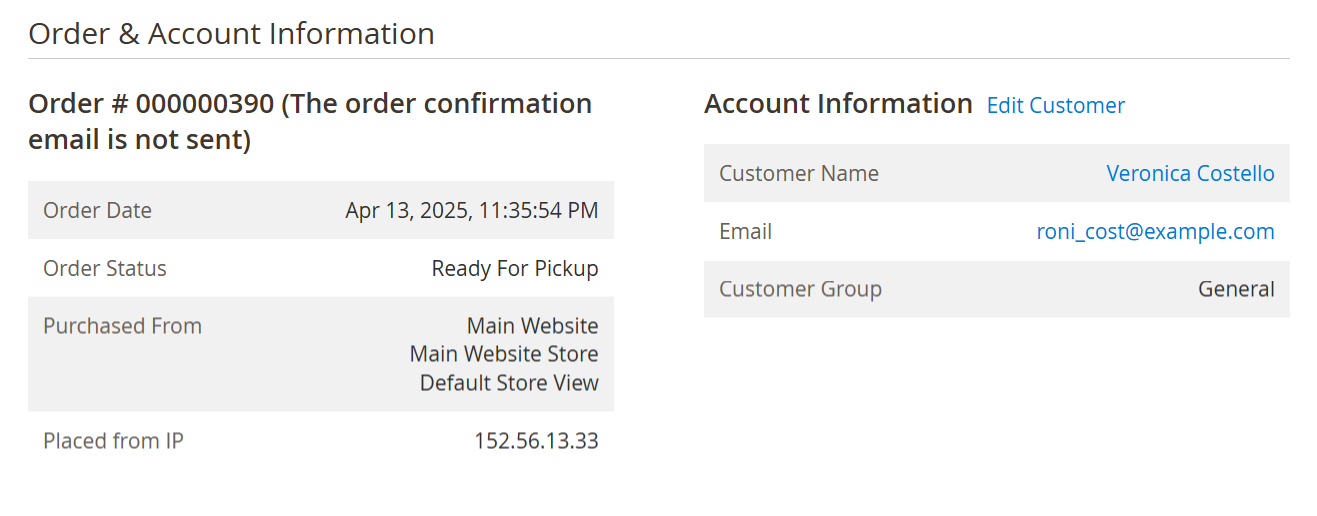
- To notify the customer that their order is ready for pickup, update the order status to “Ready for Pickup.” You must generate the invoice before you can change the order status to "Ready for Pickup."
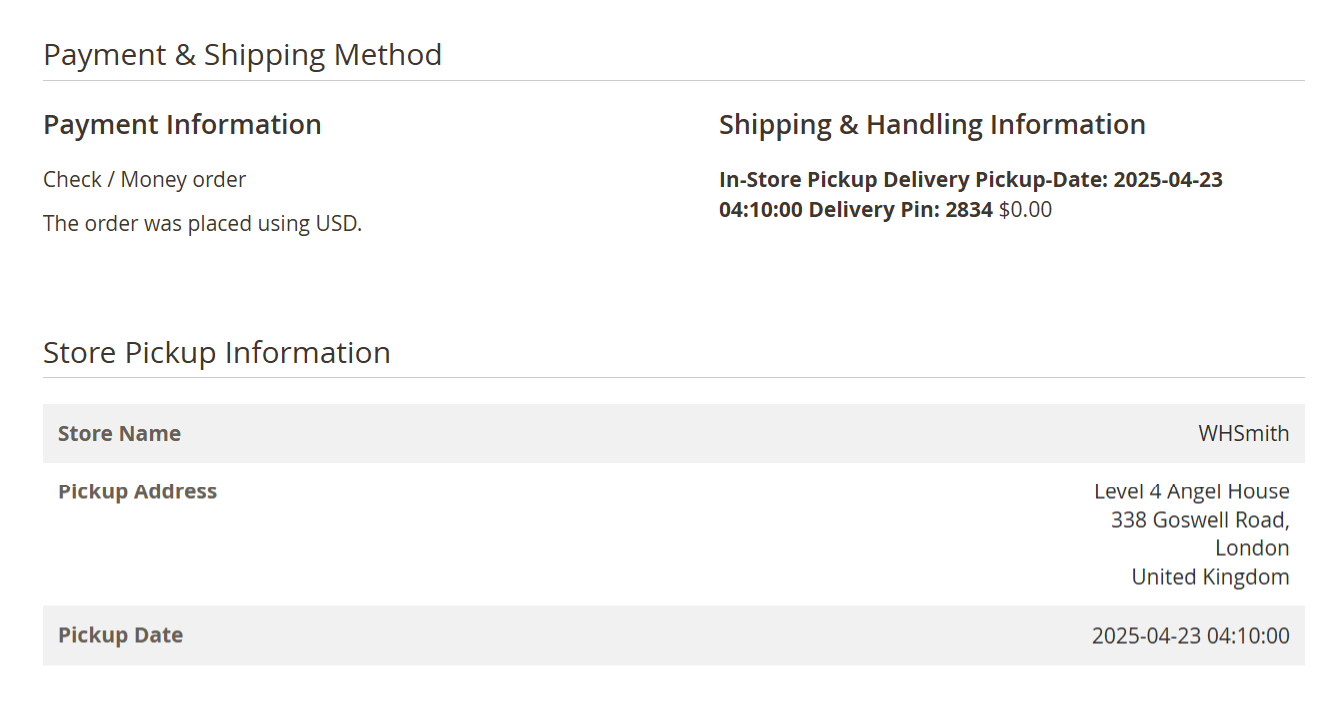
- In the Order History section of the admin panel, the Delivery and Shipment Information displays the selected shipping method (e.g., In-Store Pickup), along with the scheduled pickup date, time, and a secure delivery PIN. Below that, the Store Address section provides the full details of the pickup location, including the store name, street address, city, state, and country—ensuring admins have complete visibility for managing order fulfillment and customer support.
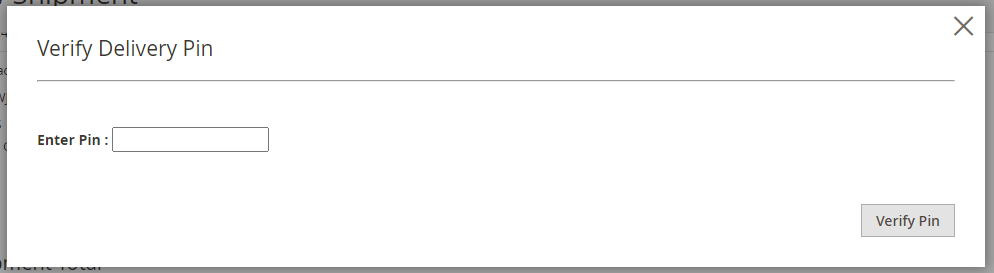
- To complete the order, the admin must generate the shipment and verify the delivery PIN provided by the customer during the shipment process.
Frontend Functionality
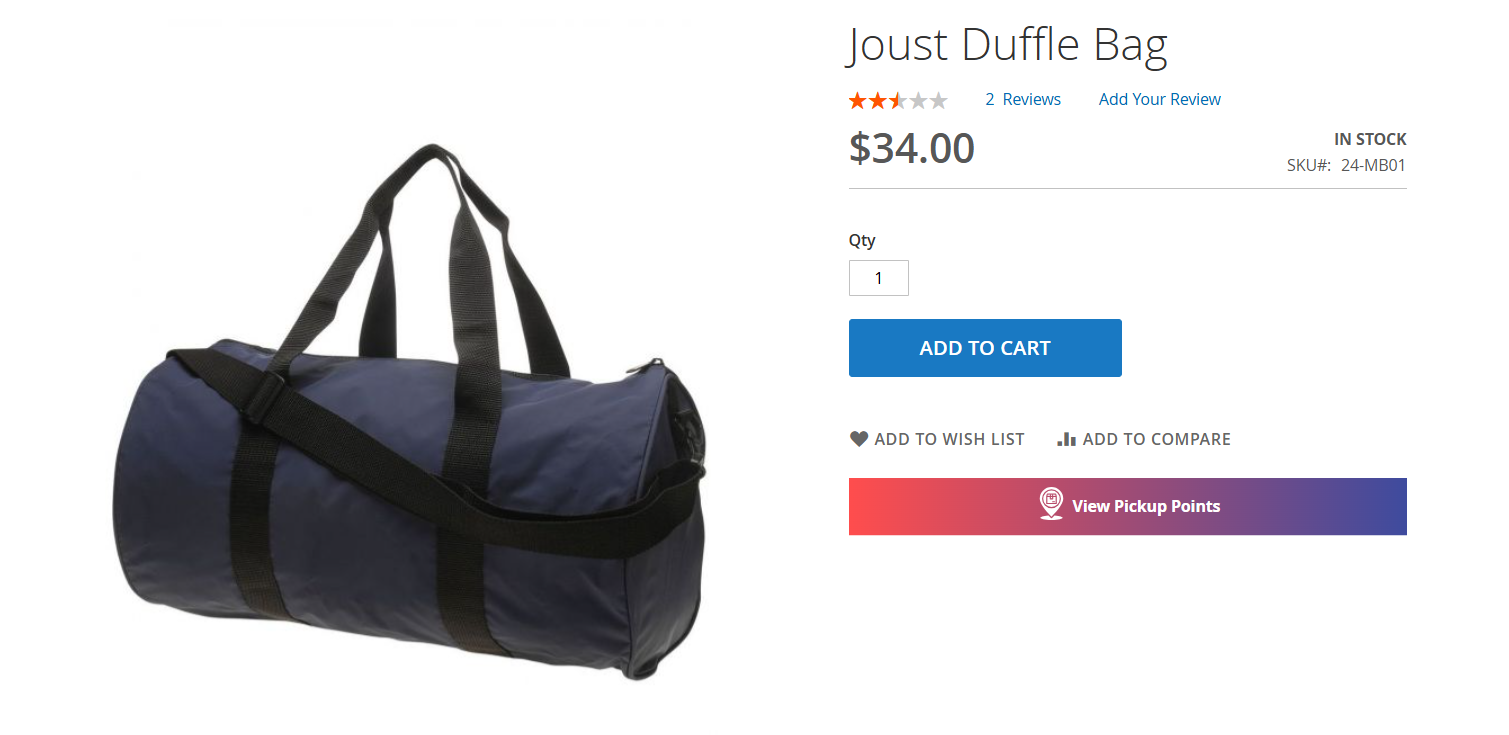
- The image displays a product detail page for the Joust Duffle Bag. In addition to standard purchasing options like Add to Cart, Add to Wishlist, and Add to Compare, a highlighted feature is the "View Pickup Points" button. This allows customers to check available in-store pickup locations directly from the product page, enhancing convenience and flexibility for order collection.
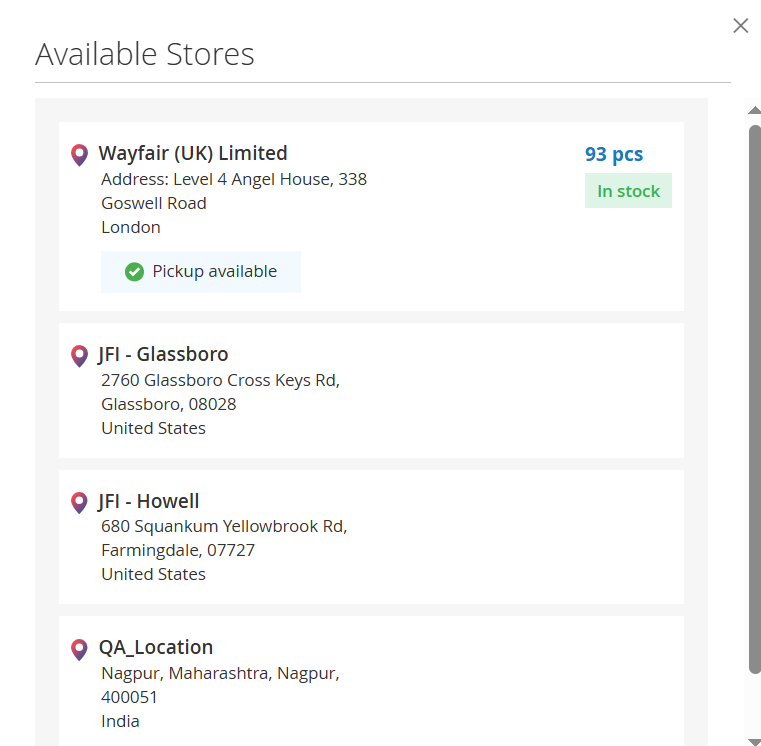
- Upon clicking the "View Pickup Points" button on the product page, a pop-up appears displaying a list of Available Stores. Each store entry includes the store name, address, stock availability, and a "Pickup available" status indicator. This feature allows customers to easily check product availability across different locations and choose the most convenient store for in-person pickup.
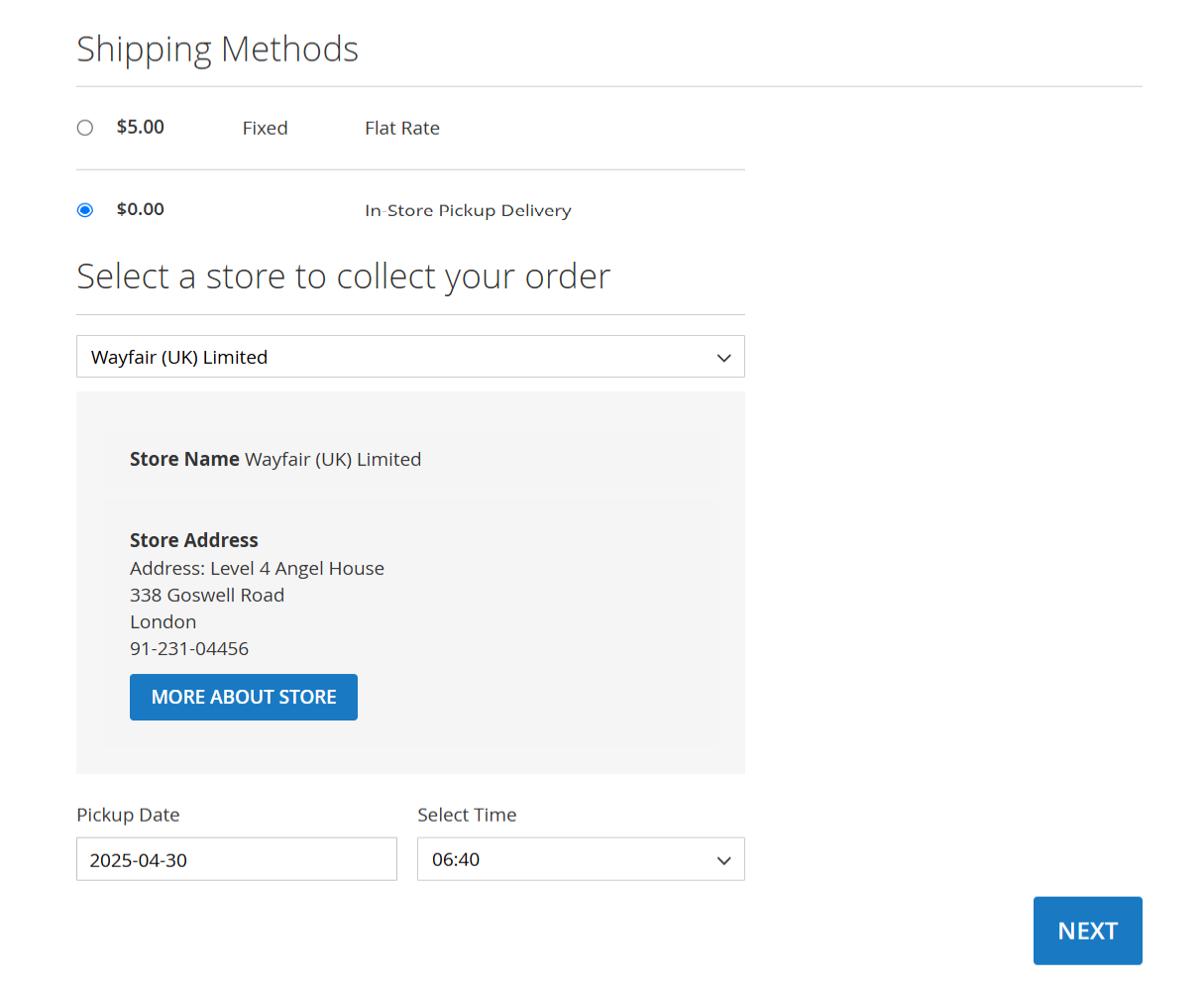
- On the Shipping Methods section of the checkout page, customers can choose In-Store Pickup Delivery as a free shipping option. After selection, a drop-down appears allowing the user to pick a store location. Store details such as name, address, and contact number are displayed for reference. Customers must then select a pickup date and time before proceeding with their order. This ensures a smooth and scheduled pickup experience.
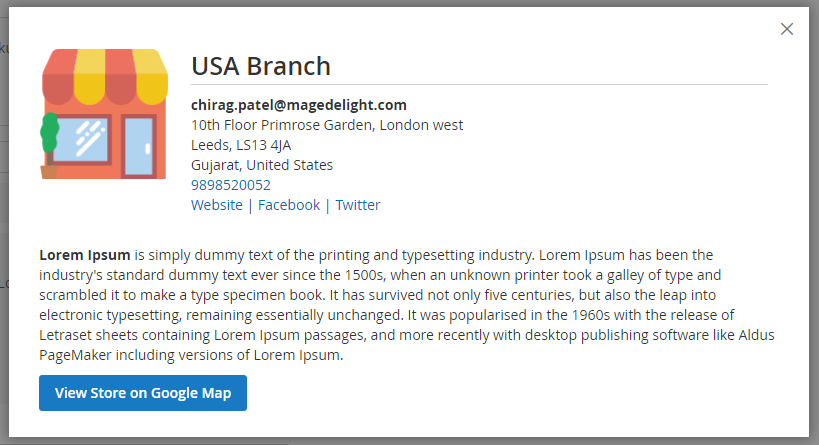
- Upon clicking the "More about store" button, a pop-up box will appear, providing essential details about the store. This will include the store name, address, and contact information, such as the phone number and email address. Additionally, the operating hours will be displayed to inform customers of when they can visit or reach out. A brief description of the store will also be included, highlighting the types of products or services offered. This comprehensive overview is designed to enhance the shopping experience by ensuring customers have all the necessary information at their fingertips.
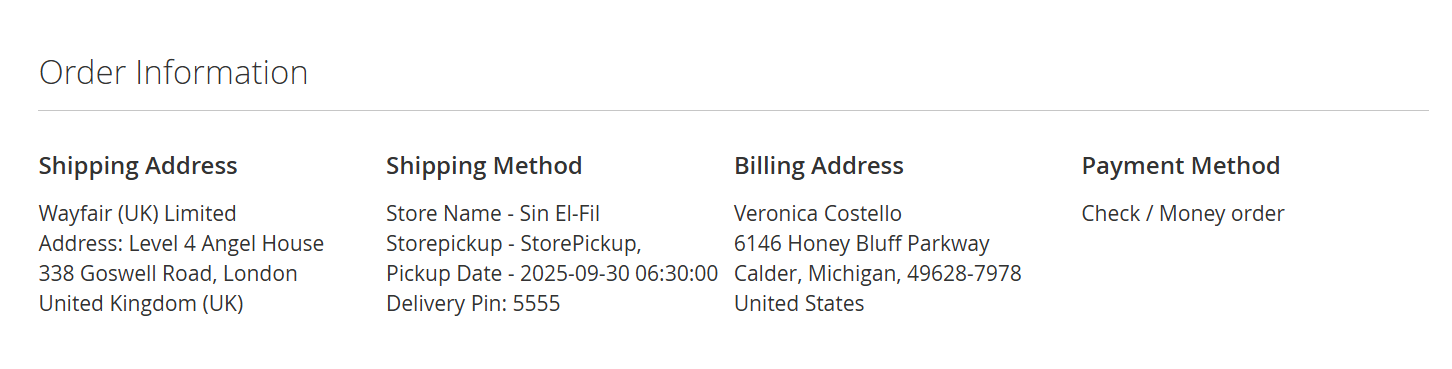
- Customers can view the store pickup address and delivery PIN by navigating to the "Customer My Accounts" section and selecting "View Orders." This feature allows customers to easily access important information related to their orders, ensuring a seamless shopping experience. By providing clear visibility of the pickup address and delivery PIN, customers can efficiently plan their pickups and deliveries.
On selection of store pick up as shipping method during checkout, you can not keep the billing address the same as the shipping address. The shipping method would be updated to store address when you select store pickup as the shipping method.
API
Please use SWAGGER to get detailed information of parameters.
https://storepickup.m2.demo.magedelight.com/swagger
Get store locator view by id: rest/V1/magedelight-storelocator/
storelocator/:storelocatorId
Sample Data
Delete store locator: storelocator/:storelocatorId
Sample Data
Save store locator: storelocator
Sample Data
Get store locator view: storelocator/search
Sample Data
Endpoint: rest/V1/magedelight_storepickup/
Get store Time information: guest-carts/:storeloctorId/get-store-time-informationGet store Time information : rest/V1/magedelight_storepickup/
Sample Data
Get store holiday information: guest-carts/:storeloctorId/get-store-holiday-information
Sample Data
Get store information by id: guest-carts/:storeloctorId/get-store-information-by-id
Get all store information:guest-carts/get-store-information
Sample Data
Thank you for choosing MageDelight!