Installation
Before installing the extension, please make sure to Backup your web directory and store database
You will require to install MageDelight Base Extension first. If it is not installed then please download it from https://www.magedelight.com/pub/extensions/magedelight-base.zip and unzip the package file into the root folder of your Magento 2 installation.
Root Directory is - "app/code/magedelight/#YourExtensionName#"
- Unzip the extension package file into the root folder of your Magento 2 installation.
- Connect to SSH console of your server:
- Navigate to the root folder of your Magento 2 setup
Run command as per below sequence,
php bin/magento setup:upgrade
php bin/magento setup:di:compile
php bin/magento setup:static-content:deploy
php bin/magento cache:clean
- log out from the backend and log in again
If you are using Magento 2.3 or later then you do not need to activate license. Extension will be activated with silent activation mechanism and does not require activation keys to be entered manually.
Backend Configuration (Admin side)
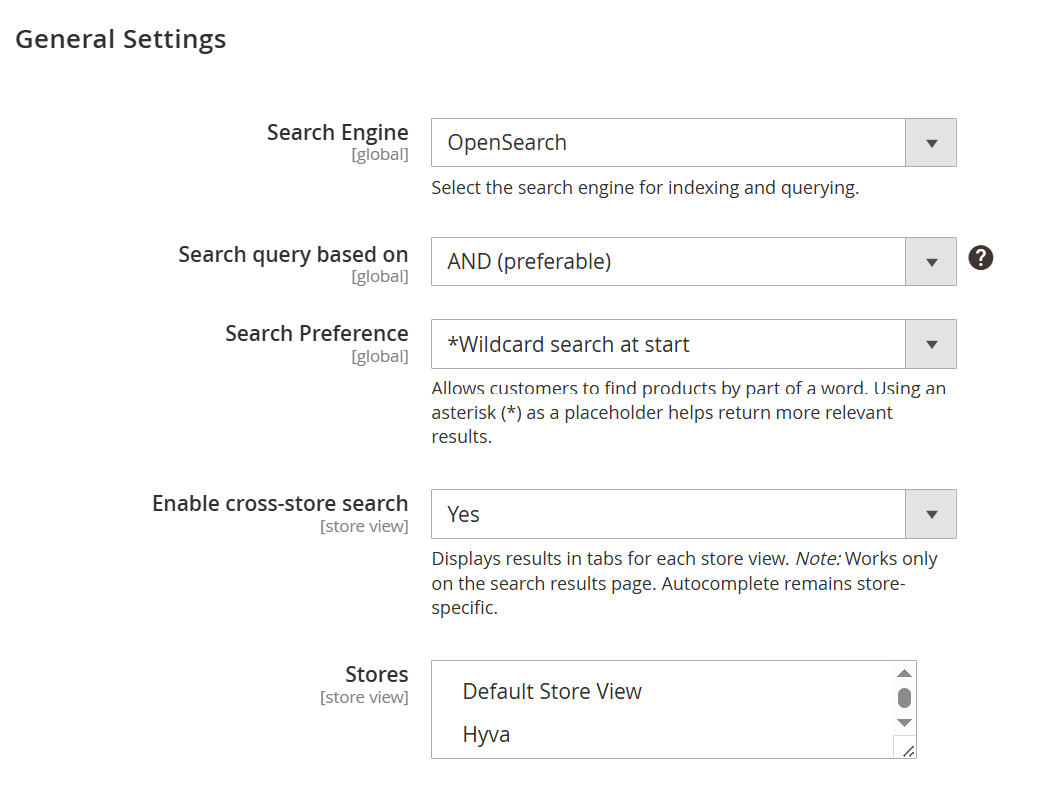
- This section allows administrators to configure the search behavior and optimize how products are indexed and displayed in search results across the store.
| Field | Description |
|---|---|
| Search Engine | Selects the backend search engine used for indexing and querying catalog data. Available options include MySQL, Elasticsearch (deprecated), and OpenSearch. OpenSearch is recommended for better performance and scalability. |
| Search Query Based On | Defines how multiple search terms are combined. AND (preferable) returns results containing all keywords, improving accuracy. OR returns results containing any of the keywords, increasing result breadth. |
| Search Preference | Controls how wildcard searches are applied to improve partial matching of search terms. Options include: • Wildcard Search – Matches terms containing the keyword anywhere. • Wildcard search at start – Matches terms ending with the keyword. • Wildcard search at end* – Matches terms starting with the keyword. • No – Disables wildcard search. |
| Enable Cross-Store Search | Enables displaying search results across multiple store views. When enabled, results appear in separate tabs per store on the search results page. Autocomplete remains store-specific. |
| Stores | Allows selection of store views where cross-store search is applicable. Only relevant when cross-store search is enabled. |
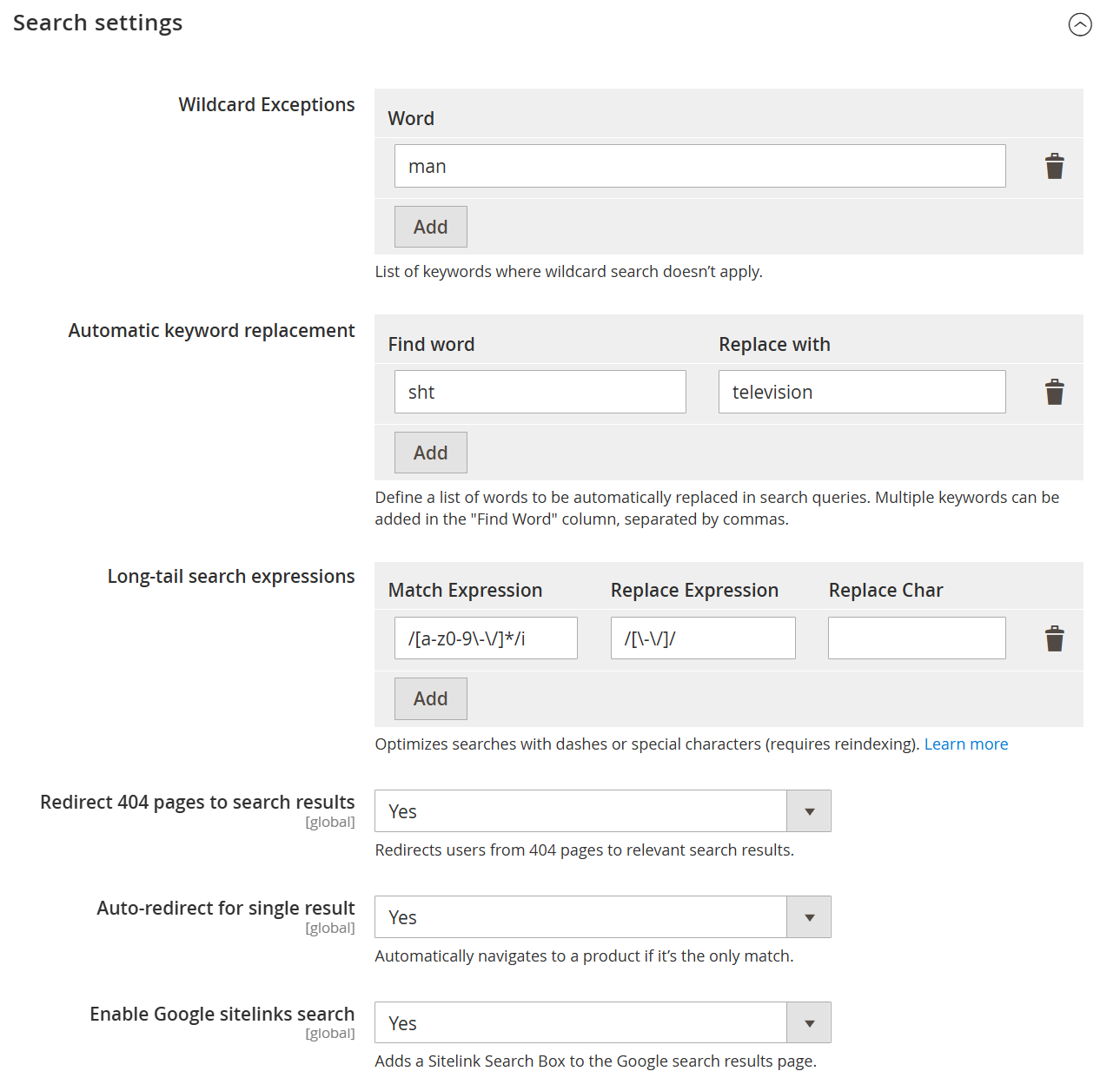
| Field | Description |
|---|---|
| Wildcard Exceptions | Defines keywords for which wildcard search should not be applied. This helps maintain precise search results for specific terms. |
| Word | Specifies the keyword to exclude from wildcard-based search behavior. |
| Add | Adds the entered keyword to the wildcard exception list. |
| Automatic Keyword Replacement | Allows automatic replacement of search terms to improve result accuracy and handle common misspellings or synonyms. |
| Find Word | Defines the keyword(s) that should be detected in the search query. Multiple words can be added, separated by commas. |
| Replace With | Specifies the term that will replace the matched keyword in the search query. |
| Add (Keyword Replacement) | Adds the defined find-and-replace rule to the list. |
| Long-tail Search Expressions | Configures advanced search patterns using expressions to handle special characters, formatting, or complex queries. |
| Match Expression | Defines the pattern (e.g., regex) to identify specific search query formats. |
| Replace Expression | Specifies the expression used to transform the matched query into a searchable format. |
| Replace Char | Defines a character used during replacement, if applicable. |
| Add (Expression) | Adds the configured long-tail search rule. |
| Redirect 404 Pages to Search Results | Redirects users from non-existent (404) pages to relevant search results, improving user experience. |
| Auto-redirect for Single Result | Automatically redirects users to the product page if the search query returns only one result. |
| Enable Google Sitelinks Search | Enables a sitelinks search box in Google search results for the store, improving SEO and navigation. |
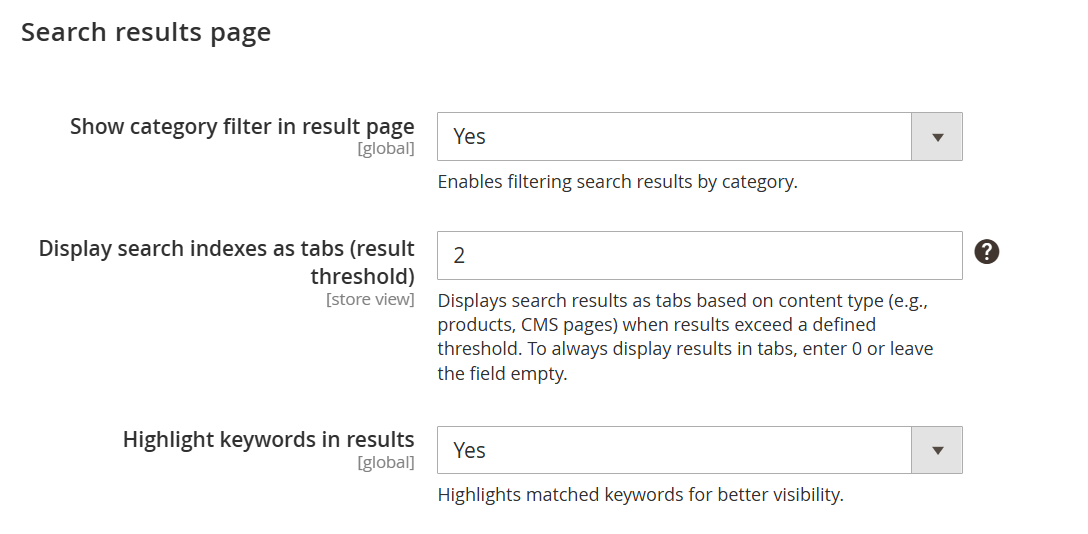
| Field | Description |
|---|---|
| Show Category Filter in Result Page | Enables category-based filtering on the search results page, allowing users to refine results by category. |
| Display Search Indexes as Tabs (Result Threshold) | Displays search results in tabbed format based on content types (e.g., Products, CMS Pages) when the number of results exceeds the specified threshold. Enter 0 or leave empty to always display tabs. |
| Highlight Keywords in Results | Highlights matched search keywords within the results to improve visibility and user experience. |
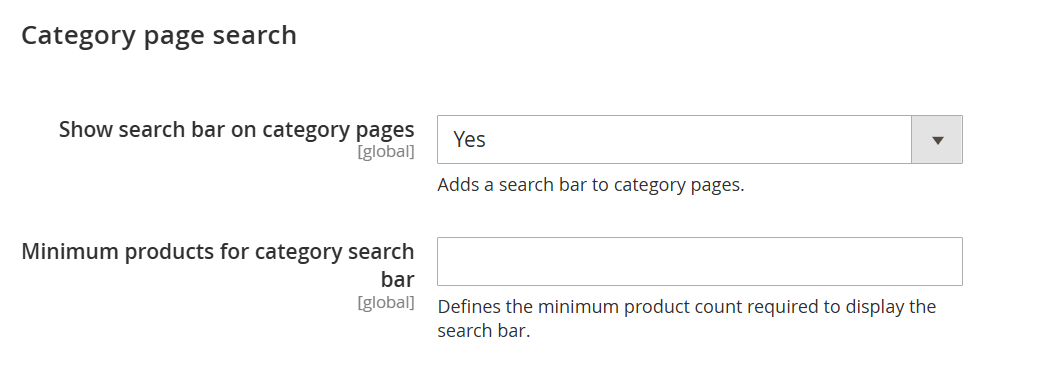
| Field | Description |
|---|---|
| Show Search Bar on Category Pages | Enables a search bar on category pages, allowing users to search for products within the selected category. |
| Minimum Products for Category Search Bar | Defines the minimum number of products required in a category for the search bar to be displayed. If the product count is below this value, the search bar will not appear. |
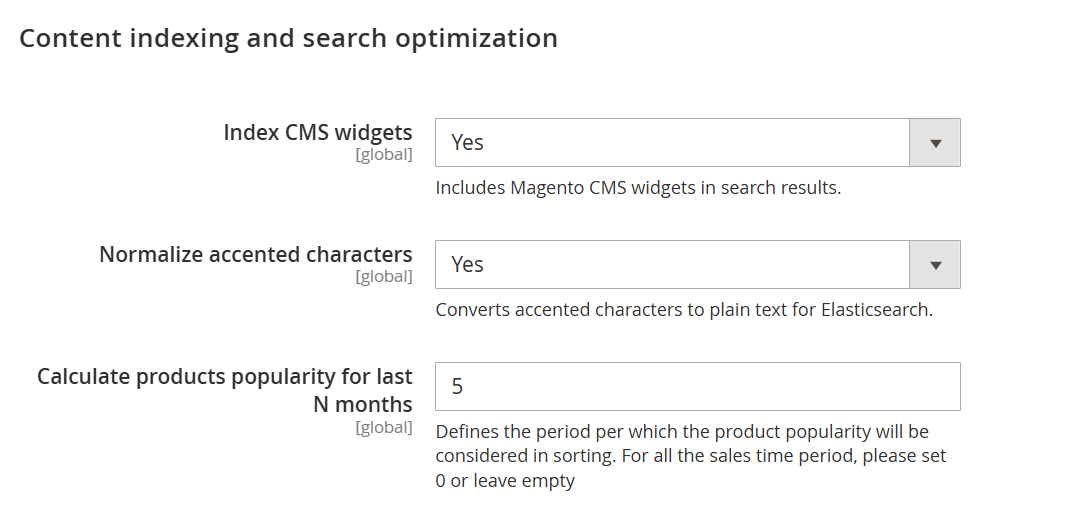
| Field | Description |
|---|---|
| Index CMS Widgets | Includes Magento CMS widgets in search indexing, allowing their content to appear in search results. |
| Normalize Accented Characters | Converts accented or special characters into standard text to improve search matching and consistency. |
| Calculate Products Popularity for Last N Months | Defines the time period (in months) used to calculate product popularity for sorting purposes. Set 0 or leave empty to consider all-time data. |
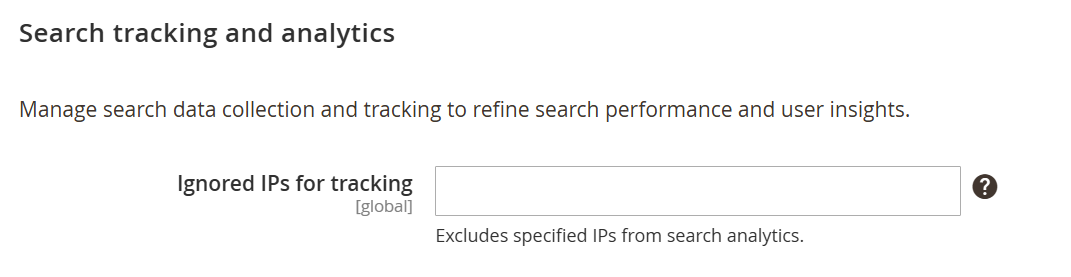
| Field | Description |
|---|---|
| Ignored IPs for Tracking | Specifies IP addresses that should be excluded from search analytics and tracking. This is useful for filtering out internal or test traffic to ensure accurate search data. |
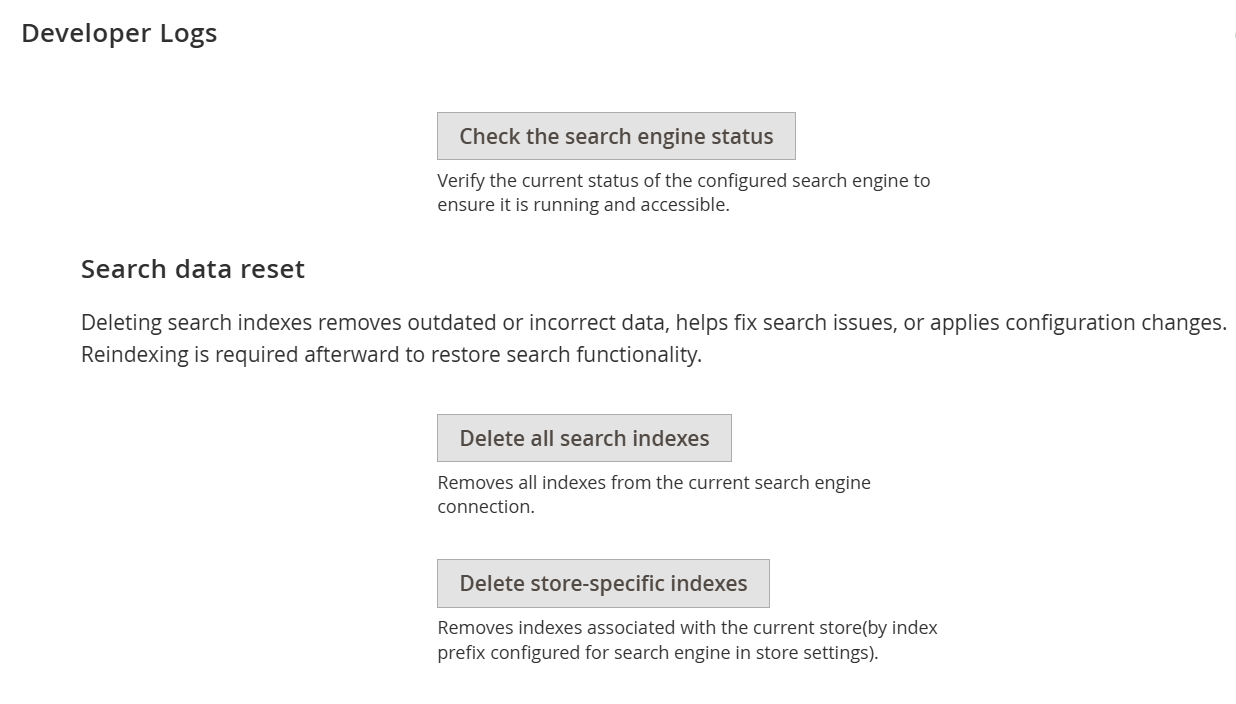
| Field | Description |
|---|---|
| Check the Search Engine Status | Verifies the current status of the configured search engine to ensure it is running and accessible. |
| Delete All Search Indexes | Removes all search indexes from the current search engine connection. This helps resolve outdated or incorrect data issues. Reindexing is required afterward. |
| Delete Store-Specific Indexes | Deletes search indexes related to the current store only, based on the configured index prefix. Reindexing is required after this action to restore search functionality. |
Backend Functionality
Frontend Functionality
Demo
Click here to visit frontend.
Click here to visit backend admin panel.
Thank you for choosing MageDelight!