...
| Section |
|---|
Backend Configuration (Admin side)This extension will provide an option to manage schedule delivery date and time slots, for product delivery. Customer can choose particular date and time slot to deliver products, put message to merchant for special condition. | Panel |
|---|
| Panel |
|---|
| Note |
|---|
Time Slot View | Panel |
|---|
| Panel |
|---|
| Panel |
|---|
|
| Section |
|---|
Backend Functionality
| Panel |
|---|
| Section |
|---|
Frontend Functionality
| Panel |
|---|
Time slot option for customer to schedule delivery date, customer can view all available time slot for enable days, refer below image,
| Panel |
|---|
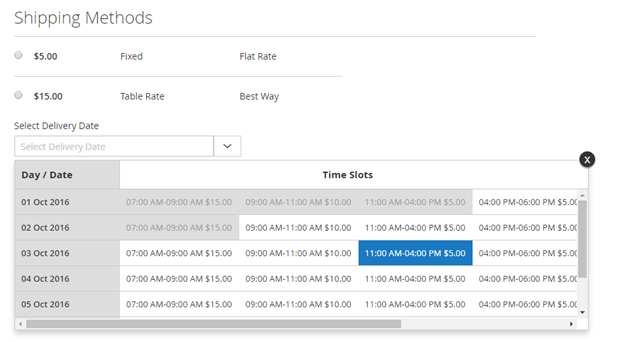 Image Removed Image Removed
|
Customer will also have option to add comment for delivery schedule, if have any specific comment and have option to mark call me before delivery.
| Panel |
|---|
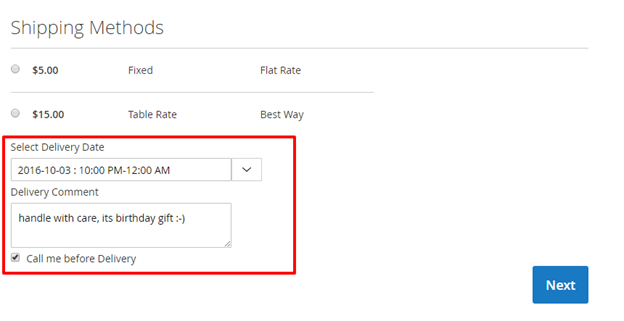 Image Removed Image Removed
|
Based on the time selected slot customer can be charge for schedule delivery. Delivery charges will added to order summary with separate line item,
| Panel |
|---|
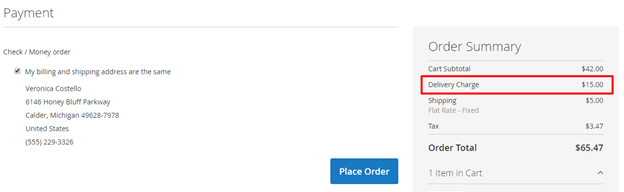 Image Removed Image Removed
|
Gift wrapper at My Order Section:
The customer will be able to see the schedule delivery details, on order summary page.
| Panel |
|---|
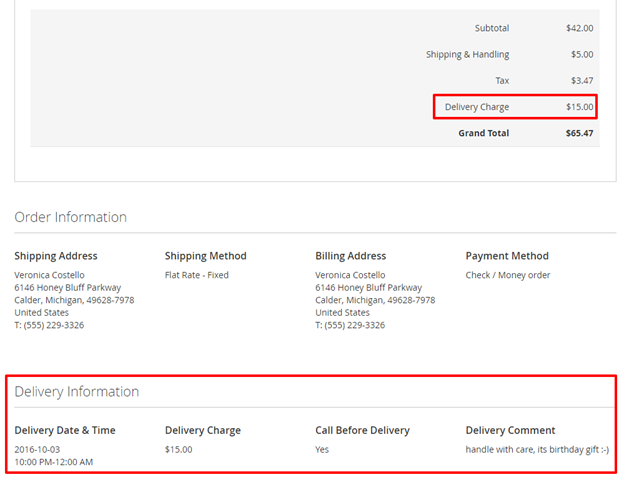 Image Removed Image Removed
|
Edit delivery date from frontend after order placement
| Panel |
|---|
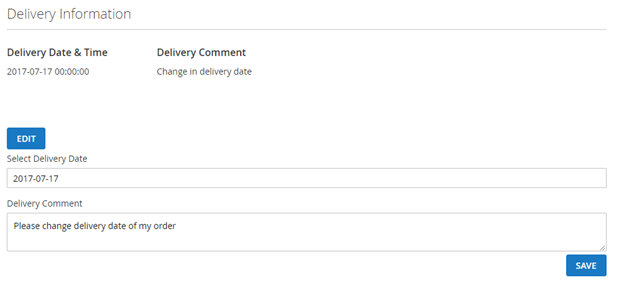 Image Removed Image Removed
|
Customers can change the delivery date after the order has been placed. Go to customer My Account > My orders > View Order.
At the end, find the option to edit the delivery date.
Admin will be notified for the change in delivery date.
|
| Note |
|---|
As per standard Magento functionality once the order generated, order amount / delivery charges cannot be changed/modified from admin panel| Panel |
|---|
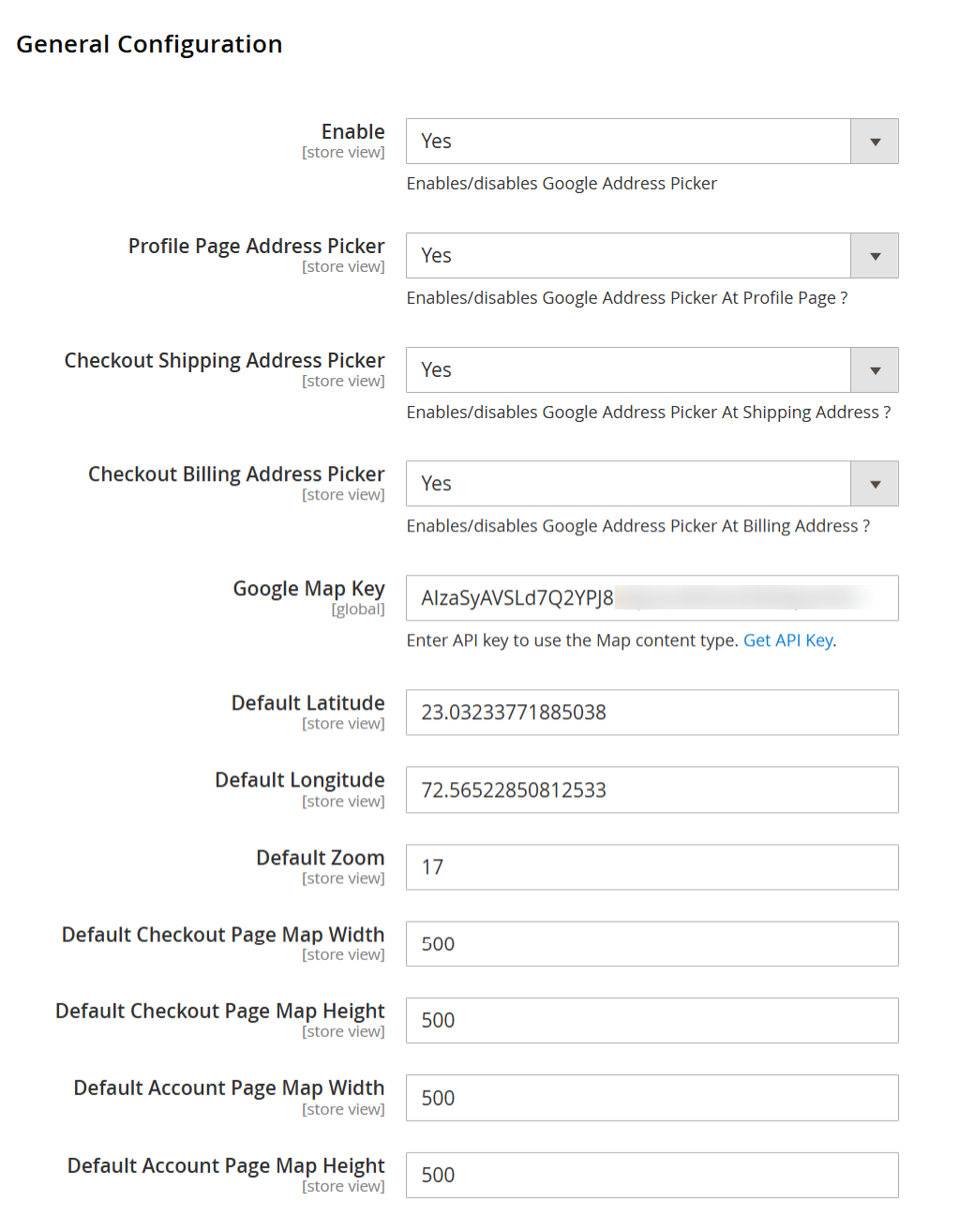 Image Added Image Added
|
| Field | Description |
|---|
| Enable | Enables or disables the Google Address Picker functionality for the storefront. Set Yes to
activate the Google Maps address selection feature across enabled pages. | | Profile Page Address Picker | Enables or disables the Google Address Picker on the customer account/profile address
page, allowing customers to select or update their saved address using Google Maps. | | Checkout Shipping Address Picker | Enables or disables the Google Address Picker on the Shipping Address section of the checkout
page. When enabled, customers can select their shipping address directly from the map. | | Checkout Billing Address Picker | Enables or disables the Google Address Picker on the Billing Address section of the checkout
page, allowing map-based billing address selection. | | Google Map Key | Enter your Google Maps API Key here. This key is required for loading Google Maps and address
autocomplete functionality. Ensure the API key has Maps and Places APIs enabled. | | Default Latitude | Sets the default latitude used to center the Google Map when it first loads. This is useful when
the customer location is not yet detected. | | Default Longitude | Sets the default longitude used to center the Google Map when it first loads, along with the
default latitude. | | Default Zoom | Defines the default zoom level of the Google Map. Higher values show a closer, more detailed
view; lower values show a wider area. | | Default Checkout Page Map Width | Specifies the width (in pixels) of the Google Map displayed on the checkout page. Adjust
this value to fit your checkout layout. | | Default Checkout Page Map Height | Specifies the height (in pixels) of the Google Map displayed on the checkout page. | | Default Account Page Map Width | Specifies the width (in pixels) of the Google Map displayed on the customer
account/profile address page. | | Default Account Page Map Height | Specifies the height (in pixels) of the Google Map displayed on the customer
account/profile address page. |
|
| Section |
|---|
Backend Functionality
| Panel |
|---|
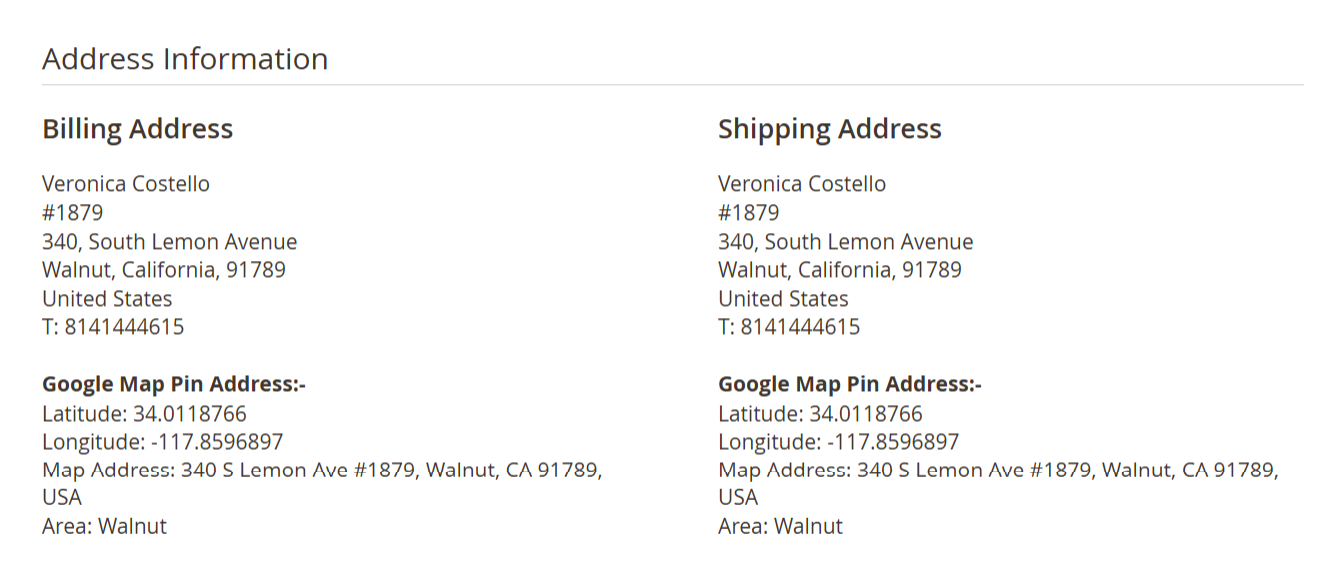 Image Added Image Added
|
| Field | Description |
|---|
| Google Map Pin Address | Displays the Google Map–based location details captured by the customer during checkout
using the Google Address Picker. This section helps admins verify the exact delivery location. | | Latitude | Shows the latitude coordinate of the selected map pin. This represents the north–south
position of the delivery location. | | Longitude | Shows the longitude coordinate of the selected map pin. This represents the east–west
position of the delivery location. | | Map Address | Displays the full formatted address retrieved from Google Maps based on the selected
pin location. This address is more accurate than manually entered text. | | Area | Displays the locality or area name derived from Google Maps (for example, city or
neighborhood). Useful for quick location identification. |
| Panel |
|---|
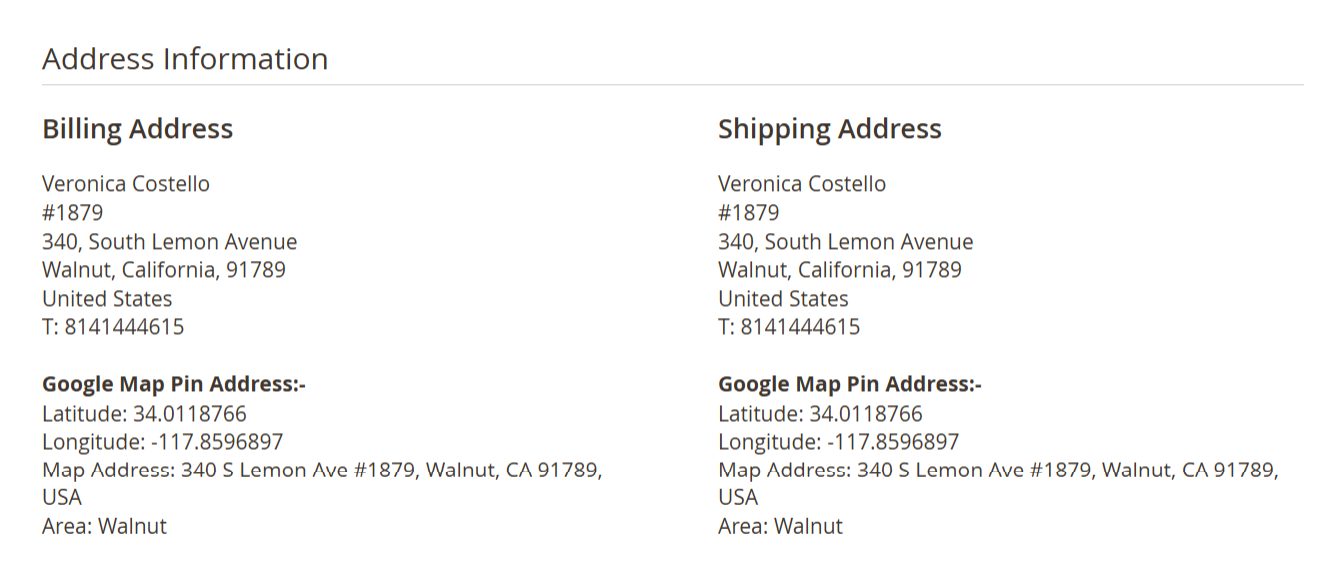 Image Added Image Added
|
- Admin >> Customer >> Default Address >> Google Map Pin Address
The Google Map Pin Address is shown under both Default Billing and Default Shipping addresses. This information is automatically saved when: A customer selects an address using Google Maps on checkout, or Updates their address from the customer account page.
The data is read-only in Admin and stored for reference. Helps administrators: Verify exact customer location Maintain consistent address data across orders Improve delivery and logistics accuracy
| Field | Description |
|---|
| Default Billing Address | Displays the customer’s default billing address saved in the system. If the Google Address Picker was used, the map pin details are shown below the standard address fields. | | Default Shipping Address | Displays the customer’s default shipping address. The Google Map Pin Address details appear when the address is selected using Google Maps. | | Google Map Pin Address | Shows the Google Maps–based address information selected by the customer while adding or updating their address from the frontend or checkout. | | Latitude | Displays the latitude coordinate of the selected map pin location for the customer’s default address. | | Longitude | Displays the longitude coordinate of the selected map pin location for the customer’s default address. | | Map Address | Shows the complete formatted address returned by Google Maps based on the pin location, ensuring higher address accuracy. | | Area | Displays the locality or area name (such as city or neighborhood) detected from Google Maps for quick reference. |
| Panel |
|---|
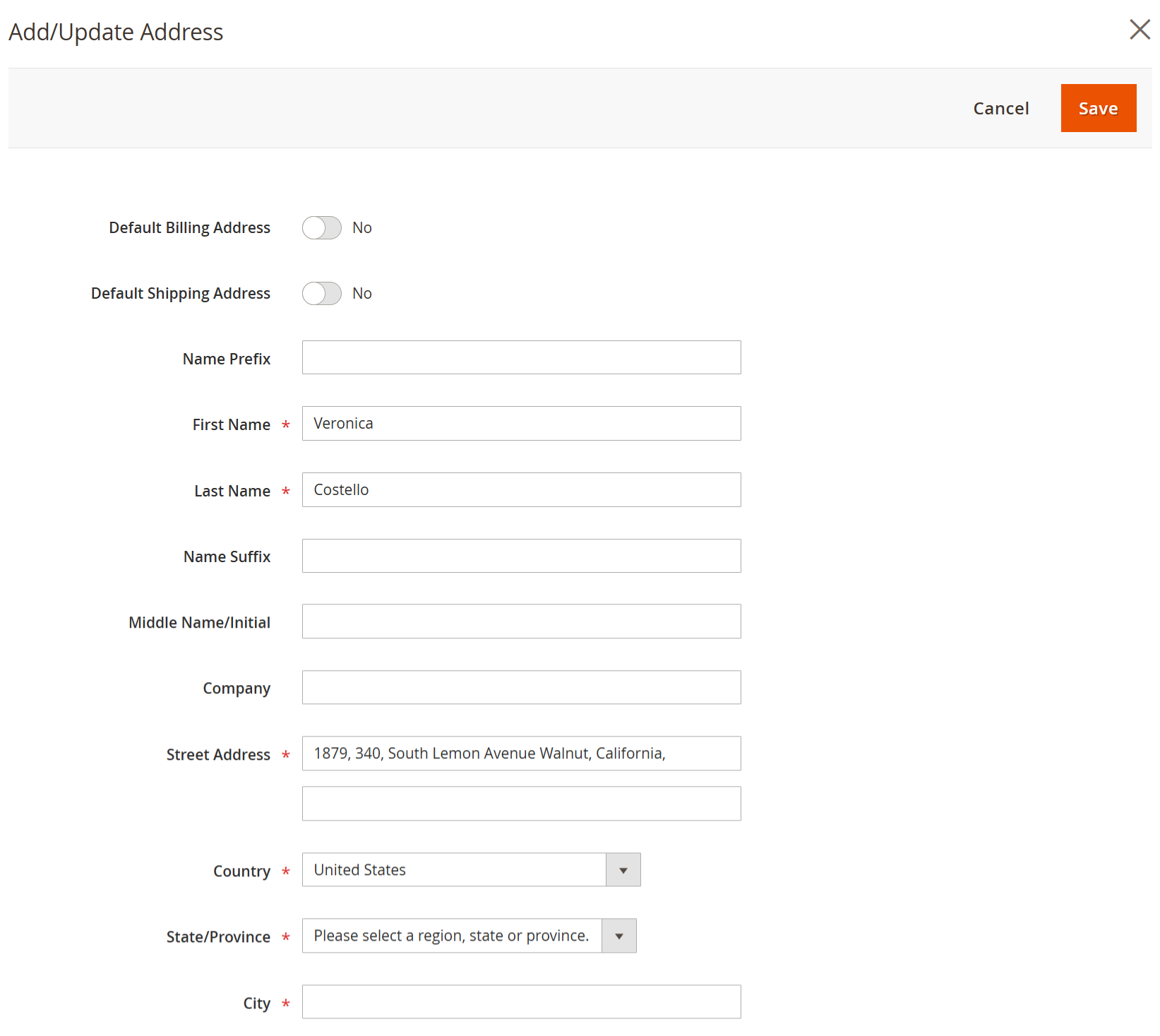 Image Added Image Added
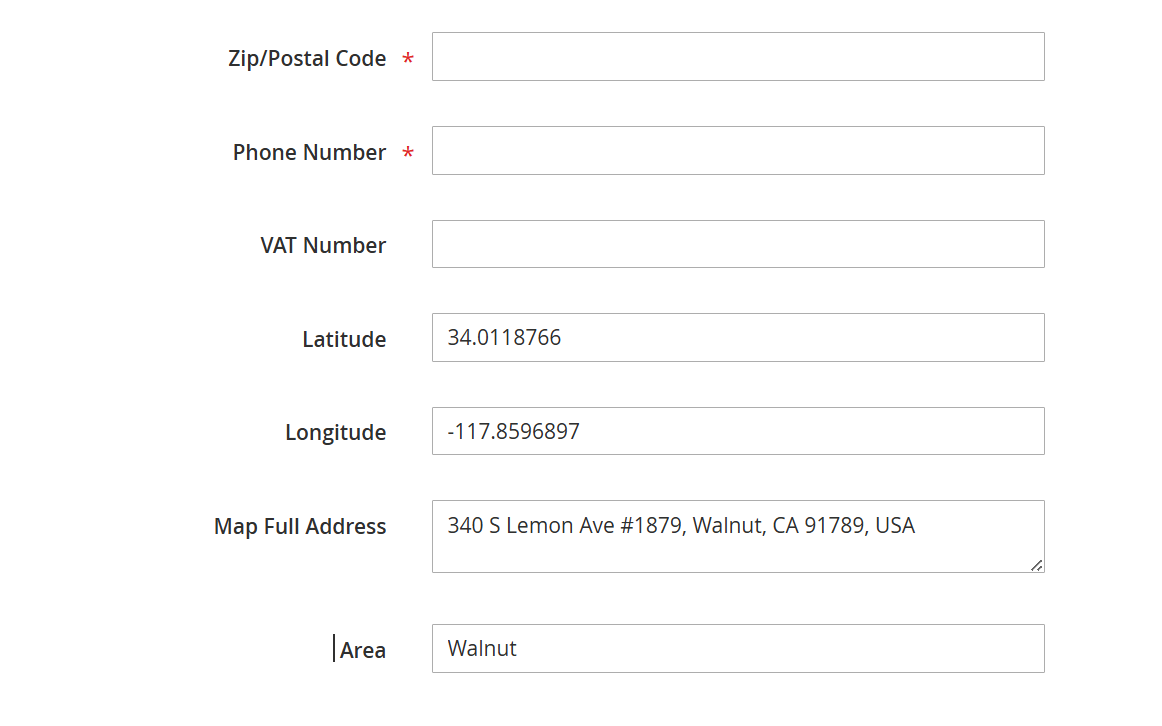 Image Added Image Added
|
- Admin >> Customer >> Add New Address >> Google Map Pin Address
This functionality is used when an admin adds or updates a customer address manually from the Admin Panel. The Google Map Pin Address fields (Latitude, Longitude, Map Full Address, Area) are automatically populated when a location is selected via Google Maps. Saved map pin data is: Helps admins maintain precise and standardized address records.
| Field | Description |
|---|
| Default Billing Address | When enabled, marks this address as the customer’s default billing address. Orders will use this address for billing by default. | | Default Shipping Address | When enabled, marks this address as the customer’s default shipping address for future orders. | | First Name | Customer’s first name associated with this address. | | Last Name | Customer’s last name associated with this address. | | Street Address | The street address of the customer. This field can be auto-populated when a Google Map pin address is selected. | | Country | The country of the address. Automatically selected based on the Google Map location when available. | | State/Province | The state or province derived from the selected Google Map location or entered manually. | | City | The city name associated with the address. Can be auto-filled from Google Maps data. | | Zip/Postal Code | Postal or ZIP code of the selected address. | | Phone Number | Customer’s contact phone number for this address. | | Latitude | Displays the latitude coordinate captured from the Google Map pin location. This value helps identify the exact geographic position of the address. | | Longitude | Displays the longitude coordinate captured from the Google Map pin location. | | Map Full Address | Shows the complete formatted address returned by Google Maps based on the pinned location. This ensures address accuracy. | | Area | Displays the locality or area name (such as neighborhood or city area) detected from Google Maps. | | Save | Saves the new address along with the Google Map pin details to the customer profile. | | Cancel | Cancels the add/update action without saving changes. |
|
| Section |
|---|
Frontend Functionality
| Panel |
|---|
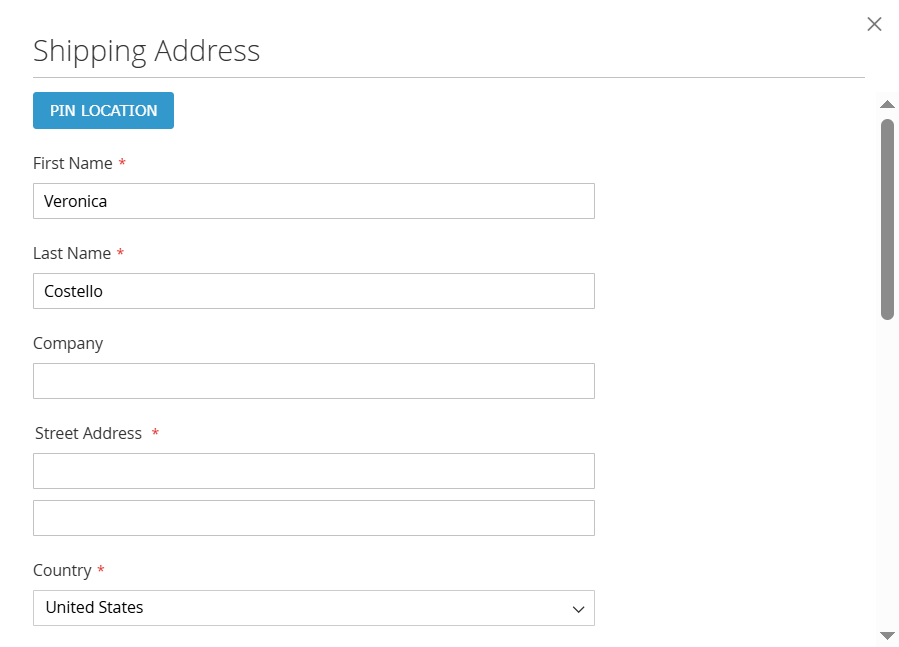 Image Added Image Added
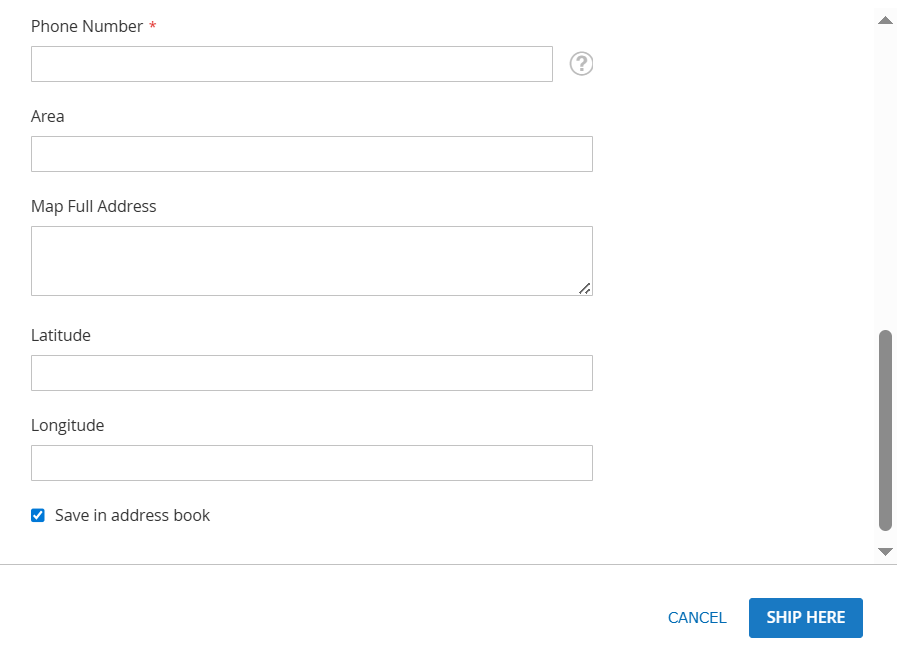 Image Added Image Added
|
Frontend Checkout – Add New Shipping Address (Google Map Pin Address) - Customers can visually select their delivery location using Google Maps instead of manually typing the full address.
Map-based selection: The Google Map Pin Address data (latitude, longitude, area, full address) is saved with the order and visible to admins. If Save in Address Book is enabled, the address is reused for future checkouts.
| Field / Option | Description |
|---|
| Pin Location | Opens the Google Map interface, allowing the customer to search or pin their exact delivery location on the map. Selecting a pin helps auto-populate address details accurately. | | First Name | Customer’s first name for the shipping address. This is a required field. | | Last Name | Customer’s last name for the shipping address. This is a required field. | | Company | Optional field to enter the company name associated with the shipping address. | | Street Address | Customer’s street address. This field can be automatically populated when a location is selected using the Google Map pin. | | Country | Displays the country for the shipping address. This is auto-selected based on the map location or can be chosen manually. | | Phone Number | Customer’s contact phone number for delivery communication. This is a required field. | | Area | Displays the locality or area name (such as city area or neighborhood) retrieved from Google Maps after pin selection. | | Map Full Address | Shows the complete formatted address returned by Google Maps based on the selected pin location. This ensures address accuracy. | | Latitude | Displays the latitude coordinate of the pinned location. This value represents the north–south position of the delivery address. | | Longitude | Displays the longitude coordinate of the pinned location. This value represents the east–west position of the delivery address. | | Save in Address Book | When enabled, saves the entered shipping address (along with map pin details) to the customer’s address book for future use. | | Ship Here | Confirms and applies the selected shipping address for the current order. | | Cancel | Closes the address popup without saving the new address. |
| Panel |
|---|
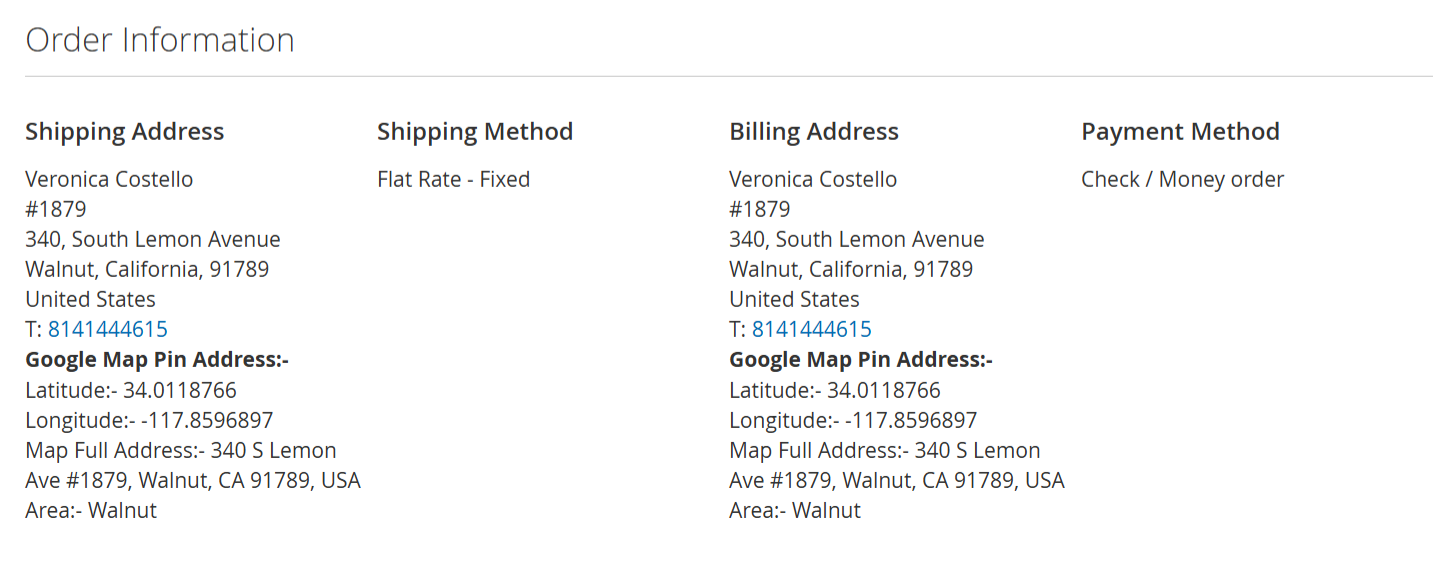 Image Added Image Added
|
My Account >> Order >> View Order>>Order Information>>Google Map Pin Address - Customers can review the exact delivery location they selected using Google Maps at the time of checkout.
The Google Map Pin Address provides: This information is read-only and stored with the order for reference. The same map pin details are visible to administrators in the Magento Admin Panel.
| Field | Description |
|---|
| Shipping Address | Displays the shipping address used for the order. Below the standard address details, the Google Map Pin Address information is shown if the address was selected using the map. | | Billing Address | Displays the billing address used for the order along with the Google Map Pin Address details when applicable. | | Google Map Pin Address | Shows the Google Maps–based location details selected by the customer during checkout for this order. This ensures transparency and accuracy of the delivery location. | | Latitude | Displays the latitude coordinate of the pinned delivery location associated with the order. | | Longitude | Displays the longitude coordinate of the pinned delivery location associated with the order. | | Map Full Address | Shows the complete formatted address returned by Google Maps based on the selected pin location. | | Area | Displays the locality or area name (such as city or neighborhood) identified from Google Maps. | | Shipping Method | Displays the shipping method selected for the order (for example, Flat Rate – Fixed). | | Payment Method | Displays the payment method used to place the order. |
| Panel |
|---|
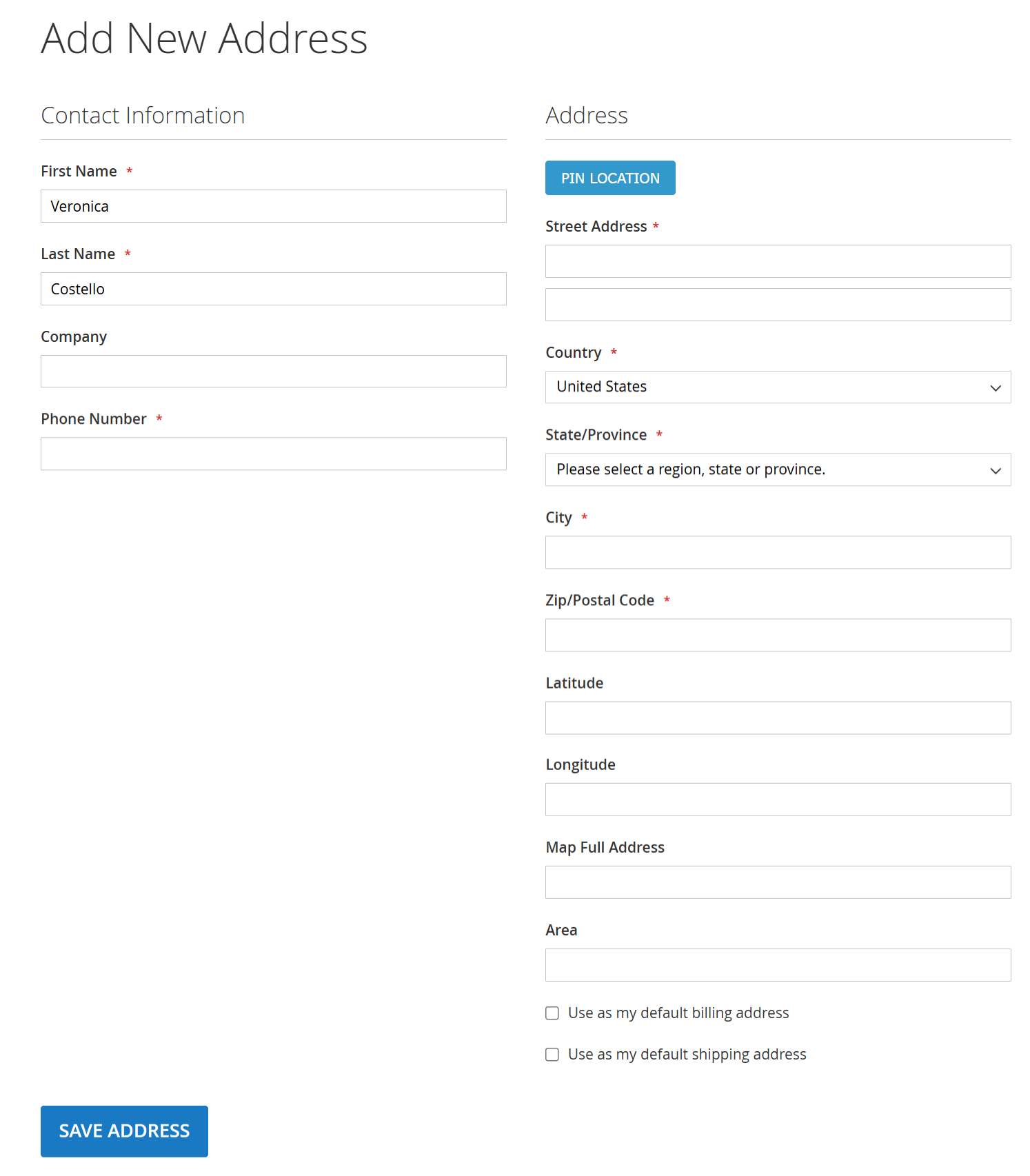 Image Added Image Added
|
- My Account >> Customer >> Address Book>>Add New Address Google Map Pin Address
Customers can easily add accurate addresses using Google Maps instead of manually typing full details. The Google Map Pin Address ensures: Saved addresses with map pin data are reused during:
| Field / Option | Description |
|---|
| Pin Location | Opens the Google Maps interface, allowing the customer to search for or pin their exact address location on the map. Selecting a pin helps auto-fill address details accurately. | | First Name | Customer’s first name associated with this address. This is a required field. | | Last Name | Customer’s last name associated with this address. This is a required field. | | Company | Optional field to enter the company name associated with the address. | | Phone Number | Customer’s contact phone number for communication and delivery purposes. This is a required field. | | Street Address | The street address of the customer. This field can be automatically populated after selecting a location using the Google Map pin. | | Country | Displays the country for the address. Automatically selected based on the pinned map location or can be chosen manually. | | State/Province | Displays the state or province derived from the Google Map location or selected manually by the customer. | | City | Displays the city name associated with the address. Can be auto-filled from Google Maps data. | | Zip/Postal Code | Postal or ZIP code of the address. This field may be auto-populated from the map location. | | Latitude | Displays the latitude coordinate captured from the Google Map pin location, representing the north–south position of the address. | | Longitude | Displays the longitude coordinate captured from the Google Map pin location, representing the east–west position of the address. | | Map Full Address | Shows the complete formatted address returned by Google Maps based on the pinned location. | | Area | Displays the locality or area name (such as neighborhood or city area) detected from Google Maps. | | Use as my default billing address | When selected, sets this address as the customer’s default billing address. | | Use as my default shipping address | When selected, sets this address as the customer’s default shipping address. | | Save Address | Saves the new address along with Google Map pin details to the customer’s address book. |
|
| Section |
|---|
Demo
Click here to visit frontend. Click here to visit backend admin panel. |
...