...
| Section |
|---|
Installation
| Include Page |
|---|
| Installation Steps |
|---|
| Installation Steps |
|---|
|
|
| Section |
|---|
Backend Configuration (Admin side)This extension will provide an option to manage schedule delivery date and time slots, for product delivery. Customer can choose particular date and time slot to deliver products, put message to merchant for special condition. | Panel |
|---|
- Enable Schedule Shipping: Enable/Disable delivery date options.
- Label for Delivery Date: Merchant can manage delivery date label from here.
- Make Delivery Date Mandatory: Set schedule delivery mandatory or optional.
- Label for Delivery Charges: set label for delivery charges, will be reflected across the website.
- Enable Delivery Comments: Yes/No, you can turn on or off comment option for customer at checkout.
- Label for Delivery Comment: set label for delivery comment.
- Enable Call Me Before Delivery: Turn on or off call me check box before delivery.
- Show Additional Info: Set this option to “Yes” to display additional comment of admin on frontend.
- Do You Want Email Notification?: Enable/disable email notification about delivery.
- Send Reminder of Occurrence Before: Number of days before the delivery
- Email Notification Id: Set email id from which notification would be sent.
- Allowed Customer Groups: Select customer groups to give access to delivery date functionality.
Calendar view | Panel |
|---|
Show delivery schedule in: calendar view/time slot. If set to calendar, customer can select date from calendar. If select time slot, customer will get option to choose time slop option from available times.Enable Time in Calendar: If calendar view is enabled, you can show option to show time slot in calendar to choose for customer.Minimum interval of days between the order and delivery date: You can define number of day after customer can choose date for schedule delivery.Maximum interval of days between the order and delivery date: You can define number of day before customer can choose date for schedule delivery.Same Day Delivery: Yes/No. You can enable same day delivery.Same Day Delivery Charges: If same day delivery is enabled, you can define charges for same day delivery.Next Day Delivery: Yes/No. You can enable next day delivery.Next Day Delivery charges: If next day delivery is enabled, you can define charges for same day delivery.
| Note |
|---|
Minimum interval of days between the order and delivery date : You can define number of day after customer can choose date for schedule delivery. If Minimum interval of days between the order and delivery date set as blank than same day delivery is possible
Minimum interval of days between the order and delivery date set as 1 than same day delivery will not be possible
If set as 2 than for eg today date is 8th December 2020 than till 10th December customer cannot choose delivery date.
If set as 3 than for eg today date is 8th December 2020 than till 11th December customer cannot choose delivery date. |
| Note |
|---|
Maximum interval of days between the order and delivery date : You can define number of day before customer can choose date for schedule delivery.
If you set Maximum interval of days between the order and delivery date as 2 than for eg today date is 8th December than till 10th December only customer can choose delivery date
If you set 3 than for eg today date is 8th December than till 11th December only customer can choose delivery date. |
Time Slot View | Panel |
|---|
- Show Delivery Schedule in: select TimeSlot View to allow customers to select the time slot of the day.
- Maximum Quota Per Time Interval: Set the maximum number of deliveries that can be sent per time slot. Once the delivery quota exceeds, customers will not be able to select that particular delivery time slot.
Time slot setting | Panel |
|---|
- Add Number of delivery days: Define number of days to show time slots for next days.
- Minimum interval hours between order placing time and delivery time: you can set time gap, after delivery slot can be chosen to schedule delivery.
- Add Time slot: you can define multiple number of slots and price for delivery date. This time slots will be common for all days. However, you can disable selected slots for particular days and dates.
- Disable time slot for day: Disable particular time slots for particular week days. I.e. 4 PM to 8 PM time slot wouldn’t be available for Sundays.
- Disable time slot for date: Disable particular time slots for particular date. I.e. 4 PM to 8 PM time slot wouldn’t be available on 1st January.
Holiday Management | Panel |
|---|
- Day Off: You can select days from week day for day off. That particular day will not be available for customer to choose schedule delivery.
- Single Day Off: You can choose specific date for holiday or day off. That will skip from schedule delivery calendar.
- From-to period off: Manage vacation period for multiple leave together. You can define start date and end date to define vacation period. Customer will not able to choose those days for schedule delivery.
|
| Section |
|---|
Backend Functionality
Schedule Delivery summary in order/invoice/credit memo
Schedule delivery summary will be available for each order, invoice and credit memo. Kindly refer below images for each with detail.
|
| Panel |
|---|
| Section |
|---|
Frontend Functionality
Once you configured the extension and create time slots to schedule delivery date, customer will have option at checkout to schedule delivery dates.
Checkout Page
Customer will get option on checkout for scheduling delivery based on admin configuration. If admin has set calendar view, customer will able to choose date for delivery day. Kindly refer below image,
| Panel |
|---|
Time slot option for customer to schedule delivery date, customer can view all available time slot for enable days, refer below image,
| Panel |
|---|
Customer will also have option to add comment for delivery schedule, if have any specific comment and have option to mark call me before delivery.
| Panel |
|---|
Based on the time selected slot customer can be charge for schedule delivery. Delivery charges will added to order summary with separate line item,
| Panel |
|---|
Gift wrapper at My Order Section:
The customer will be able to see the schedule delivery details, on order summary page.
| Panel |
|---|
Edit delivery date from frontend after order placement
| Panel |
|---|
Customers can change the delivery date after the order has been placed. Go to customer My Account > My orders > View Order.
At the end, find the option to edit the delivery date.
Admin will be notified for the change in delivery date.
| Note |
|---|
As per standard Magento functionality once the order generated, order amount / delivery charges cannot be changed/modified from admin panel| Panel |
|---|
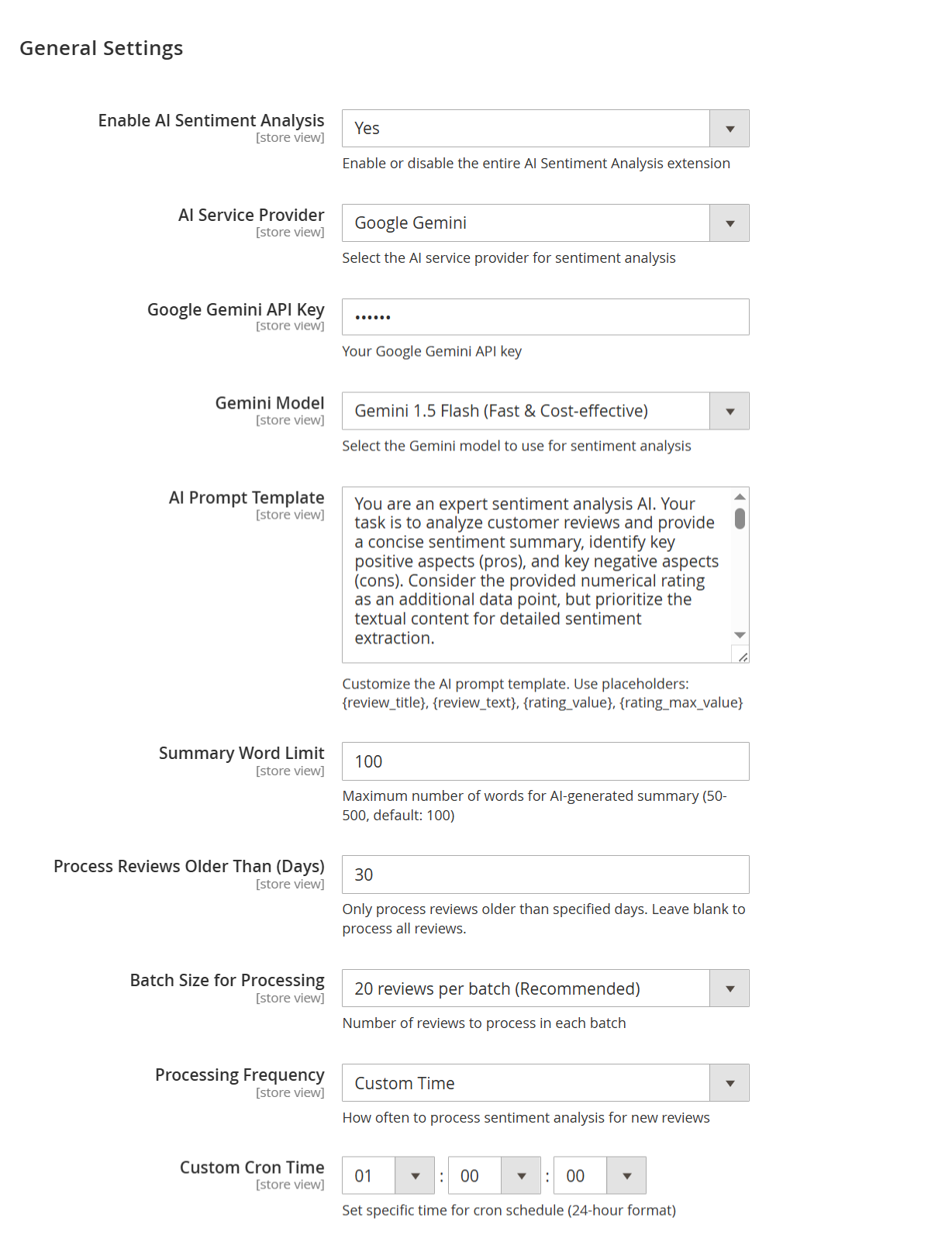 Image Added Image Added
|
| Field | Description |
|---|
| Enable AI Sentiment Analysis | Select "Yes" to activate the AI Sentiment Analysis extension and start analyzing customer reviews automatically. | | AI Service Provider | Choose your preferred AI provider for sentiment analysis. You can select either Google Gemini or OpenAI GPT based on your integration. | | Google Gemini API Key | Enter your Google Gemini API key here to enable secure communication between your store and Gemini services. | | Gemini Model | Select the specific Gemini model to use. We recommend Gemini 1.5 Flash for fast and cost-effective sentiment processing. | | AI Prompt Template | Customize the instruction sent to the AI. You can include placeholders like {review_title}, {review_text}, {rating_value} to guide the AI. | | Summary Word Limit | Set the maximum word count for the AI-generated summary. You can enter any number between 50 to 500 words. Default is 100. | | Process Reviews Older Than (Days) | Define how old the reviews must be to be processed. For example, entering 30 will only analyze reviews older than 30 days. Leave blank to include all. | | Batch Size for Processing | Select how many reviews you want the system to process in each batch. You can choose from 20, 30, 40, 100, 500, or 1000 reviews per batch. | | Processing Frequency | Choose how often the sentiment analysis should run. Available options are: Every Hour, Daily, Weekly, Monthly, or Custom Time. | | Custom Cron Time | If you selected Custom Time above, use this field to set the exact time (HH:MM: SS in 24-hour format) for the AI processing to run. |
| Panel |
|---|
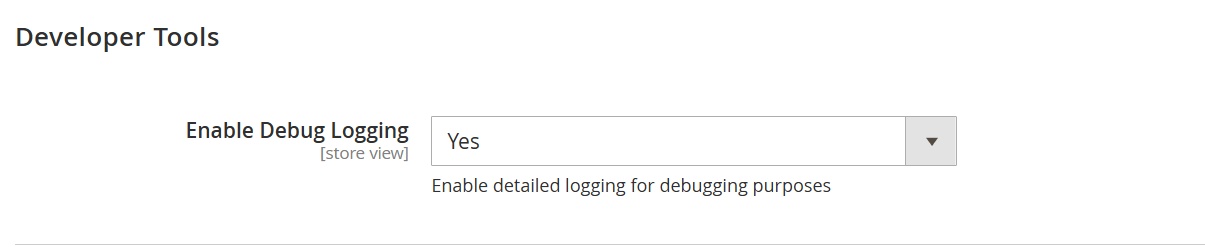 Image Added Image Added
|
| Field | Description |
|---|
| Enable Debug Logging | Set to Yes to enable detailed logs for troubleshooting and debugging purposes. |
| Panel |
|---|
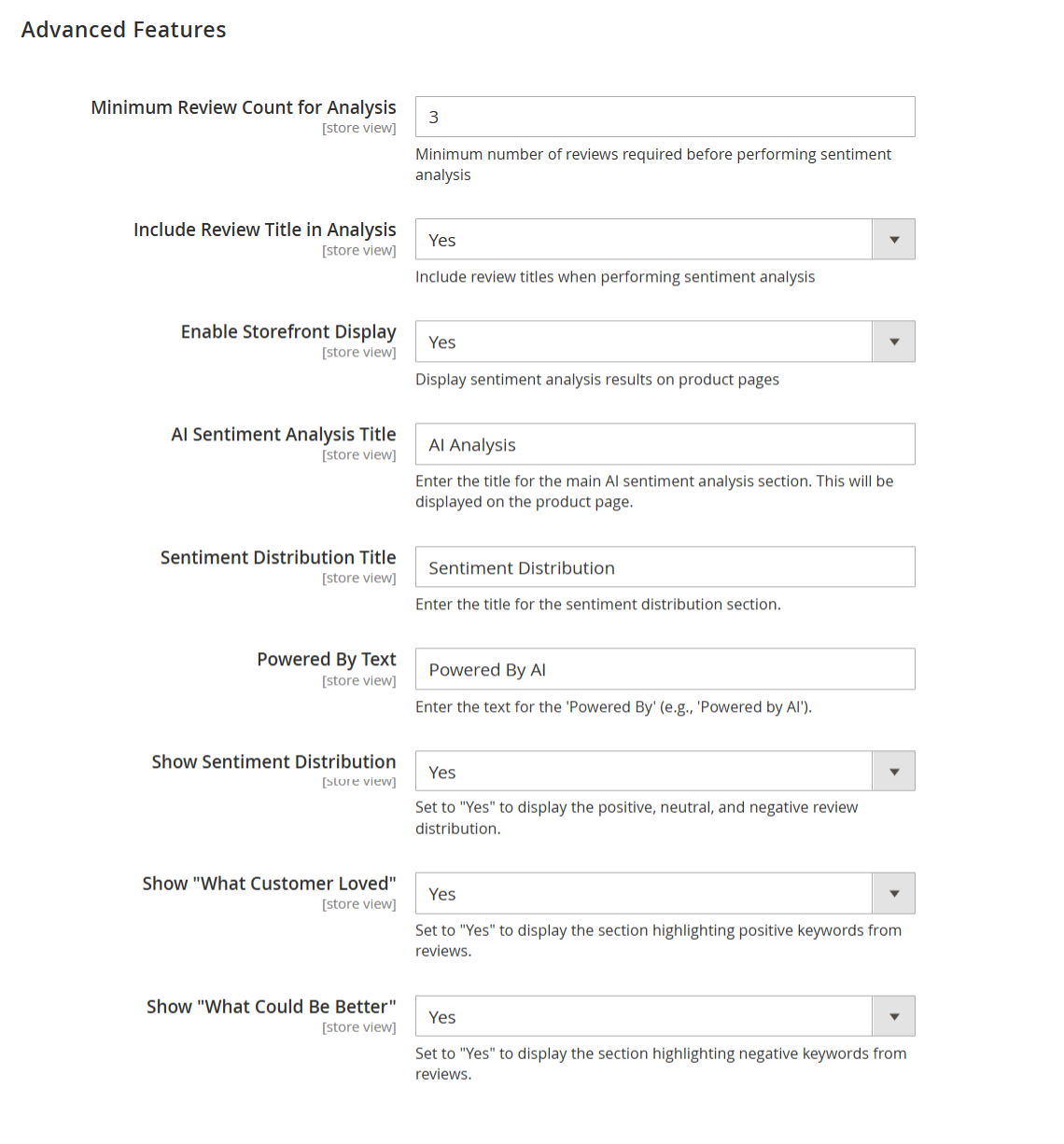 Image Added Image Added
|
| Field | Description |
|---|
| Minimum Review Count for Analysis | Set the minimum number of customer reviews required before sentiment analysis runs. For example, entering 3 means the analysis will only begin from 3 reviews. | | Include Review Title in Analysis | Select Yes to include review titles in the sentiment analysis process for richer insights. | | Enable Storefront Display | Choose Yes to show AI sentiment analysis results directly on product pages in the storefront. | | AI Sentiment Analysis Title | Enter a custom title for the AI sentiment section (e.g., “AI Analysis”). This will be visible to customers on the product page. | | Sentiment Distribution Title | Enter a title for the sentiment graph or chart (e.g., “Sentiment Distribution”). This helps explain what the chart represents. | | Powered By Text | Add an optional footer or tag like “Powered by AI” to credit the technology behind the sentiment analysis. | | Show Sentiment Distribution | Set to Yes to display the sentiment distribution chart (positive, neutral, negative breakdown) to customers. | | Show "What Customer Loved" | Choose Yes to display a section highlighting the most frequently mentioned positive keywords from reviews. | | Show "What Could Be Better | Choose Yes to display a section highlighting the most frequently mentioned improvement points (negative keywords) from reviews. |
|
| Section |
|---|
Backend Functionality
AI Sentiment Analysis Dashboard| Panel |
|---|
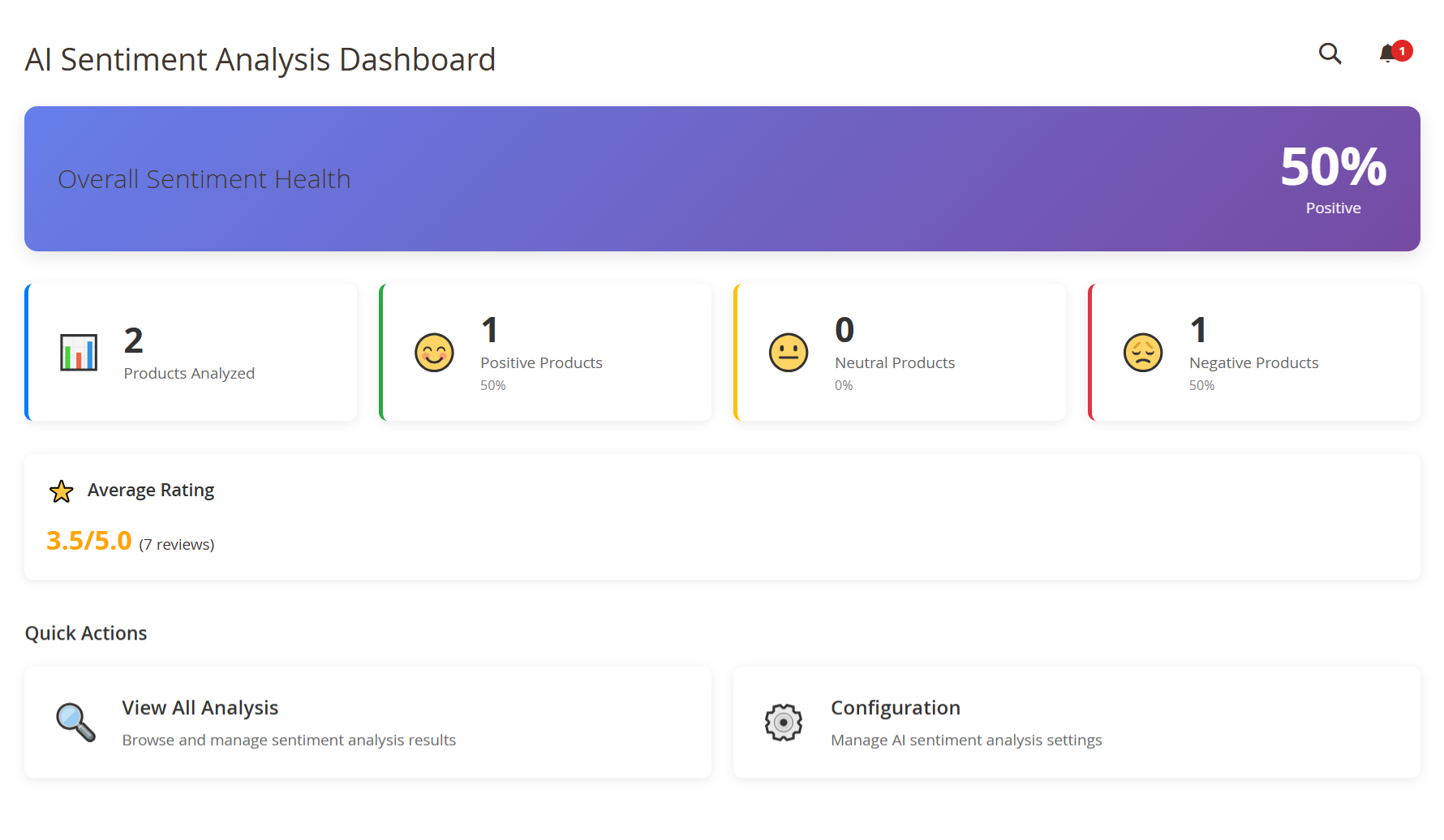 Image Added Image Added
|
| Field | Description |
|---|
| Overall Sentiment Health | Quickly view the overall sentiment status of your products. A higher percentage means your products are receiving positive feedback. | | Products Analyzed | See how many products have been successfully analyzed. This gives you an idea of your current AI coverage. | | Positive Products | Check how many products received mostly positive sentiment. Aim to increase this number for better customer perception. | | Neutral Products | Monitor products with mixed or neutral sentiment. These may benefit from improvements or more customer engagement. | | Negative Products | Identify products with negative sentiment so you can take corrective action, such as updating content or addressing issues. | | Average Rating | Review the average customer rating across all analyzed products. Use this to measure overall satisfaction and spot trends. | | View All Analysis | Click here to dive into detailed sentiment data. You can explore summaries, pros and cons, and sentiment distribution per product. | | Configuration | Access and update your AI settings. Customize how sentiment is analyzed and displayed across your store. |
Manage AI Sentiment Analysis| Panel |
|---|
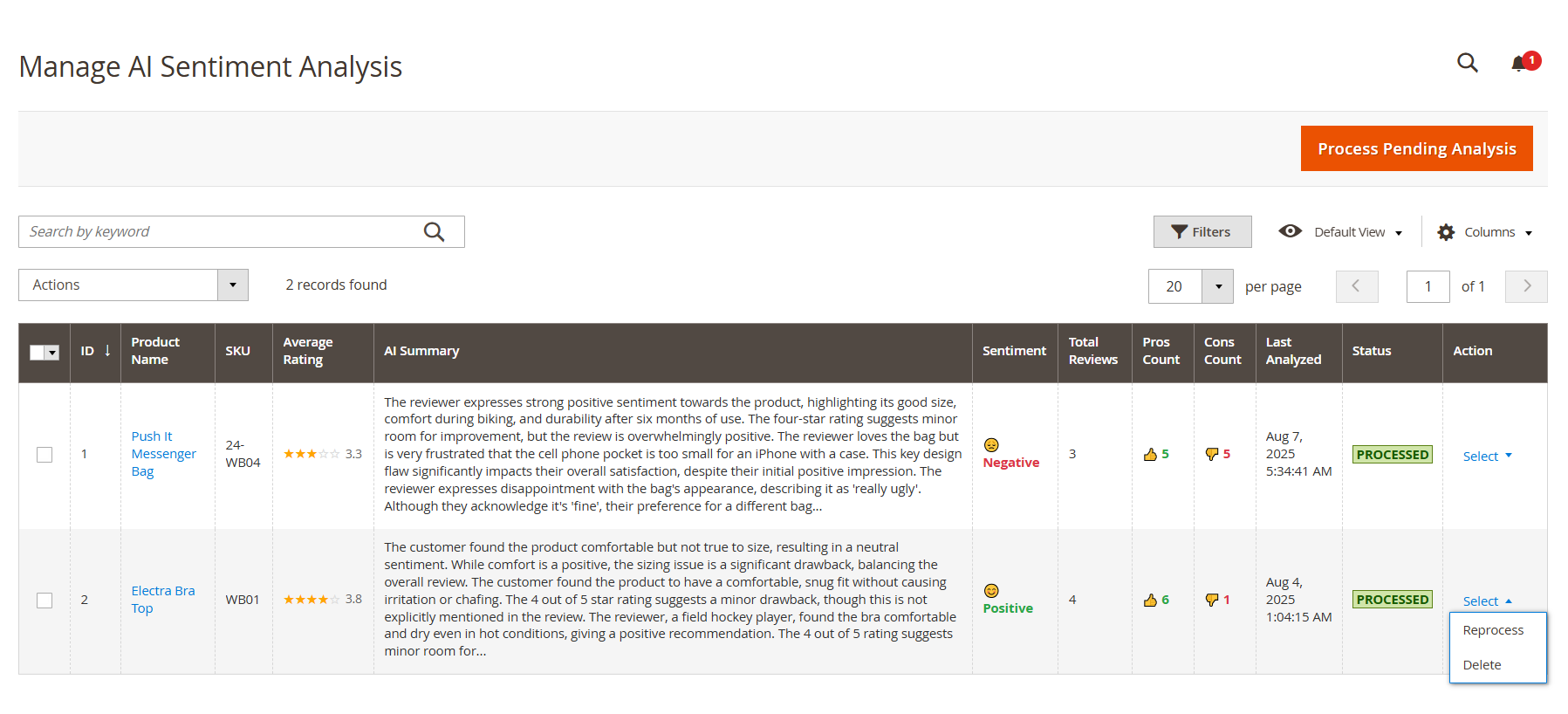 Image Added Image Added
|
| Field | Description |
|---|
| ID | Use this unique identifier to track and reference each analyzed product easily within the system. | | Product Name | Click the product name to open detailed sentiment insights. This helps you understand customer perception at a glance. | | SKU | Identify the product using its SKU. Useful for inventory tracking and quickly locating products in your catalog. | | Average Rating | See the product's average customer rating (out of 5 stars). Use this to recognize top performers or flag items for improvement. | | AI Summary | Review a concise AI-generated summary of what customers are saying. This helps you save time and gain insights without reading every individual review. | | Sentiment | Understand how the AI classifies the overall sentiment — Positive, Neutral, or Negative — so you can take informed action quickly. | | Total Reviews | Check how many reviews were analyzed. A higher count means more reliable insights for making business decisions. | | Pros Count | See how many positive points the AI found in customer feedback. Use this to highlight strengths in product listings or promotions. | | Cons Count | Find out how many negative points were detected. These help you identify and address specific customer concerns to improve satisfaction. | | Last Analyzed | View the last time the product was processed for sentiment analysis. Reprocess if you've received new reviews or changed configuration settings. | | Status | Confirm whether the product has been analyzed. When marked Processed, it means the AI has completed review analysis for that product. | | Action | Manage each product’s sentiment data:
• Reprocess – Run analysis again to reflect new reviews or setting changes.
• Delete – Remove the sentiment result if you want to reset or clear outdated data. |
Top Positive Products Report
| Panel |
|---|
 Image Added Image Added
|
| Field | Description |
|---|
| ID | Use this unique ID to quickly reference each product listed in the report. | | SKU | Identify the product by its SKU so you can easily locate or manage it within your catalog. | | Average Rating | View the average customer rating for each product. Use this to recognize well-received products. | | Positive Reviews | See how many reviews are considered positive by AI. Focus on these products to promote what customers love. | | Total Reviews | Understand how many total reviews the product has. Use this to measure engagement and review quality balance. | | Product Name | Lists the product name with a clickable link, allowing you to quickly navigate to the product details page for deeper insights. |
Top Negative Products Report| Panel |
|---|
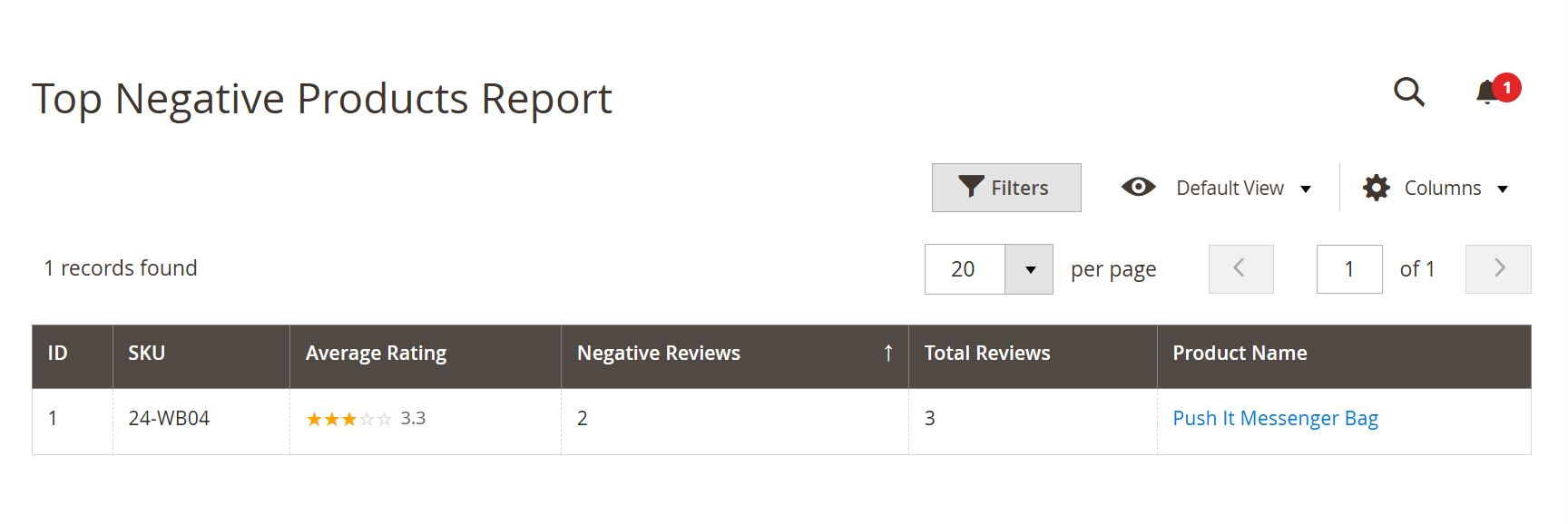 Image Added Image Added
|
| Column | How You’ll Use It to Improve Product Experience |
|---|
| ID | Use this internal product ID to quickly locate and manage items that need improvement. | | SKU | Identify the product by its SKU to take targeted actions such as updates or inventory adjustments. | | Average Rating | Review the product’s average star rating. This helps you quickly identify which products may need attention or quality enhancements. | | Negative Reviews | See the number of reviews marked as negative. Use this to understand where customers are dissatisfied so you can act accordingly. | | Total Reviews | Check the total number of reviews for context. This helps you evaluate whether negative sentiment is a trend or an isolated case. | | Product Name | Lists the product name with a clickable link so you can open the product details page, review the feedback in detail, and start making improvements. |
Most Mentioned Pros Report| Panel |
|---|
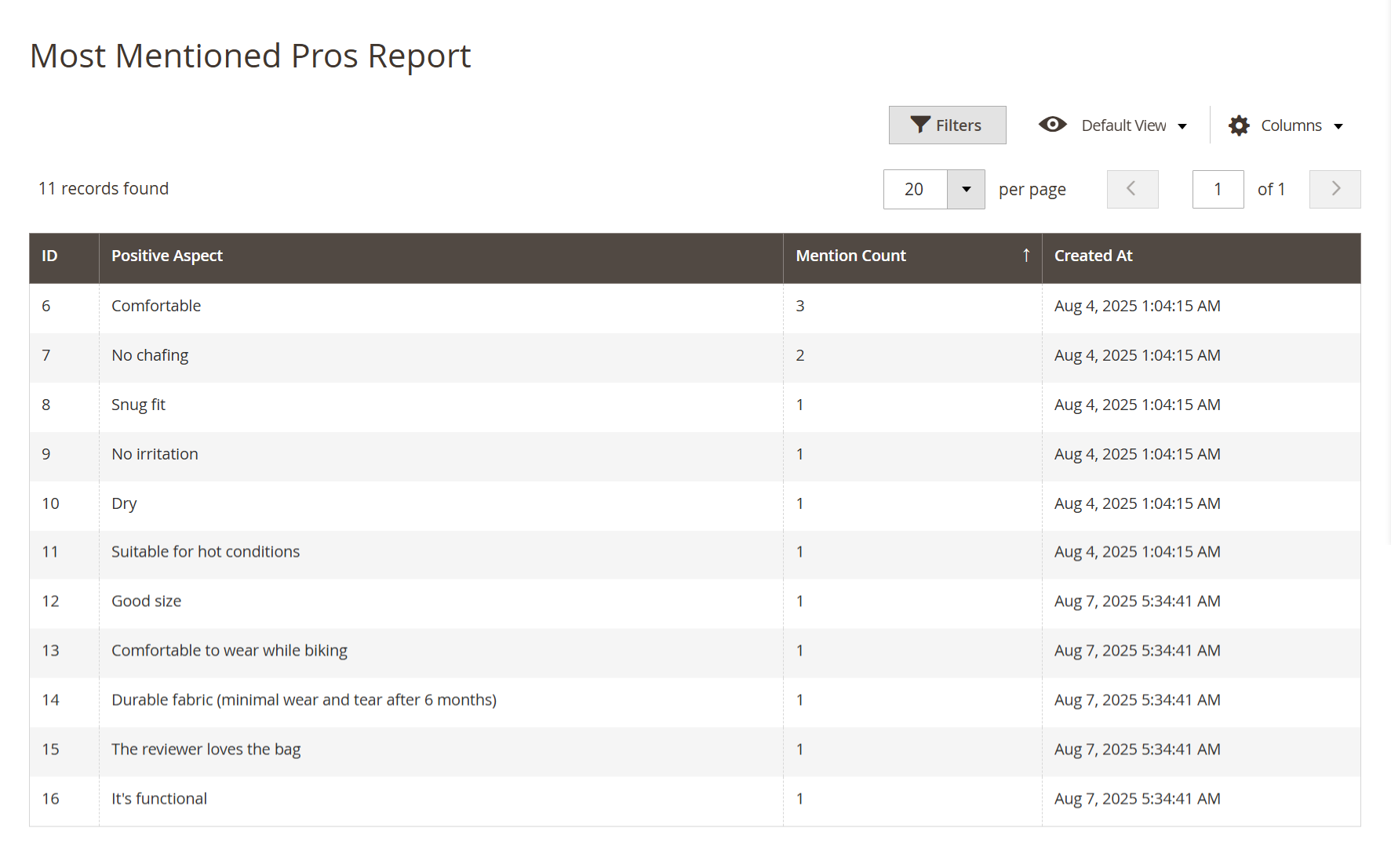 Image Added Image Added
|
| Field | Description |
|---|
| ID | Use this ID to reference each positive aspect quickly. It helps you stay organized as you review or report insights. | | Positive Aspect | Discover the exact phrases customers mention most positively. You’ll use these to highlight your product's strongest selling points. | | Mention Count | See how often each positive point was mentioned. Focus on the highest counts to promote what customers love the most. | | Created At | Check when each insight was generated. This ensures you’re always working with the most recent and relevant feedback. |
Most Mentioned Cons Report| Panel |
|---|
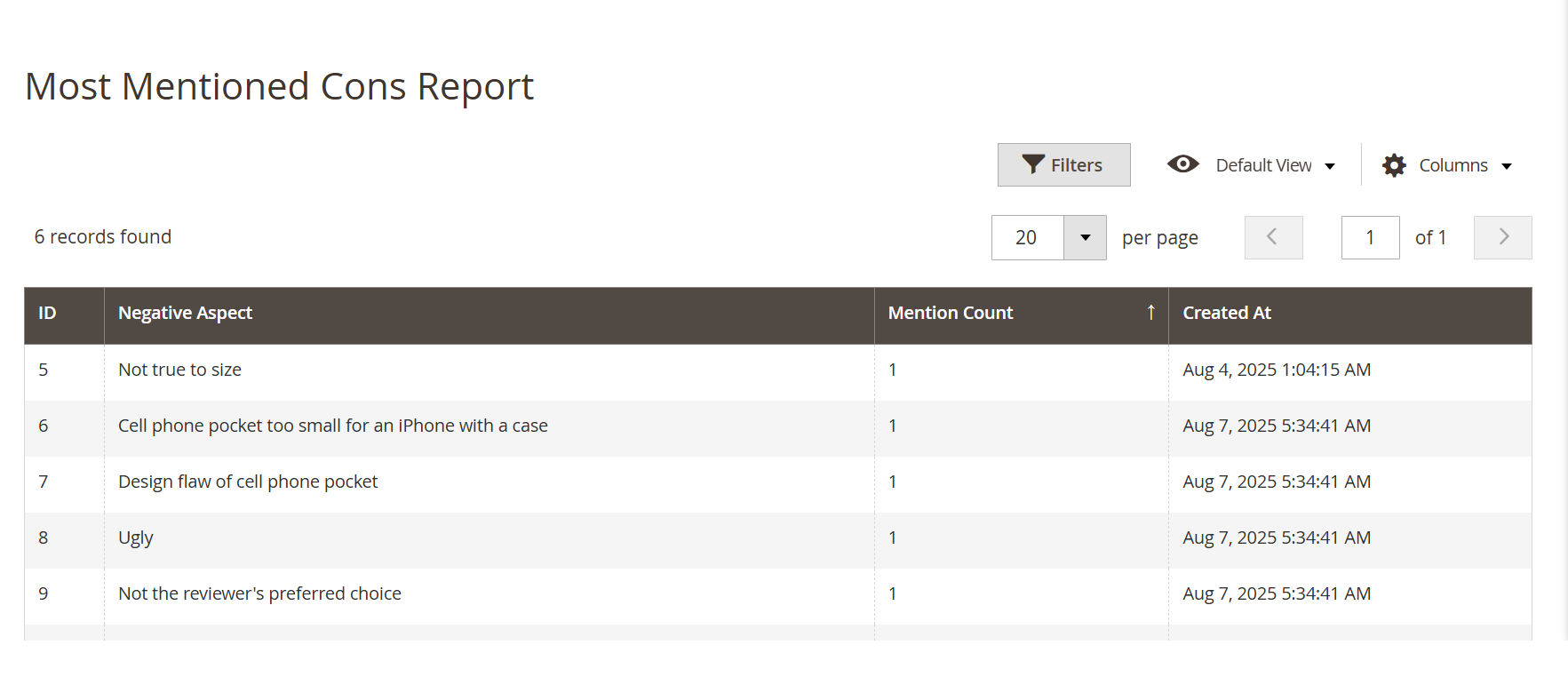 Image Added Image Added
|
| Field | Description |
|---|
| ID | Use this ID to reference each negative aspect for internal tracking and corrective action planning. | | Negative Aspect | Identify specific issues frequently mentioned by customers. Use this insight to spot product flaws or improvement opportunities. | | Mention Count | View how many times each con was raised. Focus on the most frequently mentioned ones to prioritize your fixes and enhancements. | | Created At | Keep track of when each issue was first identified. This helps you monitor patterns and react quickly to recurring concerns. |
|
| Section |
|---|
Frontend Functionality
| Panel |
|---|
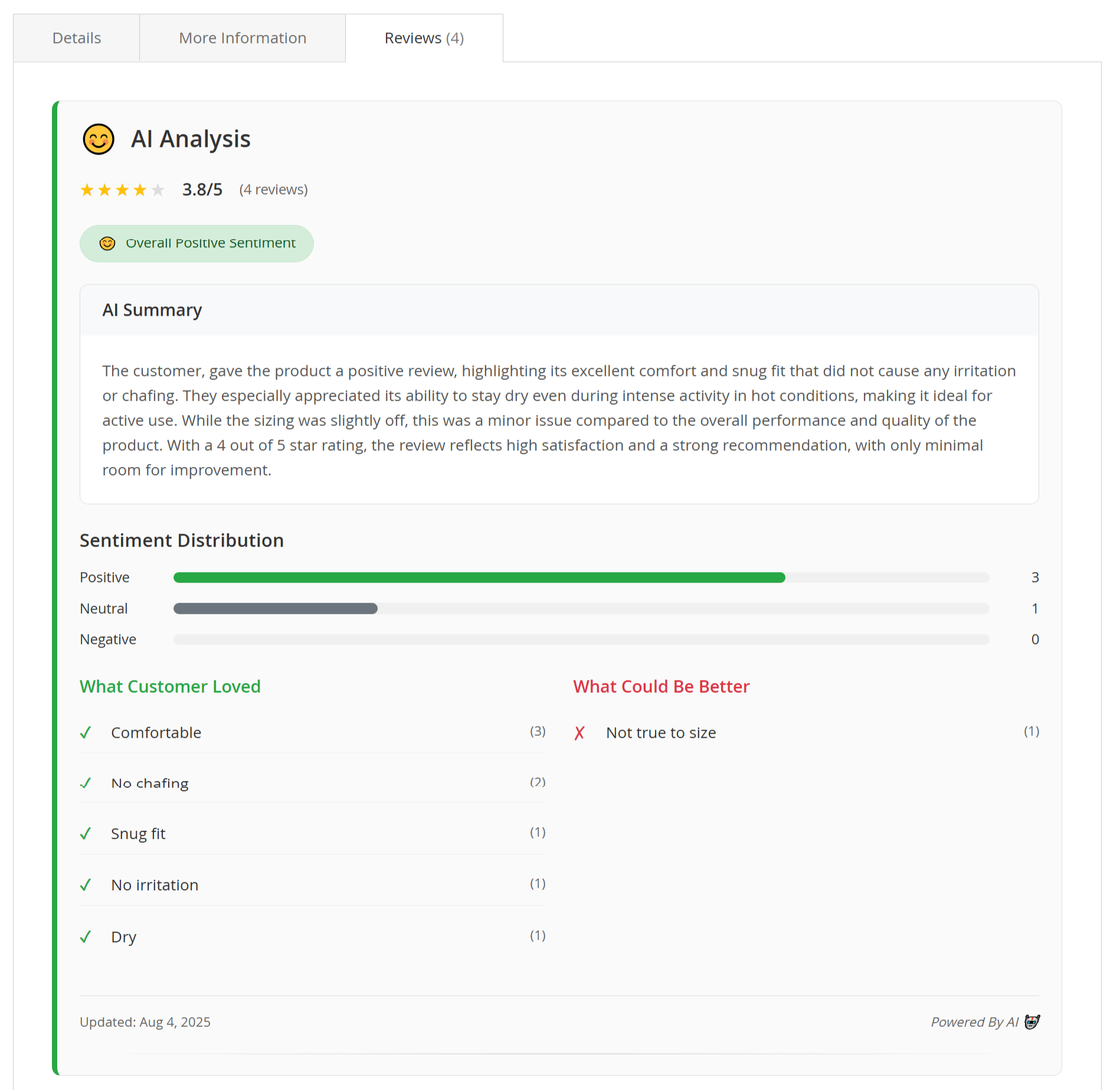 Image Added Image Added
|
- Once the sentiment analysis is processed for a product, the results will appear on the product page under the Reviews tab in a section titled AI Analysis. This section helps customers understand overall product feedback at a glance, using AI-generated summaries and visual highlights. It highlights what customers loved and what could be improved, so shoppers can make informed purchase decisions quickly.
What Customers Will See on the Frontend:AI Analysis Title & Emoji Average Rating Sentiment Badge AI Summary Box A short, clear AI-written summary of customer feedback. Highlights both positives and improvement points. Example: “Customers praised the comfort, snug fit, and dry feel even in hot conditions. One reviewer mentioned sizing was slightly off.”
Sentiment Distribution Bar What Customers Loved (Pros) What Could Be Better (Cons) Last Updated Powered By Text
By enabling this feature, you're helping customers shop smarter by presenting meaningful insights upfront. This not only builds trust but also improves the overall shopping experience on your store. |
| Section |
|---|
Demo
Click here to visit the frontend. Click here to visit the backend admin panel. |
| Section |
|---|
FAQs
Click here to visit FAQs. |
| Section |
|---|
Support
Click here to raise a support ticket using your MageDelight account. |
| Section |
|---|
Additional Services
Click here to get the customized solution for this extension. |
...