
Installation
Before installing the extension, please make sure to, Backup your web directory and store database
- Unzip the extension package file into the root folder of your Magento 2 installation.
- Connect to SSH console of your server:
- Navigatetorootfolderof your Magento 2 setup
Run command as per below sequence,
php -f bin/magento setup:upgrade
php -f bin/magento module:enable Magedelight_OrderbySKU
php -f bin/magento setup:static-content:deploy
- Flush store cache
- log out from the backend and log in again
Backend Configuration (Admin side)
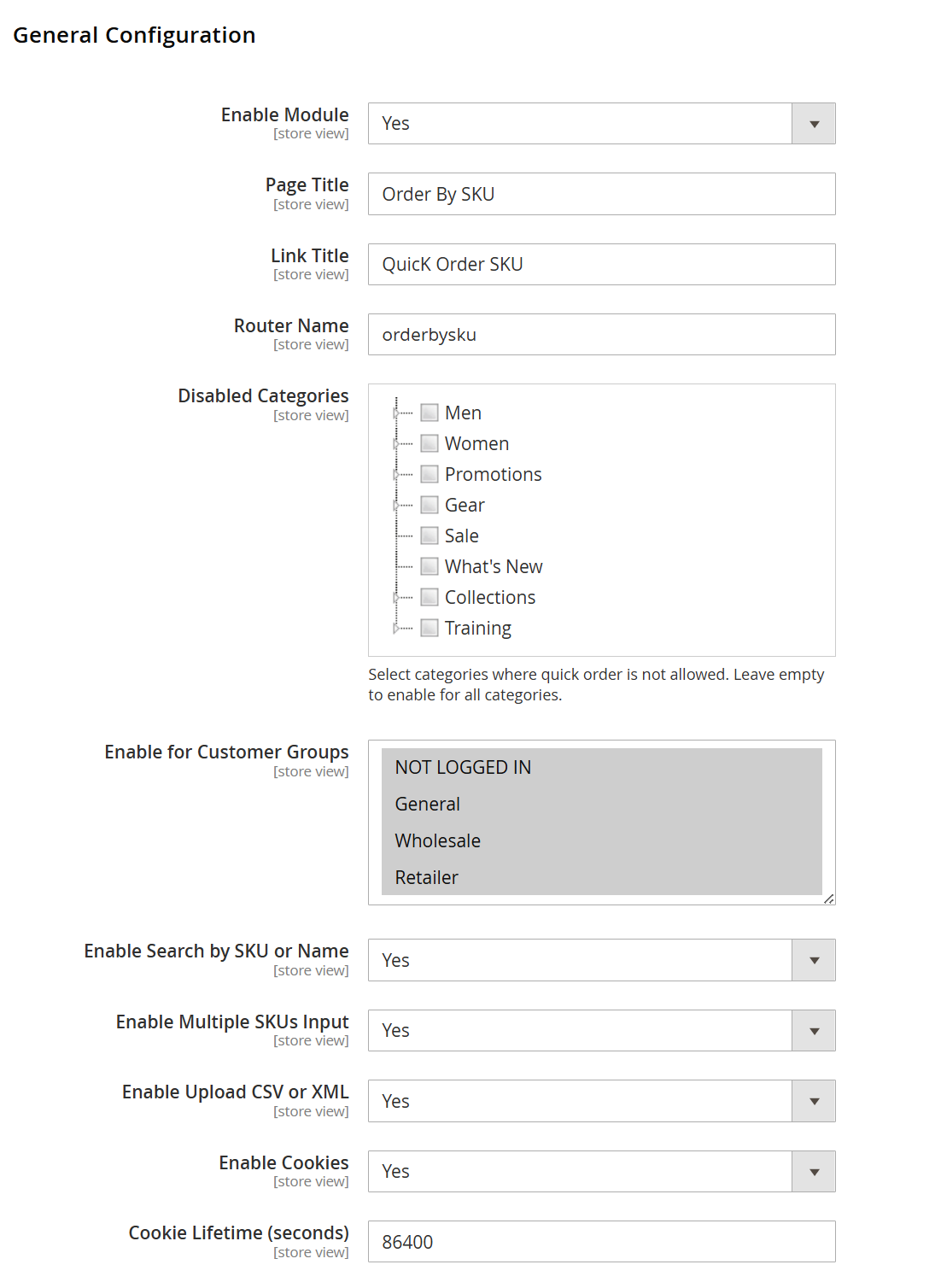
| Field | Description |
|---|---|
| Enable Module | Enable or disable the Quick Order by SKU functionality for the selected store view. |
| Page Title | Specify the title of the Quick Order page displayed on the frontend. |
| Link Title | Define the label for the Quick Order link as shown to customers on the frontend. |
| Router Name | Set the URL identifier (route) for accessing the Quick Order page (e.g.,
|
| Disabled Categories | Select categories where the Quick Order feature will be restricted. Leave empty to allow Quick Order for all categories. |
| Enable for Customer Groups | Choose specific customer groups that are allowed to access the Quick Order functionality (e.g., General, Wholesale, Retailer, or Guests). |
| Enable Search by SKU or Name | Allow users to search products using either SKU or product name for quick ordering. |
| Enable Multiple SKUs Input | Enable the option for customers to input multiple SKUs at once for bulk ordering. |
| Enable Upload CSV or XML | Allow users to upload a CSV or XML file containing SKUs and quantities for bulk product ordering. |
| Enable Cookies | Enable cookie usage to store Quick Order data temporarily for a better user experience. |
| Cookie Lifetime (seconds) | Define the duration (in seconds) for which the Quick Order data will be stored in cookies (e.g., 86400 seconds = 24 hours). |
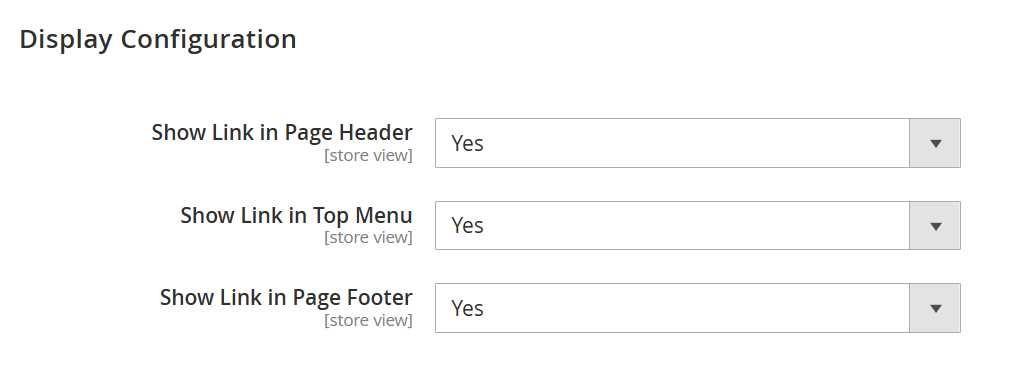
| Field | Description |
|---|---|
| Show Link in Page Header | Enable or disable the Quick Order link in the website header section for easy access by customers. |
| Show Link in Top Menu | Enable or disable the Quick Order link in the main navigation (top menu) of the storefront. |
| Show Link in Page Footer | Enable or disable the Quick Order link in the footer section of the website. |
Frontend Functionality
Quick Order by SKU
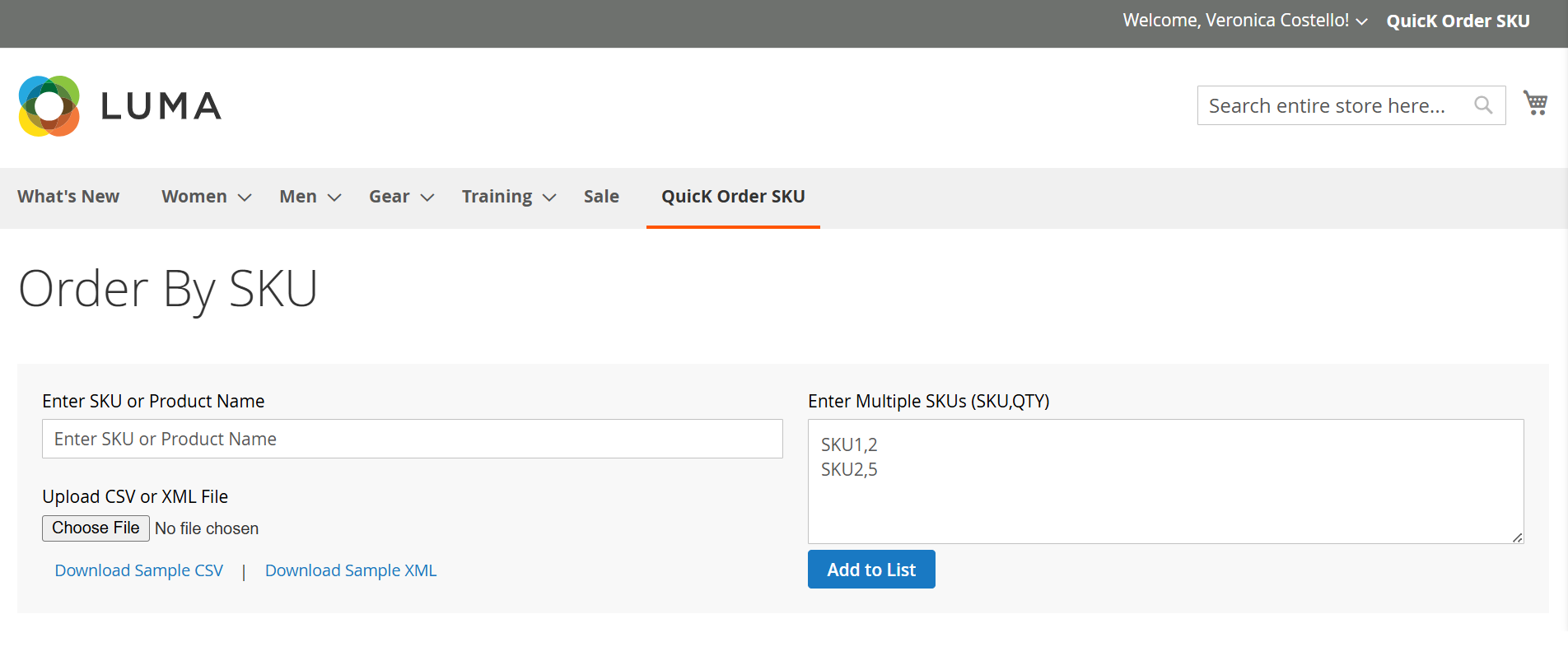
The Quick Order by SKU page allows customers to quickly search and add products to the cart using SKU or product name without navigating through multiple product pages. It is designed to simplify bulk ordering and improve the purchasing experience, especially for B2B users and repeat buyers.
Customers can enter individual SKUs, multiple SKUs at once, or upload a file to add products directly to their cart in a faster and more efficient way.
- Search by SKU or Product Name
Customers can search for products by entering either the SKU or product name. The system helps identify the correct product quickly before adding it to the cart. - Multiple SKU Entry
Users can enter multiple SKUs along with quantities in the provided format (e.g., SKU1,2), allowing bulk product selection in one go. - Bulk Upload via CSV/XML
Customers can upload a CSV or XML file containing SKUs and quantities to add multiple products to the cart instantly. - Sample File Download
Users can download sample CSV or XML files to understand the correct format for bulk uploads. - Add to List Functionality
The entered SKUs (single or multiple) can be added to a list before proceeding to checkout, ensuring accuracy in order placement.
- Ensure that the SKU format entered manually or via file upload is correct to avoid validation errors.
- The CSV/XML file must follow the required structure (SKU and quantity columns).
- Availability of this feature depends on admin configuration and assigned customer groups.
- Invalid or non-existing SKUs will not be added to the list.
Simple Product Flow
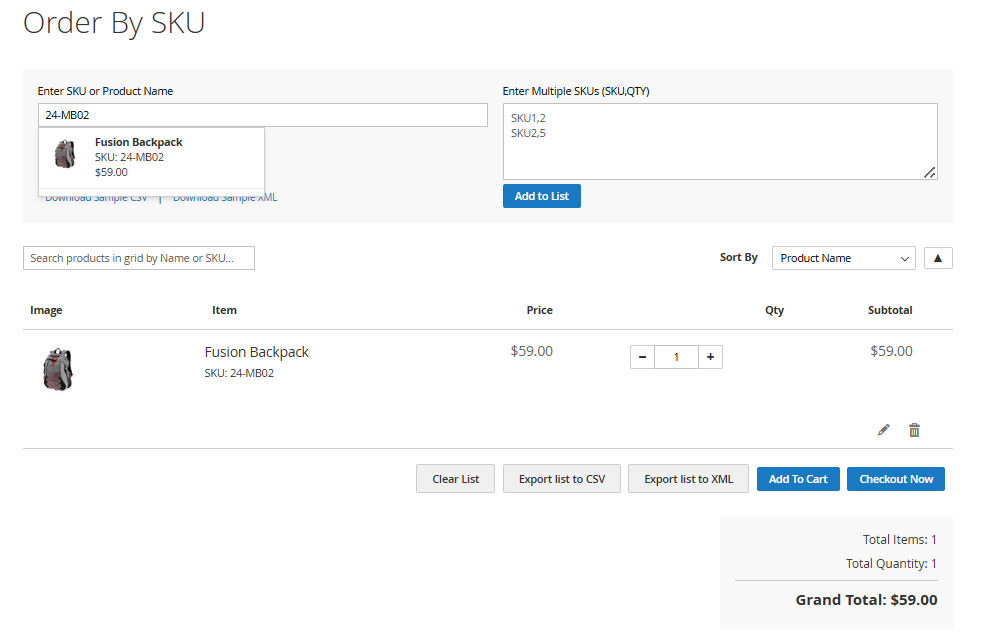
The Quick Order interface allows customers to quickly add simple products to their order list by entering SKU or product name. Once a valid SKU is entered, the product details such as name, image, price, and availability are displayed instantly, enabling customers to verify the product before adding it to the cart.
Customers can manage selected products in a structured grid, update quantities, and proceed directly to checkout, making the ordering process faster and more efficient.
- Product Auto-Suggestion & Preview
When a valid SKU or product name is entered, the system displays product details including image, SKU, and price for quick verification. - Add to List
Customers can add the selected product(s) to a list, which is displayed in a grid format for easy management. - Product Grid Overview
Added products are shown in a grid with details such as product image, name, SKU, price, quantity, and subtotal. - Quantity Management
Users can increase or decrease product quantity directly from the grid using the (+/-) controls. - Edit & Remove Options
Customers can edit product details or remove items from the list using action icons. - Sort Products
Products in the list can be sorted (e.g., by product name,quantity,and price) for better organization. - Export List
Users can export the selected product list into CSV or XML format for future use. - Clear List
Allows users to remove all products from the current list in a single click. - Add to Cart
Adds all selected products from the list to the shopping cart. - Checkout Now
Enables customers to directly proceed to checkout with the selected items. - Order Summary
Displays total items, total quantity, and grand total for the selected products.
- Only valid SKUs will display product details and can be added to the list.
- Quantity updates will automatically reflect in the subtotal and grand total.
- Exported files will include product SKUs and quantities as per the selected list.
- The availability of this feature depends on admin configuration and assigned customer groups.
Configurable Product Flow
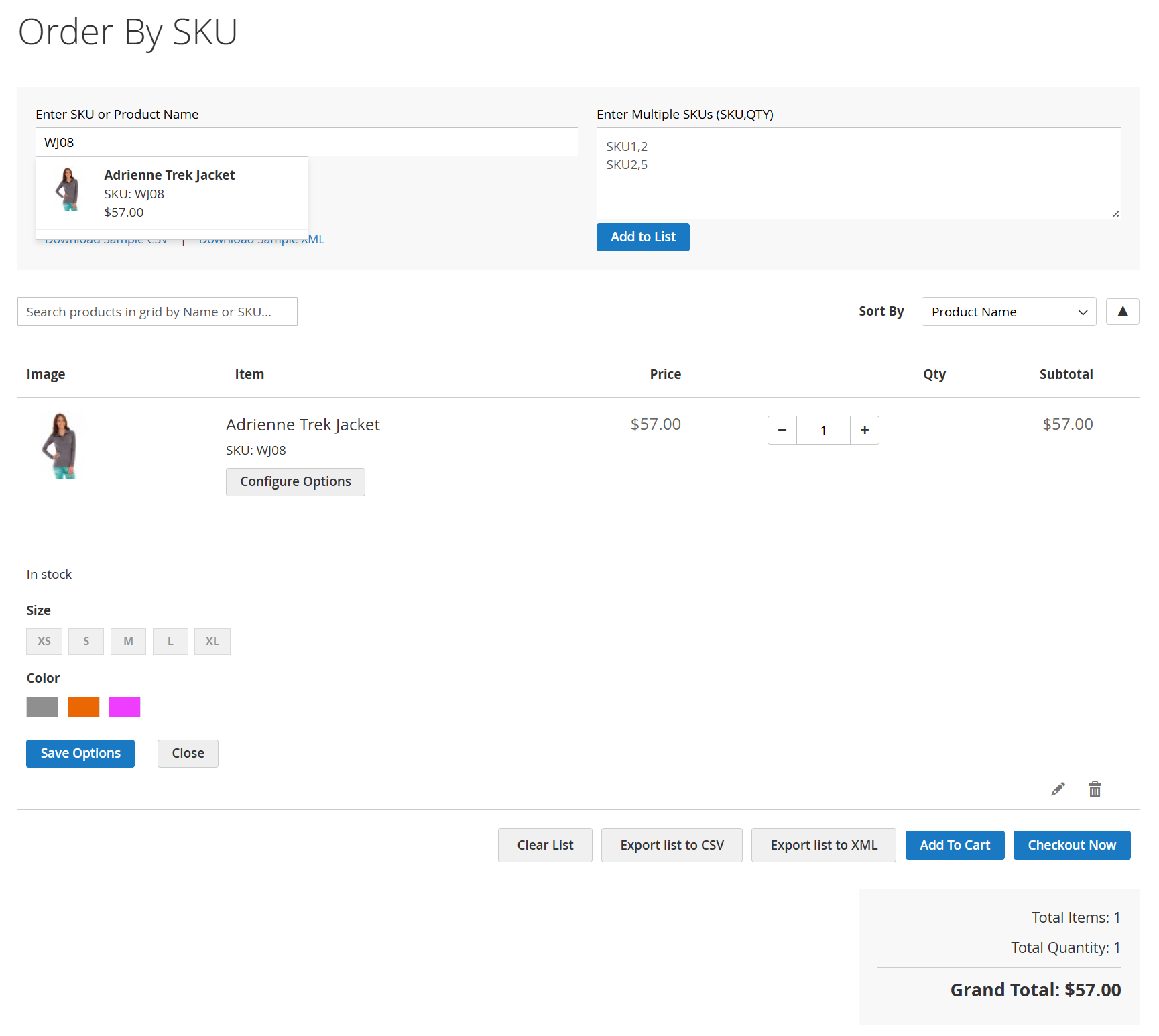
The Quick Order functionality also supports configurable products, allowing customers to select required product options such as size, color, or other attributes directly from the quick order page. When a configurable product SKU is entered, the system displays product details along with an option to configure attributes before adding it to the cart.
This ensures that customers can complete their order without navigating to the product detail page, making the bulk ordering process seamless and efficient.
- Configurable Product Detection
When a configurable product SKU is entered, the system identifies it and enables option selection before checkout. - Configure Options Button
Customers can click on “Configure Options” to select required attributes such as size, color, or other variations. - Attribute Selection
Available options (e.g., size, color) are displayed, allowing customers to choose the desired combination for the product. - Dynamic Product Update
Once options are selected, the product is updated with the chosen configuration in the order list. - Add to List with Configuration
The configured product is added to the list along with selected attributes, ensuring correct order placement. - Edit Configuration
Customers can reopen the configuration section to modify selected options before adding to cart. - Grid Display with Attributes
Selected options (e.g., Size: L, Color: Purple) are displayed below the product in the grid for clarity. - Quantity & Pricing Management
Quantity can be adjusted, and subtotal is updated based on selected configuration. - Add to Cart & Checkout
After configuration, customers can add the product to the cart or proceed directly to checkout.
- Configurable products require mandatory attribute selection before they can be added to the cart.
- Only available (in-stock) combinations will be selectable.
- If required options are not selected, the product will not be added to the list.
- Configuration can be modified anytime before proceeding to checkout.
- If the SKU is not valid then you will get message, No products found matching "WJ079".
Bundle Product Flow
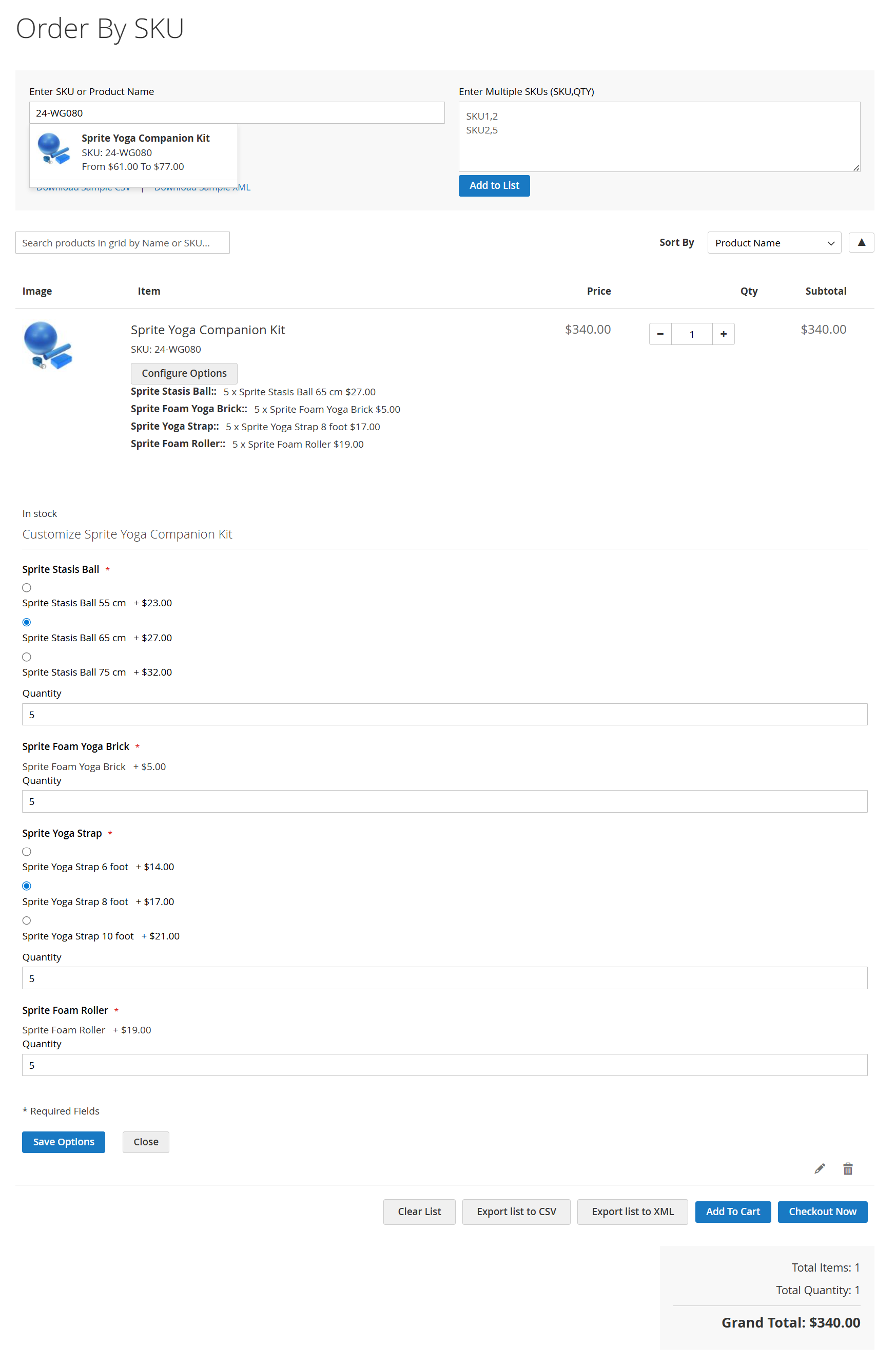
The Quick Order by SKU feature supports bundle products, allowing customers to configure multiple product options directly from the quick order page. Users can select bundle components, define quantities, and customize required options without navigating to the product detail page, making bulk ordering faster and more efficient.
- Automatically detects bundle product when SKU is entered
- Displays product details including name, SKU, price, and availability
- “Configure Options” button to open bundle configuration panel
- Supports selection of multiple bundle components within a single product
- Allows choosing variations (e.g., size, type, attributes) for each item
- Quantity input available for each bundle component
- Mandatory options validation before adding to list
- Dynamic price calculation based on selected bundle items and quantities
- Selected bundle configuration displayed clearly in product grid
- Ability to edit or reconfigure bundle options before checkout
- Quantity changes update subtotal and grand total instantly
- Add configured bundle product to list and proceed to cart
- Option to directly checkout from quick order page
- All required bundle options must be selected before adding to cart
- Only valid and in-stock options are available for selection
- Invalid SKU will not display any product
- Configuration can be modified anytime before checkout
- Pricing updates dynamically based on selected bundle items
Grouped Product Flow (Decomposed)
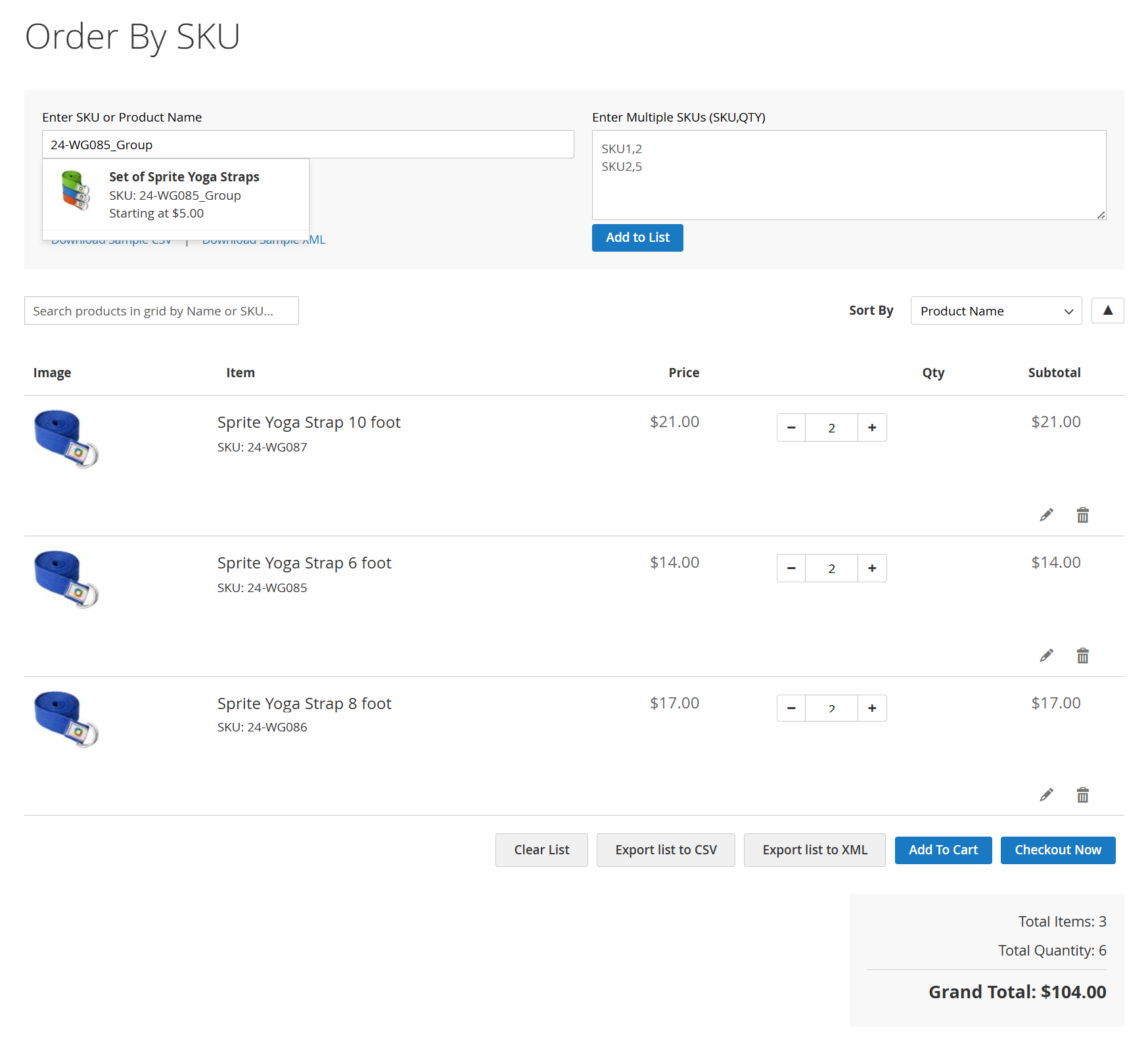
The Quick Order by SKU feature supports grouped products by automatically decomposing them into individual associated products. When a grouped product SKU is entered, all linked products are displayed separately in the grid, allowing customers to set quantities and order items individually.
- Automatically detects grouped product SKU
- Decomposes grouped product into individual child products
- Displays each associated product separately in the grid
- Shows product details including name, SKU, price, and availability
- Allows quantity input for each individual product
- Supports adding/removing items independently
- Updates subtotal for each product based on quantity
- Calculates grand total based on all selected items
- Allows sorting and managing products in the grid
- Enables export of selected items (CSV/XML)
- Add all items to cart or proceed directly to checkout
- Grouped products are added as individual simple products
- Quantity must be specified for each item separately
- Only available (in-stock) products can be ordered
- Invalid SKU will not display any products
- Items can be modified or removed before checkout
Thank you for choosing MageDelight!