Installation
Before installing the extension, please make sure to Backup your web directory and store database
You will require to install MageDelight Base Extension first. If it is not installed then please download it from https://www.magedelight.com/pub/extensions/magedelight-base.zip and unzip the package file into the root folder of your Magento 2 installation.
Root Directory is - "app/code/magedelight/#YourExtensionName#"
- Unzip the extension package file into the root folder of your Magento 2 installation.
- Connect to SSH console of your server:
- Navigate to the root folder of your Magento 2 setup
Run command as per below sequence,
php bin/magento setup:upgrade
php bin/magento setup:di:compile
php bin/magento setup:static-content:deploy
php bin/magento cache:clean
- log out from the backend and log in again
If you are using Magento 2.3 or later then you do not need to activate license. Extension will be activated with silent activation mechanism and does not require activation keys to be entered manually.
Backend Configuration (Admin side)
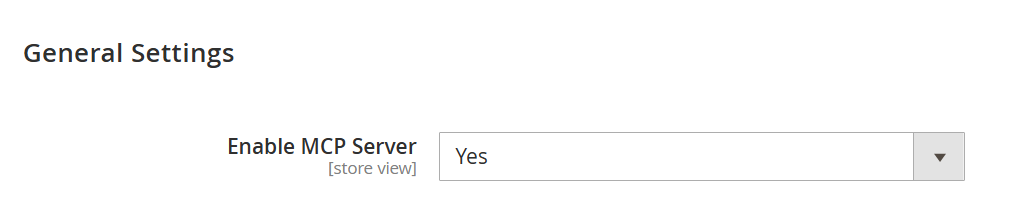
| Field | Description |
|---|---|
| Enable MCP Server | This setting controls whether the MCP Server is active for the selected store view. When enabled, supported AI clients can connect to the store and interact with the available MCP features. When disabled, external AI connections through the MCP endpoint are blocked and the server will not respond to client requests. Default value: Yes. |
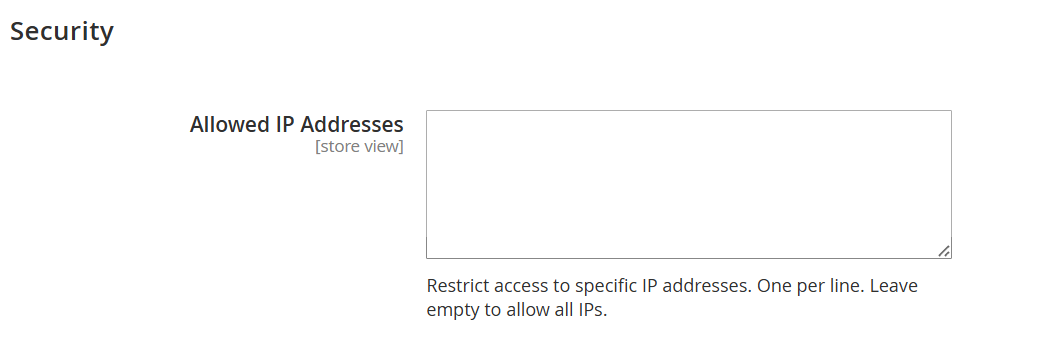
| Field | Description |
|---|---|
| Allowed IP Addresses | Specify the IP addresses that are permitted to access the MCP Server. Add one IP address per line to restrict access only to trusted sources. If this field is left empty, the MCP Server will accept requests from all IP addresses. |
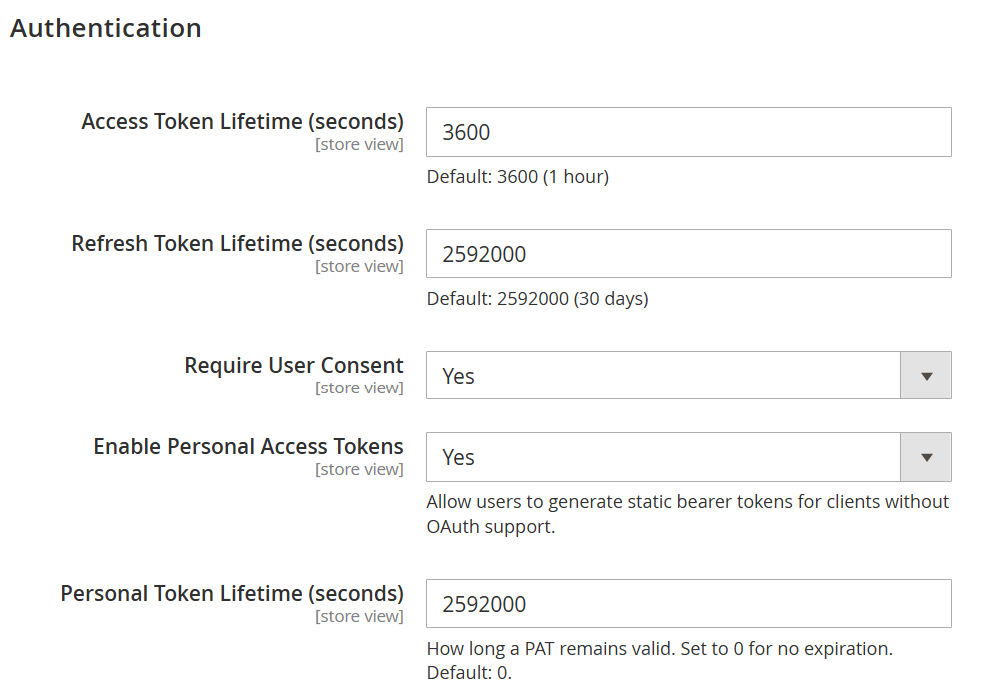
| Field | Description |
|---|---|
| Access Token Lifetime (seconds) | Defines how long an issued access token remains valid before a new one must be obtained through the refresh flow. A shorter duration improves security, while a longer duration reduces the need for frequent token refresh requests. |
| Refresh Token Lifetime (seconds) | Specifies how long the connection can stay authorized without requiring the user to approve access again. Once this period ends, the client must complete the authorization process again to continue using the server. |
| Require User Consent | Determines whether users must explicitly approve access when an AI client attempts to connect. When enabled, a consent screen is shown before authorization is granted. |
| Enable Personal Access Tokens | Allows users to generate static bearer tokens for clients or tools that do not support OAuth-based authentication. This option is useful for external integrations that require direct token-based access. |
| Personal Token Lifetime (seconds) | Sets the validity period for generated personal access tokens. Enter 0 to keep the token active without expiration, or specify a duration in seconds to enforce automatic expiry. |
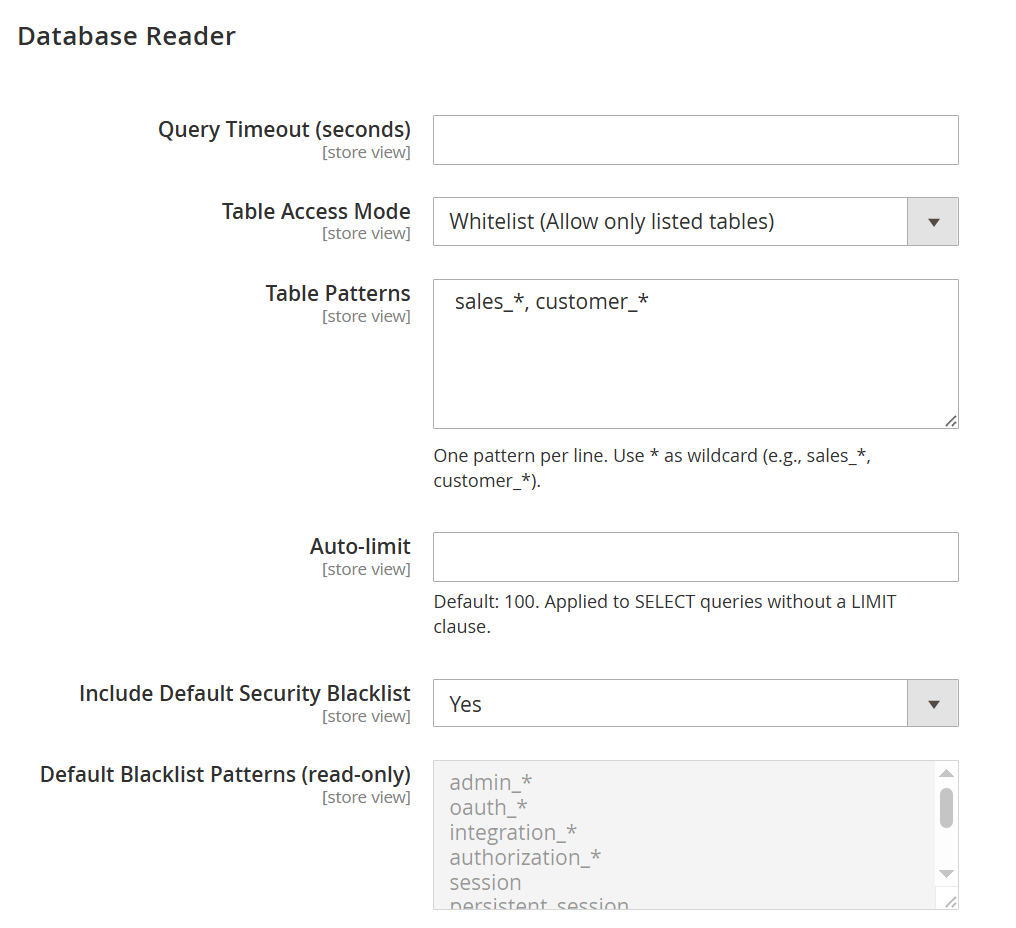
| Field | Description |
|---|---|
| Query Timeout (seconds) | Defines the maximum time allowed for a database query to run. If a query exceeds this limit, it is stopped automatically to help maintain performance and prevent long-running requests from affecting the system. |
| Table Access Mode | Controls how database table rules are applied. Whitelist allows access only to the tables that are explicitly listed, while Blacklist blocks the listed tables and keeps all other tables accessible. |
| Table Patterns | Use this field to define which tables should be allowed or blocked based on the selected access mode. Add one pattern per line, and use such as |
| Auto-limit | Sets the default row limit for helps avoid returning very large result sets and keeps query responses more efficient. |
| Include Default Security Blacklist | Enables the built-in protected table rules that automatically block access to sensitive database areas, such as tables containing credentials, tokens, sessions, and other restricted data. |
| Default Blacklist Patterns (read-only) | Displays the predefined restricted table patterns used by the default security blacklist. This field is for reference only and helps administrators understand which sensitive tables are protected by default. |
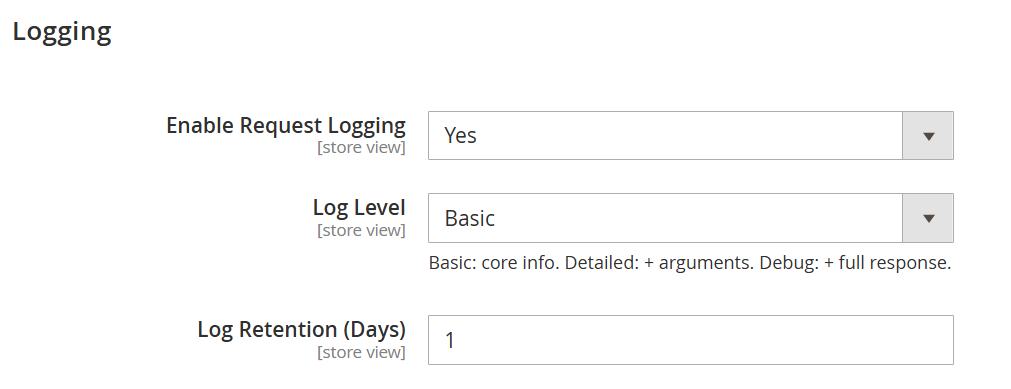
| Field | Description |
|---|---|
| Enable Request Logging | Enables logging of MCP requests for monitoring and troubleshooting purposes. When enabled, the system records request activity so administrators can review interactions made through the MCP Server. |
| Log Level | Defines how much request information is stored in the logs. Basic records key request details, Detailed stores additional request arguments, and Debug captures the most complete response-level information for deeper analysis. |
| Log Retention (Days) | Specifies how long log records should be kept before cleanup. Set the number of days based on your monitoring needs, or use 0 to retain logs without automatic expiration. |
Backend Functionality
Frontend Functionality
Demo
Click here to visit frontend.
Click here to visit backend admin panel.
Thank you for choosing MageDelight!