
Installation
Before installing the extension, please make sure to Backup your web directory and store database
- Unzip the extension package file into the root folder of your Magento 2 installation.
- Connect to SSH console of your server:
- Navigate to the root folder of your Magento 2 setup
Run command as per below sequence,
php -f bin/magento setup:upgrade
php -f bin/magento module:enable Magedelight_SpecialPromo
php -f bin/magento setup:static-content:deploy
- Flush store cache
- log out from the backend and log in again
Installation with Composer
Composer repository using this command:
composer config repositories.magedelight-repo composer https://packages.magedelight.com/
Replace repo public key and private key with your public and private key
composer config http-basic.gitlab.magedelight.com $PUBLIC_KEY $PRIVATE_KEY
composer require mage_delight/specialpromo_module:*
composer require mage_delight/specialpromo_milestone:*
composer require mage_delight/specialpromo-graphql:*
composer require hyva-themes/magento2-magedelight-specialpromo-milestone:*
composer require hyva-themes/magento2-magedelight-specialpromo:*
To obtain your public and private keys, please navigate to the "My Account" section. In the "Download Extension Packages" tab, you will find the keys available for your access.
Backend Configuration (Admin side)
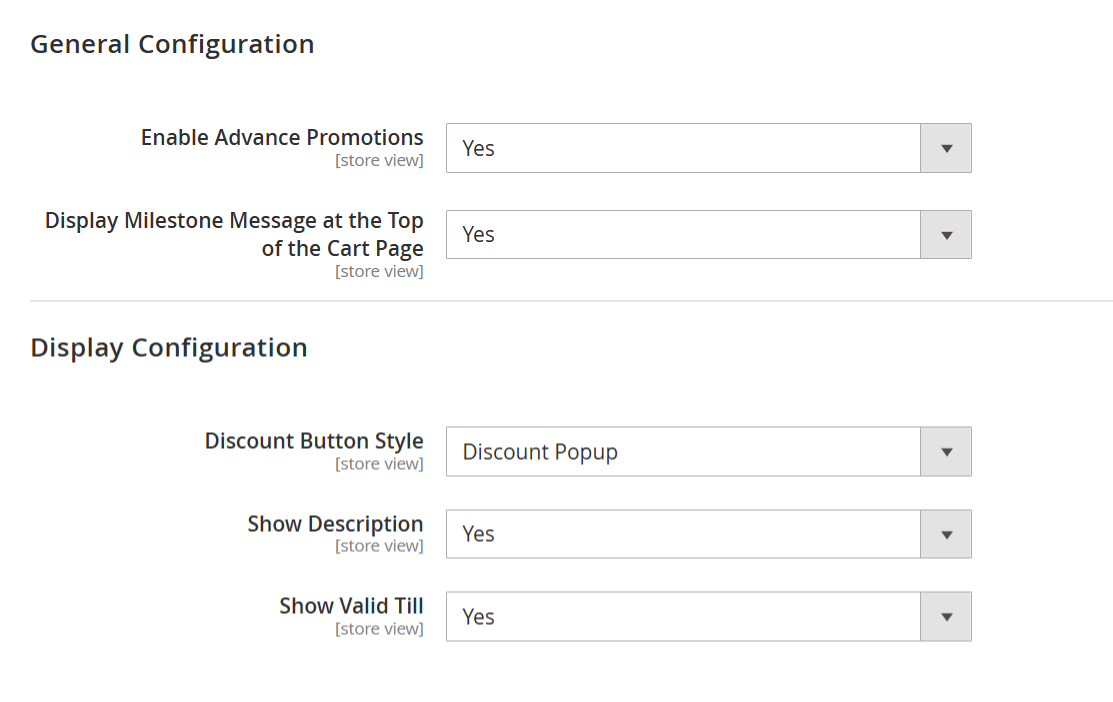
Enable Advanced Promotions: Set to Yes to activate the advanced promotion features on your store.
Display Milestone Message at the Top of the Cart Page: Set to Yes if you want to show milestone-based messages (e.g., "Spend $50 more to get a discount") at the top of the cart page.
- Discount Button Style: Select the discount button style from the given options below.
- Default Discount: It will display the discount code as per Magento's default style
- Discount Popup: Set if you want to display a popup for the discount code
- Show Description: Specify "Yes" if you're going to display a description for the discount code
- Show Valid Till: Specify "Yes" if you want to display the validity of the discount code
Backend Functionality
Rule Information
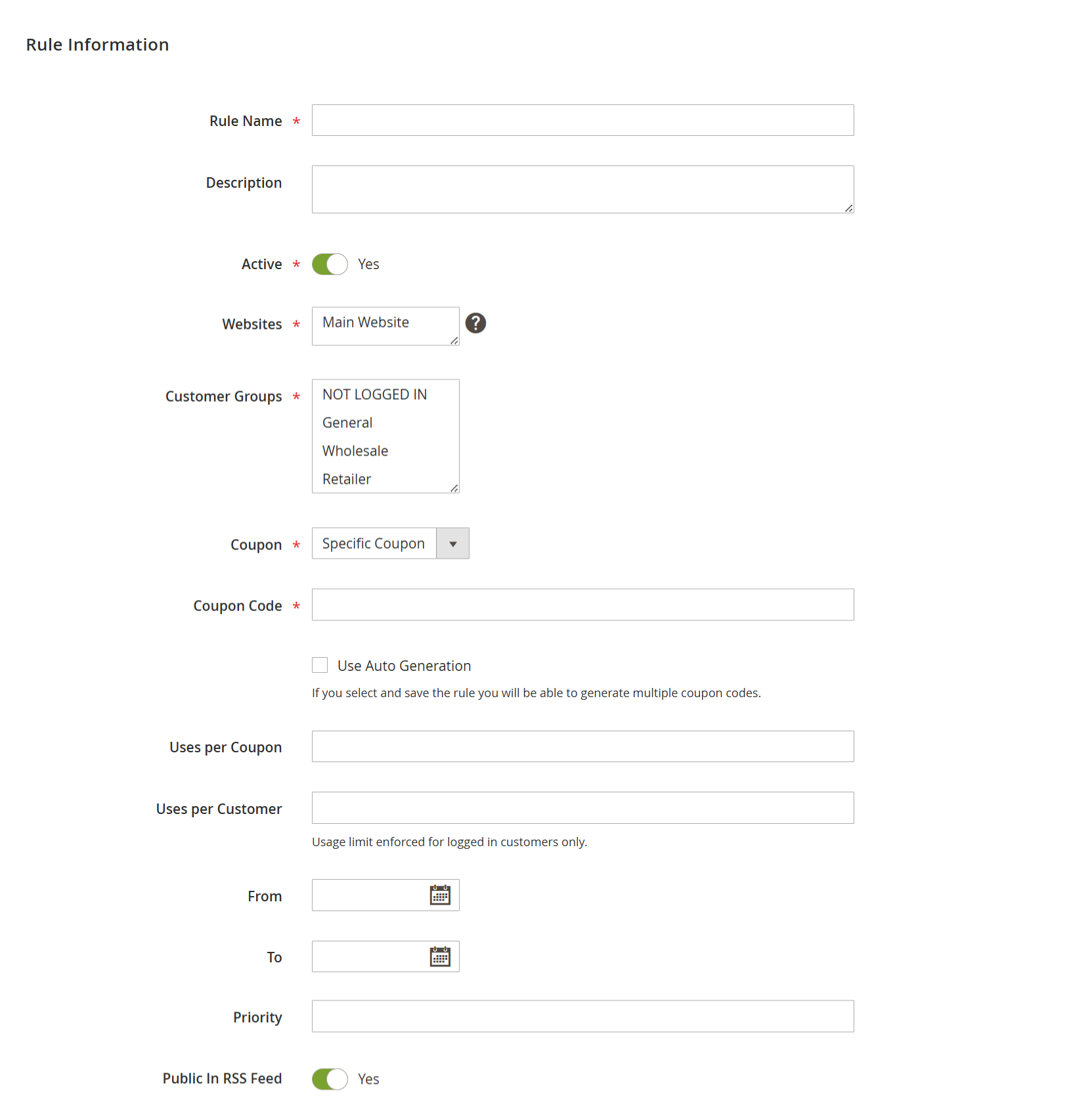
Rule Name: Enter the name of the rule for easy identification.
Description: Provide a brief description of the rule (for internal reference).
Active: Set to Yes to activate the rule, or No to keep it inactive.
Websites: Choose the website(s) where this rule should apply.
Customer Groups: Select the customer groups eligible for this rule. The rule will apply only to these selected groups.
Coupon:
No Coupon – Discount applies automatically.
Specific Coupon – Requires a coupon code to activate the discount.
Coupon Code: Required if a Specific Coupon is selected. Enter the coupon code to be used by customers.
Uses per Customer: Enter how many times each customer can use this coupon.
From: Set the start date from which the rule becomes active.
To: Set the end date after which the rule will no longer be active.
Priority: Assign a priority number if multiple rules exist. Lower numbers indicate higher priority.
- Public in RSS Feed: Set to Yes if you want to include this rule in your store’s RSS promotions feed.
Milestone Configuration
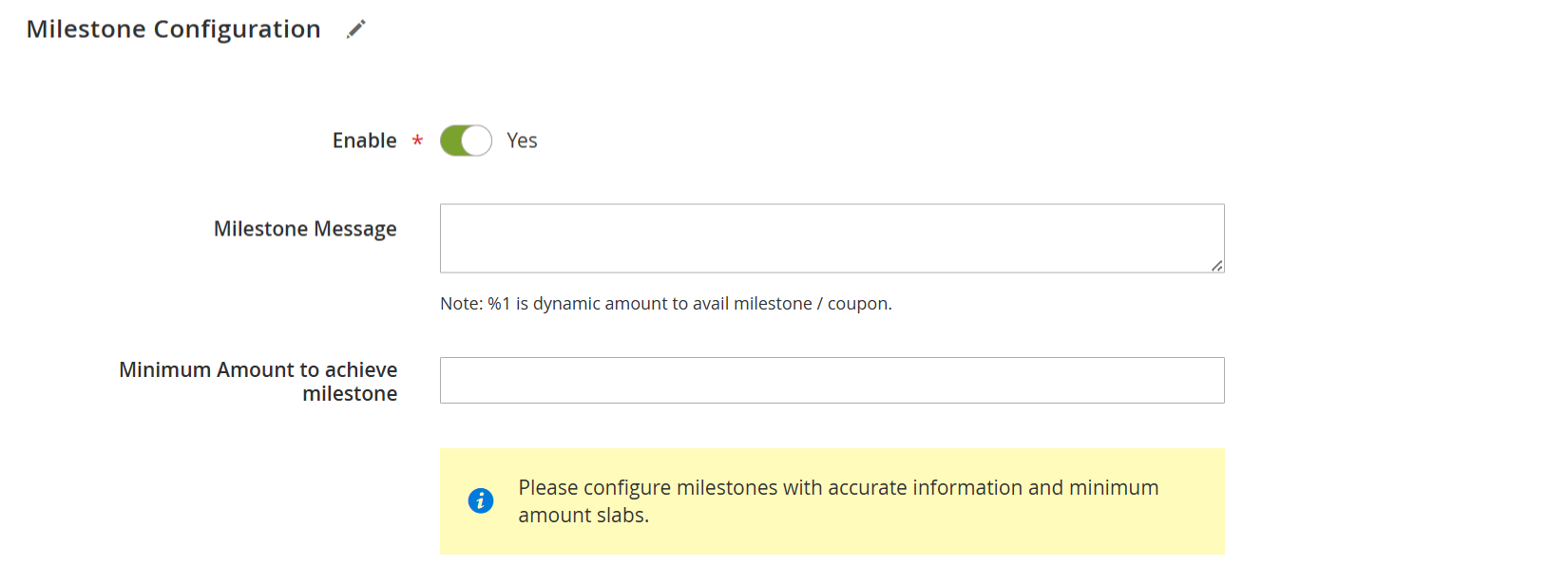
Enable: Toggle to Yes to activate the milestone promotion feature.
Milestone Message: Enter the message that will be displayed to customers. Use %1 as a placeholder for the dynamic amount required to reach the milestone (e.g., “Spend %1 more to unlock a discount!”).
Minimum Amount to Achieve Milestone: Specify the minimum cart subtotal a customer must reach to qualify for the milestone reward (e.g., discount or coupon).
Action
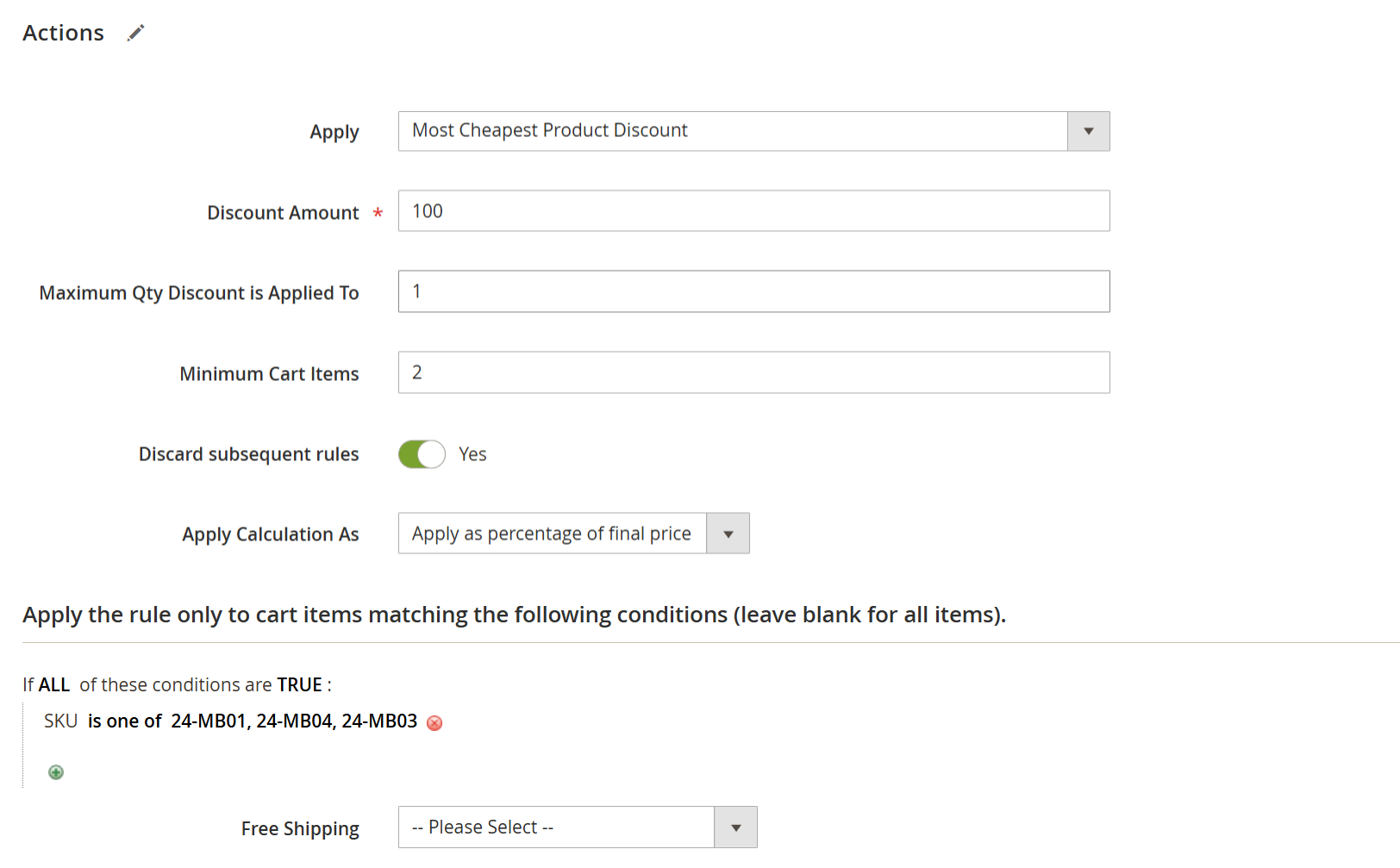
Most Cheapest Product Discount
This rule helps apply a discount to the cheapest item(s) in the cart based on specific conditions.
| Field | Description |
|---|---|
| Apply | Select “Most Cheapest Product Discount” from the dropdown to enable the rule. |
| Discount Amount | Set the discount value to apply to the cheapest item in the cart (e.g., 100 for a 100% discount or 100 as a fixed amount). |
| Maximum Qty Discount Applied To | Define the number of cheapest item quantities to which the discount will apply. |
| Minimum Cart Items | Set the minimum number of items required in the cart for the rule to apply. If the number is less than the specified value, the discount will not apply. |
| Discard Subsequent Rule | Enable this option to prevent other rules from applying to the same items after this rule is applied. |
| Apply Calculation As | Choose how the discount will be calculated: |
| - Percentage of Original: Applies a discount on the original product price. | |
| - Percentage of Final Price: Applies discount on the special/final price (after any other admin-applied discounts). | |
| - Fixed Amount: A fixed discount amount as defined in the Discount Amount field. | |
| Conditions | The rule applies only if the cart contains at least one item with a SKU matching: 24-MB01, 24-MB04, or 24-MB03. |
Scenario 1: Give a discount or set the cheapest item in the cart as FREE.
If there is 1 item with the cheapest price in the cart, set Maximum Qty Discount to 1, then it will get applied to that item. If Maximum Qty Discount is set to 2, then the discount will be applied to 1 cheapest item in the cart.
Scenario 2: Apply a discount on 2 or more quantities of the cheapest item in the cart
If there is 1 item in the cart with 3 quantities, which is cheapest? As the maximum discount quantity is set to 3 in the backend, all 3 of them will be discounted.
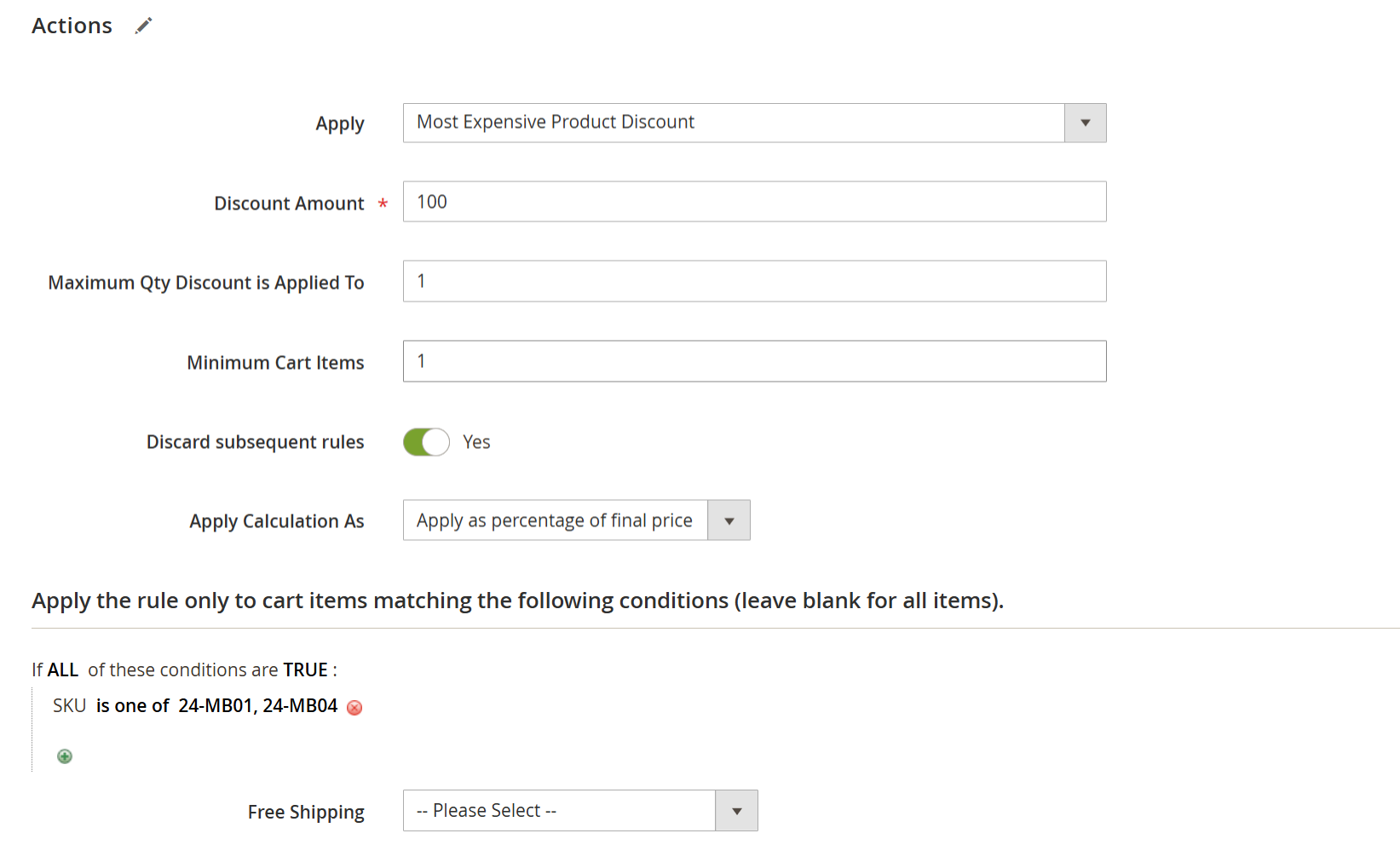
Most Expensive Product Discount
| Field | Description |
|---|---|
| Apply | Select “Most Expensive Product Discount” from the dropdown to enable this rule. |
| Discount Amount | Set the discount value to apply to the most expensive item in the cart (e.g., 100 for 100% or $100 as a fixed amount). |
| Maximum Qty Discount Applied To | Define how many quantities of the most expensive item will receive the discount. |
| Minimum Cart Items | Set the minimum number of total items required in the cart for the rule to apply. If fewer items, the discount will not activate. |
| Discard Subsequent Rule | Enable this to prevent other rules from applying to the same item(s). |
| Apply Calculation As | Choose how the discount should be calculated: |
| - Percentage of Original – Applies a discount on the original product price. | |
| - Percentage of Final Price – Applies to the special price (after admin-set discounts). | |
| - Fixed Amount – A flat amount is deducted from the most expensive product’s price. | |
| Conditions | The rule will apply only if the cart includes at least one product with the following SKUs: 24-MB01, 24-MB04. |
Scenario 1: Give a discount or set the most expensive item in the cart as FREE
If there is 1 item with the most expensive item in the cart, set Maximum Qty Discount to 1, then it will get applied to that item. If Maximum Qty Discount is set to 2, then the discount will be applied to 1 most expensive item in the cart.
Scenario 2: Apply a discount on 2 or more quantities of the cheapest item in the cart
If there is 1 item in the cart with 3 quantities, which is the most expensive? As the maximum discount quantity is set to 3 in the backend, all 3 of them will be discounted.
First Order Discount
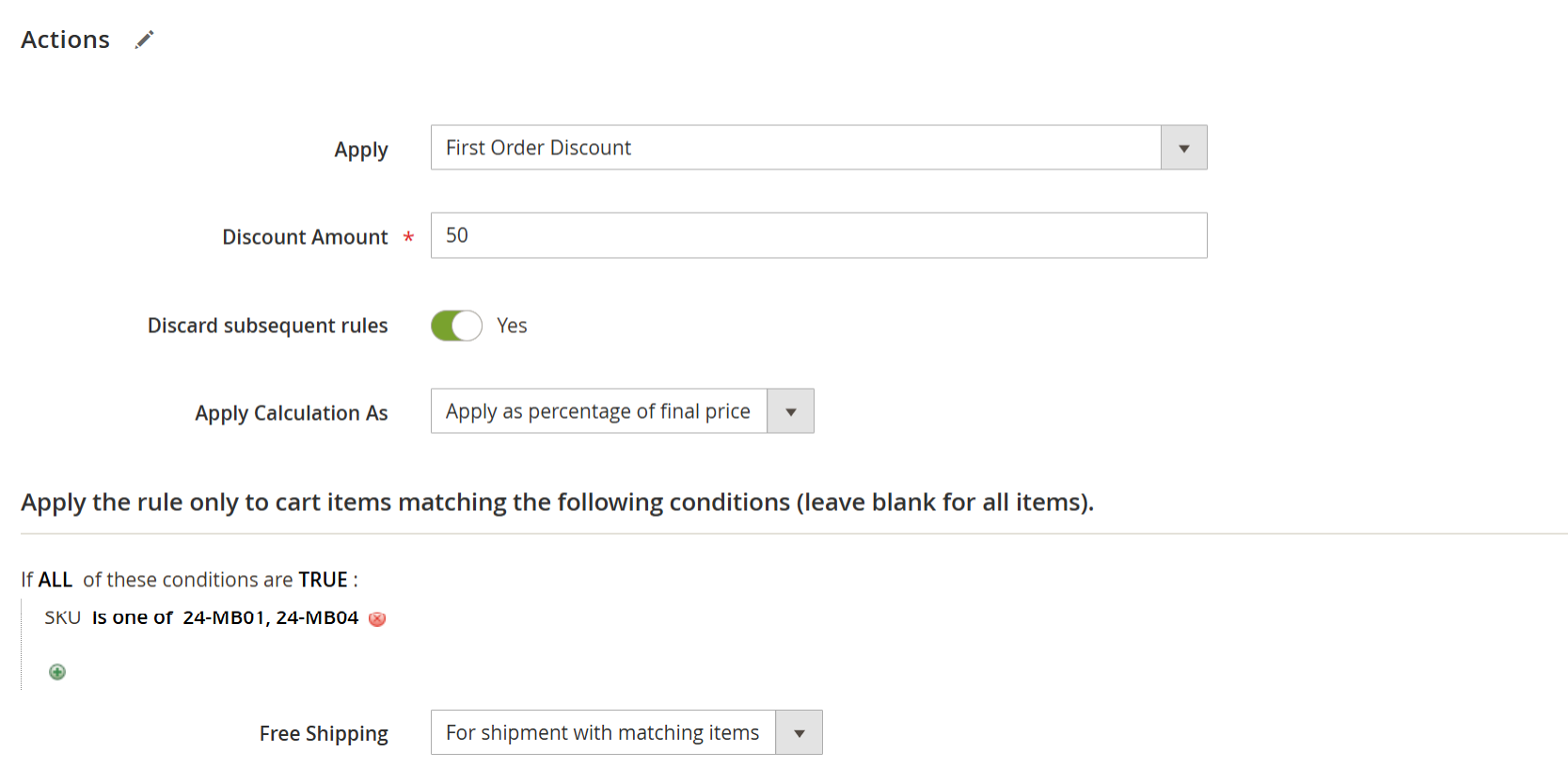
Field Description Apply Select “First Order Discount” from the dropdown to apply this rule for a customer's first order. Discount Amount Enter the discount amount to apply to the first order. E.g., 10for $10 or 10%, depending on the calculation method. Applies only to registered users.Discard Subsequent Rule Enable to prevent any other rules from being applied to the same items. Apply Calculation As Choose the discount method: - Percentage of original – Discount applies on the original price. - Percentage of final price – Discount applies on the final/special price. - Fixed amount – Flat discount amount is applied as specified. Conditions Specify product SKUs or categories for which the rule applies. Example: SKU is one of 24-MB01, 24-MB04.Free Shipping - For shipment with matching items – Free shipping applies if eligible items are in the cart. - For matching items only – Free shipping applies only to those specific eligible items.
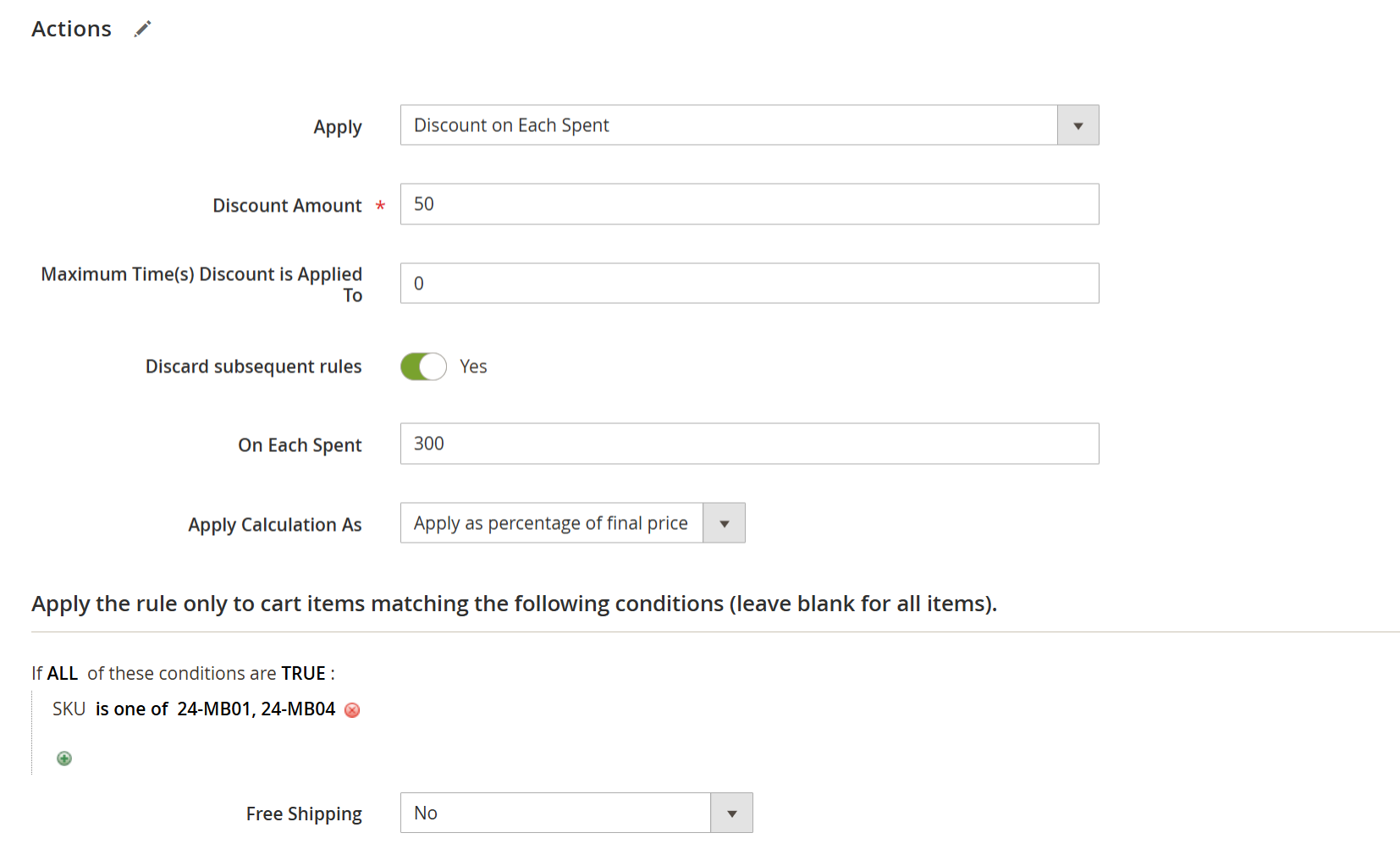
Discount on Each Spent
| Field | Description |
|---|---|
| Apply | Select “Discount on Each Spent” from the dropdown to enable this rule type. |
| Discount Amount | Enter the discount amount to be applied (e.g., "10" to give $10 or 10% off, depending on calculation method). |
| Maximum Qty Discount Applied To | Define the maximum number of times the discount can be applied. Use “0” for no limit. |
| Discard Subsequent Rule | Enable to prevent other discount rules from being applied to the same items. |
| On Each Spent | Set the threshold amount (e.g., every $100 spent triggers the discount). |
| Apply Calculation As | Choose how the discount is calculated: |
| - Apply percentage of original: Based on the original item price. | |
| - Apply as a percentage of final price: Based on the special/final price after any prior discounts. | |
| - Apply as a fixed amount: Flat discount amount set in the Discount Amount field. | |
| Conditions | Define specific product SKUs or categories to which this rule applies. Example: SKU is one of 24-MB01, 24-MB04 |
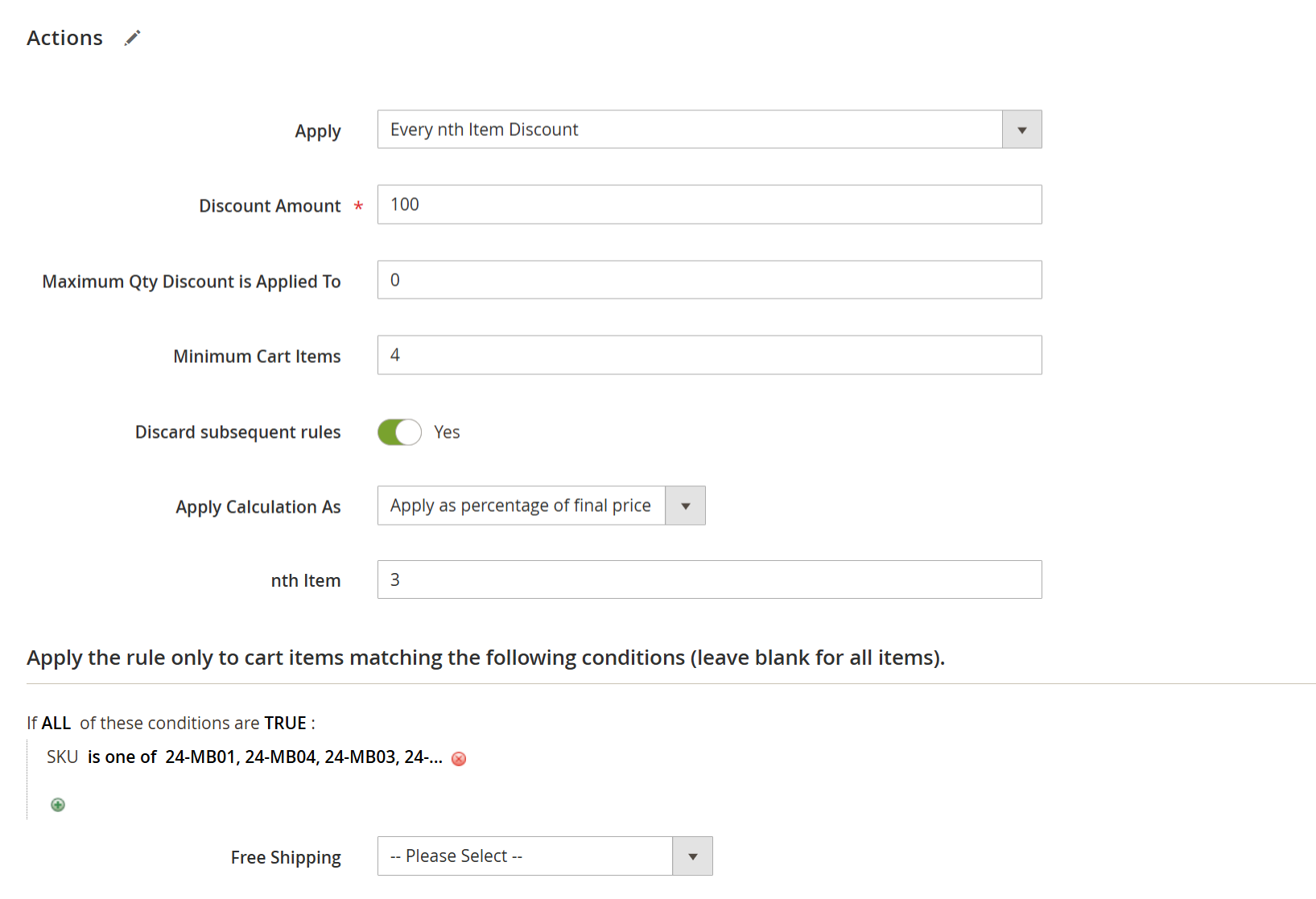
Every Nth Item Discount
| Field | Description |
|---|---|
| Apply | Select “Every Nth Item Discount” from the dropdown to enable this rule. |
| Discount Amount | Set the discount value for every Nth item in the cart (e.g., 100 for 100% or $100 as a fixed amount). |
| Maximum Qty Discount Applied To | Define how many Nth items in the cart will receive the discount. The rule is applied to the cheapest eligible Nth item(s). |
| Minimum Cart Items | Set the minimum number of total cart items required for the rule to apply. Use 0 for no restriction. |
| Discard Subsequent Rule | Enable this option to prevent any other discount rules from being applied to the same items. |
| Apply Calculation As | - Percentage of Original: Discount applies to the original item price. - Percentage of Final Price: Applies to special/final price. - Fixed Amount: A flat amount is subtracted. |
| Nth Qty | Enter the Nth position of the item (e.g., every 5th item) where the discount will apply. |
| Conditions | Add product SKUs or categories this rule should apply to. Example: SKU is one of 24-MB01, 24-MB04, 24-MB03, 24-MB05. |
Example – How the "Every Nth Item Discount" Rule Works
Cart contains:
Product A: Qty = 2, Price = $10
Product B: Qty = 2, Price = $20
Product C: Qty = 1, Price = $50
Total items = 5
Rule Configured As:
Nth Qty = 5
Maximum Qty Discount = 1
Discount Amount = 100%
Apply as a Percentage of the Original
Result:
The 5th item in the cart qualifies for the discount. Among all items, Product A is the cheapest item at $10, so it receives a 100% discount, and $10 is deducted from the cart total.
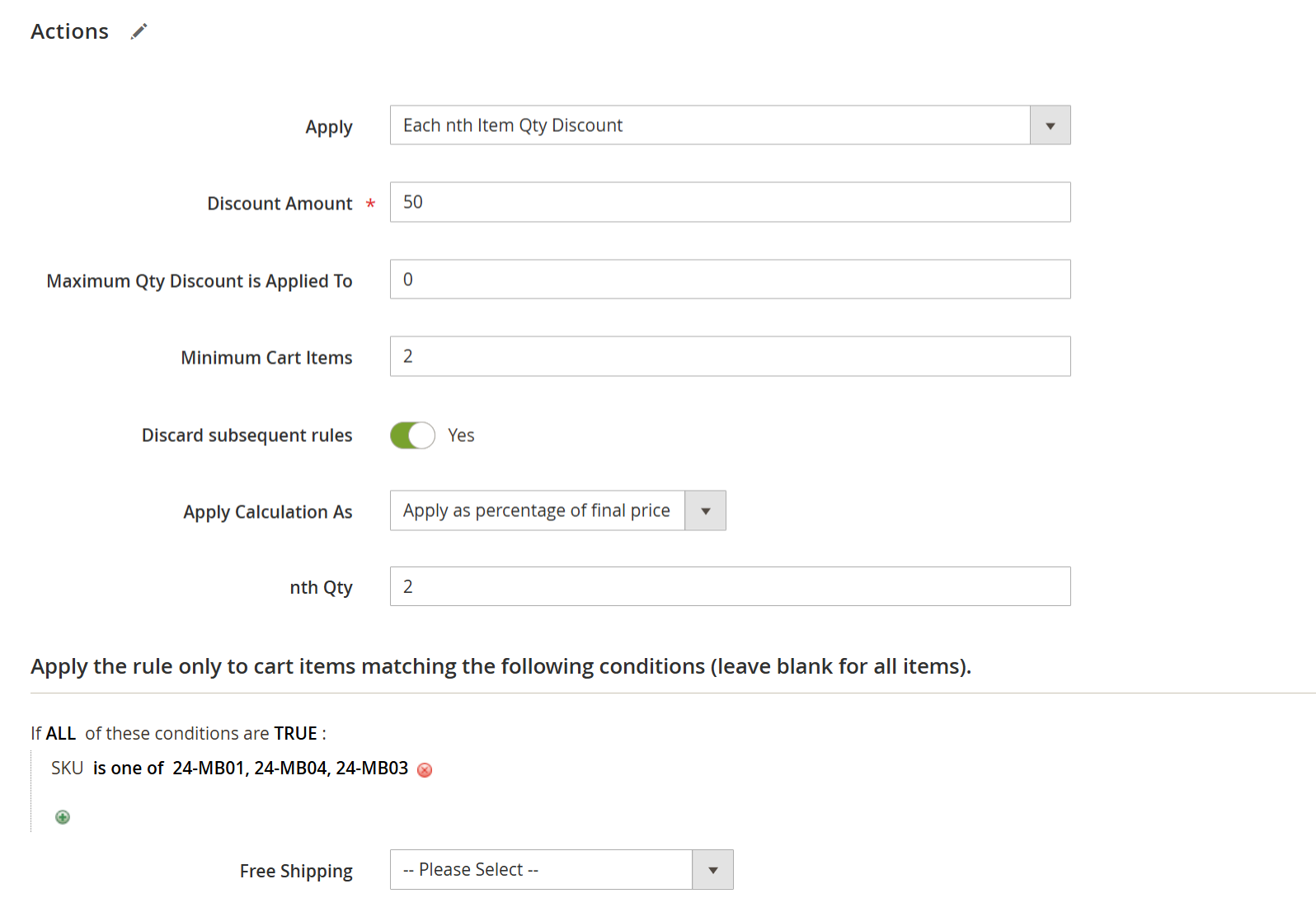
Each Nth item Qty Discount
| Field | Description |
|---|---|
| Apply | Select “Each Nth Item Qty Discount” from the dropdown to enable this rule. |
| Discount Amount | Enter the discount value to apply on every Nth quantity of each item (e.g., 10 for 10% or a fixed amount). |
| Maximum Qty Discount Applied To | Set how many times the discount should apply per item. For example, if Nth Qty = 5 and Max Qty = 1, then for items with Qty ≥ 5, the discount will apply once. |
| Minimum Cart Items | Define the minimum number of valid products required in the cart to apply the rule. Set 0 for no limit. |
| Discard Subsequent Rule | Set to Yes to prevent other discount rules from applying to the same items. |
| Apply Calculation As | - Percentage of Original: Applies a discount on the original product price. - Percentage of Final Price: Applies to special/final price. - Fixed Amount: Applies a flat discount set in the field. |
| Nth Qty | Enter the Nth quantity of each product at which the discount should be applied (e.g., every 5th item). |
| Conditions | Define which SKUs or product categories this rule applies to. Example: SKU is one of 24-MB01, 24-MB04, 24-MB03. |
Example – How the "Every Nth Item Qty Discount" Rule Works
Let’s say you have the following products in the cart:
Product A: Quantity = 5, Price = $10
Product B: Quantity = 5, Price = $20
Product C: Quantity = 1, Price = $50
If you set:
Nth Qty = 5
Maximum Qty Discount Applied To = 1
Then the rule checks which items have a quantity of 5 (as defined by Nth Qty). In this case, both Product A and Product B meet that condition. Since the Maximum Qty Discount is set to 1, only one of these will receive the discount, and it will be applied to the cheapest product among them (Product A, in this case).
This way, the discount is smartly applied based on the quantity and pricing set in the rule.
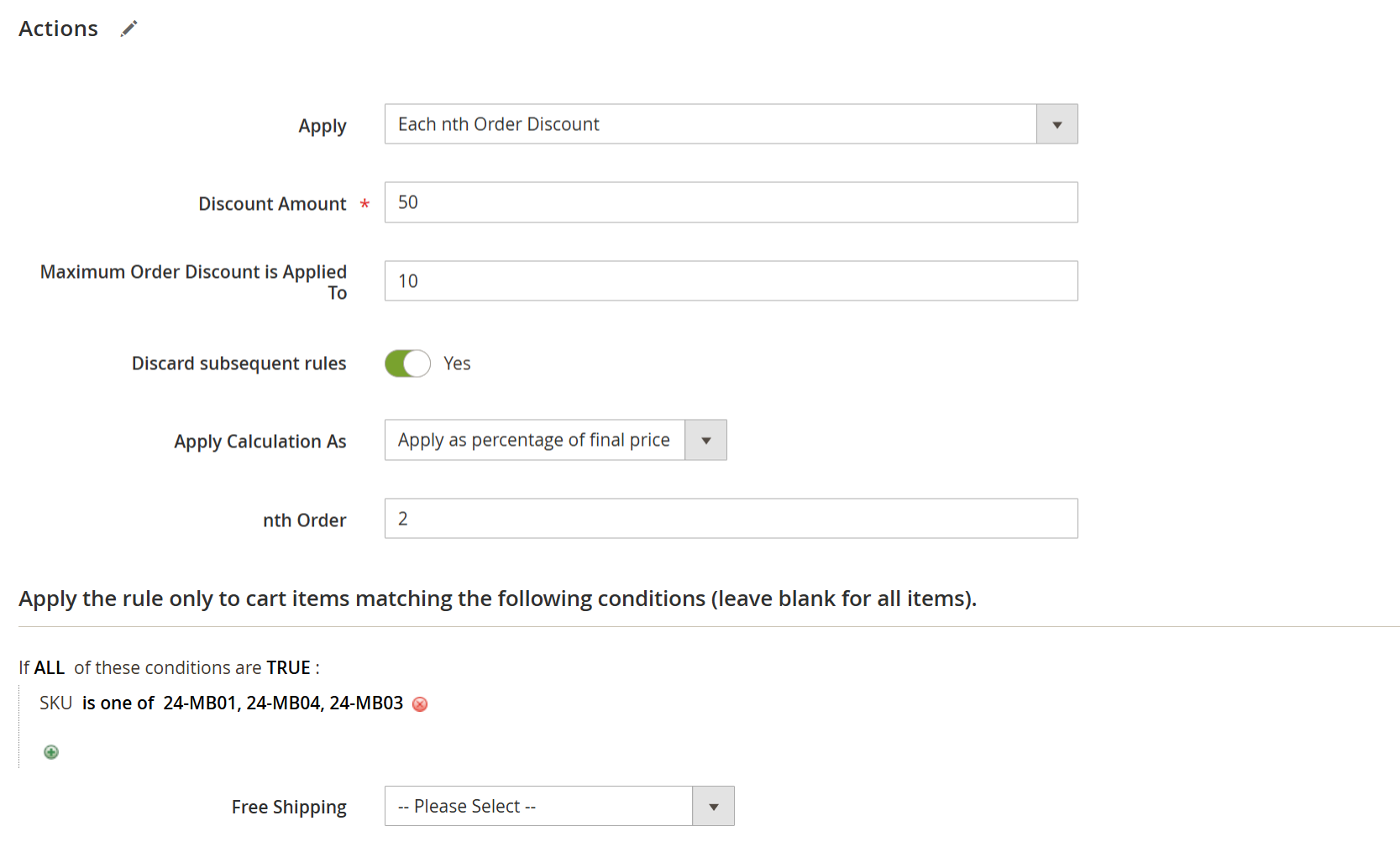
Each Nth Order Discount
| Field | Description |
|---|---|
| Apply | Select "Each nth Order Discount" from the dropdown to enable this rule. |
| Discount Amount | Enter the discount value to apply to the qualifying order (e.g., 10 for 10% or a fixed amount). |
| Maximum Qty Discount Applied To | Define how many times the discount should apply (e.g., set 10 to apply to the 2nd, 4th, 6th… up to the 10th order). Use 0 for no limit. |
| Discard Subsequent Rule | Set to Yes to prevent other discount rules from applying to the same order/products. |
| Apply Calculation As | - Percentage of Original: Applies a discount on the original product price. - Percentage of Final Price: Applies to the final/special price. - Fixed Amount: Applies a flat discount as set. |
| nth Order | Enter the order number (e.g., 2) to define every nth order eligible for the discount. |
| Conditions | Set the scope for which products/categories the rule applies to. Example: SKU is one of 24-MB01, 24-MB04, 24-MB03. |
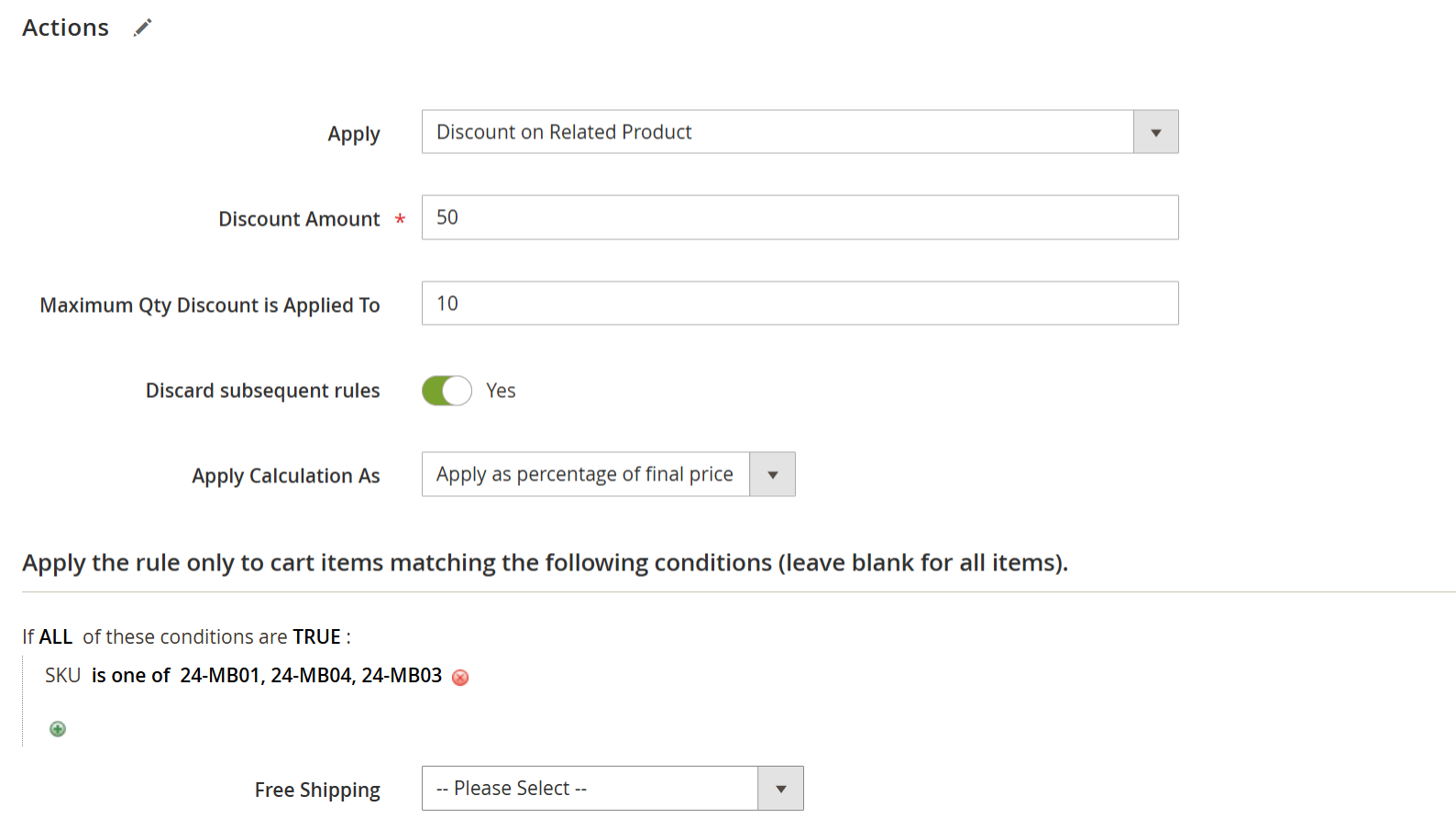
Discount on Related Product
| Field | Description |
|---|---|
| Apply | Select "Discount on Related Product" from the dropdown to activate this rule. |
| Discount Amount | Enter the discount amount (e.g., 10 for 10% or 10 fixed) to apply to related products added to the cart. |
| Maximum Qty Discount Applied To | Enter the number of related product quantities eligible for the discount. Use 0 for no limit. |
| Discard Subsequent Rule | Set to Yes to prevent other rules from being applied to the same product(s). |
| Apply Calculation As | - Percentage of Original: Applies a discount on the original product price. - Percentage of Final Price: Applies to discounted/special price. - Fixed Amount: Deducts the set fixed value. |
| Conditions | Define the target products using SKUs or categories. Example: SKU is one of 24-MB01, 24-MB04, 24-MB03. |
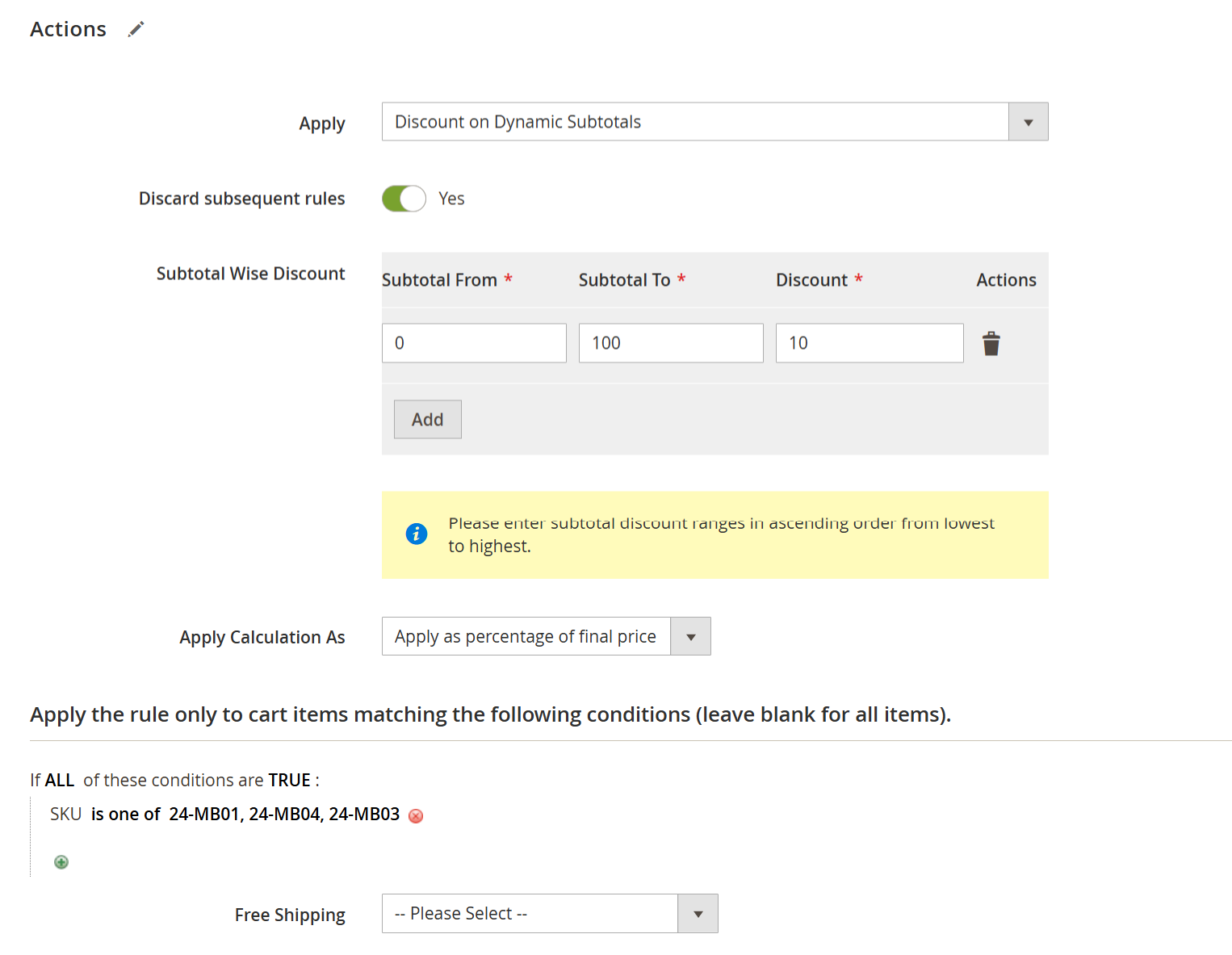
Discount On Dynamic Subtotal
| Field | Description |
|---|---|
| Apply | Select "Discount on Dynamic Subtotal" from the dropdown to activate this rule type. |
| Discard Subsequent Rule | Set to Yes to prevent other rules from applying to the same items. |
| Subtotal Wise Discount | Define subtotal slabs and assign discount values accordingly. |
| Apply Calculation As | - Apply percentage of original: The discount is based on the original subtotal. - Apply percentage of final price: Based on the discounted subtotal. - Apply as a fixed amount: Deducts the set fixed amount. |
| Conditions | Use product-specific conditions to apply the rule. Example: SKU is one of 24-MB01, 24-MB04, 24-MB03. |
Auto Add Free Gift Product
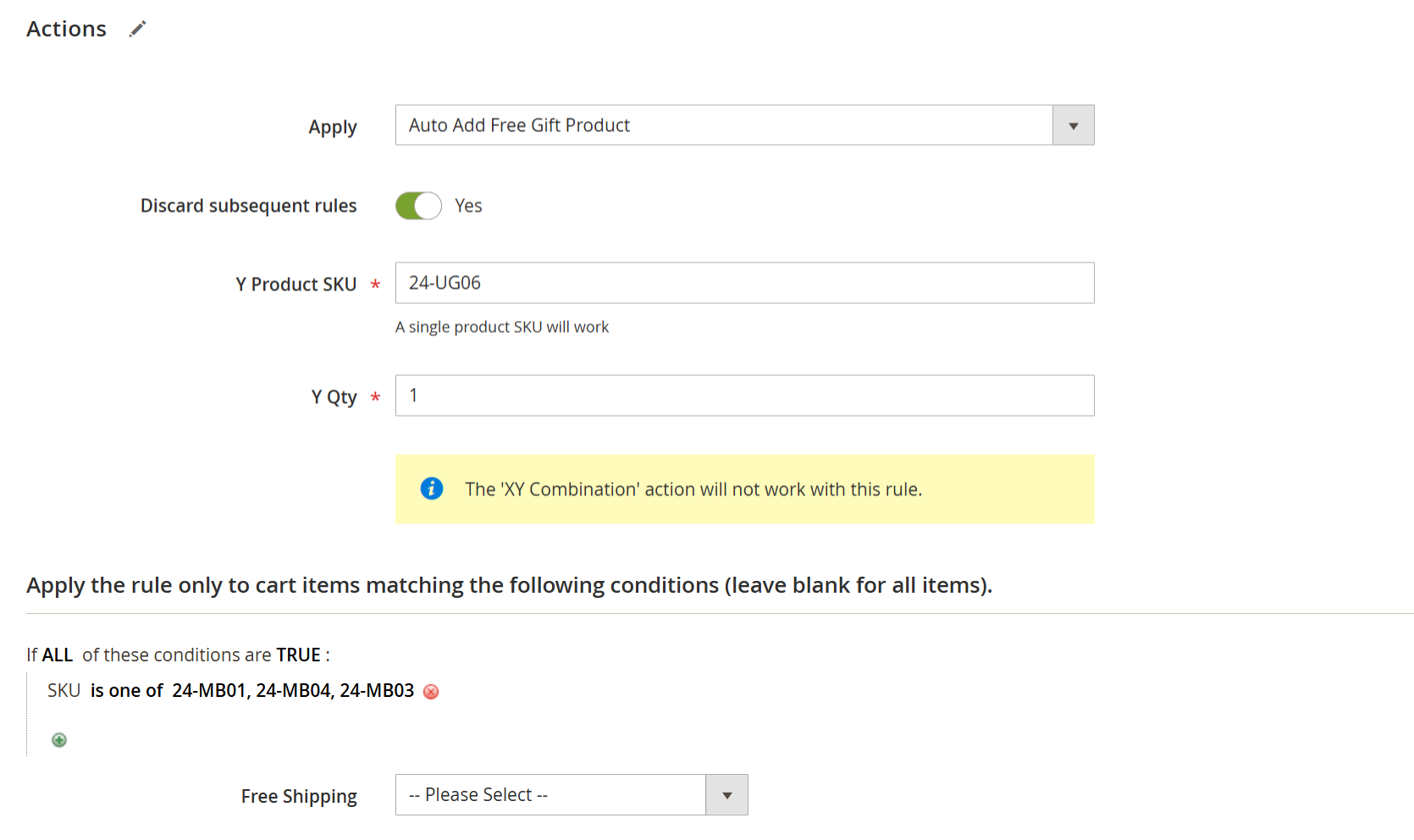
| Field | Description |
|---|---|
| Apply | Select Auto Add Free Gift Product to activate the rule for free gifts. |
| Discard Subsequent Rules | Set to Yes to prevent other promotional rules from applying to the same products. |
| Y Product SKU | Enter the SKU of the gift product you want to add automatically. Only one SKU is allowed. (e.g., 24-UG06) |
| Y Qty | Set the number of free gift items to add to the cart. (e.g., 1 means one gift will be added. |
Use this Condition section to define the conditions under which the free gift will be added. For example:
Condition Type:
SKU is one of 24-MB01, 24-MB03, 24-MB04
This means if any of these products are added to the cart, the rule will trigger and add the defined gift product automatically.
Discount For Product Set
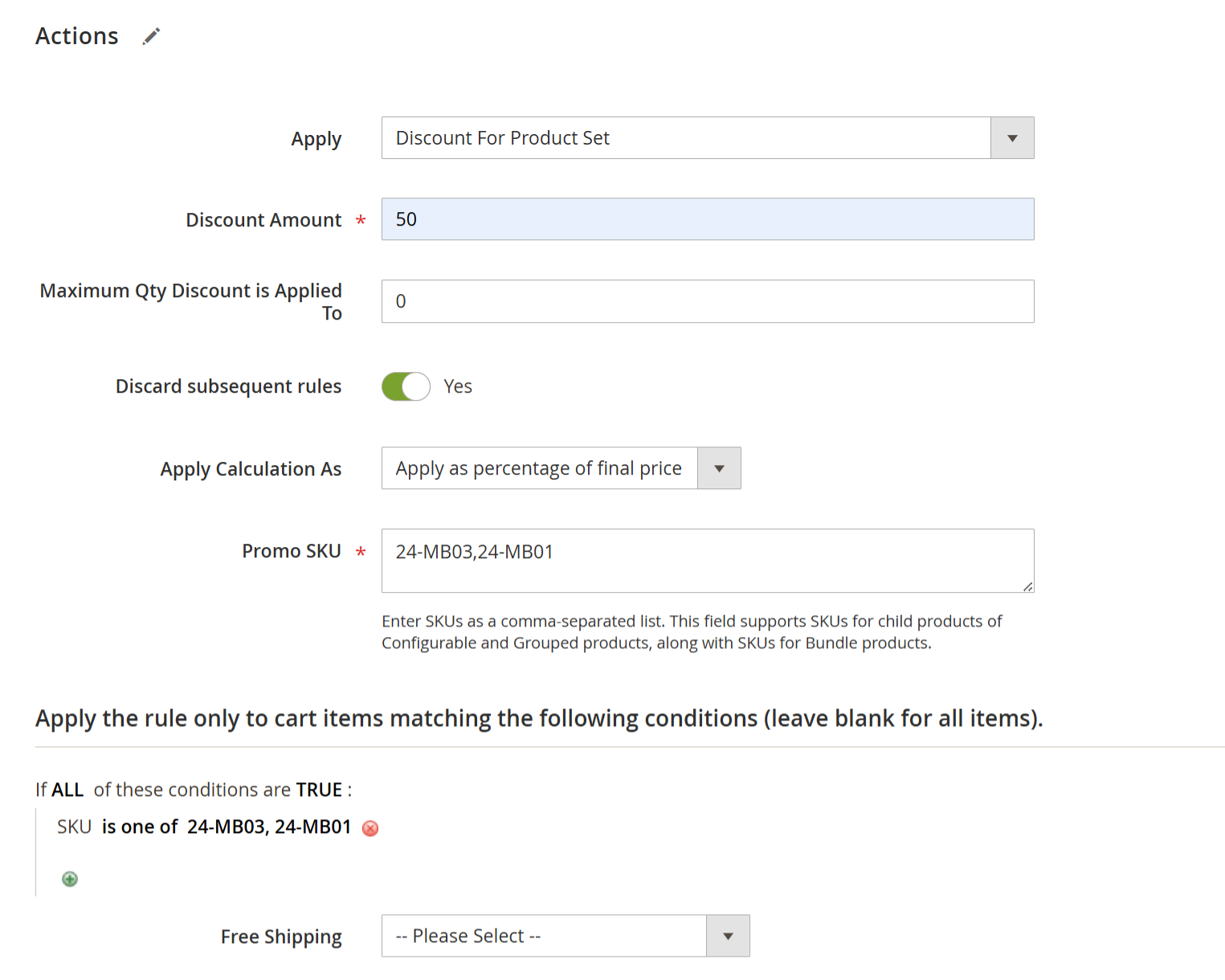
- This rule applies a discount when specific combinations of products (defined as a set using SKUs) are present in the cart.
| Field | Description |
|---|---|
| Apply | Select “Discount for Product Set” from the dropdown. |
| Discount Amount | Set the discount value (percentage or fixed) to be applied to the specified product set. Example: 50 applies a 50% discount. |
| Maximum Qty Discount is Applied To | Enter the limit for the number of items eligible for a discount. Use 0 for unlimited. |
| Discard Subsequent Rules | Enable this to prevent other discount rules from applying to the same items. |
| Apply Calculation As | Choose how the discount is calculated: • Apply as a percentage of the final price • Apply as a percentage of the original • Fixed amount |
| Promo SKU | Enter SKUs of the product set, separated by commas. These SKUs must all be present in the cart to trigger the discount. |
| Conditions | Add SKUs again in the condition section to ensure the rule matches specific cart items. |
| Free Shipping | Optional: Enable if free shipping should apply when the condition is met. |
Example:
If the cart contains:
SKU: 24-MB03
SKU: 24-MB01
And the Discount Amount is set to 50 with Apply Calculation As: Apply as a percentage of the final price.
Then, a 50% discount is applied to the final price of the product set.
Buy X (Save 10% on 1 Item, 20% on 2 Items, with Higher Discount for More Purchases)
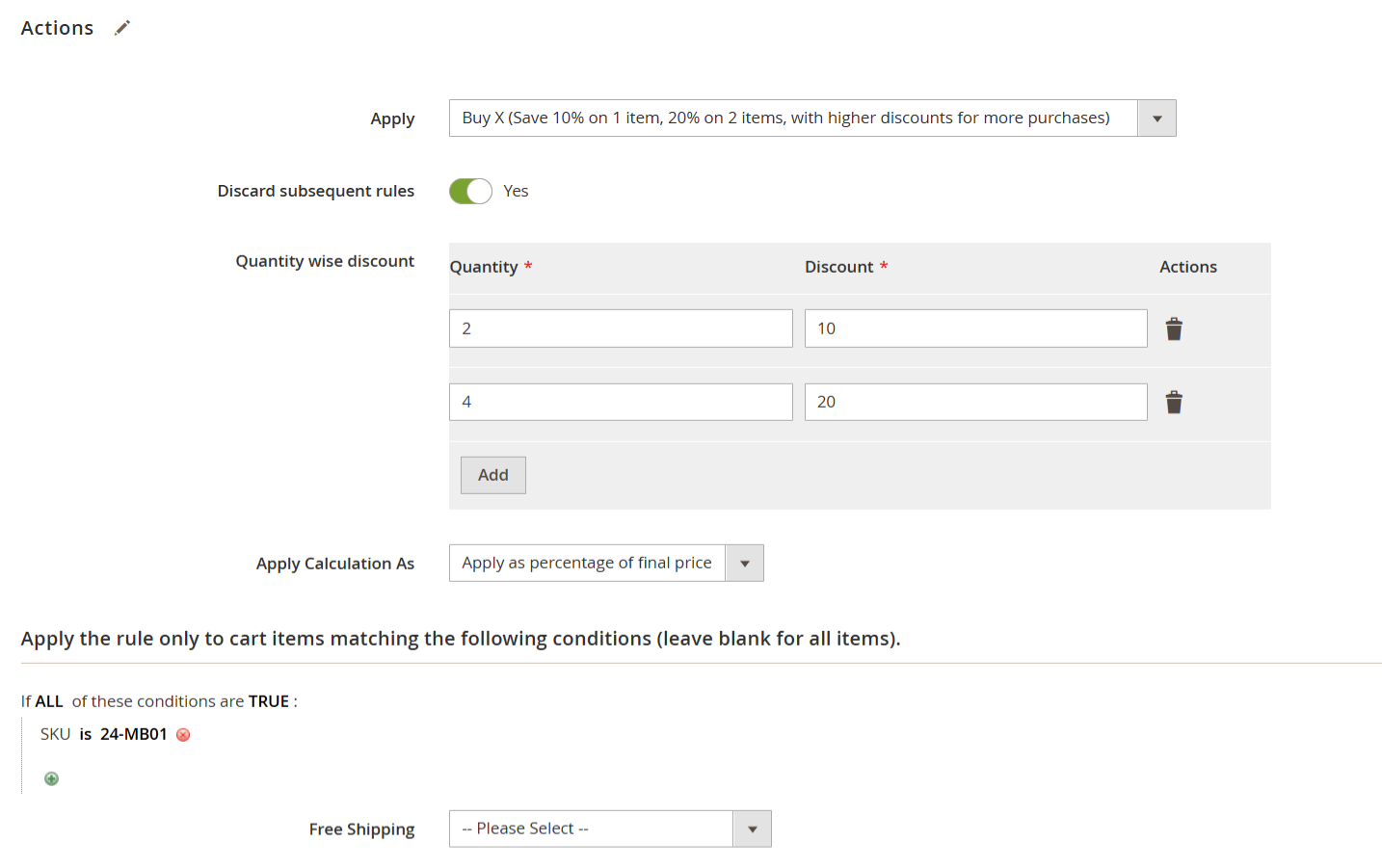
| Field | Description |
|---|---|
| Apply | Select "Buy X (Save 10% on 1 item, 20% on 2 items, with higher discounts for more purchases)" to apply quantity-based discounts. |
| Discard Subsequent Rules | Set to Yes to prevent any other discount rules from being applied to the same items. |
| Quantity Wise Discount | Define quantity and discount pairs: |
| - 2 Qty = 10% Discount | |
| - 4 Qty = 20% Discount | |
| Apply Calculation As | Set how the discount is calculated: |
| -Apply percentage of original: The discount is based on the original subtotal. - Apply percentage of final price: Based on the discounted subtotal. - Apply as a fixed amount: Deducts the set fixed amount. | |
| Conditions | Specify which items this rule should apply to. In this case, it only applies if the SKU is 24-MB01. |
| Free Shipping | Optional – Choose whether to offer free shipping based on this promotion (not selected in the current rule). |
| Example | If a customer adds 2 units of product 24-MB01 to the cart, they receive a 10% discount on those items.If they add 4 or more units, the discount automatically increases to 20%. This allows you to reward customers with higher discounts as they purchase in larger quantities. |
For Every $10 Spent on X, Get Y at a 5% Discount
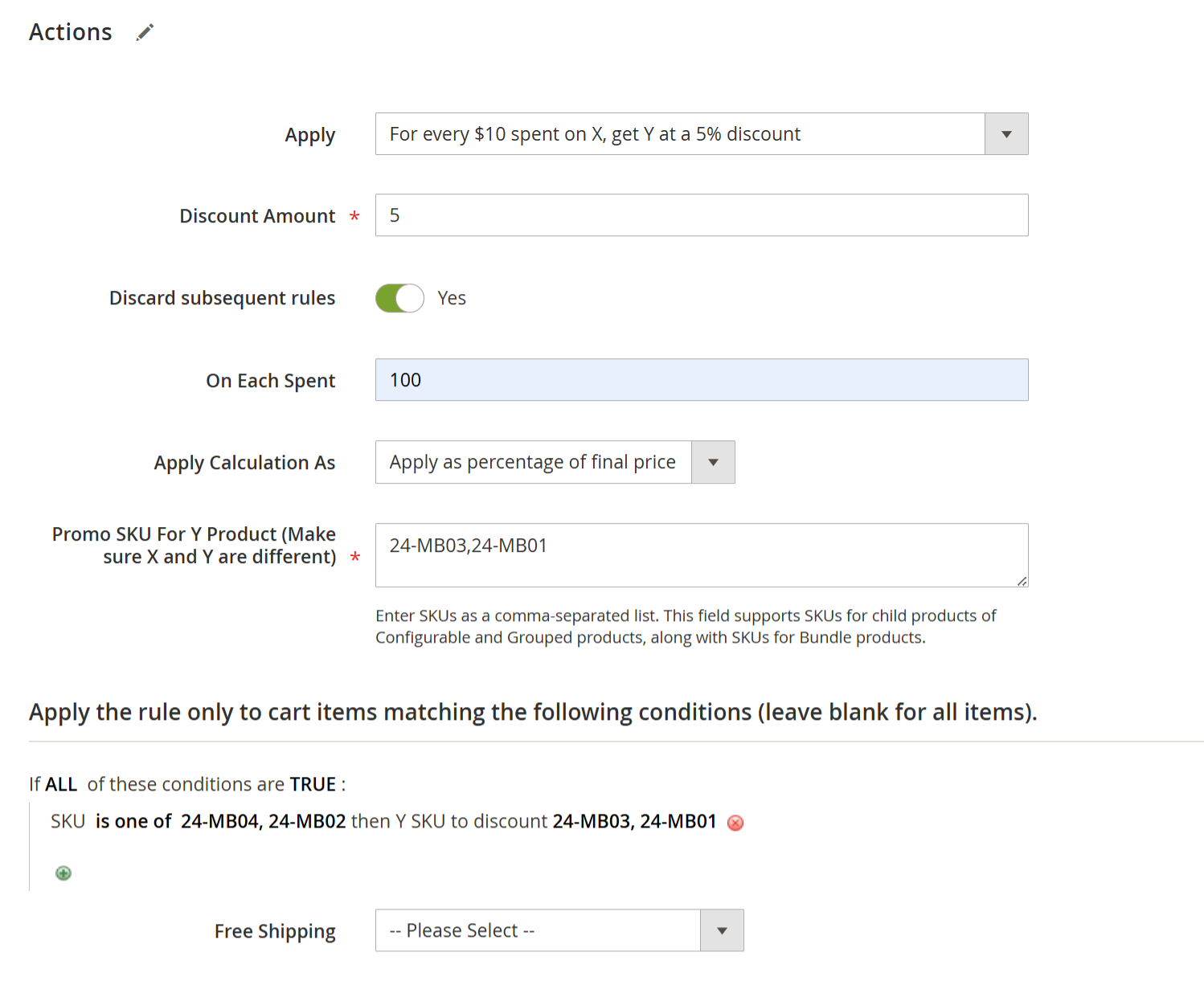
- This rule allows store owners to reward customers by offering a discount on product Y when they spend a specific amount on product X.
| Field | Description |
|---|---|
| Apply | Select "For every $X spent on X, get Y at a % discount" from the dropdown. |
| Discount Amount | Enter the percentage discount for product Y. Example: 5 means product Y gets 5% off. |
| Discard Subsequent Rules | Enable to prevent other discount rules from applying to the same items. |
| On Each Spent | Specify the spending threshold on product X. Example: 100 means that for every $100 spent on product X, the discount on Y applies. |
| Apply Calculation As | Choose how to calculate the discount: • Apply as a percentage of the final price • Apply as a percentage of the original • Fixed amount |
| Promo SKU for Y Product | Enter the SKUs of the product(s) to which the discount will be applied. These should be different from X products. |
| Conditions | Define SKUs of X products. The rule will apply only if these X products are in the cart and the spending threshold is met. |
| Free Shipping | Optional: Define if free shipping should apply with this promotion. |
Example:
Condition SKU (X): 24-MB04, 24-MB02
Promo SKU (Y): 24-MB03, 24-MB01
On Each Spent: $100
Discount Amount: 5%
If a customer spends $200 on SKUs 24-MB04 or 24-MB02, they will receive 5% off on 2 quantities of 24-MB03 or 24-MB01, depending on how many Y products are in the cart.
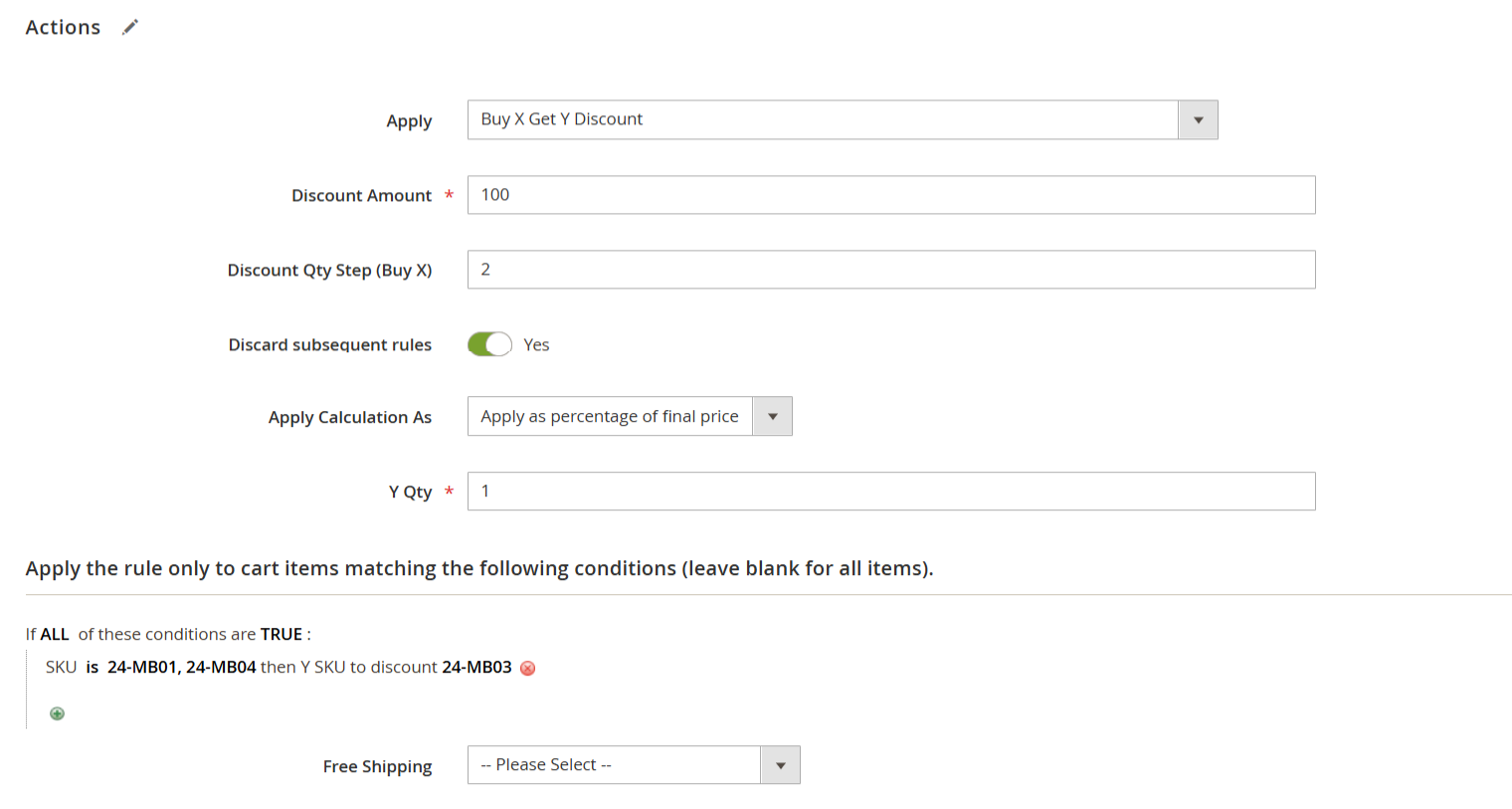
Buy X and Get Y Discount
| Field | Description |
|---|---|
| Apply | Select “Buy X Get Y Discount” from the dropdown. |
| Discount Amount | Enter the discount value to be applied to Y products. Example: “100” = 100% off, or 100 as a fixed amount. |
| Discount Qty Step (Buy X) | Set the required quantity of X products that a customer must buy to trigger the discount. |
| Y Qty | Set the quantity of Y products eligible for the discount. |
| Apply Calculation As | Choose how the discount is applied: • Percentage of original – Discount is based on the original price • Final price – After any other discount • Fixed amount – Fixed discount per Y item |
| Discard Subsequent Rule | Set to Yes if you want to stop any other rules from applying to the same items. |
| Conditions | Set SKUs or categories of X products. The Y product to be discounted is defined by SKU under Action > Conditions. |
The rule only applies if both X and Y products are in the cart with matching quantities as configured (e.g., Buy 2 of X and Get 1 of Y at a discount).
XY Combination is required: Admin must specify both X and Y product SKUs.
The system checks for exact quantities; otherwise, the discount won’t apply.
Example:
Discount Qty Step (Buy X): 2
Y Qty: 1
Discount Amount: 100 (interpreted as 100% discount)
If a customer adds 2 units of SKU 24-MB01 (X) and 1 unit of SKU 24-MB03 (Y), then the Y product (24-MB03) will automatically receive a 100% discount.
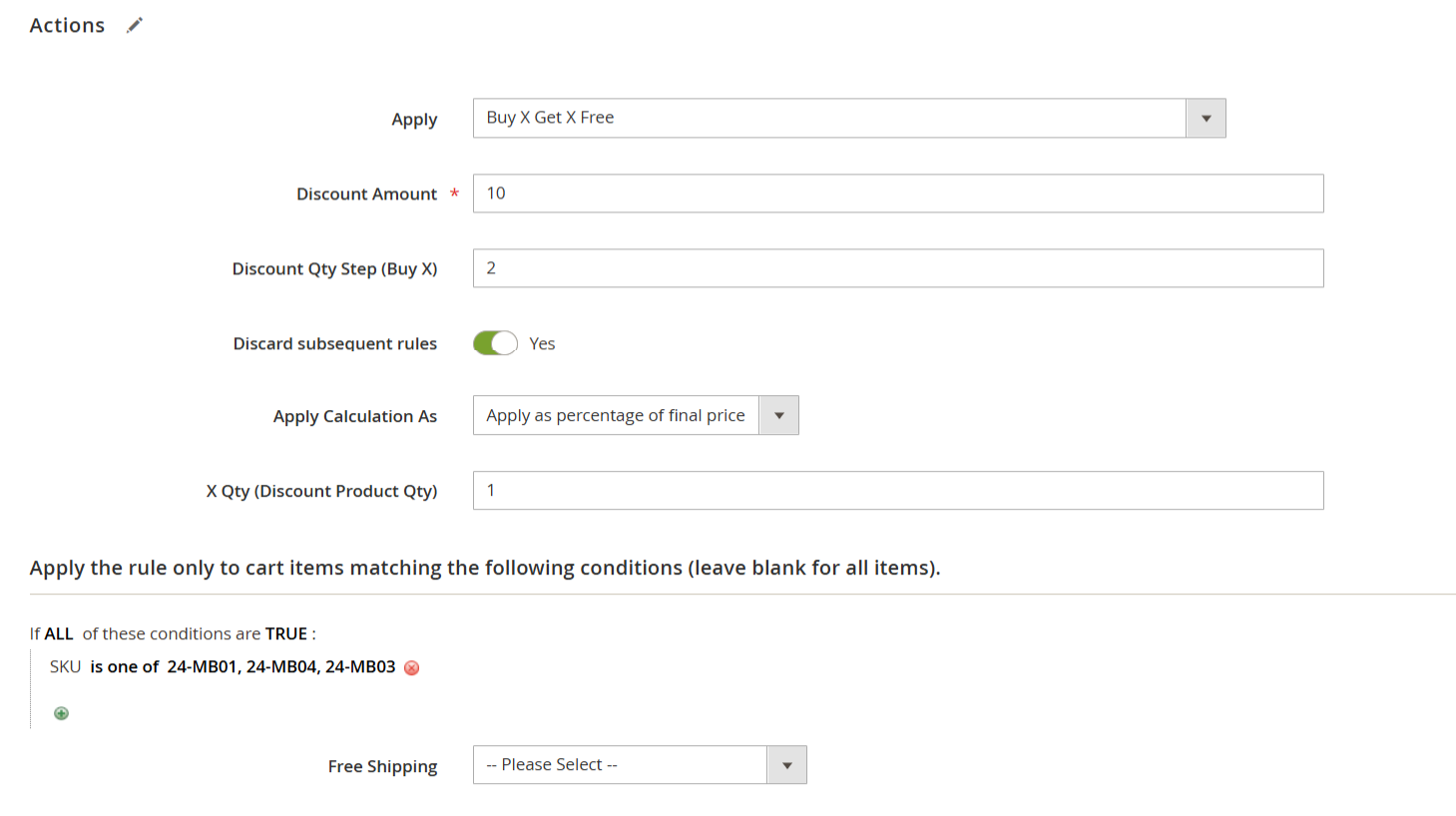
Buy X Get X Free
| Field | Description |
|---|---|
| Apply | Select “Buy X Get X Free” from the dropdown to enable this discount rule. |
| Discount Amount | The discount is to be applied to the X product itself. Example: 10 = 10% off or $10 off on the discounted item. |
| Discount Qty Step (Buy X) | Define how many products (X) must be purchased to activate the discount. Example: Buy 2 to trigger the discount. |
| X Qty (Discount Product Qty) | Enter how many of the purchased items will receive the discount. Example: Set to 1 for “Buy 2, get 1 discounted.” |
| Maximum Qty Discount Applied To | (Optional) If set to 6, the offer repeats up to that quantity. Example: Buy 4, get 2 discounted. |
| Discard Subsequent Rule | Enable this to prevent any other discount rules from being applied to the same items. |
| Apply Calculation As | Choose how the discount should be calculated: – Apply as a percentage of the original – Apply as a percentage of the final price – Apply as a fixed amount |
Example Scenario
Buy X Step: 2
Discount Qty (X Qty): 1
Discount Amount: 10%
Outcome:
When the customer buys 2 units of the same product, they get 1 more unit at 10% off.
Buy X and Get Y Auto Add Free
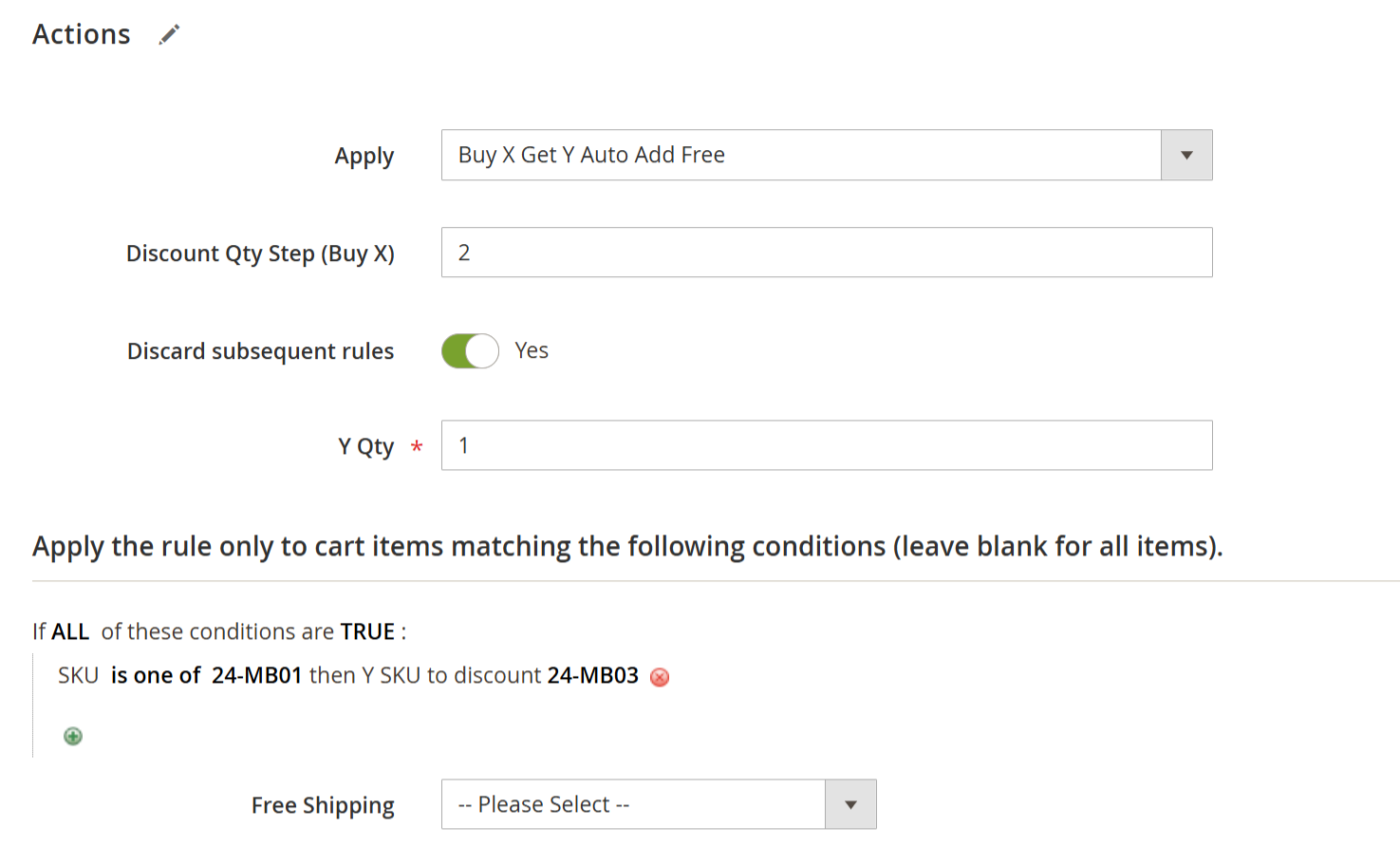
- This rule automatically adds a free product (Y) to the cart when the customer purchases a specific quantity of another product (X). It helps create promotional deals like "Buy 2, Get 1 Free" without needing customer interaction at checkout.
| Field | Description |
|---|---|
| Apply | Select “Buy X Get Y Auto Add Free” from the dropdown to activate this rule. |
| Discount Qty Step (Buy X) | Set how many units of the X product the customer must buy to trigger the promotion. Example: 2 |
| Y Qty | Set how many Y products (free items) should be auto-added to the cart. Example: 1 |
| Discard Subsequent Rules | Enable this toggle to prevent other discount rules from being applied to the same items. |
| Conditions (SKU) | Define the X product(s) eligible for this offer. Example: SKU is one of 24-MB01 |
| Y Product SKU | The product is to be auto-added for free when conditions are met. Example: 24-MB03 |
| Free Shipping | Optional: Choose whether to apply free shipping to the cart or selected items based on this rule. |
| Example Scenario | If a customer adds 2 units of 24-MB01 to their cart, 1 unit of 24-MB03 will be automatically added for free without a coupon. |
The rule only applies if both X and Y products are in the cart with matching quantities as configured (e.g., Buy 2 of X and Get 1 of Y free).
XY Combination is required: Admin must specify both X and Y product SKUs.
The system checks for exact quantities; otherwise, the discount won’t apply.
Buy Any and Get Y Auto Add Free
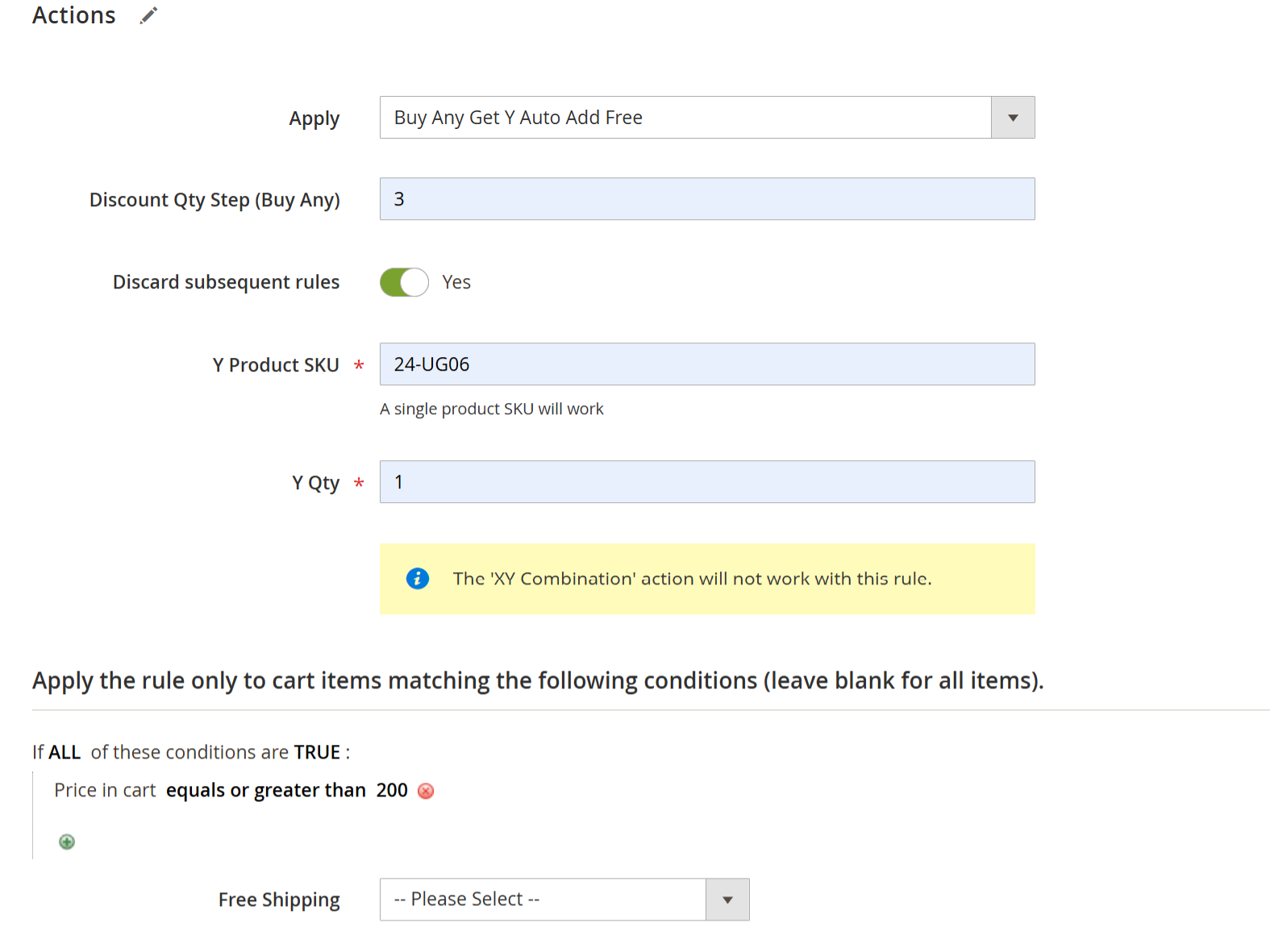
- The "Buy Any Get Y Auto Add Free" rule allows you to automatically add a specific free product (Y) to the cart when a customer purchases a set number of any products (X). It’s a great way to offer incentives like free gifts based on total item count and cart conditions.
| Field | Description |
|---|---|
| Apply | Select “Buy Any Get Y Auto Add Free” from the dropdown to activate this rule. |
| Discount Qty Step (Buy Any) | Set the number of products a customer must add to the cart to trigger the offer. Example: 3 |
| Y Product SKU | Enter the SKU of the product that should be automatically added as a free item when the conditions are met. Example: 24-UG06 |
| Y Qty | Set the number of Y products to be added for free. Example: 1 |
| Discard Subsequent Rules | Enable this toggle to prevent other rules from being applied to the same products. |
| Conditions | Set conditions under which the rule applies. Example: Price in cart equals or greater than 200 |
| Free Shipping | (Optional) Choose to apply free shipping based on this rule. |
| Example Scenario | If a customer’s cart total is $200 or more and they add any 3 products, 1 unit of the product SKU 24-UG06 is automatically added for free. |
Percent of Product Price Discount
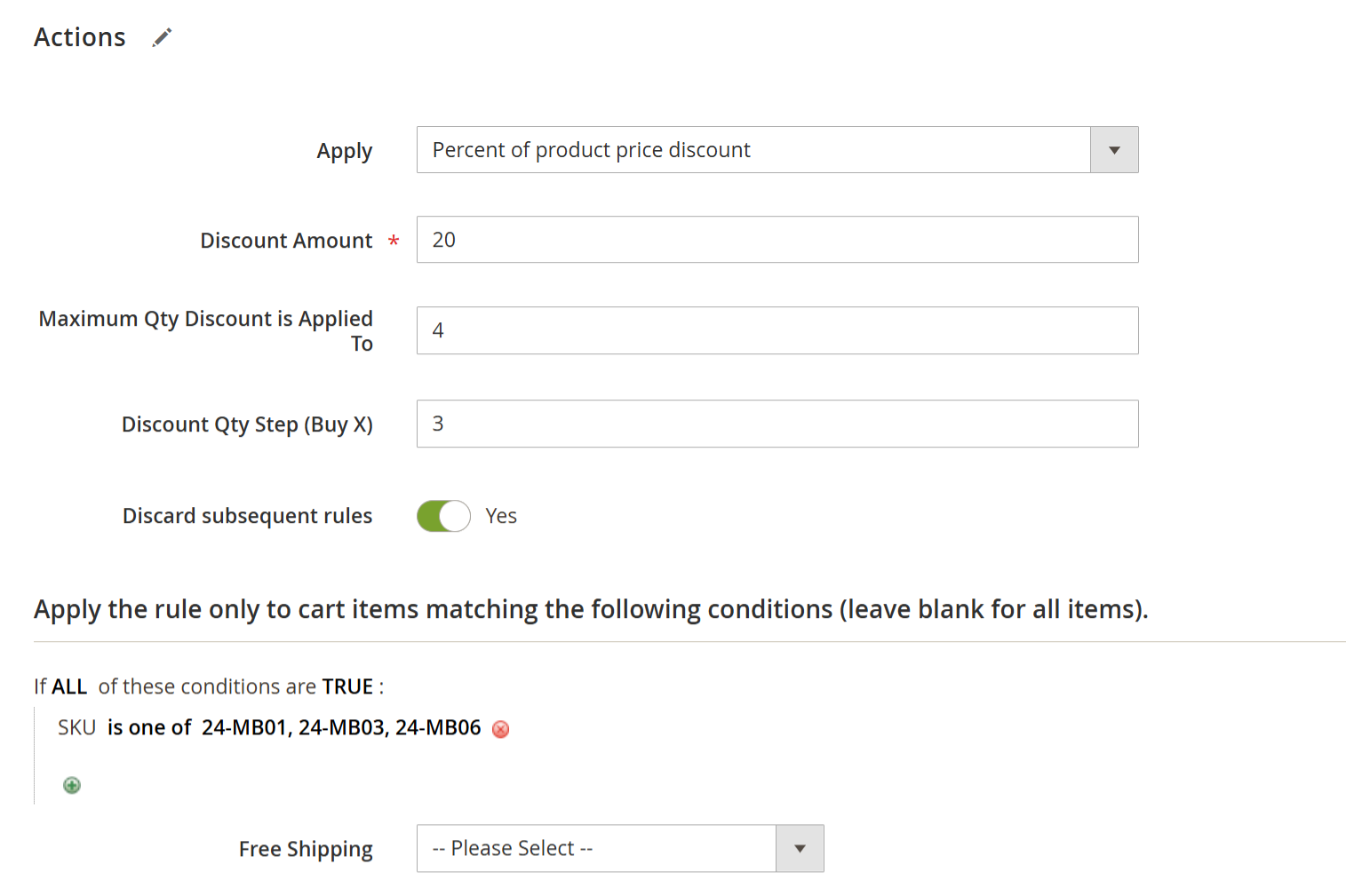
- The “Percent of Product Price Discount” rule allows you to apply a percentage discount on specific products when a certain quantity threshold is met.For example, buy 3 of any product from the selected SKUs and get a 20% discount applied to up to 4 qualifying items.
| Field | Description |
|---|---|
| Apply | Select "Percent of product price discount" from the dropdown. |
| Discount Amount | Enter the percentage value of the discount (e.g., 20 for 20% off). |
| Maximum Qty Discount is Applied To | Set how many items the discount should apply to (e.g., 4). |
| Discount Qty Step (Buy X) | Define the quantity step (e.g., 3) to become eligible for the discount. |
| Discard Subsequent Rules | Enable to prevent other rules from applying to the same items. |
| Conditions | Specify which products the rule applies to using SKUs (e.g., SKU is one of 24-MB01, 24-MB03, 24-MB06). |
| Free Shipping | Optional: Choose whether to apply free shipping to eligible items. |
Example:
If you configure:
Discount Amount: 20
Discount Qty Step (Buy X): 3
Maximum Qty Discount is Applied To: 4
And a customer adds 4 units of SKU 24-MB03 to their cart:
Then, the system will apply a 20% discount on 4 units, as all conditions are met, and the cap for the discount is 4 items.
Fixed Amount Discount
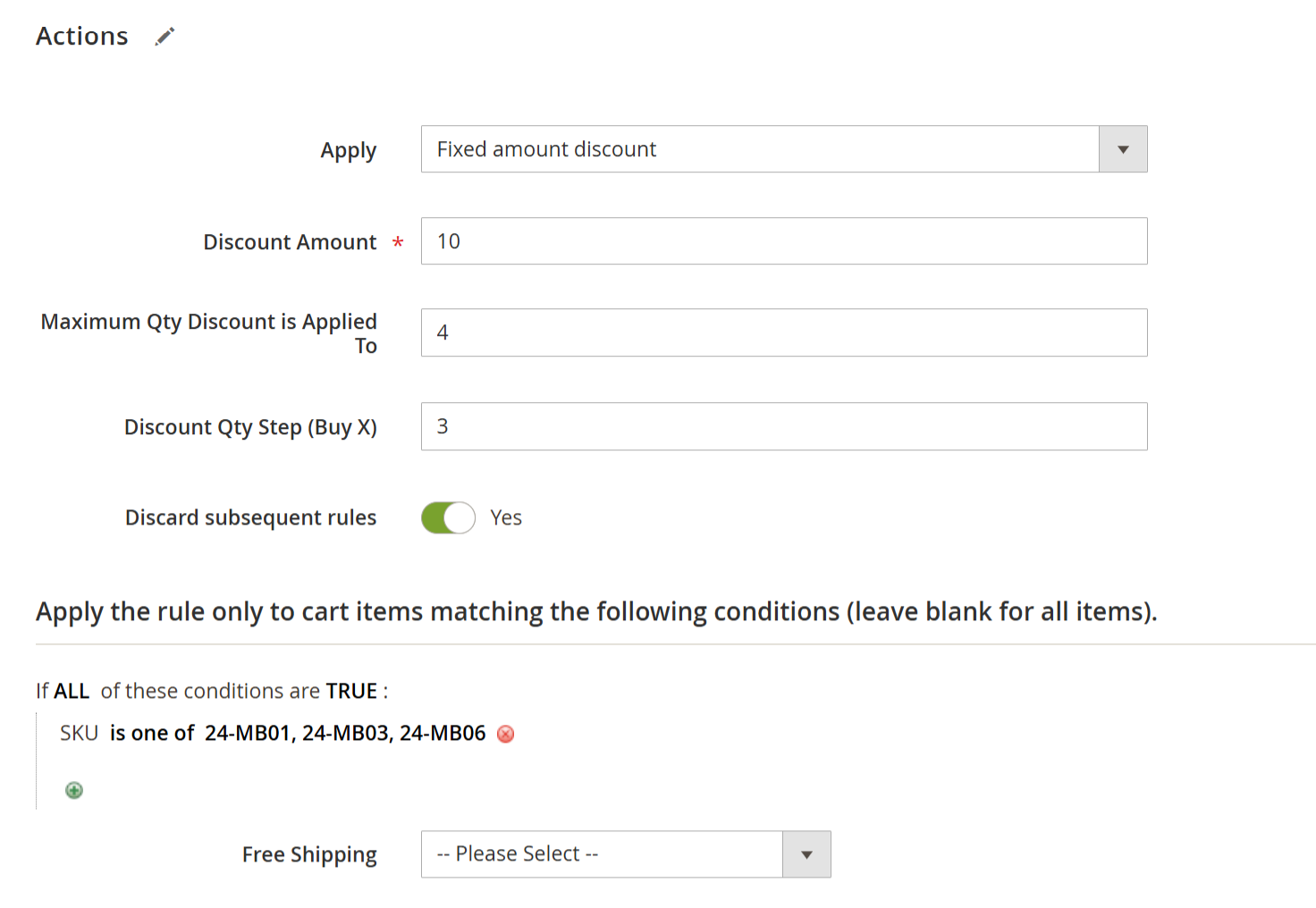
- This rule allows you to apply a fixed discount value to a specific quantity of selected products when a certain purchase condition is met. It is ideal for promotions like "Buy 3, get $10 off per item."
| Field | Description |
|---|---|
| Apply | Select "Fixed amount discount" from the dropdown. |
| Discount Amount | Enter the fixed amount to deduct per qualifying item. For example, entering 10 will apply a $10 discount to each eligible product. |
| Maximum Qty Discount is Applied To | The maximum number of items the discount should apply to. For instance, if set to 4, the discount will be applied to up to 4 items only. |
| Discount Qty Step (Buy X) | Minimum number of items required in the cart to trigger the discount (e.g., 3). |
| Discard Subsequent Rules | Enable this to prevent other discount rules from applying to the same items. |
| Conditions | Define specific products by SKU or category that this discount applies to. Example: SKU is one of 24-MB01, 24-MB03, 24-MB06. |
| Free Shipping | Optionally apply free shipping to the discounted items. |
Example:
If you configure:
Discount Amount: 10
Discount Qty Step (Buy X): 3
Maximum Qty Discount is Applied To: 4
And a customer adds 4 units of SKU 24-MB01 to the cart:
Then, the system will apply a $10 discount per item, up to 4 items, totalling a $40 discount.
Fixed Amount Discount for Whole Cart
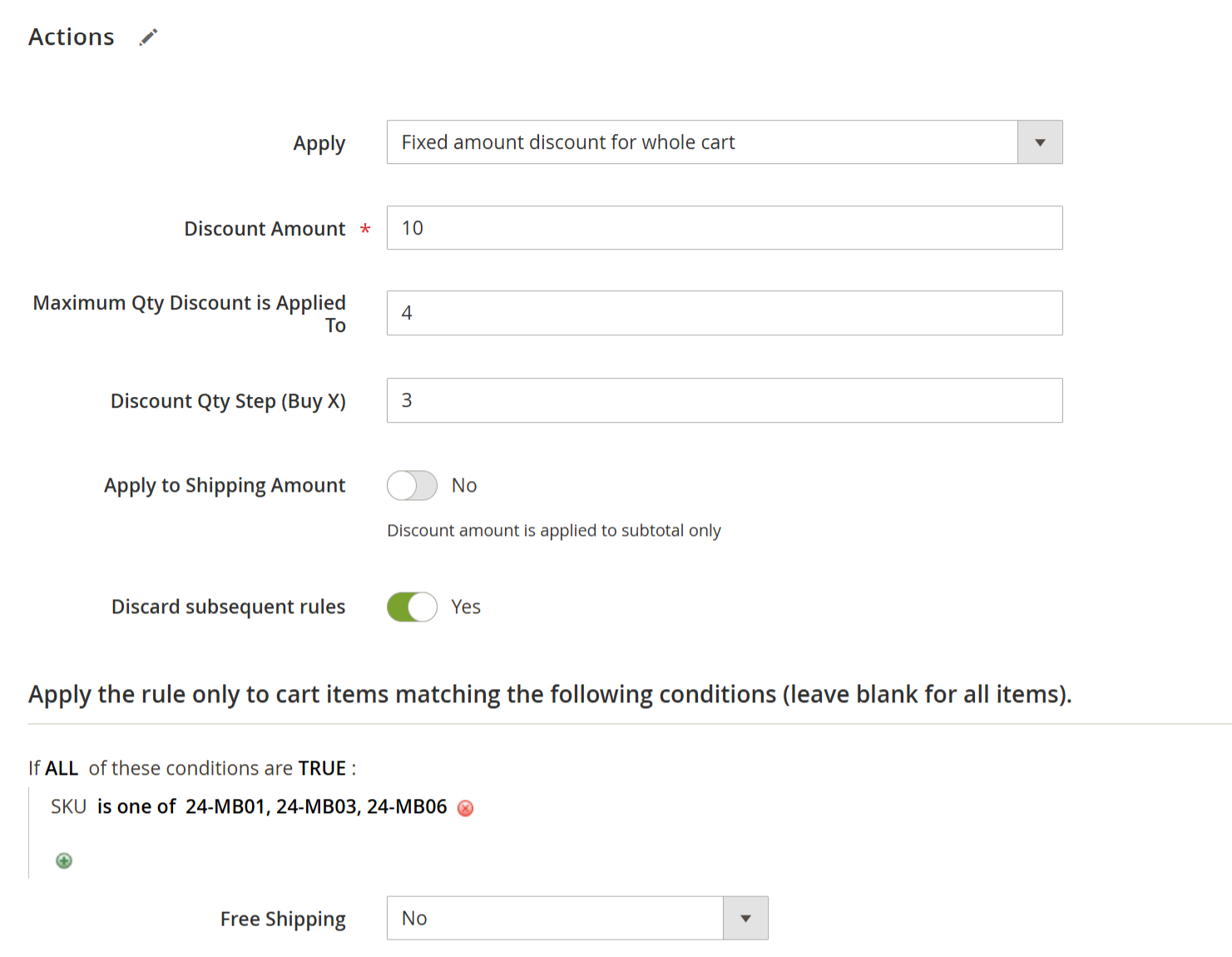
- This rule applies a fixed discount to the entire cart subtotal when specific conditions are met. Ideal for promotions like "Buy 3 items and get $10 off on the total cart value."
| Field | Description |
|---|---|
| Apply | Select “Fixed amount discount for whole cart” from the dropdown. |
| Discount Amount | Enter the fixed discount value. Example: 10 gives a $10 discount on the subtotal. |
| Maximum Qty Discount is Applied To | Set the limit on how many times the discount should apply. Example: 4 allows up to 4 uses. |
| Discount Qty Step (Buy X) | The number of qualifying products needed in the cart to trigger the discount. Example: 3. |
| Apply to Shipping Amount | Set to Yes to apply the discount to shipping. Set to No to apply only to the product subtotal. |
| Discard Subsequent Rules | Enable to prevent other discount rules from applying to the same items. |
| Conditions | Define eligible products. Example: SKU is one of 24-MB01, 24-MB03, 24-MB06. |
| Free Shipping | Enable if you want to provide free shipping when this rule applies. |
Example:
If:
Discount Amount = 10
Discount Qty Step (Buy X) = 3
Customer adds 3 items of SKUs 24-MB01, 24-MB03, or 24-MB06 to the cart
Then:
A $10 discount will be applied to the entire cart subtotal, assuming all other conditions are met.
Each N items for X
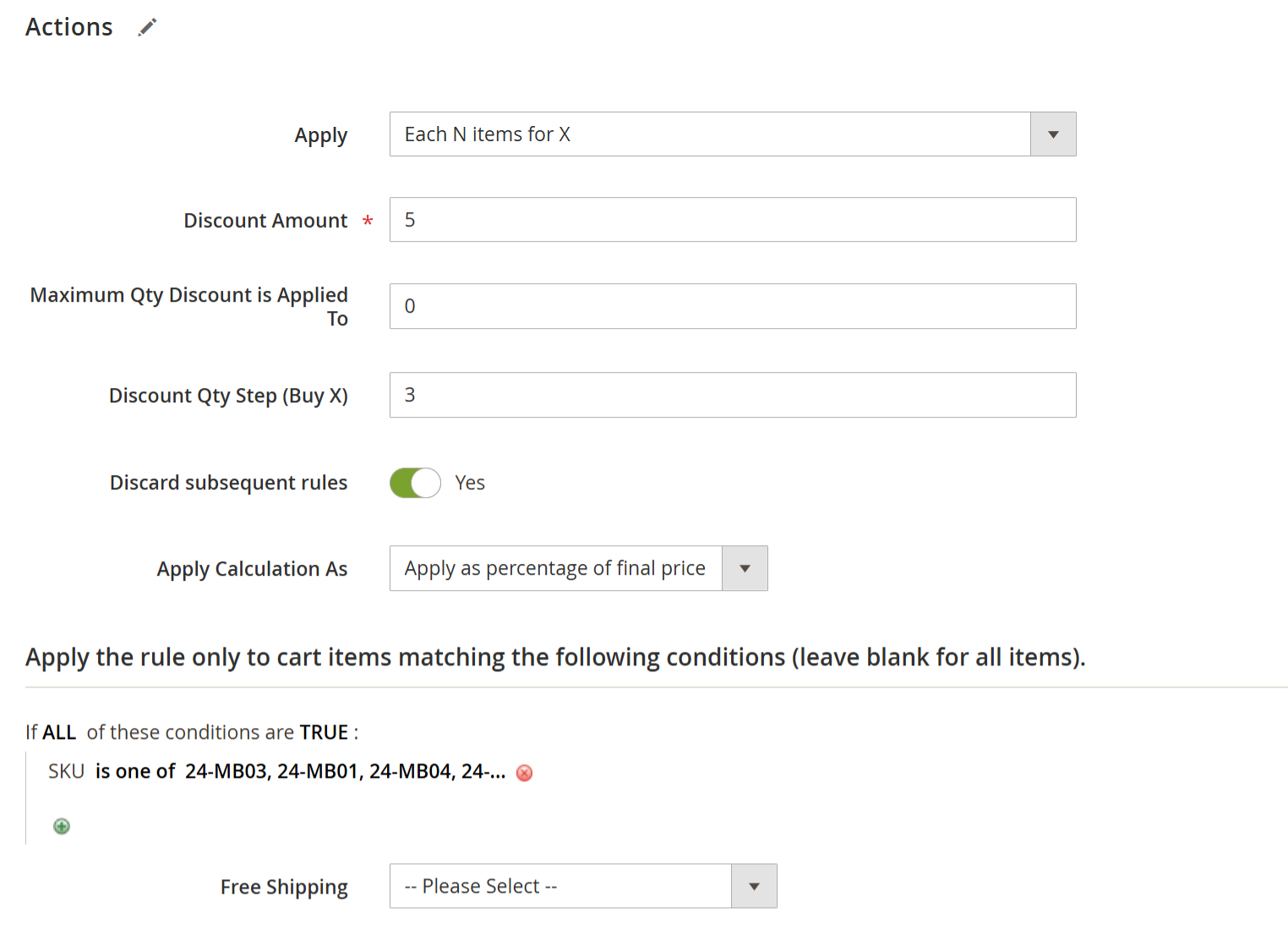
- This rule allows you to offer a discount on every nth item of a product in the cart. It is ideal for promotions like "Buy 3, get the 3rd item at a discount."
| Field | Description |
|---|---|
| Apply | Select “Each N items for X” from the dropdown. |
| Discount Amount | Set the discount amount to apply. For example, 5 means 5% off or $5 off, depending on the calculation method selected. |
| Maximum Qty Discount is Applied To | Set the maximum quantity eligible for the discount. Use 0 for no limit. |
| Discount Qty Step (Buy X) | Define the step count. For example, 3 means the discount will apply to every 3rd item. |
| Discard Subsequent Rules | Enable to prevent other discount rules from applying to the same item. |
| Apply Calculation As | Choose how to calculate the discount: • Apply as a percentage of the final price • Apply as a percentage of the original price • Apply as a fixed amount |
| Conditions | Add SKUs or categories for which this rule will apply. |
| Free Shipping | Optional: Decide if free shipping applies with this rule. |
Example
Condition SKU: 24-MB01, 24-MB03, 24-MB04
Discount Amount: 5%
Discount Qty Step: 3
If a customer adds 6 items from the listed SKUs, every 3rd item (i.e., 3rd and 6th) will get 5% off.
Buy X Get Y for $X
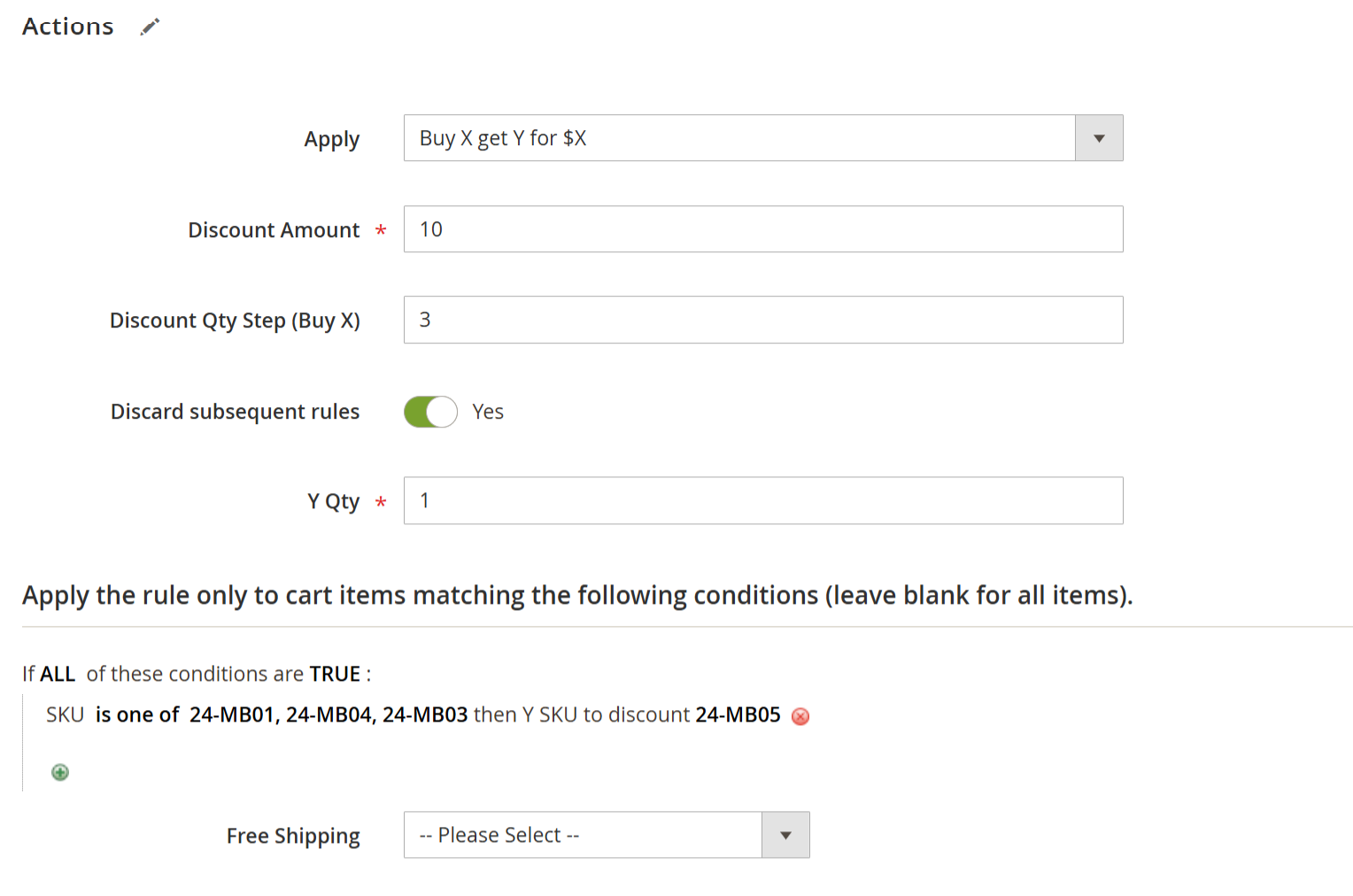
- This rule lets you offer a product (Y) at a fixed price when the customer purchases a certain quantity of other products (X). Ideal for bundle-style promotions such as “Buy 3, get 1 for $10.”
| Field | Description |
|---|---|
| Apply | Select “Buy X get Y for $X” from the dropdown. |
| Discount Amount | Set the fixed price (in $) for the Y product. For example, enter 10 to sell Y at $10. |
| Discount Qty Step (Buy X) | Define the quantity of X the customer must buy to receive Y at the fixed price. |
| Y Qty | Enter how many Y items will be discounted once the Buy X condition is fulfilled. |
| Discard Subsequent Rules | Enable this to ensure no other discount rules are applied to the same items. |
| Conditions | Define which SKUs qualify as product X and which SKU(s) will be offered as discounted Y. |
| Free Shipping | (Optional) Enable free shipping if required. |
Example
Buy X Condition: Customer must buy 3 items from SKUs 24-MB01, 24-MB04, or 24-MB03
Y Product: SKU 24-MB05
Y Qty: 1
Discount Amount: $10
If a customer adds 3 qualifying items (e.g., 2×24-MB01 and 1×24-MB04), they can get 1 unit of 24-MB05 for $10.
Fixed Price – Each Nth Item Qty for $X
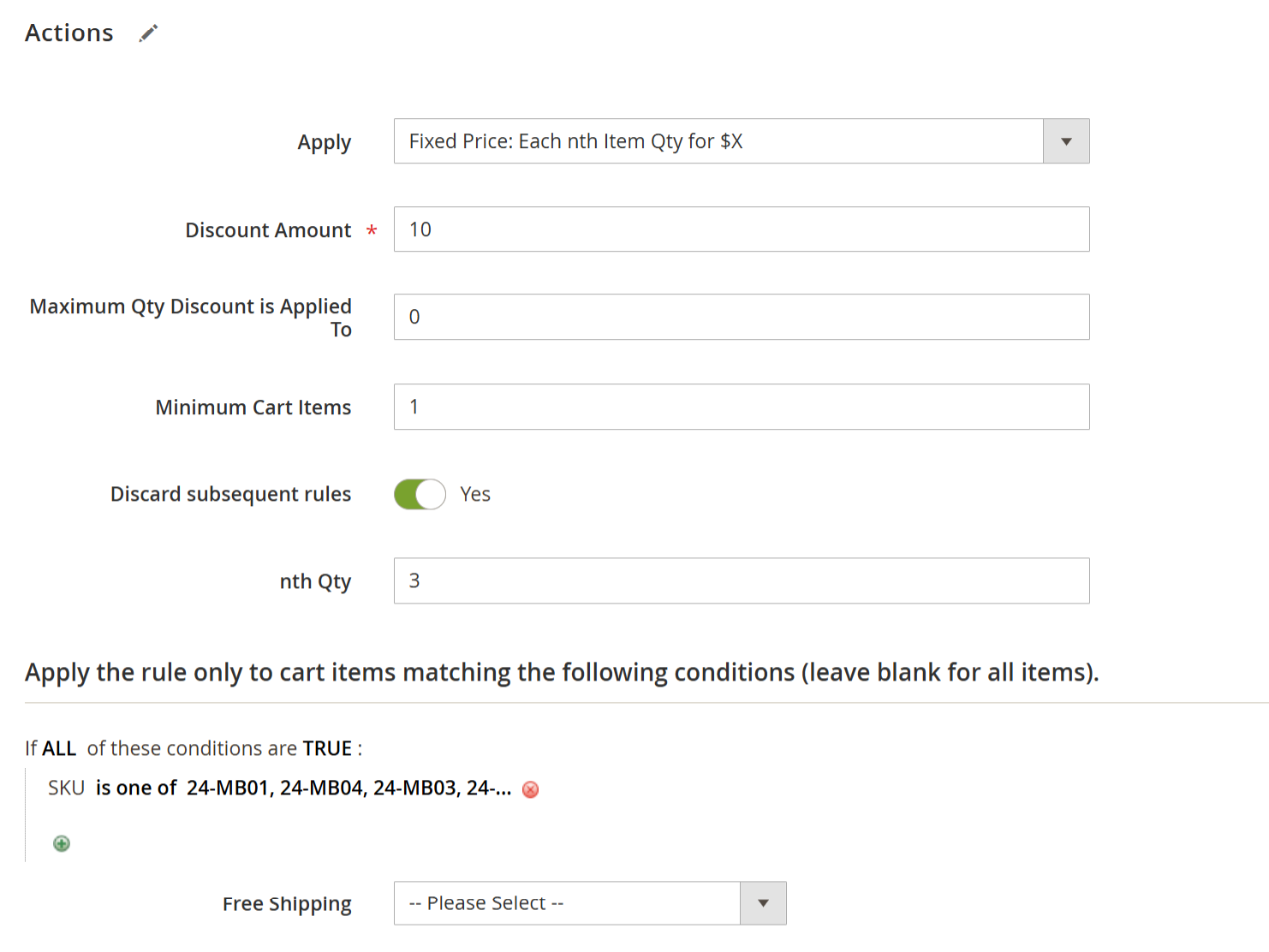
- This rule applies a fixed price to the Nth quantity of each individual product in the cart. It evaluates quantity per product (SKU) rather than across all cart items.
| Field | Description |
|---|---|
| Apply | Select “Fixed Price: Each nth Item Qty for $X” from the dropdown. |
| Discount Amount | Set the fixed price that will be applied to the nth item (e.g., 10 = $10). |
| Maximum Qty Discount is Applied To | Limit the number of items the discount applies to. Use 0 for no limit. |
| Minimum Cart Items | Minimum number of items required in the cart for the rule to apply. |
| Discard Subsequent Rules | Enable this to prevent other rules from being applied to the same items. |
| nth Qty | Enter the item position that should receive the fixed price (e.g., every 3rd item). |
| Conditions | Define applicable product SKUs. Only these products will qualify for the rule. |
| Free Shipping | Optional: Enable if free shipping is to be applied. |
Example:
Nth Qty = 3
Fixed Price = $10
Cart Items:
Item A – Qty 3 (only the 3rd unit of A is $10)
Item B – Qty 2 (no discount)
Item C – Qty 3 (3rd unit of C is $10)
Fixed Price – Each Nth Item for $X
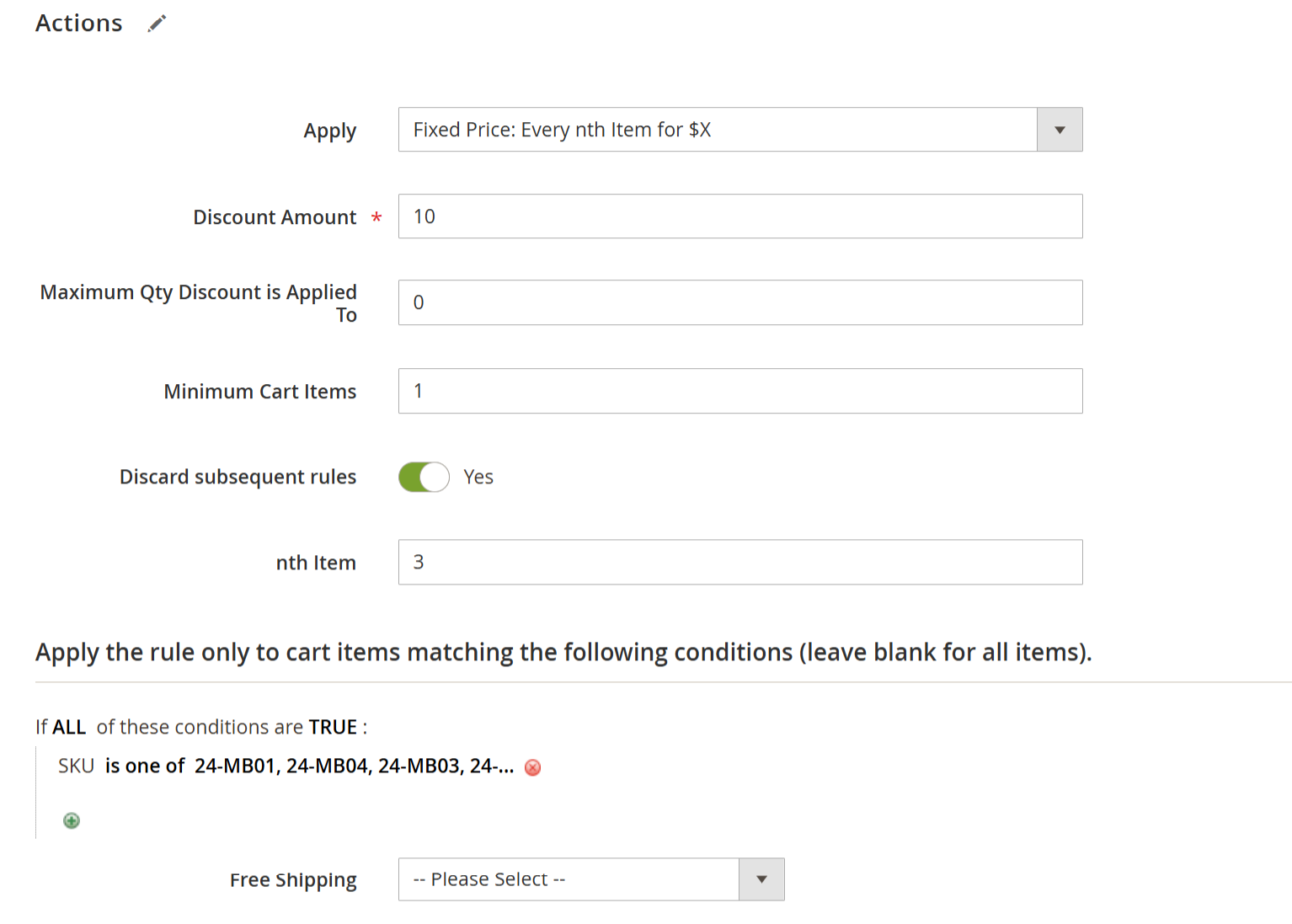
- This rule allows you to apply a fixed price discount to every Nth item in the entire cart based on the order in which products are added. It considers all matching SKUs globally across the cart and applies the fixed amount to every Nth qualifying item.
| Field | Description |
|---|---|
| Apply | Select “Fixed Price: Every nth Item for $X” from the dropdown. |
| Discount Amount | Enter the fixed price (e.g., 10) that should be applied to every Nth item. |
| Maximum Qty Discount is Applied To | Set the maximum number of items the discount should be applied to. Set 0 for unlimited. |
| Minimum Cart Items | Minimum number of cart items required to activate this rule. |
| Discard Subsequent Rules | Enable this to prevent other rules from being applied to the same items. |
| Nth Item | Specify the position (e.g., every 3rd item) that should be discounted at the fixed price. |
| Conditions | Define the eligible SKUs (e.g., 24-MB01, 24-MB04, etc.) that qualify for this rule. |
| Free Shipping | Optionally enable free shipping on the matching items. |
Example:
Nth Item = 3
Fixed Price = $10
Cart Items:
Item A – Qty 1
Item B – Qty 1
Item C – Qty 1 ← . The 3rd item will be $10
Buy X Get Y Free (Discount Amount is Y)
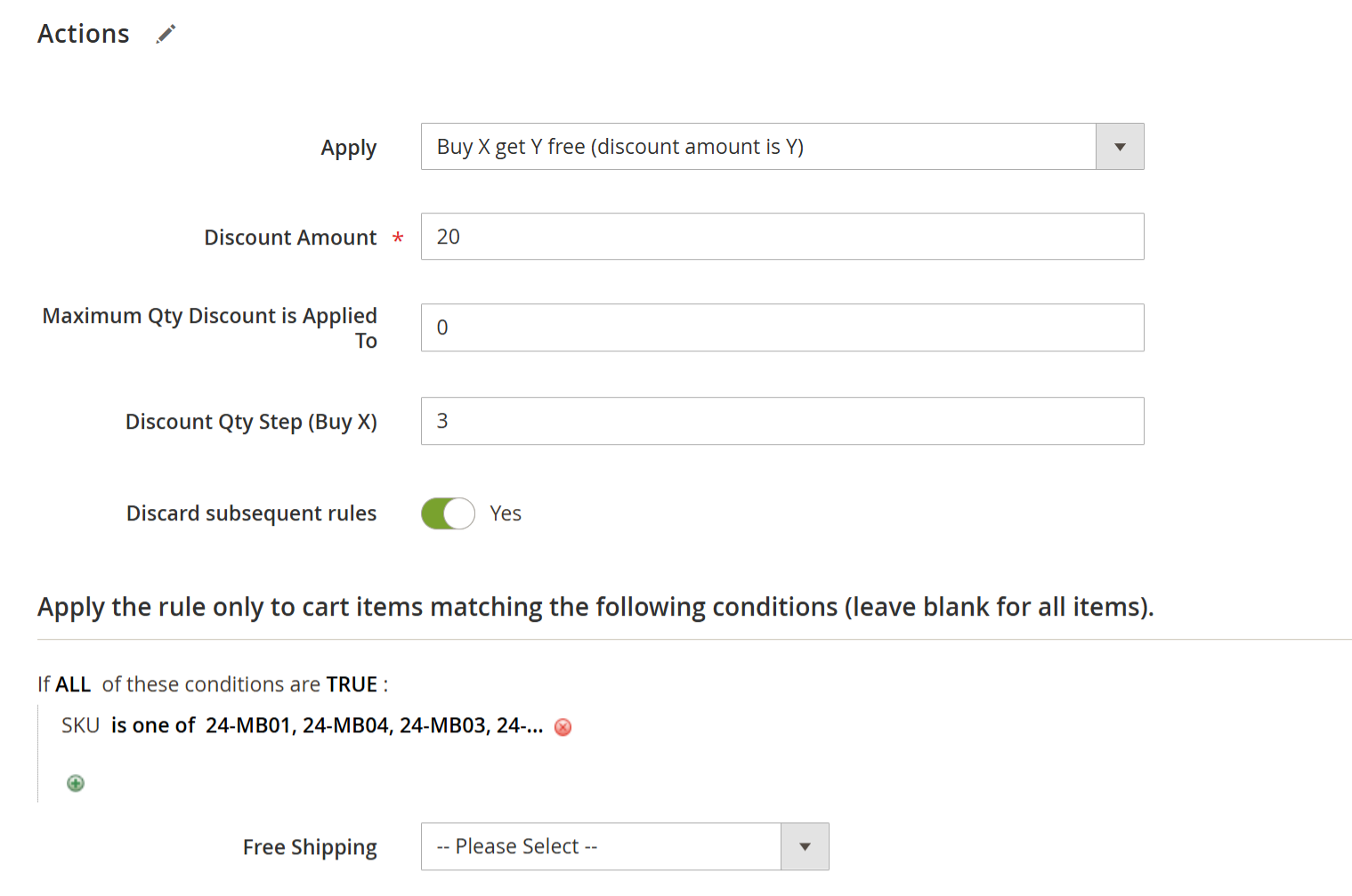
- This rule allows you to offer a fixed discount on the Y item(s) when a customer buys a defined quantity of X item(s). The discount amount here is treated as the price of the Y item(s)—effectively making them free or priced at a reduced amount.
| Field | Description |
|---|---|
| Apply | Buy X Get Y Free (discount amount is Y) |
| Discount Amount | The price to be charged for each Y item. Set to 0 to make it free. |
| Discount Qty Step (Buy X) | Number of X products to be purchased to qualify for the Y product discount. |
| Maximum Qty Discount | Maximum Y items to be discounted. Set to 0 no limit. |
| Discard Subsequent Rules | Enable to prevent overlapping with other discount rules. |
If Discount Qty Step (Buy X) is 3 and Discount Amount is 20:
When a customer buys 3 products, they will get 1 Y product for $20.
This Y item must be part of the cart and match rule conditions.
If
Discount Amount = 0The Y product is completely free.
This rule is ideal for Buy 3, Get 1 Free or Buy X, Get Y for $X type promotions, giving you flexible options to reward volume purchases.
Frontend Functionality
Discount Popup
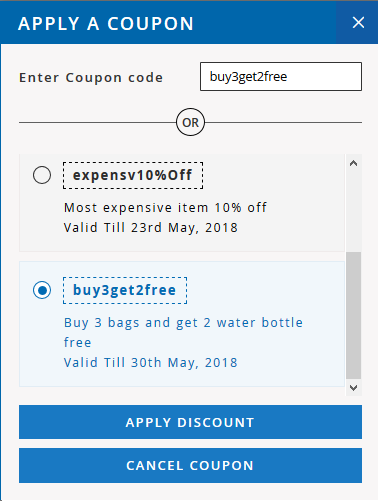
This will only work as an auto-apply promo feature and does not support promo codes.
If Merchant has configured "Discount Button Style" as "Popup", then the user will get a pop-up on the cart page to apply discount codes.
The pop-up will display the coupon codes which are allowed for the products. The user just needs to select from the listed codes and apply to avail the discount. If the discount code is not listed, then also user can also enter it manually to avail the discount.
Click on the APPLY DISCOUNT button to apply the discount coupon
Click on the CANCEL COUPON button to cancel the selected coupon
Milestone Message
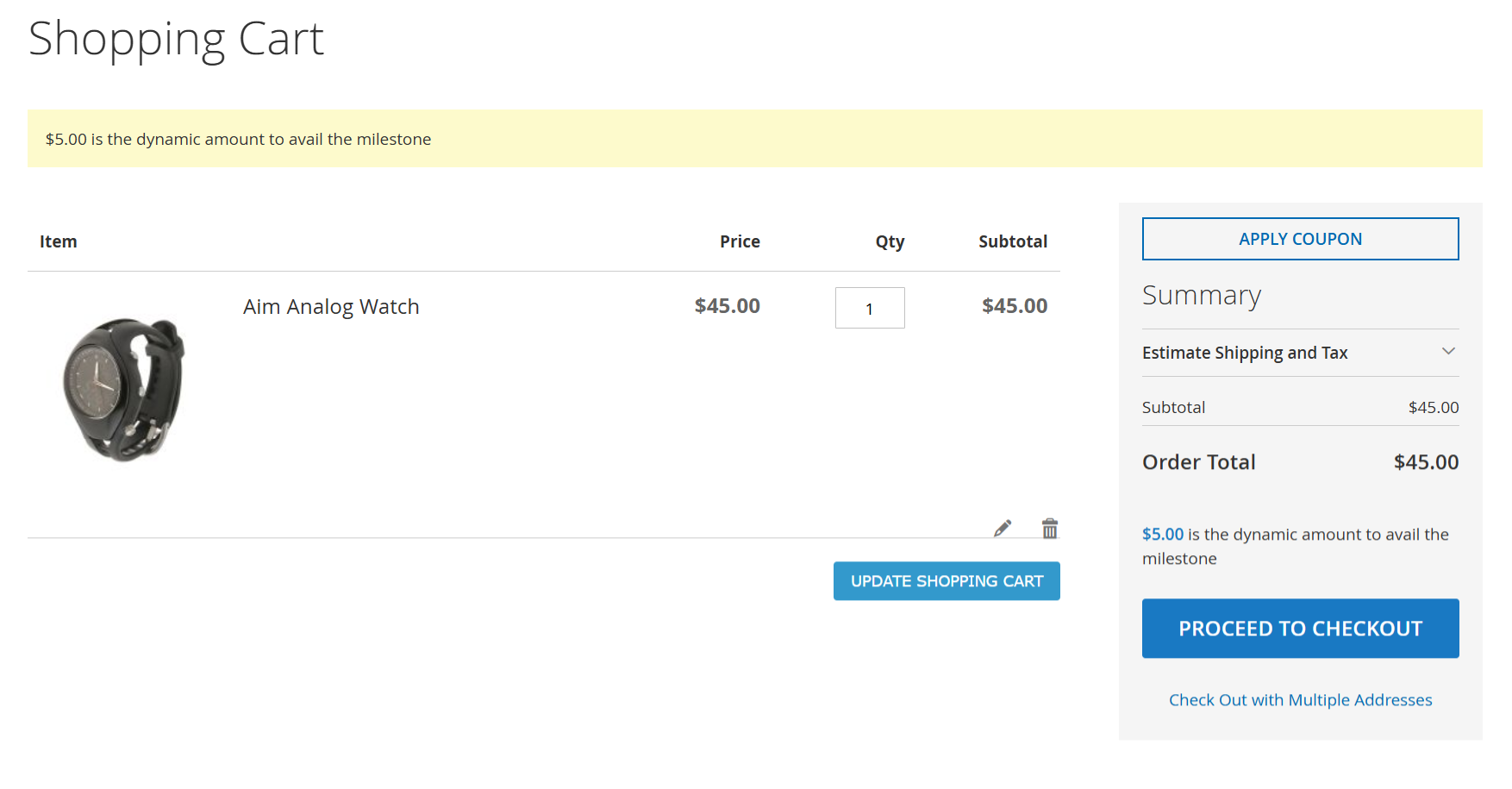
The Milestone Message feature helps customers understand how close they are to receiving a special promotion or discount based on their cart subtotal.
What It Does:
Displays a dynamic message at the top of the shopping cart page and in the order summary section.
Informs the customer how much more they need to spend to unlock a milestone reward (such as a coupon ).
Updates automatically based on the cart subtotal.
How It Works:
The admin sets a Minimum Amount to Achieve Milestone (e.g., $50).
If the customer's cart total is below this amount, a message will appear:
“$X.XX is the dynamic amount to avail the milestone”
Once the required subtotal is reached, the milestone benefit (like a discount code) will be applied automatically or made visible, depending on the configuration.
Customer Experience:
This encourages customers to add more products to their cart to reach the threshold and unlock the reward.
Helps increase average order value while offering a clear, goal-oriented message.
Example:
If the milestone is set to $50, and a customer adds products worth $45, the message will display:
“$5.00 is the dynamic amount to avail the milestone”
Once the subtotal reaches $50 or more, the message disappears or is replaced with the earned benefit
.
Shopping Cart – Discount Summary & Milestone Display
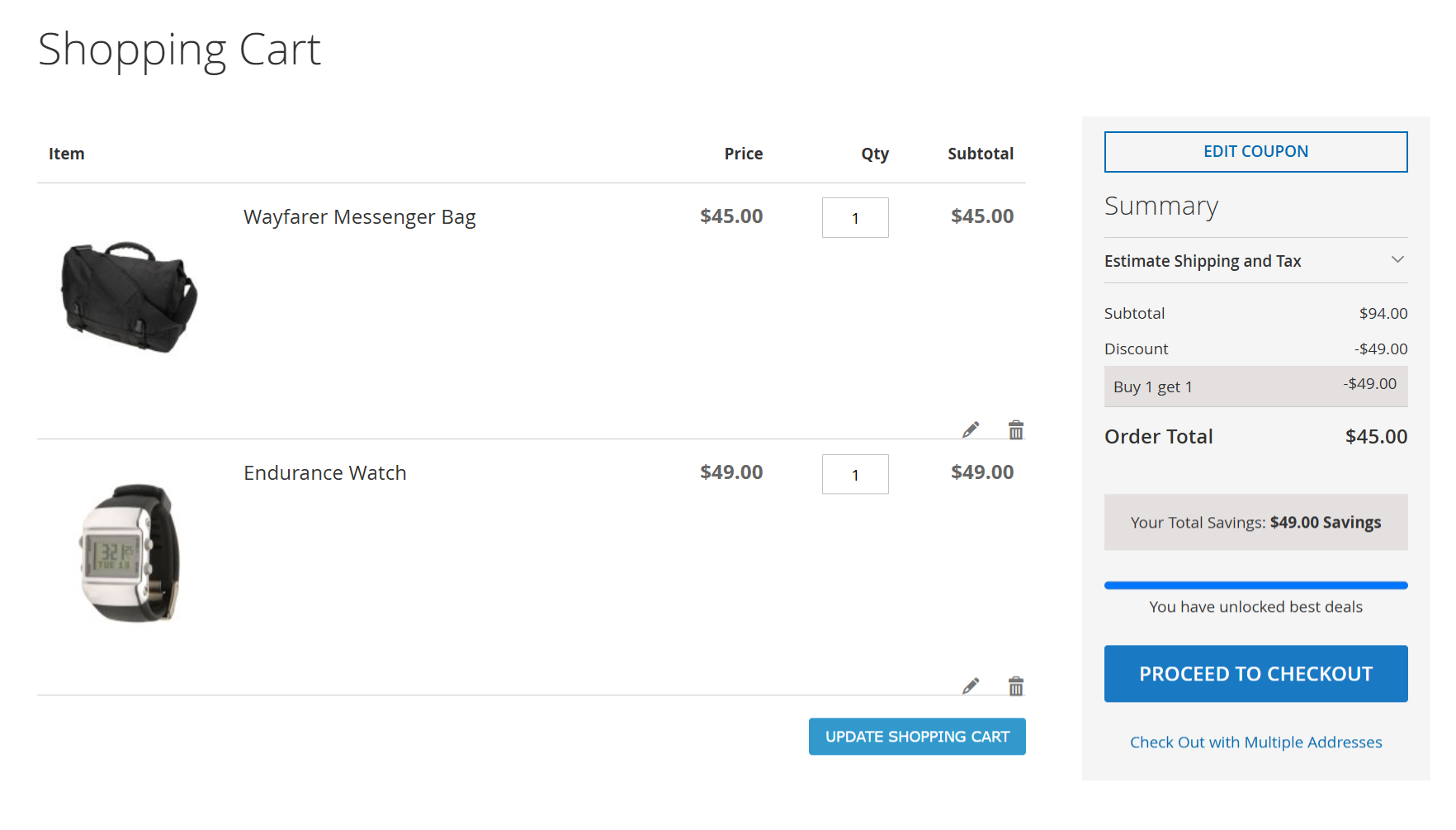
1. Discount Summary Display
When a discount or promotional rule is applied (e.g., Buy 1 Get 1 Free), the cart dynamically reflects:
Product Details: Each item shows its name, quantity, price, and subtotal.
Summary Panel (right side):
Subtotal (before discount)
Discount Amount (e.g., Buy 1 Get 1 = -$49.00)
Order Total (after applying discounts)
Total Savings (highlighted to show exact value saved)
Deal Confirmation Message: “You have unlocked the best deals” for positive reinforcement
Coupon Editing: Customers can click Edit Coupon to apply, remove, or switch discount codes easily.
2. Milestone Message Display
If your store uses Milestone Promotions (e.g., “Get 10% off on $50+ orders”), a dynamic milestone message appears on the cart:
Before Reaching the Milestone:
“$5.00 is the dynamic amount to avail the milestone” – helps users understand how close they are to a reward.After the Milestone is Achieved:
The message updates or disappears, and the discount is automatically applied.
Example in Action:
A customer adds two items: a $45 bag and a $49 watch.
The Buy 1 Get 1 Free discount is applied. The cheaper product ($49) is discounted.
The order total is now $45, and the savings of $49 are clearly shown.
If a milestone threshold was set at $50, the cart will show how much more is needed until the offer activates, and then reflect the change once achieved.
This setup ensures your shoppers are always aware of available deals, their current savings, and how to unlock more offers — all from within the cart page.
Review & Payments Page
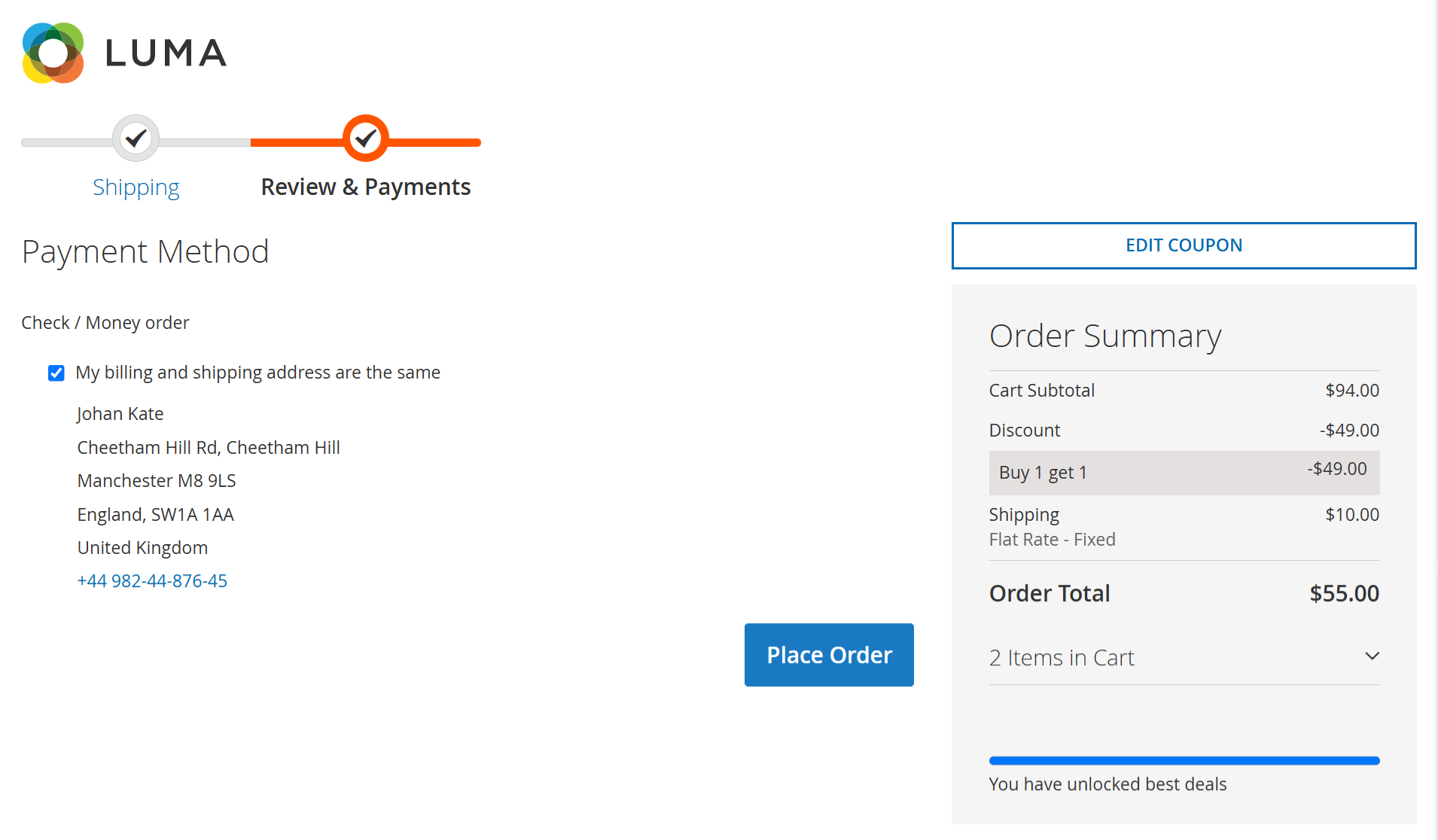
This section of the checkout process displays the final overview before placing an order. It includes billing and shipping confirmation, payment method selection, and a complete breakdown of discounts and charges.
Billing & Shipping Address: Confirms that both addresses are the same, as selected by the customer.
Order Summary: Located on the right, the summary provides a transparent view of:
Cart Subtotal – The total value of all products before discounts and shipping.
Discount – The amount reduced based on the applied promotion. In this example, a “Buy 1 Get 1” coupon is applied, giving one product free (worth $49.00).
Shipping – Displays the selected shipping method (Flat Rate – Fixed) and its cost ($10.00).
Order Total – Final amount to be paid after applying discount and shipping ($55.00 in this case).
Coupon Details: If a coupon was applied earlier in the cart or coupon popup, it is reflected here with the coupon name and the amount deducted.
Encouragement Message: A blue bar appears with the message: “You have unlocked best deals” — confirming successful coupon application.
Cart Items Summary: A quick view of the total number of products in the cart (e.g., “2 Items in Cart”).
User Benefits:
Clear view of total savings
Confirmation that the applied coupon worked
Full transparency before placing the order
This helps customers confidently complete their purchases, knowing their discounts and charges are correctly applied.
GraphQL
{
customerPlacedOrder (customer_id: 4) {
allOrderRecords {
increment_id,
customer_name,
grand_total,
created_at,
shipping_method
}
},
salesOrder (id: 47) {
increment_id,
customer_name,
grand_total,
is_guest_customer,
created_at,
shipping_method,
shipping {
name,
street,
city,
region,
country,
postcode,
telephone,
fax,
company
},
billing {
name,
street,
city,
region,
country,
postcode,
telephone,
fax,
company
},
items {
sku,
title,
price
}
},
applyCouponsList(cart_id: "0wTa0I5hTKmSjUraBbzwMfN39QVVxgNV") {
Couponsdetails {
code,
description,
to_date
}
}
}
RESPONSE
{
"data": {
"customerPlacedOrder": {
"allOrderRecords": [
{
"increment_id": "2000000001",
"customer_name": "TEST",
"grand_total": "$43.00",
"created_at": "2024-12-12 06:02:13",
"shipping_method": "flatrate_flatrate"
},
{
"increment_id": "2000000002",
"customer_name": "TEST",
"grand_total": "$50.00",
"created_at": "2024-12-12 06:10:09",
"shipping_method": "flatrate_flatrate"
}
]
},
"salesOrder": {
"increment_id": "2000000002",
"customer_name": "TEST",
"grand_total": "50.0000",
"is_guest_customer": false,
"created_at": "2024-12-12 06:10:09",
"shipping_method": "flatrate_flatrate",
"shipping": [
{
"name": "TEST",
"street": "test",
"city": "test",
"region": null,
"country": null,
"postcode": "12345",
"telephone": "01234567890",
"fax": null,
"company": "test"
}
],
"billing": [
{
"name": "TEST",
"street": "test",
"city": "test",
"region": null,
"country": null,
"postcode": "12345",
"telephone": "01234567890",
"fax": null,
"company": "test"
}
],
"items": [
{
"sku": "24-WB04",
"title": "Push It Messenger Bag",
"price": 45
}
]
},
"applyCouponsList": {
"Couponsdetails": [
{
"code": "buy1get1",
"description": "Buy X Get Y",
"to_date": null
}
]
}
}
}
Thank you for choosing MageDelight!