Backend Configuration (Admin side)
Instagram Account Configuration stepsBefore setting up admin configurations, it is required to create and configure developer account on Instagram. Follow below steps to configure developer account. - Open url https://www.instagram.com/developer/.
- From top menu bar, select Manage Clients.
- Click on Register a New Client to create an Instagram client account.
- After creating a client Account, click on Manage link.
- Copy Valid redirect URI from Admin Configuration and enter into Valid redirect URIs text box under Security Tab.
- Client Id and Client Secret key are then available in Instagram developer account.
Instagram Connect ConfigurationsGo to Admin Control Panel > Instagram Connect > Settings 
|
- Client ID: Copy from Instagram developer account and paste it here.
- Client Secret: Copy from Instagram developer account and paste it here.
- Authorize: Click the button to authorize the client store details configured in developer account. It will automatically fetch below 2 fields -
- Valid redirect URI: On installing the module it will automatically add the redirect URI (Copy URI from here and paste it in Instagram configuration settings.
- Enable Instagram Link in Top Link: Display a link of Instagram gallery in header of the page.
- Instagram Gallery Link Slug: Add a slug / URL key for the Instagram gallery page. It will create page URL using the slug provided.
- Instagram Gallery Link Label: Add label of the Instagram gallery page.
- Show Image on CMS Page: Select "yes" to display Instagram gallery image on CMS page. Copy and paste the given code (below the text field) on CMS page and also set how many images should get displayed.
- Show Image on Product Page: Select "yes" to display Instagram gallery image on product page.
- Filter on Product Page: Select whether to display images by filtering using Hash tags or Associated products.
- Filter by Hashtags: Display Instagram images on a product page with the same hashtags on Instagram posts.
- Filter by Associated Products: Display Instagram image on all associated product pages on frontend i.e. products which are assigned to the markers on the image.
- No. of Images to show on Product Page: set number of Instagram images to be display on product page on frontend.
- Get Account Photo Gallery: Get all the images from Instagram account to admin panel under Instagram Images grid.
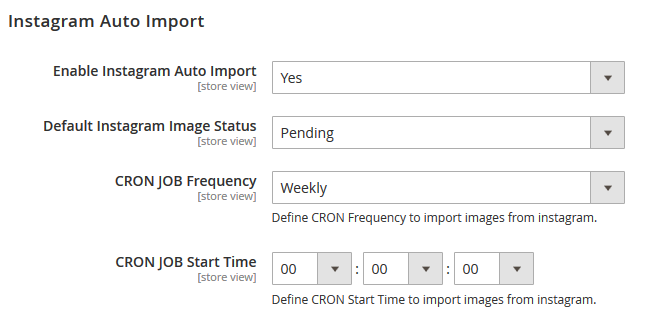
Instagram Auto Import - Enable Instagram Auto Import: Set Yes to enable auto importing Instagram gallery to your store admin panel. All images will be stored in a separate grid and admin will be able to manage them all.
- Default Instagram Image Status: On importing the images, set the default status of each image. The images with approved status will get displayed on frontend under the dedicated page of Instagram Gallery.
- CRON JOB Frequency: Select frequency to fetch the Instagram gallery images automatically daily, weekly or monthly.
- CRON JOB Start Time: Set the time to run the CRON job to import the images from Instagram account.
|