Installation
Before installing the extension, please make sure to Backup your web directory and store database
You will require to install MageDelight Base Extension first. If it is not installed then please download it from https://www.magedelight.com/pub/extensions/magedelight-base.zip and unzip the package file into the root folder of your Magento 2 installation.
Root Directory is - "app/code/Magedelight/AdvancedReview/"
- Unzip the extension package file into the root folder of your Magento 2 installation.
- Connect to SSH console of your server:
- Navigate to the root folder of your Magento 2 setup
- log out from the backend and log in again
Run command as per below sequence,
php bin/magento setup:upgrade
php bin/magento setup:di:compile
php bin/magento setup:static-content:deployphp bin/magento cache:clean
- log out from the backend and log in again
If you are using Magento 2.3 or later then you do not need to activate license. Extension will be activated with silent activation mechanism and does not require activation keys to be entered manually.
Backend Configuration (Admin side)
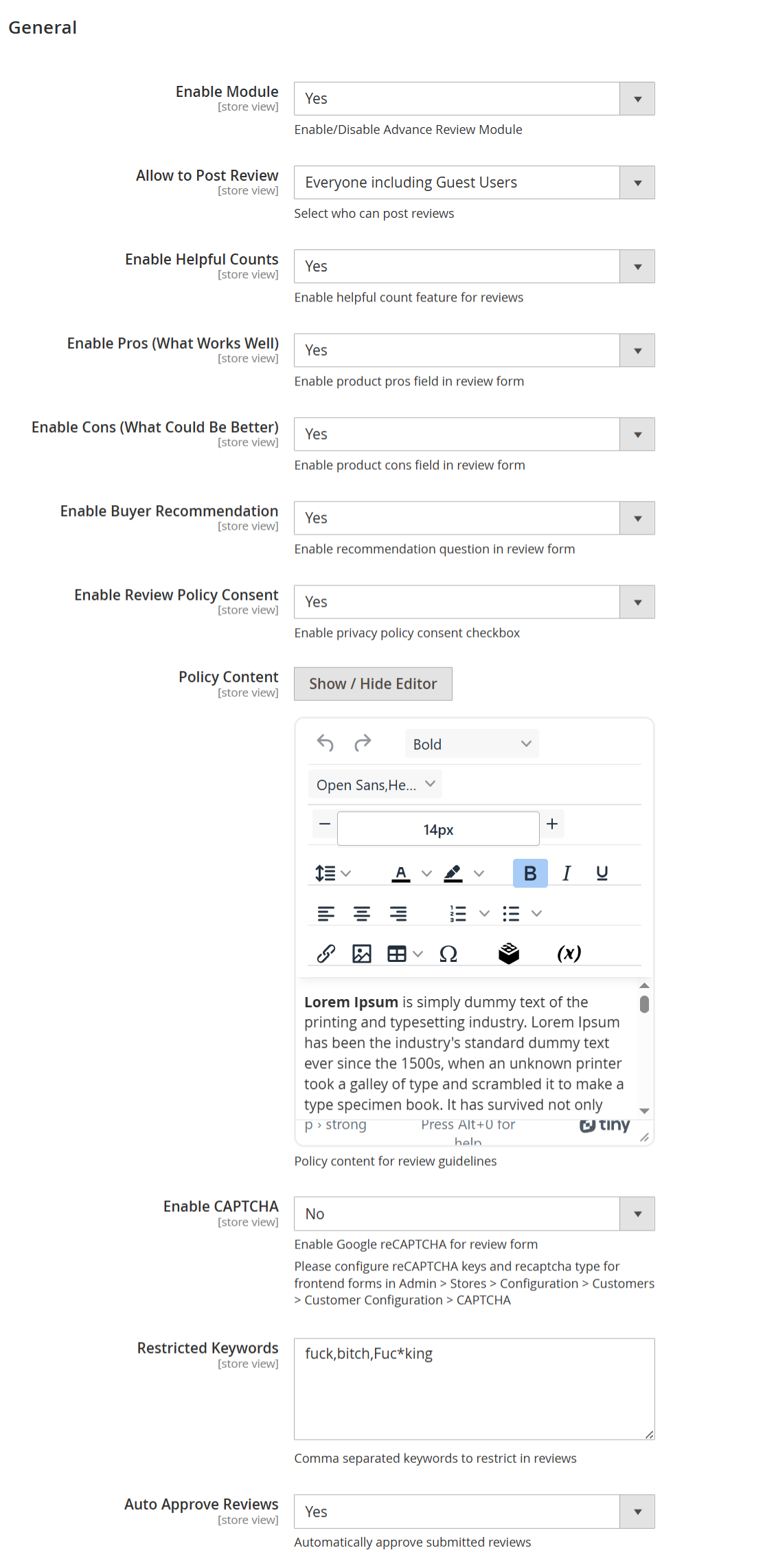
| Field | Description |
|---|---|
| Enable Module | Enables or disables the Advanced Product Reviews module for the selected store view. When enabled, all advanced review features become active on the storefront. |
| Allow to Post Review | Determines who is allowed to submit product reviews. Available options: • Everyone including Guest Users – Allows both registered customers and guest users to submit reviews. • Registered Customer – Only logged-in customers can submit reviews. • Verified Buyers – Only customers who have purchased the product can submit reviews, ensuring authentic and trustworthy feedback. |
| Enable Helpful Counts | Enables the “Was this review helpful?” voting feature, allowing customers to mark reviews as helpful or not helpful. This helps surface the most useful reviews. |
| Enable Pros (What Works Well) | Displays an additional Pros field in the review form where customers can highlight positive aspects of the product. |
| Enable Cons (What Could Be Better) | Displays a Cons field in the review form, allowing customers to share drawbacks or improvement areas. |
| Enable Buyer Recommendation | Adds a recommendation option (for example, “I recommend this product”) in the review form and displays the recommendation status on submitted reviews. |
| Enable Review Policy Consent | Displays a mandatory consent checkbox in the review form, requiring customers to agree to the review policy or privacy guidelines before submitting a review. |
| Policy Content | Allows the admin to define and format the review policy or guidelines displayed to customers using a rich text editor. |
| Enable CAPTCHA | Enables Google reCAPTCHA on the review submission form to prevent spam and automated review submissions. CAPTCHA keys must be configured separately in Magento settings. |
| Restricted Keywords | A comma-separated list of restricted or inappropriate words. Reviews containing these keywords will be blocked or restricted from submission. |
| Auto Approve Reviews | Automatically approves and publishes submitted reviews without manual admin moderation. When disabled, reviews require admin approval before appearing on the storefront. |
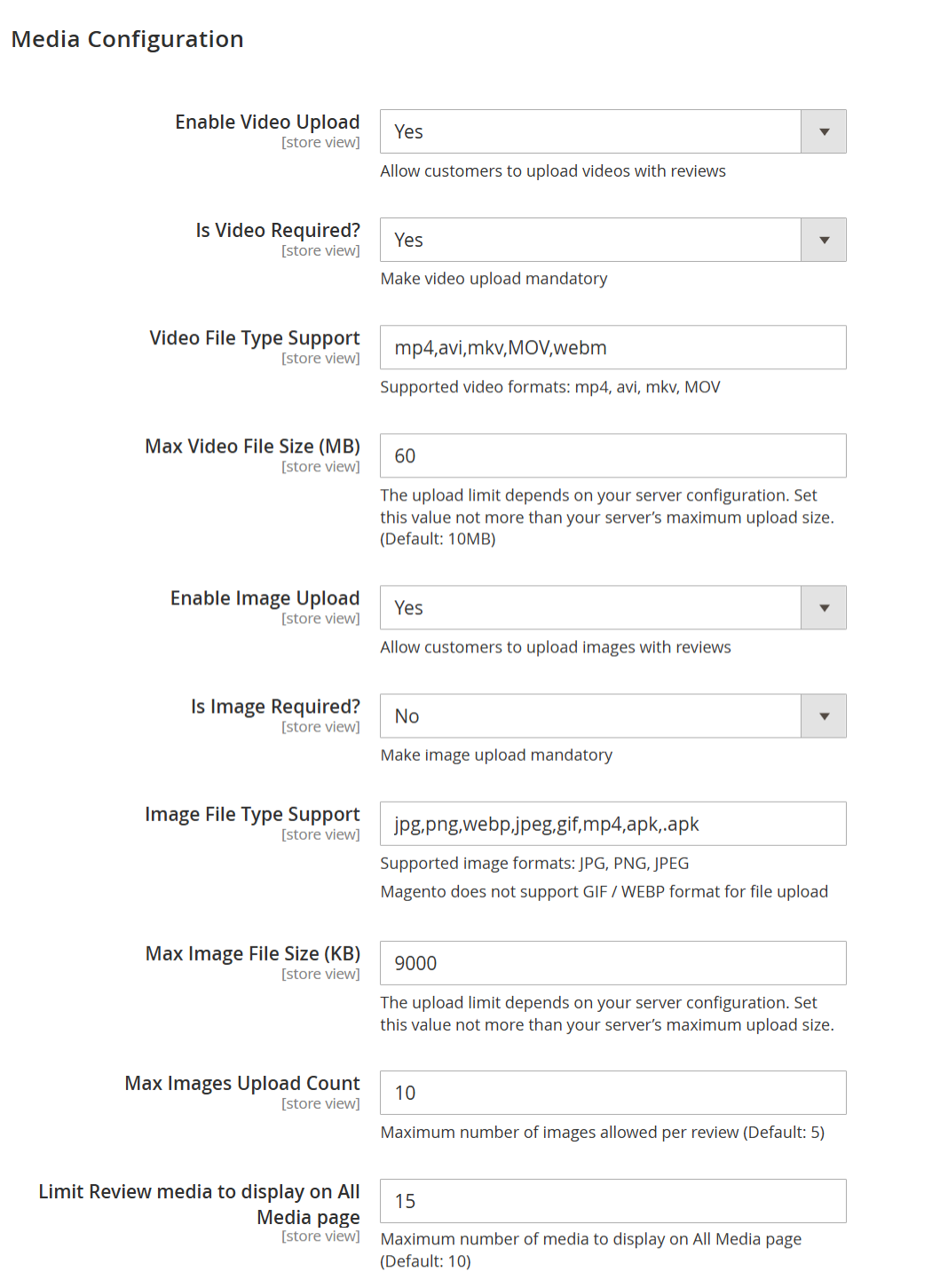
| Field | Description |
|---|---|
| Enable Video Upload | Allows customers to upload videos along with their product reviews. When enabled, a video upload option appears in the review submission form. |
| Is Video Required? | Makes video upload mandatory for submitting a review. If set to Yes, customers must upload at least one video to submit their review. |
| Video File Type Support | Specifies the allowed video file formats for upload. Only videos with the listed extensions (e.g., mp4, avi, mkv, MOV, webm) can be uploaded. |
| Max Video File Size (MB) | Defines the maximum allowed size for each uploaded video file. This value must not exceed the server’s maximum upload limit. Default recommended value is 10 MB. |
| Enable Image Upload | Allows customers to upload images with their product reviews. When enabled, image upload fields are displayed in the review form. |
| Is Image Required? | Makes image upload mandatory for submitting a review. If set to No, images are optional for customers. |
| Image File Type Support | Specifies the supported image file formats for upload. Common formats include JPG, PNG, and JPEG. Note: Magento does not natively support GIF and WEBP uploads. |
| Max Image File Size (KB) | Defines the maximum allowed size for each uploaded image file. The value should be within the server’s configured upload size limit. |
| Max Images Upload Count | Sets the maximum number of images a customer can upload per review. Helps control storage usage and review layout consistency. |
| Limit Review Media to Display on All Media Page | Limits the total number of review images and videos displayed on the All Media page. This helps improve page performance and load time. |
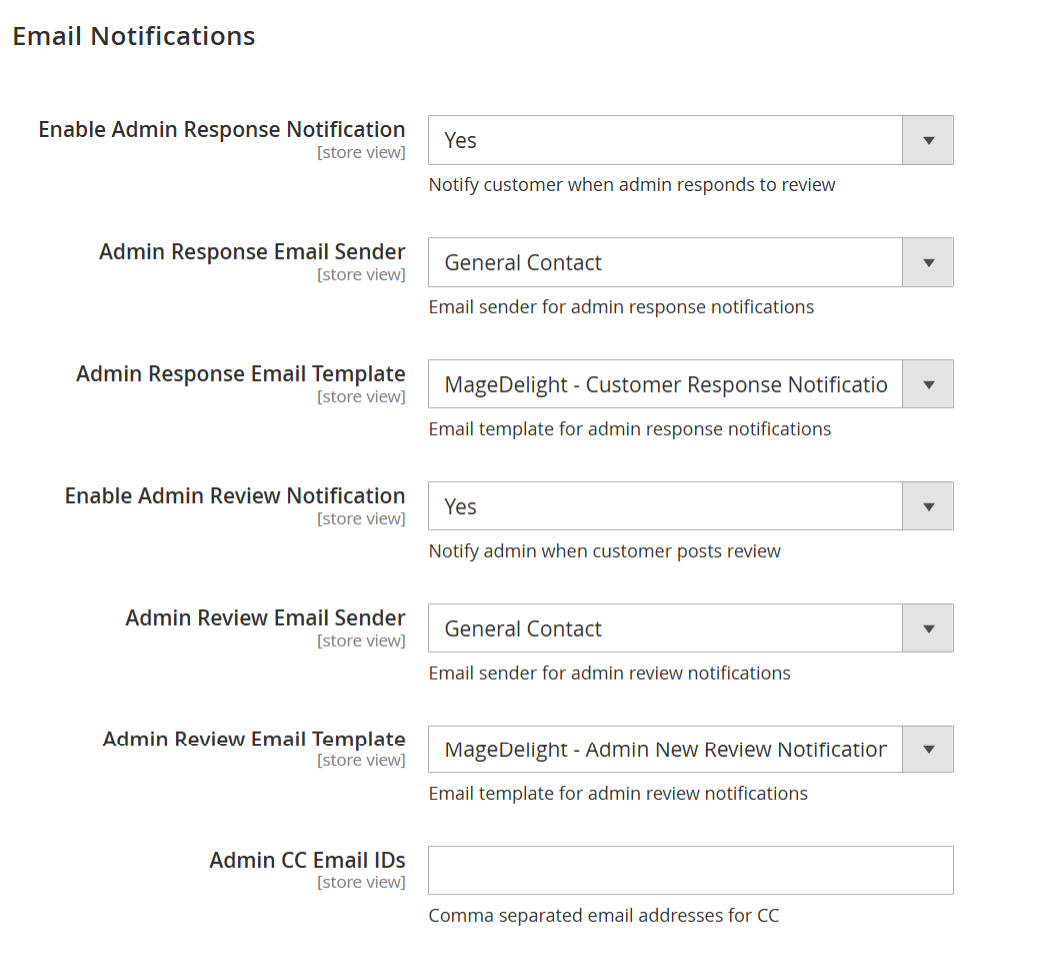
| Field | Description |
|---|---|
| Enable Admin Response Notification | When enabled, customers receive an email notification whenever an admin responds to their product review. |
| Admin Response Email Sender | Specifies the sender identity used for emails sent to customers regarding admin responses to reviews. |
| Admin Response Email Template | Selects the email template used to notify customers when an admin replies to their review. |
| Enable Admin Review Notification | When enabled, the admin receives an email notification whenever a customer submits a new product review. |
| Admin Review Email Sender | Specifies the sender identity used for emails sent to the admin about new product reviews. |
| Admin Review Email Template | Selects the email template used to notify the admin when a new review is submitted by a customer. |
| Admin CC Email IDs | Allows you to add one or more email addresses (comma-separated) to receive a carbon copy (CC) of admin review notification emails. |
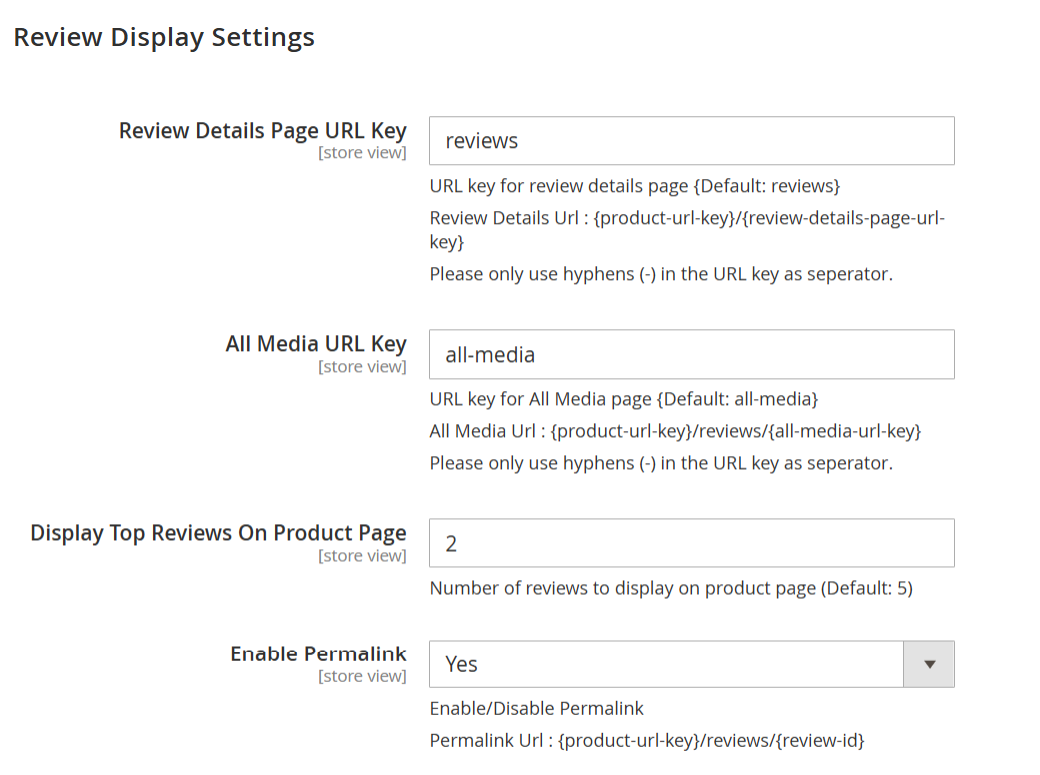
| Field | Description |
|---|---|
| Review Details Page URL Key | Defines the URL key used for the review details page. The review details page URL format will be: {product-url-key}/{review-details-page-url-key}. Only hyphens (-) are allowed as separators. |
| All Media URL Key | Defines the URL key for the All Media page, where all review images and videos are displayed. The page URL format will be: {product-url-key}/reviews/{all-media-url-key}. Only hyphens (-) are allowed as separators. |
| Display Top Reviews On Product Page | Specifies the number of top reviews displayed directly on the product detail page. This helps showcase the most relevant reviews without overcrowding the page. |
| Enable Permalink | Enables or disables permanent URLs for individual reviews. When enabled, each review can be accessed using a unique URL in the format: {product-url-key}/reviews/{review-id}. |
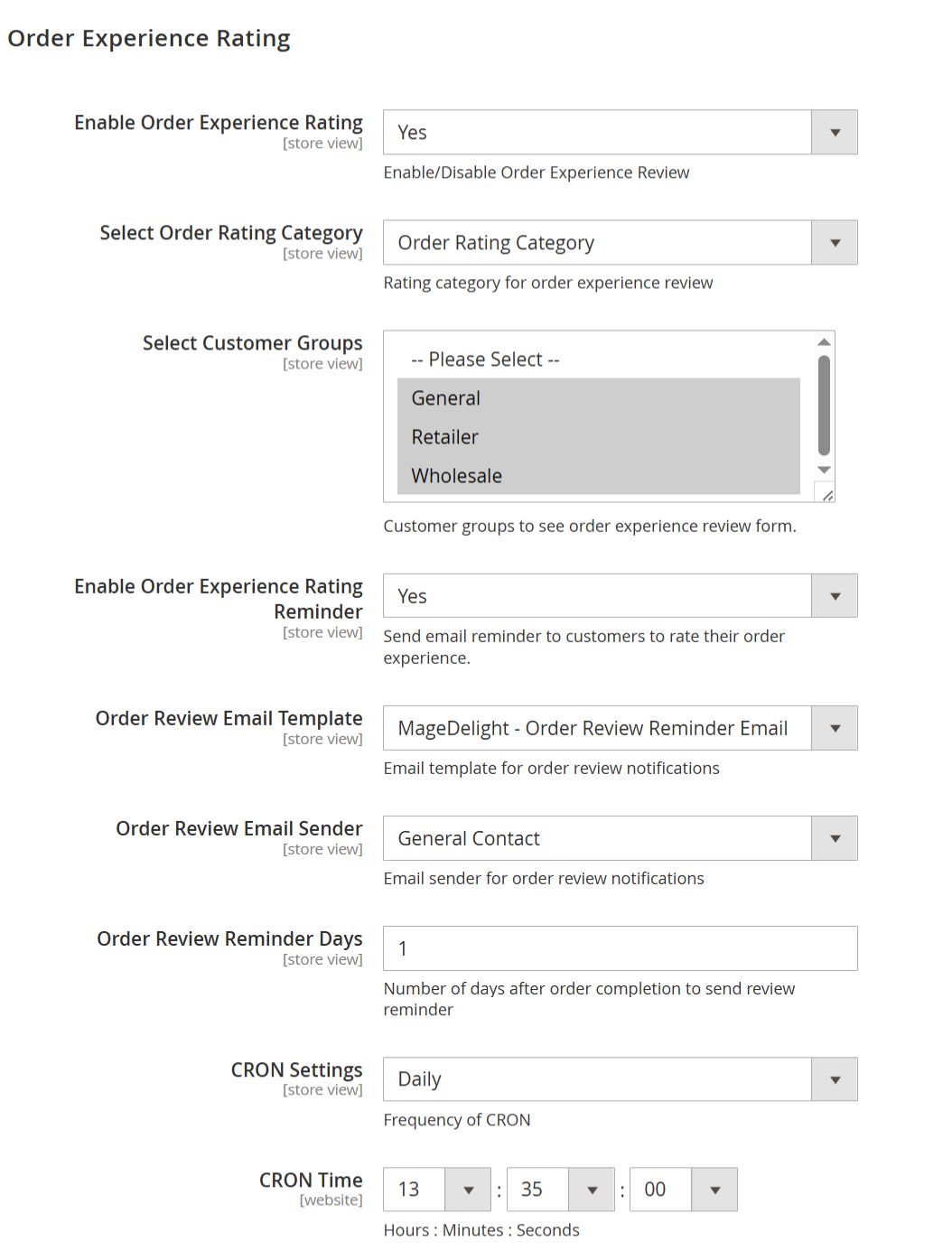
| Field | Description |
|---|---|
| Enable Order Experience Rating | Enables or disables the Order Experience Rating feature. When enabled, customers can rate their overall order experience in addition to product reviews. |
| Select Order Rating Category | Defines the rating category used for order experience reviews. Available options: • Order Rating Category – Default category for collecting overall order experience feedback. • Shipping Testing – Allows collecting ratings specifically related to shipping and delivery experience. |
| Select Customer Groups | Specifies which customer groups are allowed to see and submit the order experience rating form. Only the selected groups (e.g., General, Retailer, Wholesale) will be eligible. |
| Enable Order Experience Rating Reminder | Enables email reminders prompting customers to rate their order experience after order completion. |
| Order Review Email Template | Selects the email template used for sending order experience rating reminder emails. Available options: • MageDelight – Order Review Reminder Email (Default) – Default reminder email for order experience ratings. • MageDelight – Product Review Reminder Email – Reminder email focused on product reviews. • MageDelight – Order Review Reminder Email – Standard order experience reminder email. • MageDelight – Shipping Review Reminder Email – Reminder email focused on shipping experience reviews. • MageDelight – Product Review Promotional Coupons Email – Reminder email that includes promotional coupons for product reviews. |
| Order Review Email Sender | Defines the sender identity used for order experience rating reminder emails (for example, General Contact). |
| Order Review Reminder Days | Specifies the number of days after order completion when the order experience rating reminder email is sent to the customer. |
| CRON Settings | Defines the frequency at which the CRON job runs to process and send order experience rating reminder emails (for example, Daily). |
| CRON Time | Specifies the exact execution time (Hours : Minutes : Seconds) for the CRON job based on the selected frequency. |
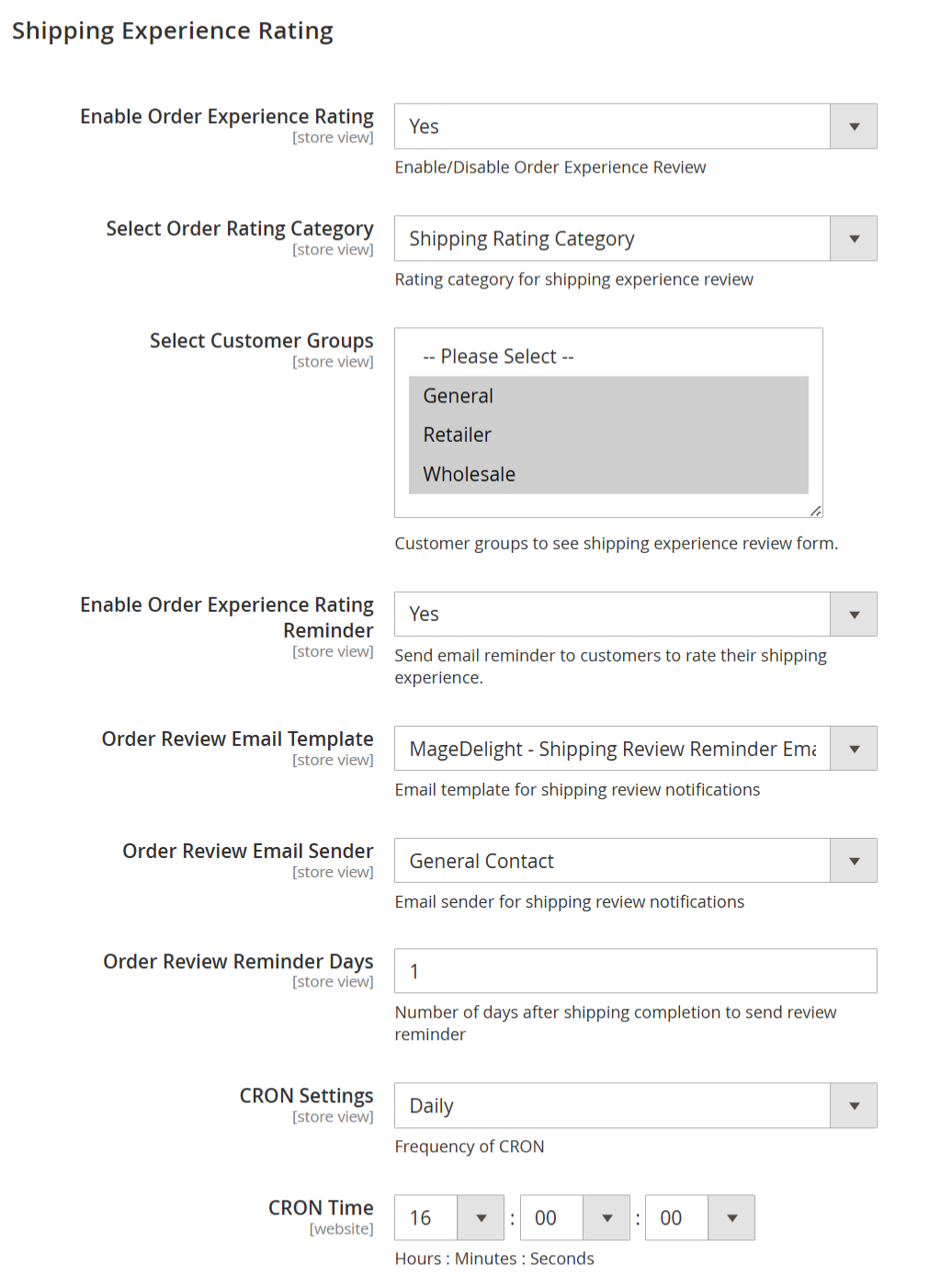
| Field | Description |
|---|---|
| Enable Order Experience Rating | Enables or disables the Shipping Experience Rating feature. When enabled, customers can rate their shipping and delivery experience separately from product and order reviews. |
| Select Order Rating Category | Defines the rating category used for shipping experience reviews. Available option: • Shipping Rating Category – Used to collect feedback specifically related to shipping, delivery speed, and handling. |
| Select Customer Groups | Specifies which customer groups are allowed to see and submit the shipping experience rating form. Only the selected groups (e.g., General, Retailer, Wholesale) will be eligible. |
| Enable Order Experience Rating Reminder | Enables email reminders prompting customers to rate their shipping experience after shipping completion. |
| Order Review Email Template | Selects the email template used for sending shipping experience rating reminder emails. Available options: • MageDelight – Shipping Review Reminder Email (Default) – Default email template for shipping experience reminders. • MageDelight – Product Review Reminder Email – Reminder email focused on product reviews. • MageDelight – Order Review Reminder Email – Reminder email focused on overall order experience. • MageDelight – Shipping Review Reminder Email – Standard shipping experience reminder email. • MageDelight – Product Review Promotional Coupons Email – Reminder email that includes promotional coupons for product reviews. |
| Order Review Email Sender | Defines the sender identity used for shipping experience rating reminder emails (for example, General Contact). |
| Order Review Reminder Days | Specifies the number of days after shipping completion when the shipping experience rating reminder email is sent to the customer. |
| CRON Settings | Defines the frequency at which the CRON job runs to process and send shipping experience rating reminder emails (for example, Daily). |
| CRON Time | Specifies the exact execution time (Hours : Minutes : Seconds) for the CRON job based on the selected frequency. |
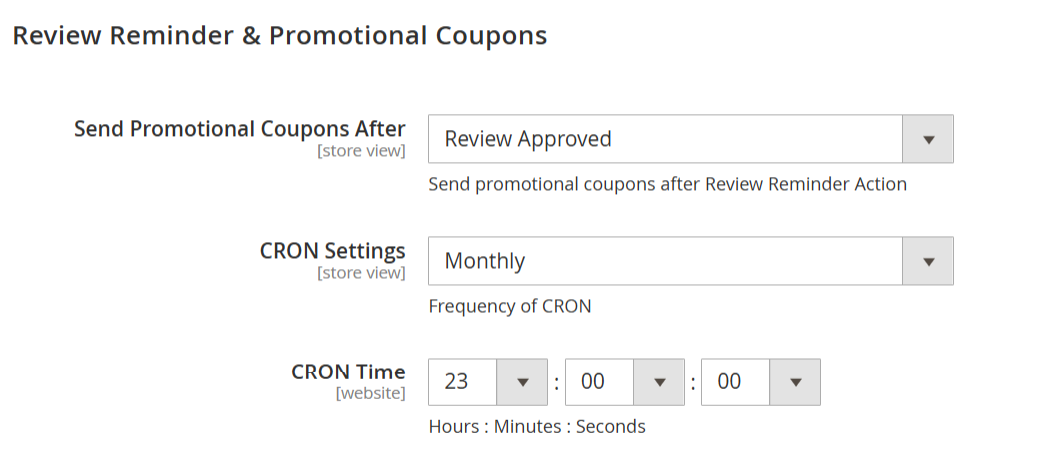
| Field | Description |
|---|---|
| Send Promotional Coupons After | Defines when promotional coupons are sent to customers after a review action. Available options: •Review Posted – Sends the promotional coupon immediately after the customer submits a review, before admin approval. • Review Approved – Sends the promotional coupon only after the review is approved by the admin. This option helps prevent misuse and ensures only valid reviews receive coupons. |
| CRON Settings | Specifies how frequently the CRON job runs to process and send promotional coupons (for example, Monthly). |
| CRON Time | Defines the exact execution time (Hours : Minutes : Seconds) at which the CRON job will run based on the selected frequency. |
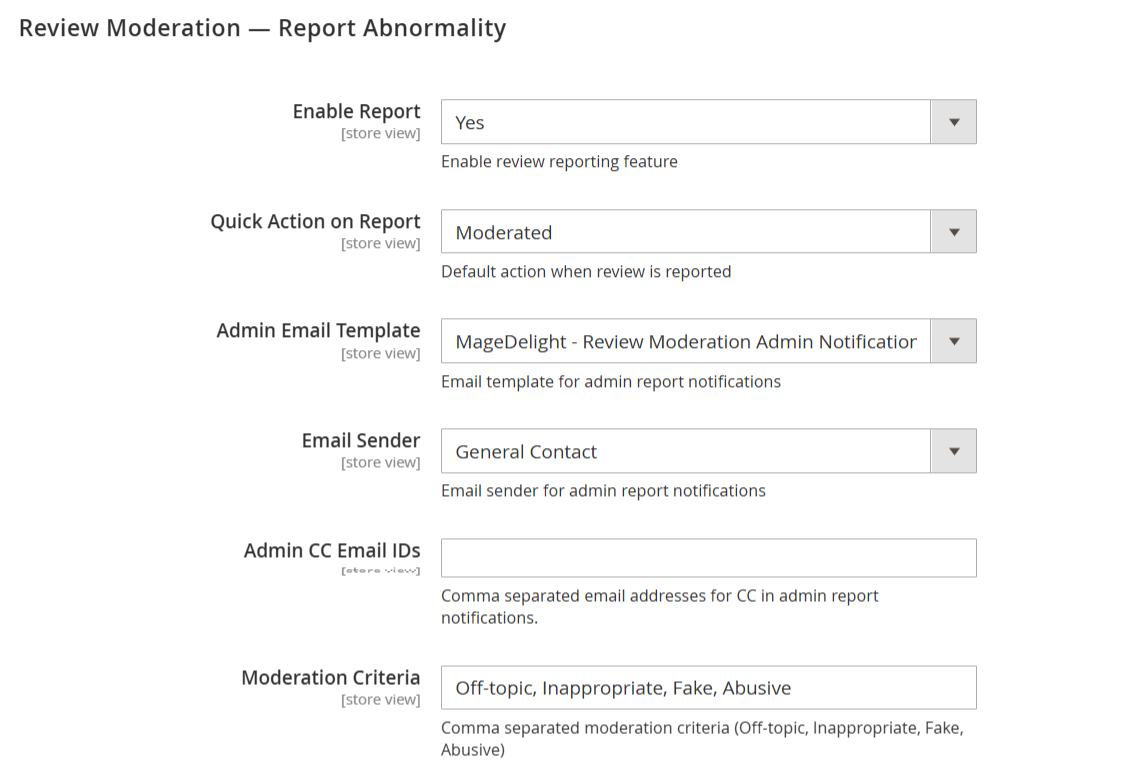
| Field | Description |
|---|---|
| Enable Report | Enables or disables the review reporting feature on the storefront. When enabled, customers can report reviews they believe are inappropriate or violate marketplace policies. |
| Quick Action on Report | Defines the default system action applied when a review is reported by a customer. Commonly used option: • Moderated – The reported review is flagged and moved into moderation, requiring admin review before further action. • Pending – The review status is changed to pending and awaits admin approval. |
| Admin Email Template | Selects the email template used to notify the admin when a review is reported by customers. |
| Email Sender | Specifies the sender identity used for admin report notification emails (for example, General Contact). |
| Admin CC Email IDs | Allows adding one or more email addresses (comma-separated) to receive a carbon copy (CC) of reported review notification emails. |
| Moderation Criteria | Defines the list of reasons displayed to customers when reporting a review. Multiple criteria can be configured using comma-separated values (for example, Off-topic, Inappropriate, Fake, Abusive). |
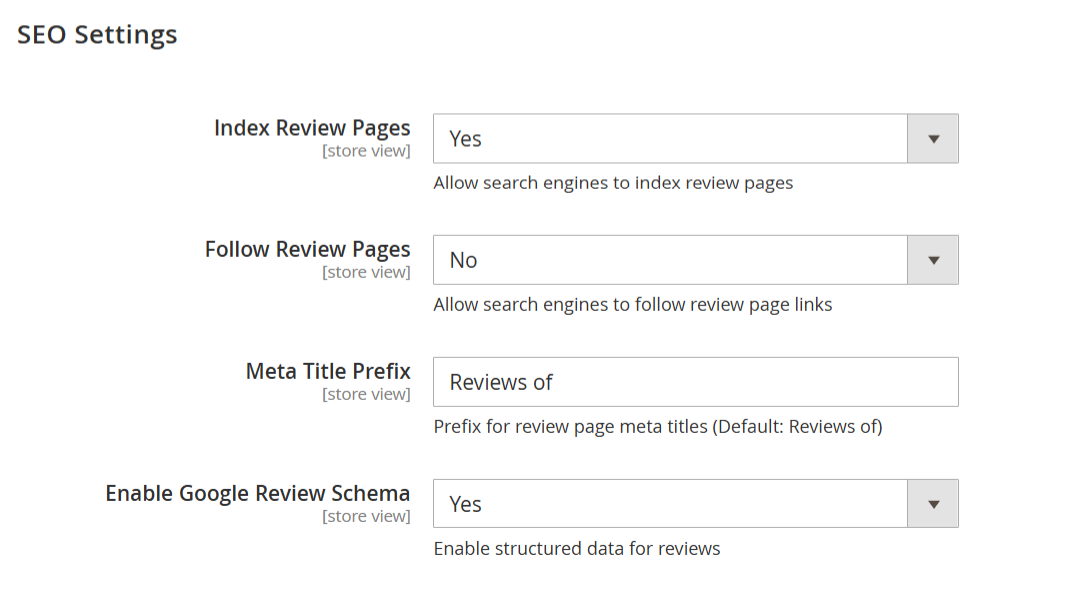
| Field | Description |
|---|---|
| Index Review Pages | Allows search engines to index review pages. When enabled, review-related pages can appear in search engine results, improving organic visibility. |
| Follow Review Pages | Controls whether search engines are allowed to follow links on review pages. Setting this to No prevents passing link equity from review pages to other URLs. |
| Meta Title Prefix | Defines the prefix added to the meta title of review pages. This helps standardize review page titles for better search visibility (default value: “Reviews of”). |
| Enable Google Review Schema | Enables structured data (schema markup) for product reviews. This allows search engines to display rich results such as star ratings and review counts in search listings. |
Backend Functionality
Rating Attributes
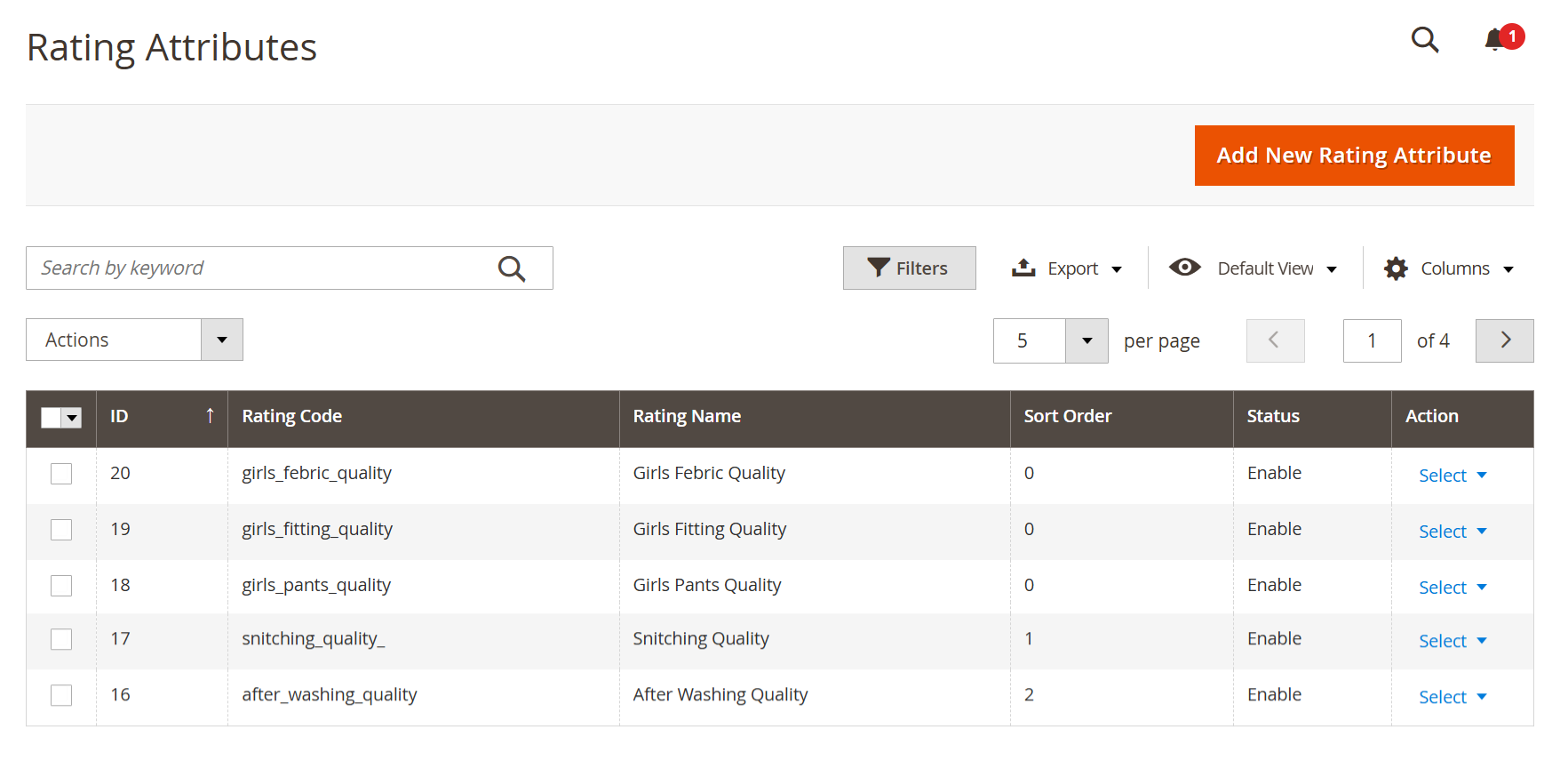
- Path: MageDelight → Advanced Review → Rating Attributes
| Field | Description |
|---|---|
| Rating Attributes Page | Displays a list of all rating attributes used in product, order, or shipping reviews. These attributes define the individual criteria customers rate (for example, quality, fitting, stitching). |
| Add New Rating Attribute | Allows the admin to create a new rating attribute. Clicking this button opens a form to define a new rating criterion that can be used in reviews. |
| Search by Keyword | Enables admins to quickly search rating attributes using keywords such as rating code or rating name. |
| Filters | Allows filtering rating attributes based on available columns such as status or sort order to narrow down results. |
| Export | Enables exporting the rating attributes list for reporting or backup purposes. |
| Columns | Allows admins to show or hide columns in the grid view based on preference. |
| ID | Displays the unique system-generated identifier for each rating attribute. |
| Rating Code | A unique internal code for the rating attribute. This code is used internally by Magento and should be lowercase and underscore-separated. |
| Rating Name | The human-readable name of the rating attribute displayed to customers on the storefront (for example, “Girls Fabric Quality”). |
| Sort Order | Determines the display order of rating attributes on the review form. Lower values are displayed first. |
| Status | Indicates whether the rating attribute is active or inactive. Only enabled attributes are visible to customers during review submission. |
| Action | Provides actions for each rating attribute, such as editing or disabling the attribute. |
| Actions (Bulk) | Allows performing bulk actions (such as enable or disable) on multiple rating attributes at once. |
| Pagination | Controls how many rating attributes are displayed per page and allows navigation between pages. |
Add New Rating Attribute
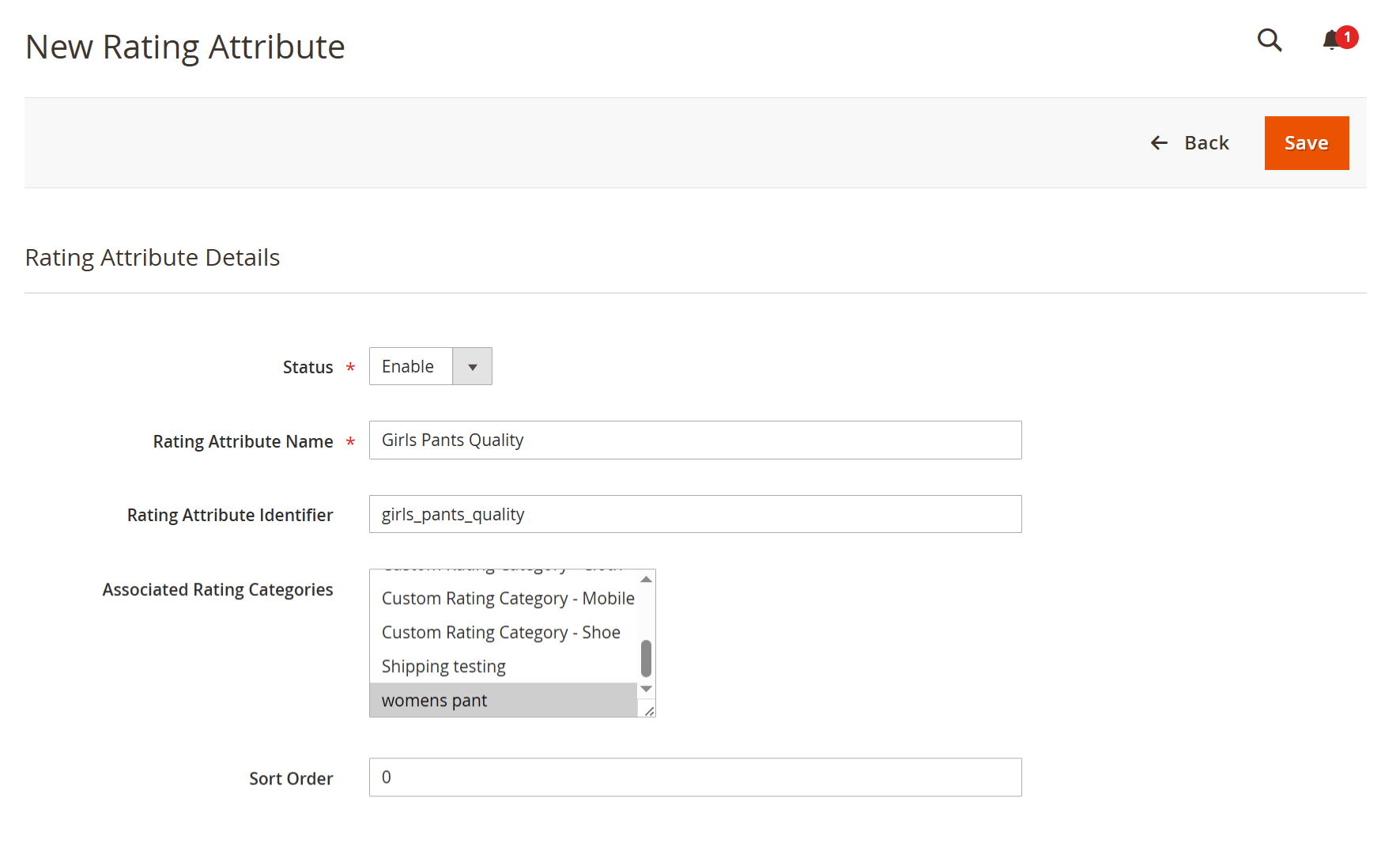
- Path: MageDelight → Advanced Review → Rating Attributes → Add New Rating Attribute
| Field | Description |
|---|---|
| Status | Enables or disables the rating attribute. Only Enabled rating attributes are visible to customers on the review form. |
| Rating Attribute Name | The display name of the rating attribute shown to customers on the storefront (for example , Girls Pants Quality). This should be clear and customer-friendly. |
| Rating Attribute Identifier | A unique internal identifier for the rating attribute. It is used internally by Magento and should be lowercase, unique, and use underscores (_) instead of spaces (for example, |
| Associated Rating Categories | Defines the rating categories where this rating attribute will be used. The attribute will appear on review forms only for the selected categories (for example, product category, shipping category, or custom rating categories). Multiple categories can be selected. |
| Sort Order | Determines the display position of this rating attribute in the review form. Lower values appear first, allowing you to prioritize important rating criteria. |
| Save | Saves the rating attribute configuration and makes it available for use in reviews based on the selected categories. |
| Back | Returns to the Rating Attributes listing page without saving changes. |
Rating Category Management
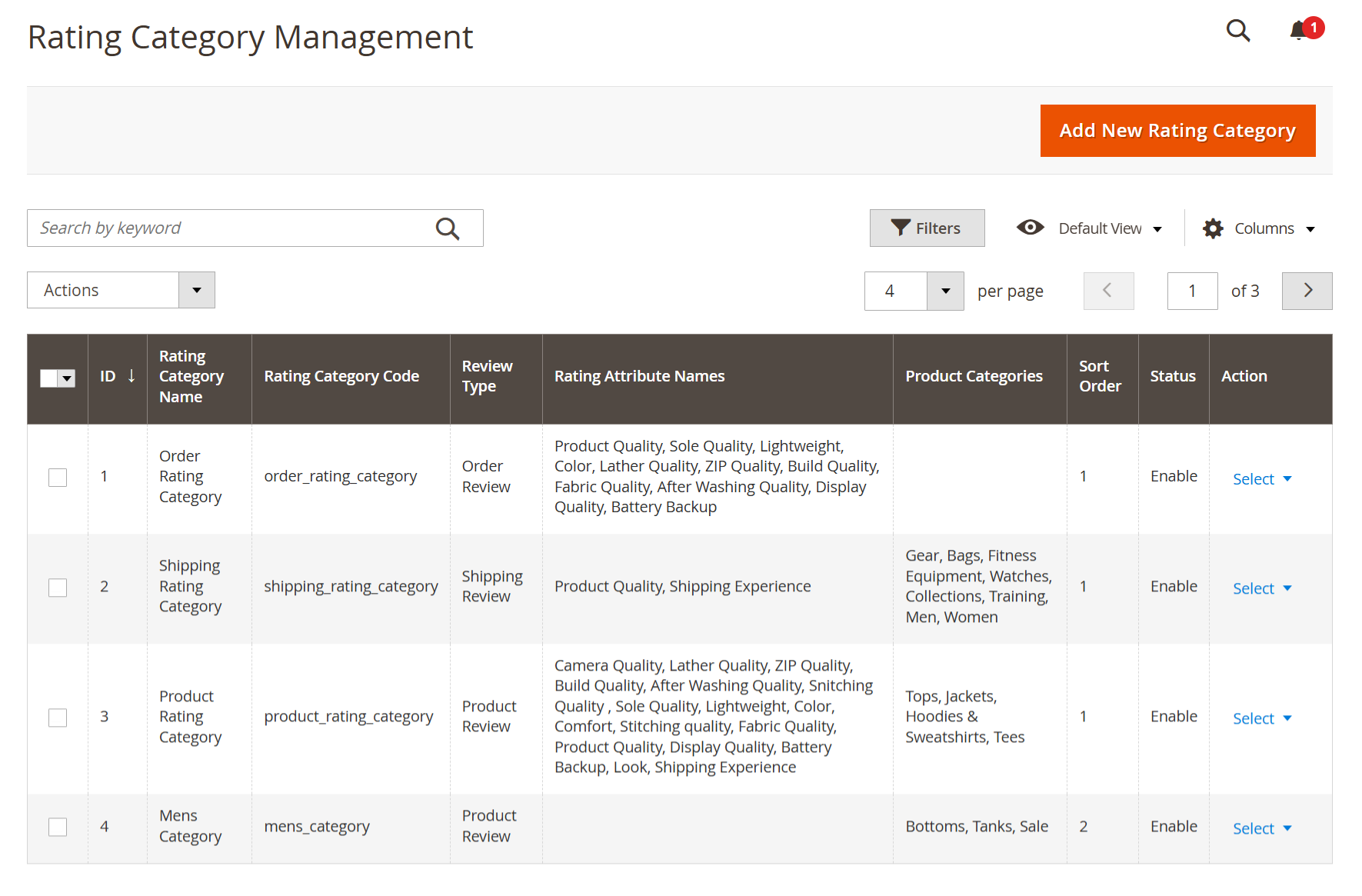
- Path: MageDelight → Advanced Review → Rating Category
| Field | Description |
|---|---|
| Rating Category Management Page | Displays all rating categories used to group rating attributes for Product, Order, and Shipping reviews. Rating categories control where and how rating attributes appear on the storefront review forms. |
| Add New Rating Category | Allows the admin to create a new rating category. Clicking this button opens a form to define a new category and associate rating attributes with it. |
| Search by Keyword | Enables searching rating categories by name or category code for quick access. |
| Filters | Allows filtering the grid based on fields such as review type, status, or sort order. |
| Columns | Allows admins to show or hide grid columns based on preference. |
| ID | Displays the unique system-generated identifier for each rating category. |
| Rating Category Name | The human-readable name of the rating category shown in admin configuration (for example, Product Rating Category or Shipping Rating Category). |
| Rating Category Code | A unique internal identifier for the rating category. This code is used internally and should be lowercase with underscores (for example, |
| Review Type | Defines the type of review this category applies to: • Product Review – Used for product detail page reviews. • Order Review – Used for overall order experience reviews. • Shipping Review – Used for shipping and delivery experience reviews. |
| Rating Attribute Names | Displays the list of rating attributes associated with this category. These attributes will appear as individual rating criteria on the review form. |
| Product Categories | Defines which Magento product categories this rating category applies to. The rating category will only appear for products belonging to these categories. |
| Sort Order | Determines the display priority of the rating category. Lower values are displayed first when multiple categories are available. |
| Status | Indicates whether the rating category is active or inactive. Only enabled categories are available for use in reviews. |
| Action | Provides actions for each rating category, such as editing or managing the category configuration. |
| Actions (Bulk) | Allows performing bulk actions (such as enable or disable) on multiple rating categories at once. |
| Pagination | Controls the number of rating categories displayed per page and allows navigation between pages. |
Add New Rating Category
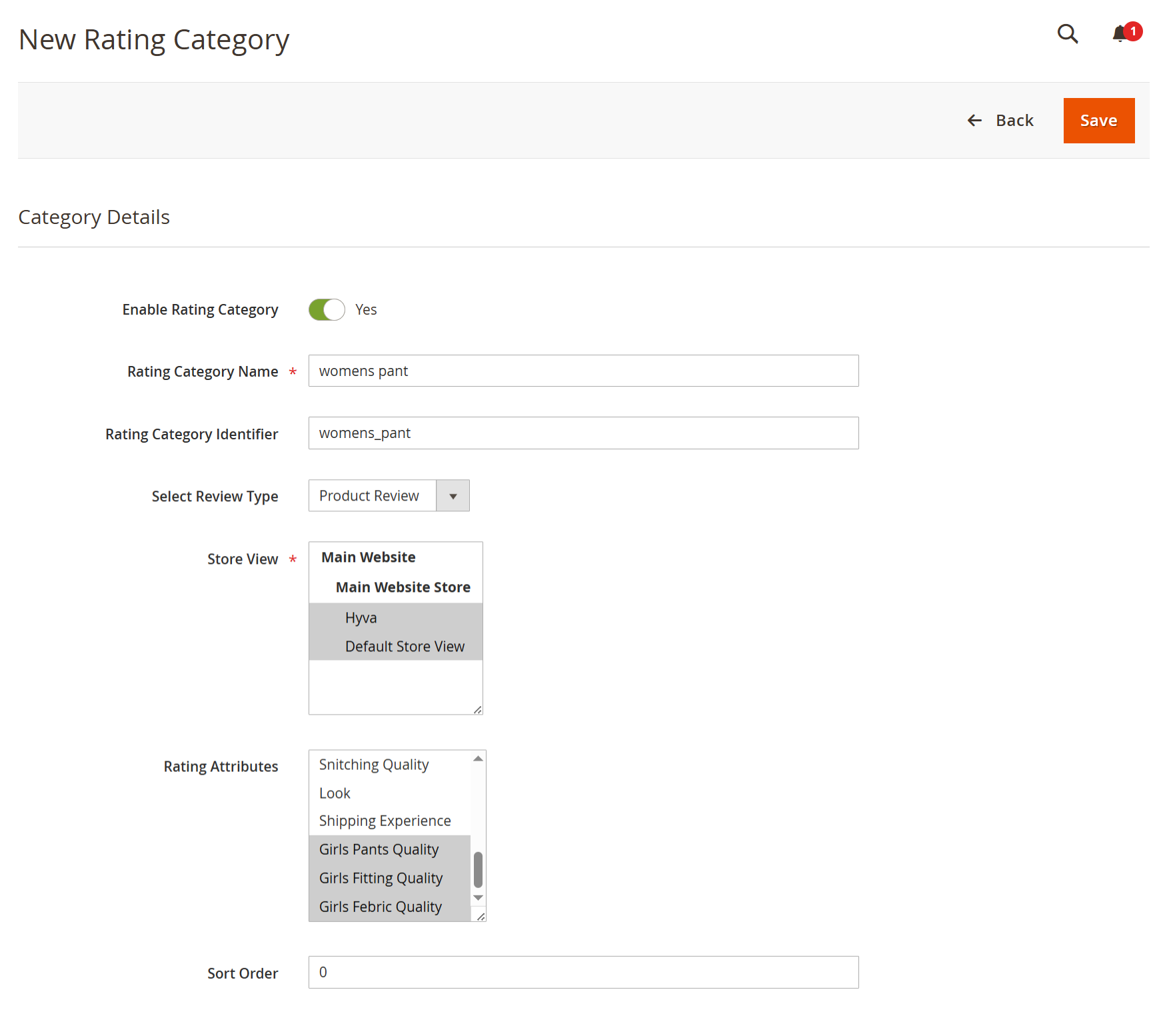
- Path: MageDelight → Advanced Review → Rating Category → Add New Rating Category
| Field | Description |
|---|---|
| Enable Rating Category | Enables or disables the rating category. Only enabled rating categories are available for use in review forms on the storefront. |
| Rating Category Name | The display name of the rating category shown in the admin and used to group related rating attributes (for example, womens pant). |
| Rating Category Identifier | A unique internal identifier for the rating category. It should be lowercase, unique, and use underscores (_) instead of spaces (for example, |
| Select Review Type | Defines the type of review this category applies to. Available options typically include Product Review, Order Review, or Shipping Review. This determines where the category appears in the review flow. |
| Store View | Specifies the store view(s) where this rating category will be available. Selecting multiple store views allows the category to be used across different storefronts. |
| Rating Attributes | Allows selection of one or more rating attributes that belong to this category. These attributes will appear as individual rating criteria when customers submit a review. |
| Sort Order | Determines the display priority of the rating category when multiple categories are available. Lower values appear first. |
| Save | Saves the rating category configuration and makes it available for use based on the selected review type and store view. |
| Back | Returns to the Rating Category Management grid without saving changes. |
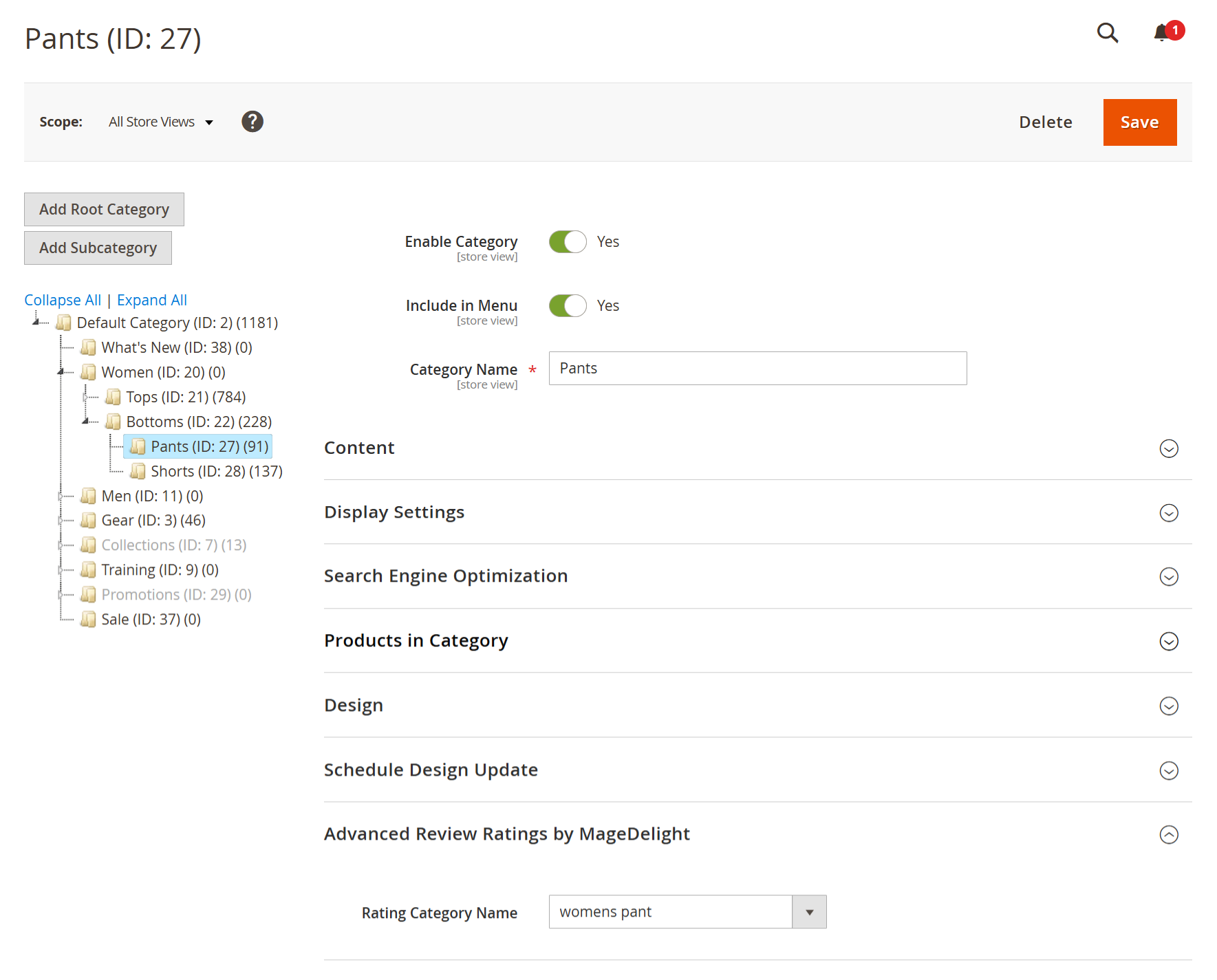
- After creating a Rating Category, it must be assigned to the relevant product category so that the correct rating attributes appear on the product review form.
- For example, after creating the rating category “womens pant”, navigate to Catalog → Categories → Women → Bottoms → Pants.
- In the category edit page, expand Advanced Review Ratings by MageDelight and select womens pant from the Rating Category Name dropdown.
- Save the category to apply the configuration. This ensures that only category-specific rating attributes are shown for women’s pants products.
| Field | Description |
|---|---|
| Navigate to Category | Go to Catalog → Categories → Women → Bottoms → Pants. |
| Advanced Review Section | Expand Advanced Review Ratings by MageDelight on the category edit page. |
| Rating Category Name | Select womens pant from the dropdown list. |
| Save Category | Click Save to apply the rating category to the Pants product category. |
Rating Categories must be created first before they can be assigned to product categories.
Each product category can have one relevant rating category to keep reviews focused and meaningful.
Products under Women → Bottoms → Pants will now show only the rating attributes configured under the womens pant rating category.
This helps collect category-specific feedback instead of generic reviews.
Manage Reviews
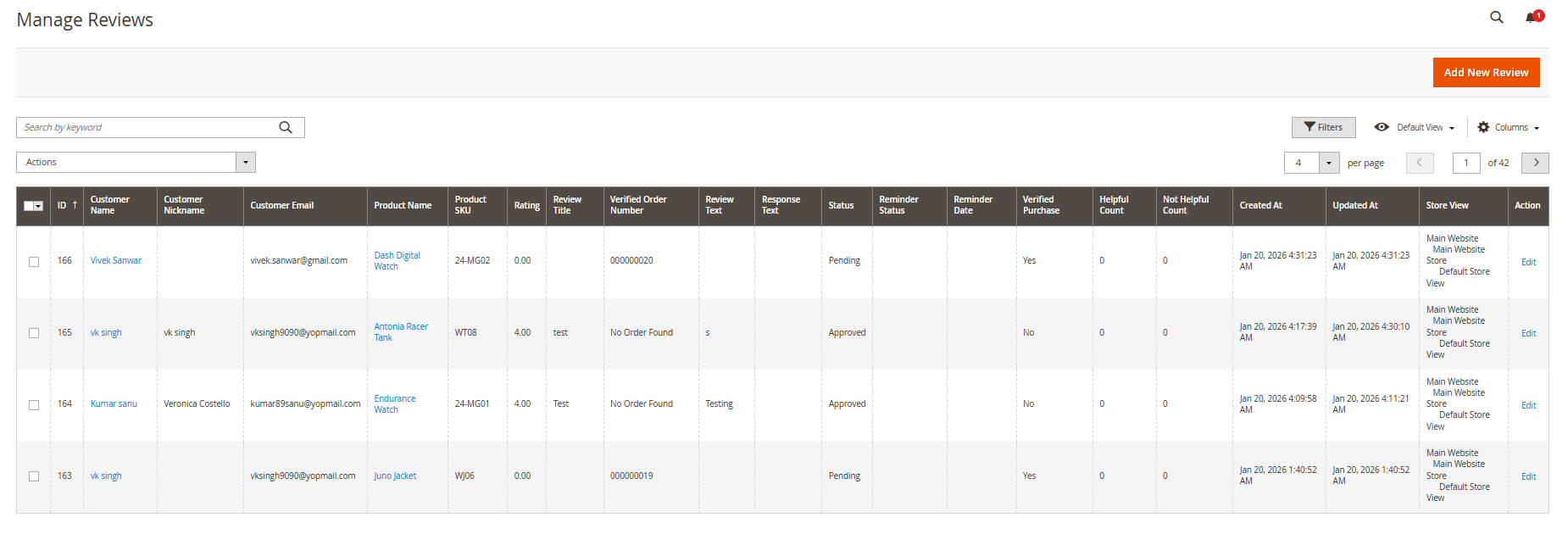
- The Manage Reviews section allows administrators to view, moderate, and manage all product reviews submitted by customers. From this screen, admins can review customer details, product information, ratings, review content, verification status, and approval state. It also provides quick access to edit reviews, track helpful/not-helpful votes, and monitor reminder and verification details across store views.
- Path: MageDelight → Advanced Review → Manage Reviews
| Field | Description |
|---|---|
| ID | Unique identifier assigned to each review. |
| Customer Name / Nickname | Displays the reviewer’s name and chosen nickname, if provided. |
| Customer Email | Email address of the customer who submitted the review. |
| Product Name | Name of the product for which the review was submitted. |
| Product SKU | SKU of the reviewed product. |
| Rating | Overall rating score given by the customer. |
| Review Title | Title or short summary of the review. |
| Review Text | Detailed review content submitted by the customer. |
| Verified Order Number | Displays the order number if the review is linked to a verified purchase. |
| Verified Purchase | Indicates whether the review is from a verified buyer. |
| Status | Shows the current review status (for example, Pending or Approved). |
| Reminder Status / Date | Indicates whether a review reminder was sent and the reminder date. |
| Helpful / Not Helpful Count | Displays how many users marked the review as helpful or not helpful. |
| Created At / Updated At | Shows when the review was created and last updated. |
| Store View | Indicates the store view in which the review was submitted. |
| Action | Allows admins to edit the review details or take moderation actions. |
Add New Reviews
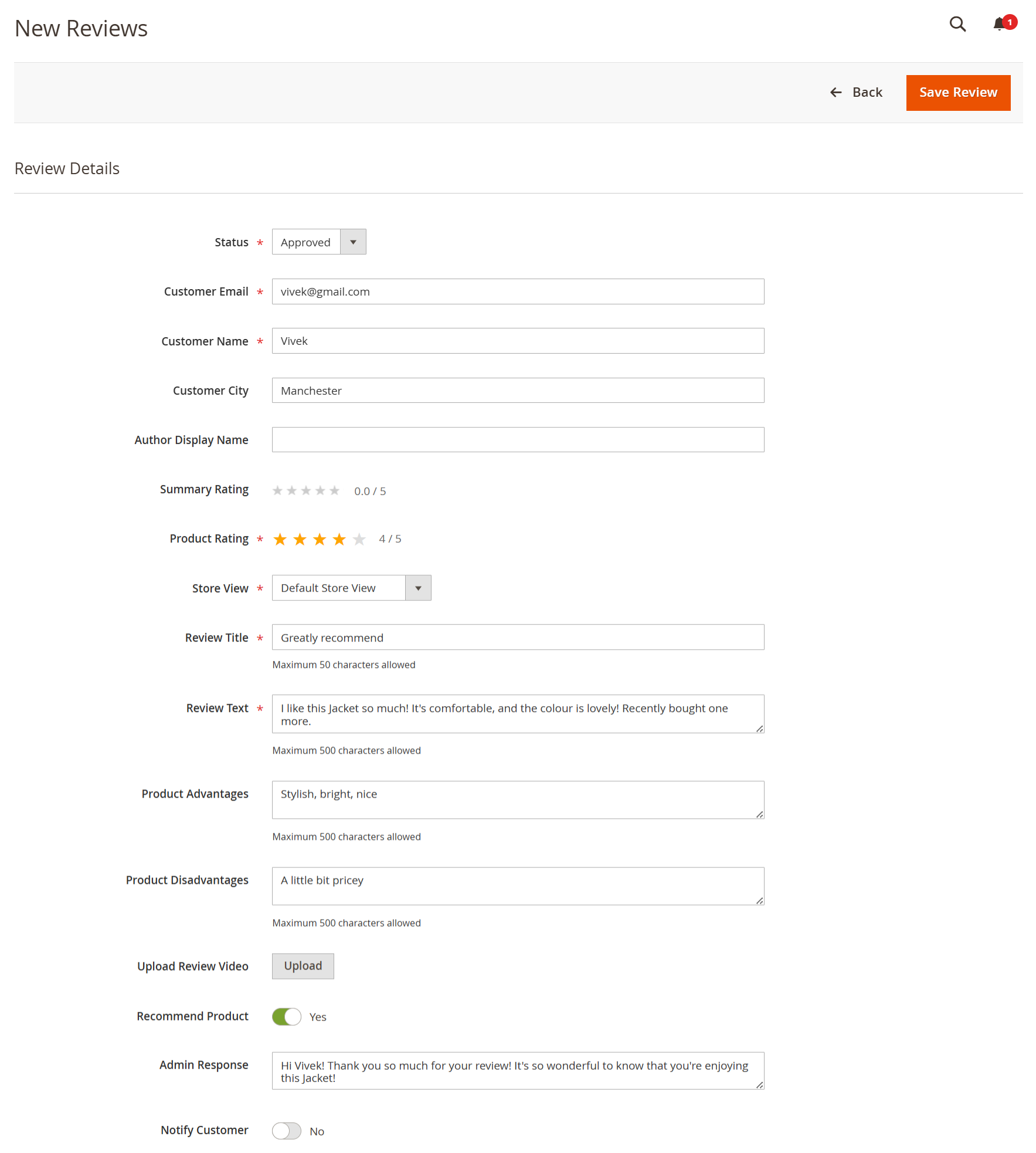
- The Add New Review screen allows administrators to manually create or edit a product review on behalf of a customer. From this page, the admin can define the review status, customer details, rating, review content, pros and cons, media uploads, and recommendation flag. Admins can also add an official response and choose whether the customer should be notified after saving the review.
- Path: MageDelight → Advanced Review → Manage Reviews → Add New Review
| Field | Description |
|---|---|
| Status | Sets the review status (for example, Approved or Pending). Approved reviews are immediately visible on the storefront. |
| Customer Email | Email address of the customer submitting the review. |
| Customer Name | Name of the customer associated with the review. |
| Customer City | City of the customer (optional informational field). |
| Author Display Name | Name shown publicly on the storefront as the review author. |
| Summary Rating | Displays the calculated summary rating based on individual ratings. |
| Product Rating | Star rating given to the product. |
| Store View | Selects the store view in which the review will be published. |
| Review Title | Short headline for the review (maximum 50 characters). |
| Review Text | Detailed customer feedback about the product (maximum 500 characters). |
| Product Advantages | Allows adding product pros or positive points. |
| Product Disadvantages | Allows adding product cons or improvement areas. |
| Upload Review Video | Enables uploading a video review, if media uploads are enabled. |
| Recommend Product | Indicates whether the customer recommends the product. |
| Admin Response | Allows the admin to add an official response to the review. |
| Notify Customer | Sends an email notification to the customer when enabled. |
| Save Review | Saves the review and applies all configured details. |
| Back | Returns to the review list without saving changes. |
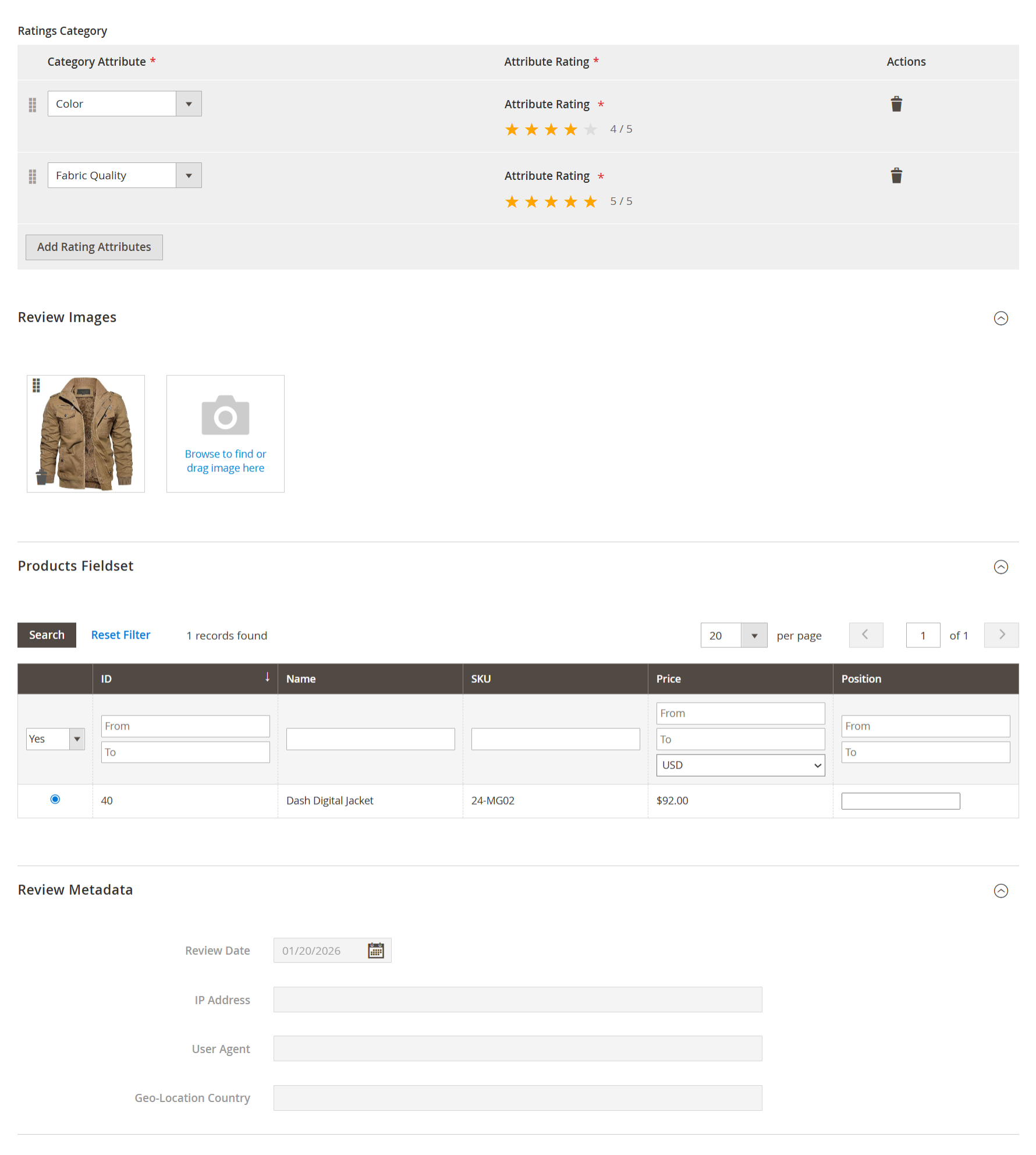
- This section allows the admin to assign category-specific rating attributes, upload review images, link the review to a specific product, and capture review metadata. Admins can rate individual attributes (such as Color or Fabric Quality), attach images to enhance authenticity, select the reviewed product, and track metadata like review date and IP information for moderation and audit purposes.
- Path: MageDelight → Advanced Review → Manage Reviews → Add New Review
| Field | Description |
|---|---|
| Ratings Category | Displays rating attributes mapped to the product’s rating category. Admins can select attributes and assign star ratings for each criterion. |
| Add Rating Attributes | Allows adding more rating attributes dynamically to the review. |
| Attribute Rating | Star-based rating assigned for each selected attribute (for example, Color, Fabric Quality). |
| Review Images | Enables uploading product images related to the review to improve credibility and visual validation. |
| Products Fieldset | Allows selecting the exact product for which the review is being created. Only one product can be associated with a review. |
| Review Metadata | Displays internal metadata such as review date, IP address, user agent, and geo-location for tracking and moderation purposes. |
Manage Order Review
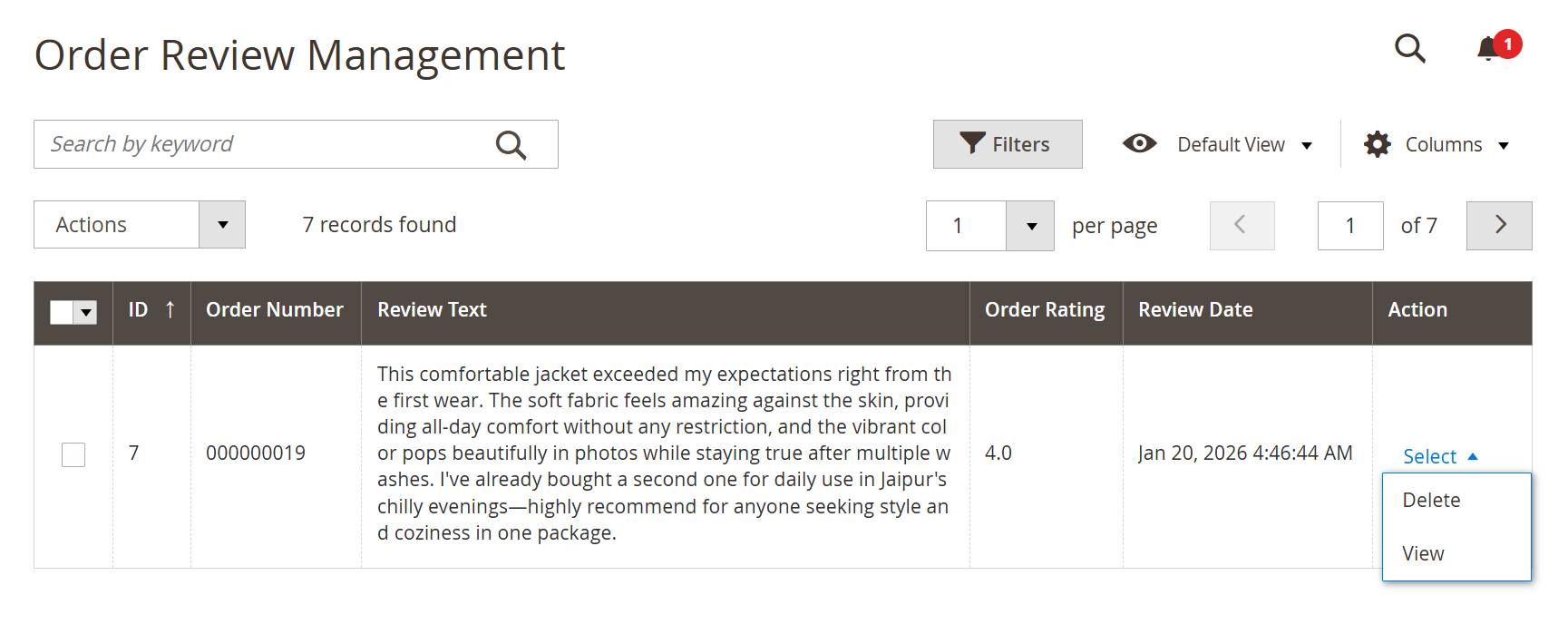
- The Order Review Management section allows administrators to view and manage customer feedback related to their overall order experience. From this screen, admins can track order-specific reviews, view ratings and review text, monitor submission dates, and take actions such as viewing or deleting order reviews. This helps maintain quality control and analyze post-purchase customer satisfaction.
- Path: MageDelight → Advanced Review → Manage Order Review
| Field | Description |
|---|---|
| ID | Unique identifier assigned to each order review entry. |
| Order Number | Displays the Magento order number associated with the review. |
| Review Text | Shows the customer’s feedback about their overall order experience. |
| Order Rating | Star rating given by the customer for the order experience. |
| Review Date | Date and time when the order review was submitted. |
| Action | Provides actions such as View to see review details or Delete to remove the order review. |
View Order Review
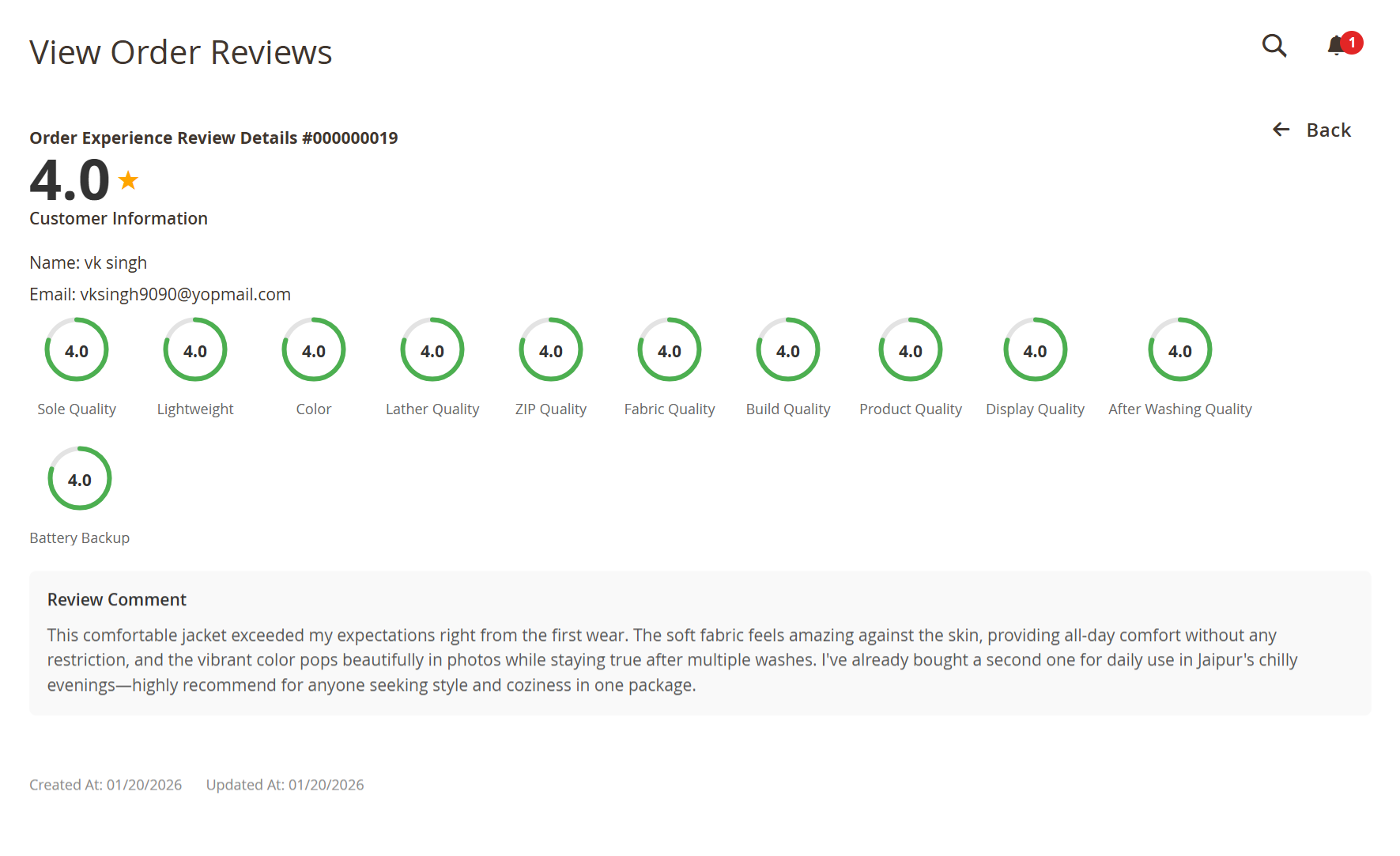
- When an admin clicks View on an order review, the Order Experience Review Details page is displayed. This screen provides a complete snapshot of the customer’s order-level feedback, including the overall rating, detailed attribute-wise ratings, customer information, and the full review comment. It helps admins clearly understand the customer’s experience across multiple quality parameters for a specific order.
| Field | Description |
|---|---|
| Overall Rating | Displays the aggregate order rating (e.g., 4.0★) given by the customer. |
| Customer Information | Shows the reviewer’s name and registered email address. |
| Attribute-wise Ratings | Circular indicators showing ratings for each configured order rating attribute (e.g., Sole Quality, Fabric Quality, Build Quality, After Washing Quality, etc.). |
| Review Comment | Displays the detailed feedback text submitted by the customer for the order. |
| Created At / Updated At | Shows when the order review was created and last updated. |
| Back Action | Allows the admin to return to the Order Review Management grid. |
Manage Shipping Review
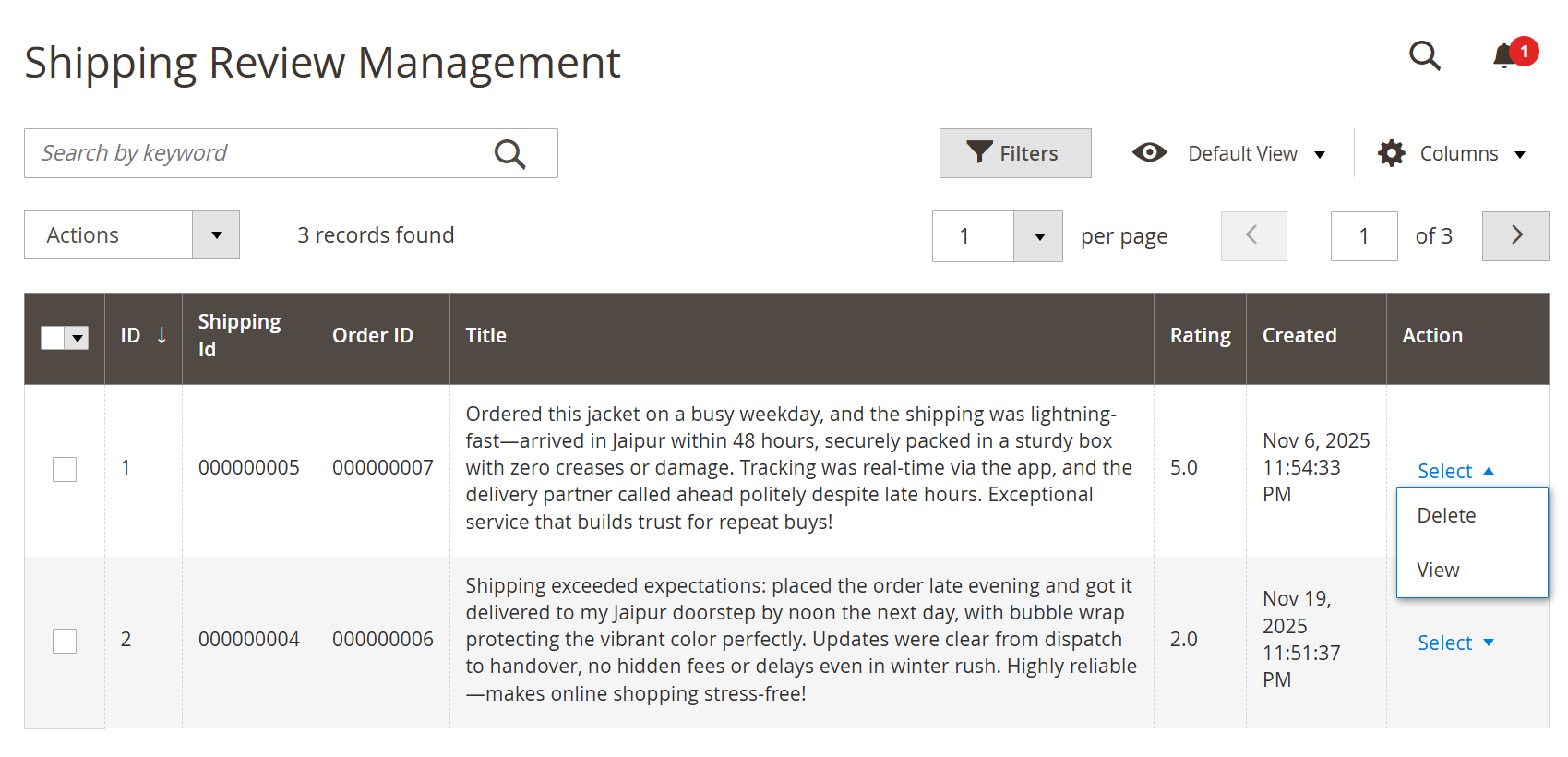
- The Shipping Review Management screen allows admins to view and manage customer feedback specifically related to the shipping experience. It displays a list of shipping reviews submitted against orders, including detailed comments, ratings, and timestamps. From this grid, admins can quickly review shipping performance, identify delivery issues, and take actions such as viewing or deleting individual shipping reviews.
- Path: MageDelight → Advanced Review → Manage Shipping Review
| Field | Description |
|---|---|
| ID | Unique identifier of the shipping review record. |
| Shipping ID | Reference ID associated with the shipping review entry. |
| Order ID | Order number against which the shipping review was submitted. |
| Title / Review Text | Detailed customer feedback describing the shipping experience. |
| Rating | Star rating given for shipping (e.g., 5.0, 2.0). |
| Created | Date and time when the shipping review was submitted. |
| Action | Allows admin to View or Delete the shipping review. |
View Shipping Review
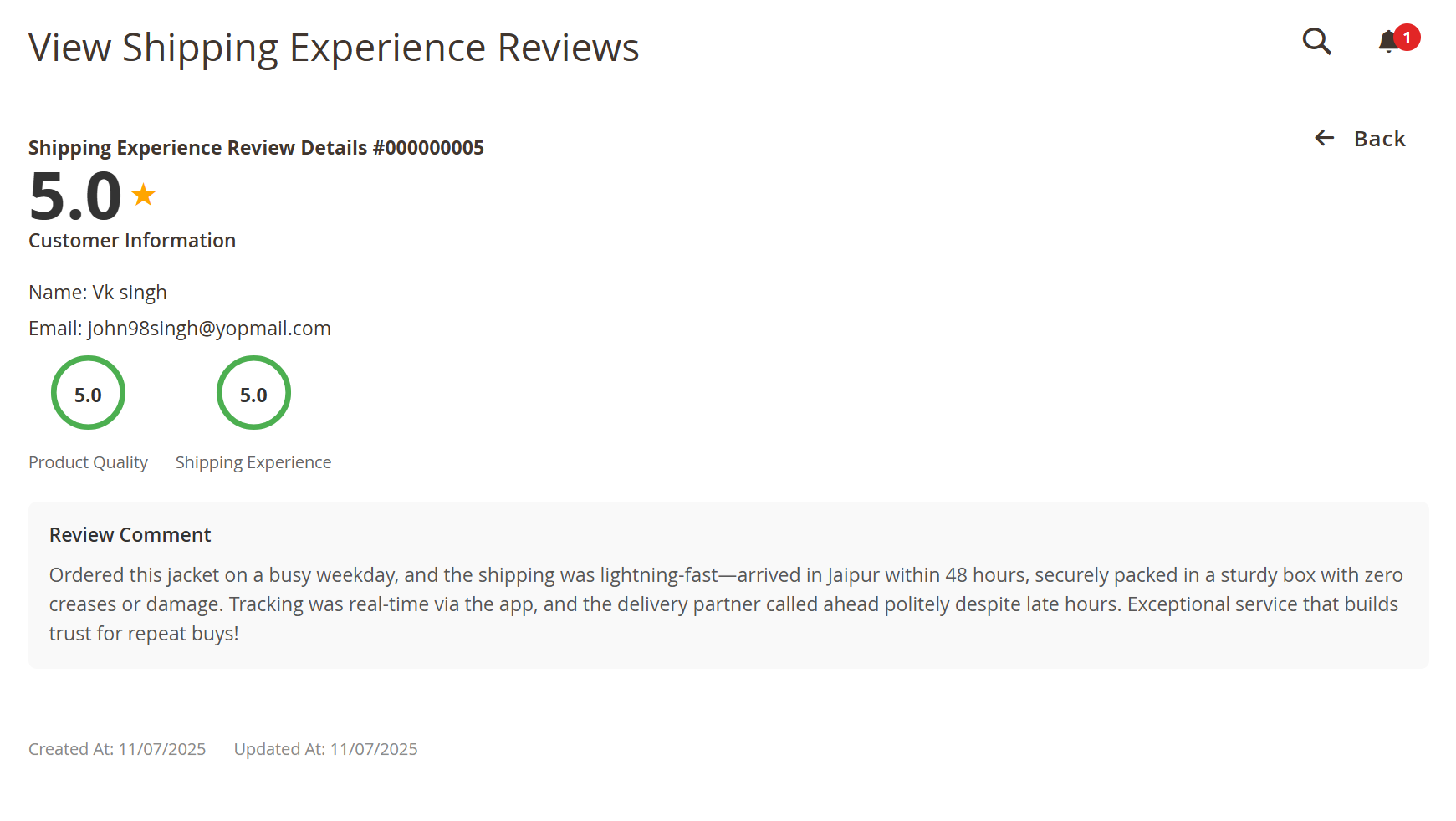
- When an admin clicks View on a shipping review, the Shipping Experience Review Details page is displayed. This screen provides a detailed, read-only view of the customer’s shipping feedback, including the overall shipping rating, attribute-wise ratings, customer details, and the full review comment. It helps admins evaluate delivery performance and customer satisfaction related to logistics.
- Path: MageDelight → Advanced Review → Manage Shipping Review → View
| Field | Description |
|---|---|
| Overall Rating | Displays the overall shipping rating (e.g., 5.0★) given by the customer. |
| Customer Information | Shows the customer’s name and email address. |
| Attribute-wise Ratings | Displays individual ratings such as Product Quality and Shipping Experience using circular indicators. |
| Review Comment | Shows the detailed customer feedback describing the shipping experience. |
| Created At / Updated At | Indicates when the shipping review was created and last updated. |
| Back Action | Allows admin to return to the Shipping Review Management grid. |
Manage Reported Review
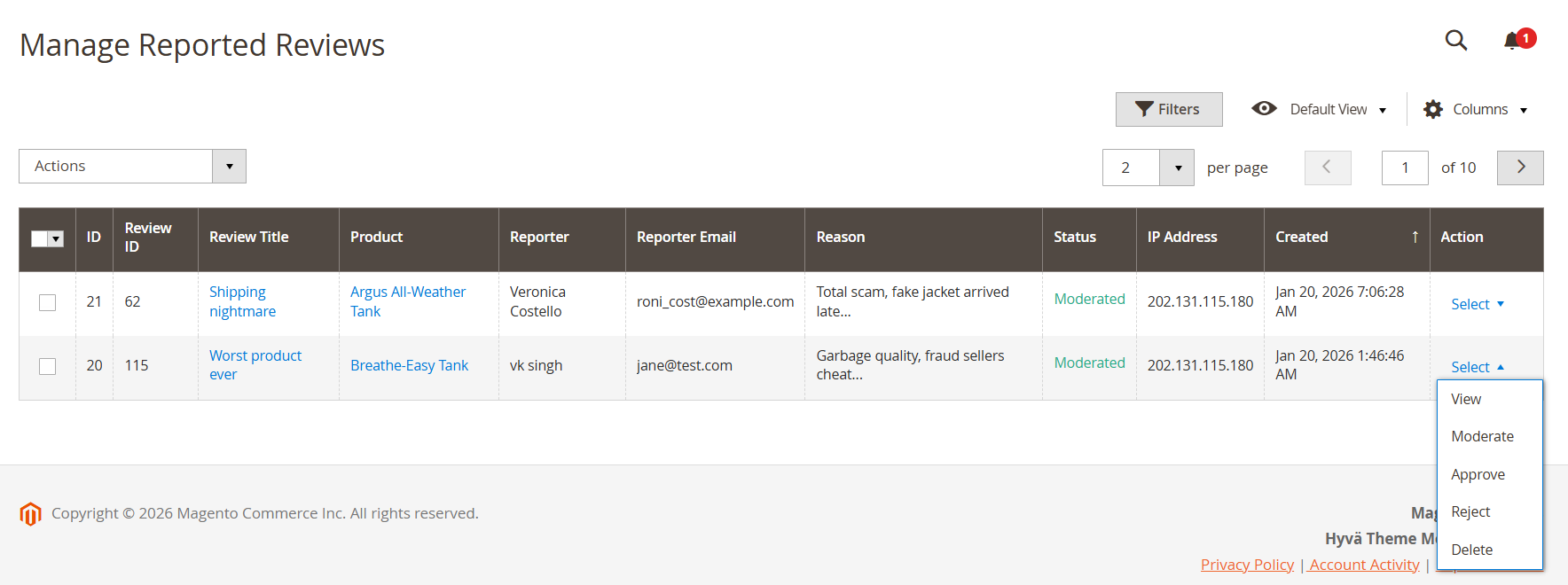
- The Manage Reported Reviews screen allows admins to review and take action on customer reviews that have been flagged as inappropriate, misleading, or abusive. It provides complete visibility into the reported review, including the reporter’s details, reason for reporting, current moderation status, and available moderation actions. This ensures effective review governance and helps maintain trust and content quality across the store.
- Path: MageDelight → Advanced Review → Manage Reported Reviews
| Field | Description |
|---|---|
| Review ID | Unique ID of the review that has been reported. |
| Review Title | Title of the reported review for quick identification. |
| Product | Product associated with the reported review. |
| Reporter / Reporter Email | Details of the customer who reported the review. |
| Reason | Reason provided for reporting the review (e.g., fake, abusive, scam). |
| Status | Current moderation status of the reported review (e.g., Moderated). |
| IP Address | IP address of the reporter for audit and security purposes. |
| Created | Date and time when the review was reported. |
| Actions | Admin actions such as View, Moderate, Approve, Reject, or Delete the review. |
View Report Review
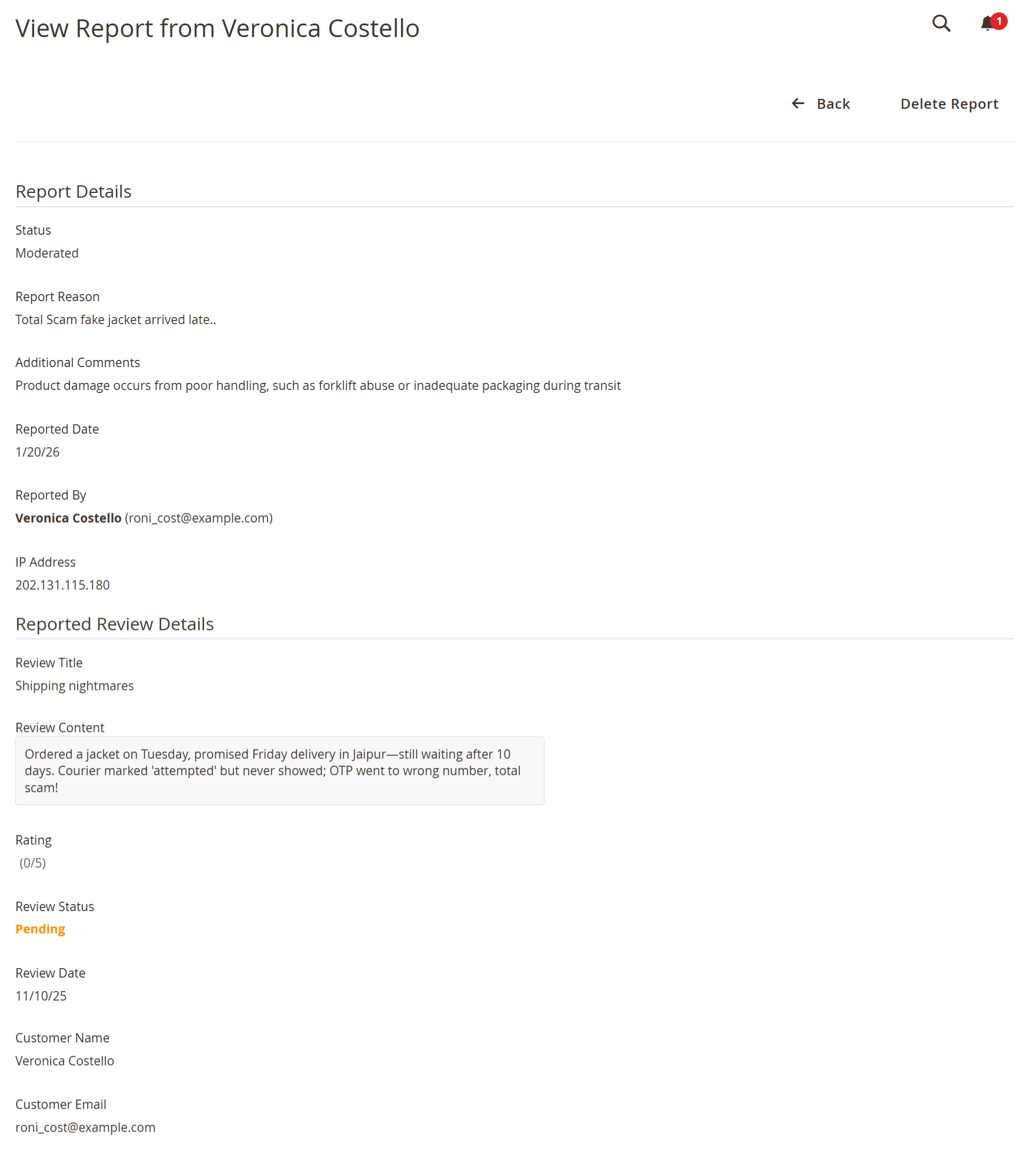
- The View Report screen provides a detailed breakdown of a reported review, allowing administrators to clearly understand why a review was flagged and assess its validity. It displays the report status, reporting reason, reporter details, and the complete content of the reported review, enabling informed moderation decisions such as approval, rejection, or deletion.
- Path: MageDelight → Advanced Review → Manage Reported Reviews → View
| Field | Description |
|---|---|
| Status | Current moderation status of the report (e.g., Moderated). |
| Report Reason | Primary reason selected by the customer while reporting the review. |
| Additional Comments | Extra context provided by the reporter to explain the issue. |
| Reported Date | Date when the review was reported. |
| Reported By | Name and email of the customer who reported the review. |
| IP Address | IP address of the reporter for audit and verification purposes. |
| Review Title | Title of the reported review. |
| Review Content | Full text content of the reported review. |
| Rating | Rating given in the reported review (if applicable). |
| Review Status | Current status of the original review (e.g., Pending). |
| Customer Details | Name and email of the customer who posted the review. |
Manage Reminder Rules
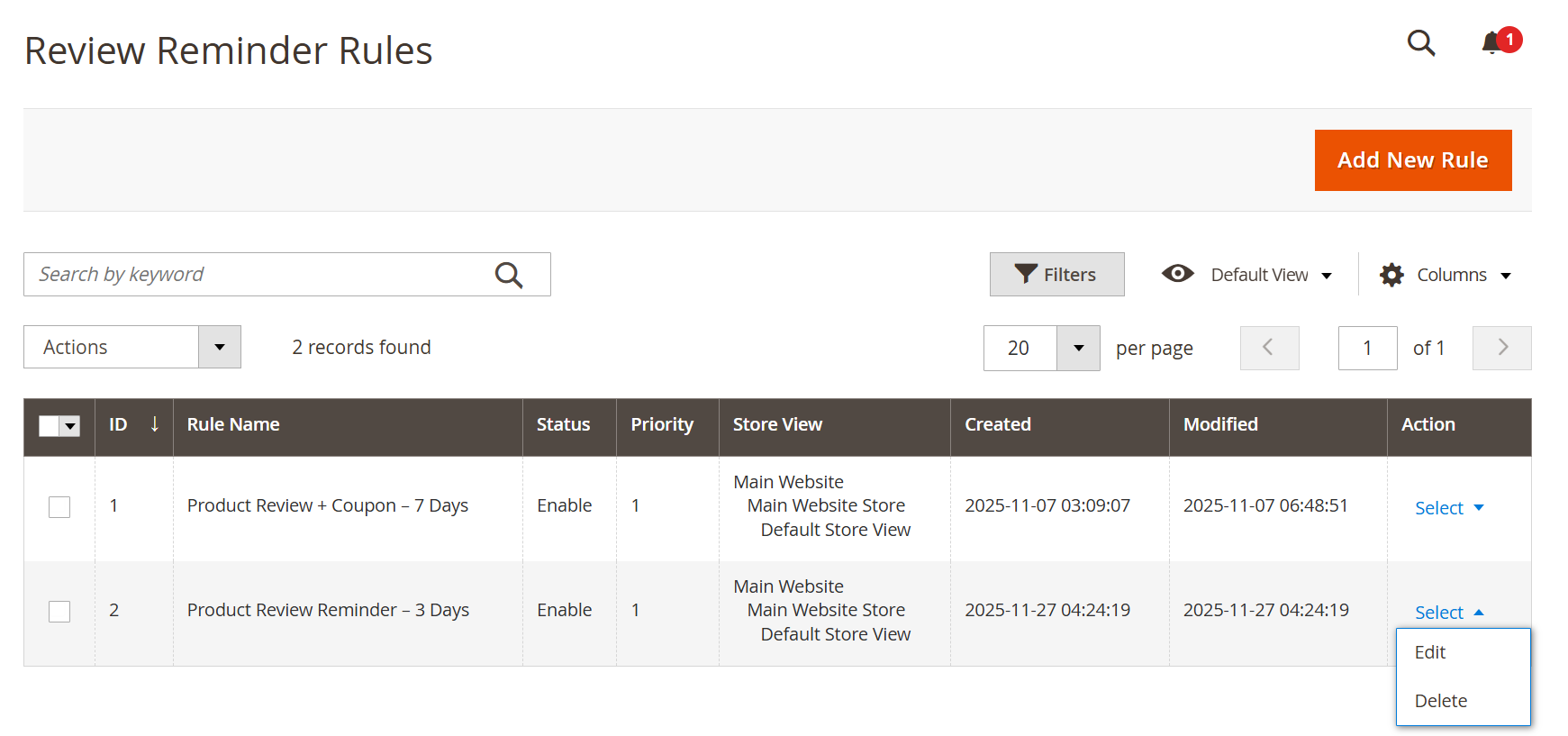
- This section allows the admin to create, view, edit, and manage automated review reminder rules. These rules trigger emails to customers after an order is completed, encouraging them to submit product, order, or shipping reviews. Rules are executed based on priority, store view, and configured delay.
- Path: MageDelight → Advanced Review → Manage Reported Reviews
| Field | Description |
|---|---|
| Add New Rule | Allows the admin to create a new review reminder rule. Clicking this opens the rule creation screen where email schedule, customer groups, store views, and coupon settings can be configured. |
| ID | Unique system-generated identifier for the reminder rule. |
| Rule Name | Name of the reminder rule used to identify its purpose (e.g., Product Review Reminder – 3 Days). |
| Status | Indicates whether the rule is Enabled or Disabled. Only enabled rules are executed by the system. |
| Priority | Defines execution order when multiple rules match. Lower numbers have higher priority. |
| Store View | Store views where this reminder rule is applicable (e.g., Main Website, Default Store View). |
| Created | Date and time when the rule was initially created. |
| Modified | Date and time when the rule was last updated. |
| Action → Edit | Allows the admin to modify the existing rule configuration such as email timing, templates, or coupon settings. |
| Action → Delete | Permanently removes the reminder rule from the system. |
Add Review Reminder Rule
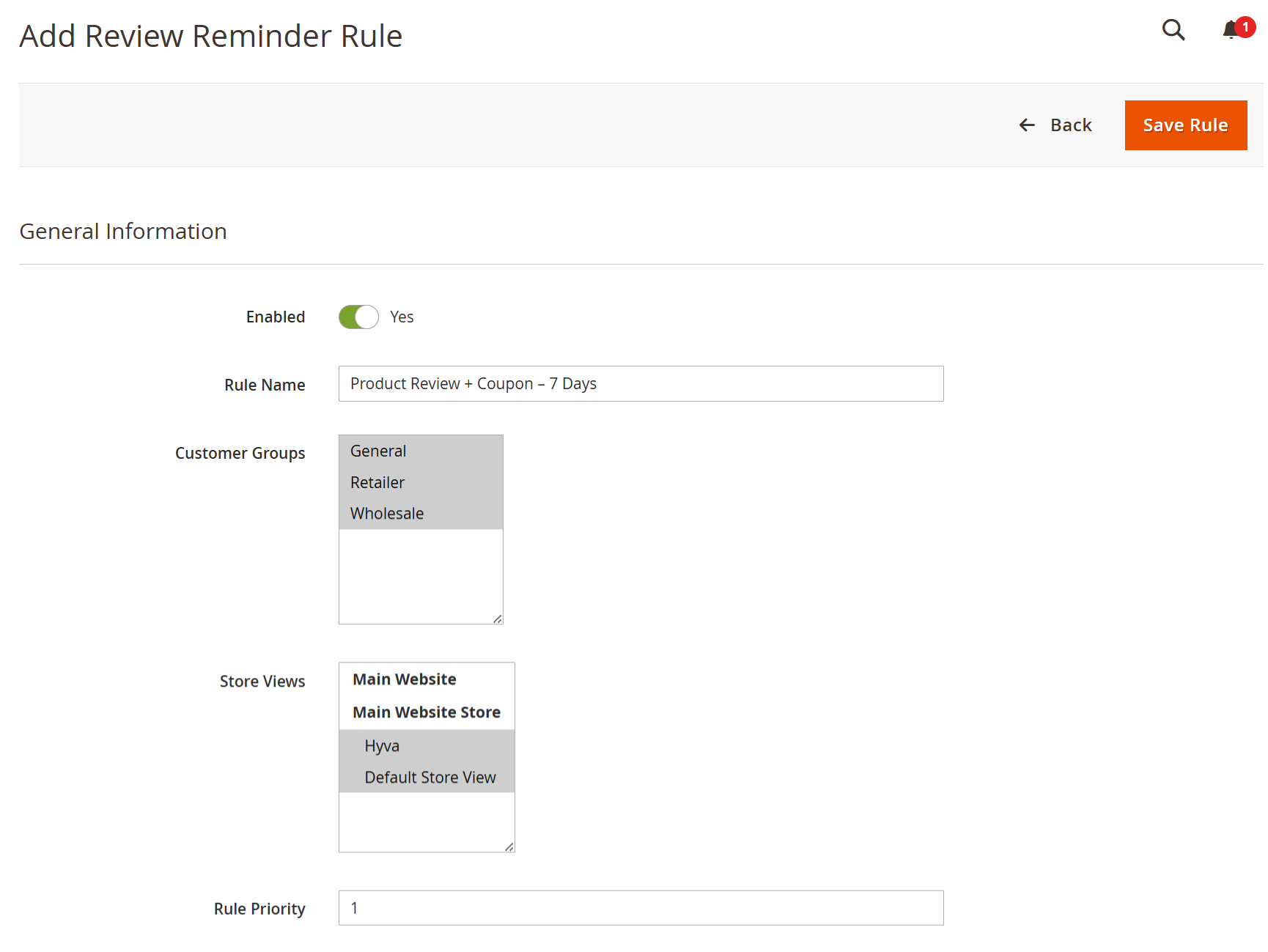
| Field | Description |
|---|---|
| Enabled | Enables or disables the review reminder rule. Only enabled rules will be executed by the system. |
| Rule Name | Internal name to identify the reminder rule (e.g., Product Review + Coupon – 7 Days). |
| Customer Groups | Select customer groups eligible to receive review reminder emails (e.g., General, Retailer, Wholesale). |
| Store Views | Defines which store views this rule applies to. |
| Rule Priority | Determines execution order when multiple rules match. Lower number = higher priority. |
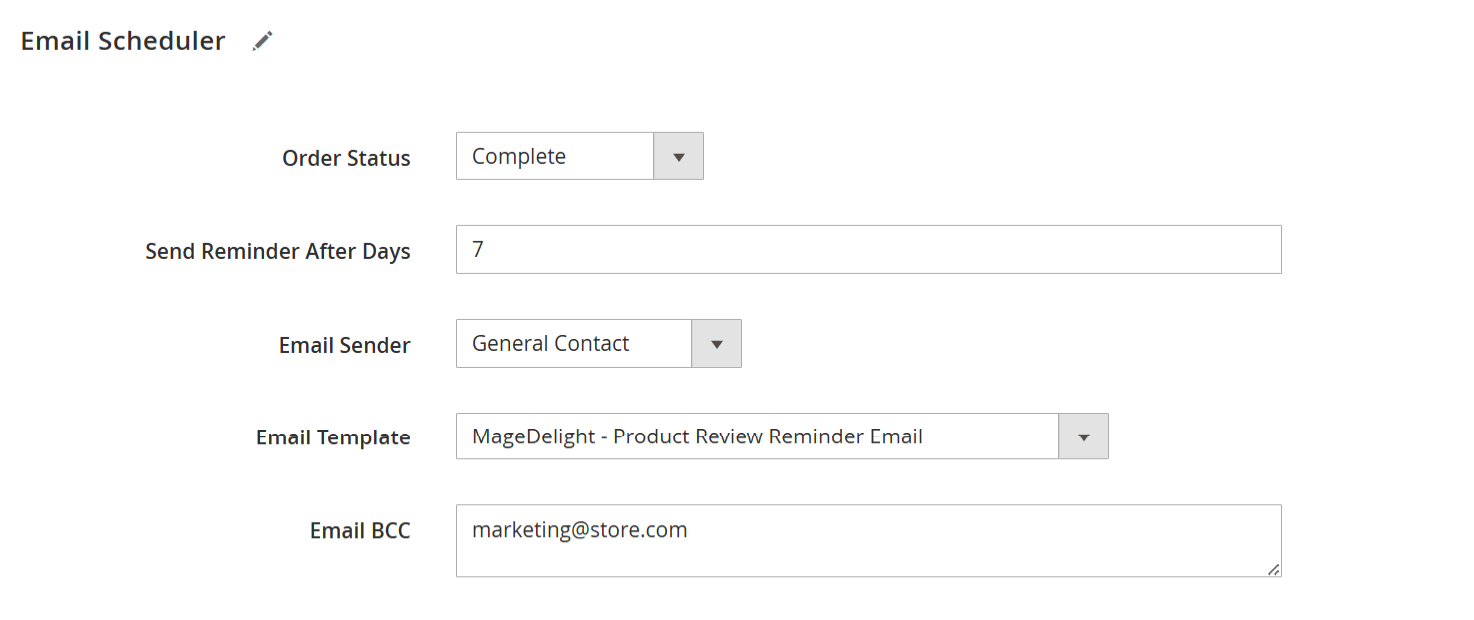
| Field | Description |
|---|---|
| Order Status | Reminder email is triggered only when the order reaches this status (e.g., Complete). |
| Send Reminder After Days | Number of days after order completion when the review reminder email is sent. |
| Email Sender | Sender identity used for the reminder email. |
| Email Template | Email template used to send the product review reminder. |
| Email BCC | Optional email addresses (comma-separated) to receive a blind copy of reminder emails. |
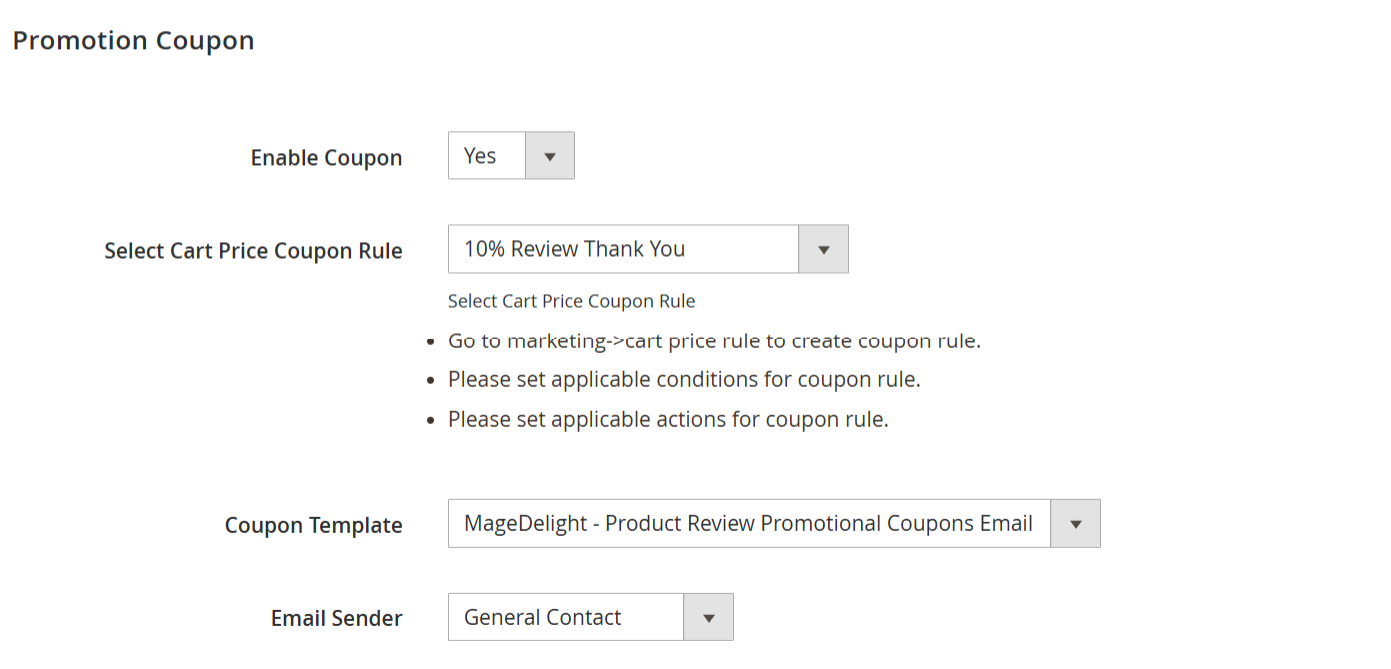
| Field | Description |
|---|---|
| Enable Coupon | Enables sending a promotional coupon along with the review reminder email. |
| Select Cart Price Coupon Rule | Selects an existing cart price rule to generate the coupon (created under Marketing → Cart Price Rules). |
| Coupon Template | Email template used to send the promotional coupon. |
| Email Sender | Sender identity used for the coupon email. |
Frontend Functionality
Ways to Start Writing a Product Review
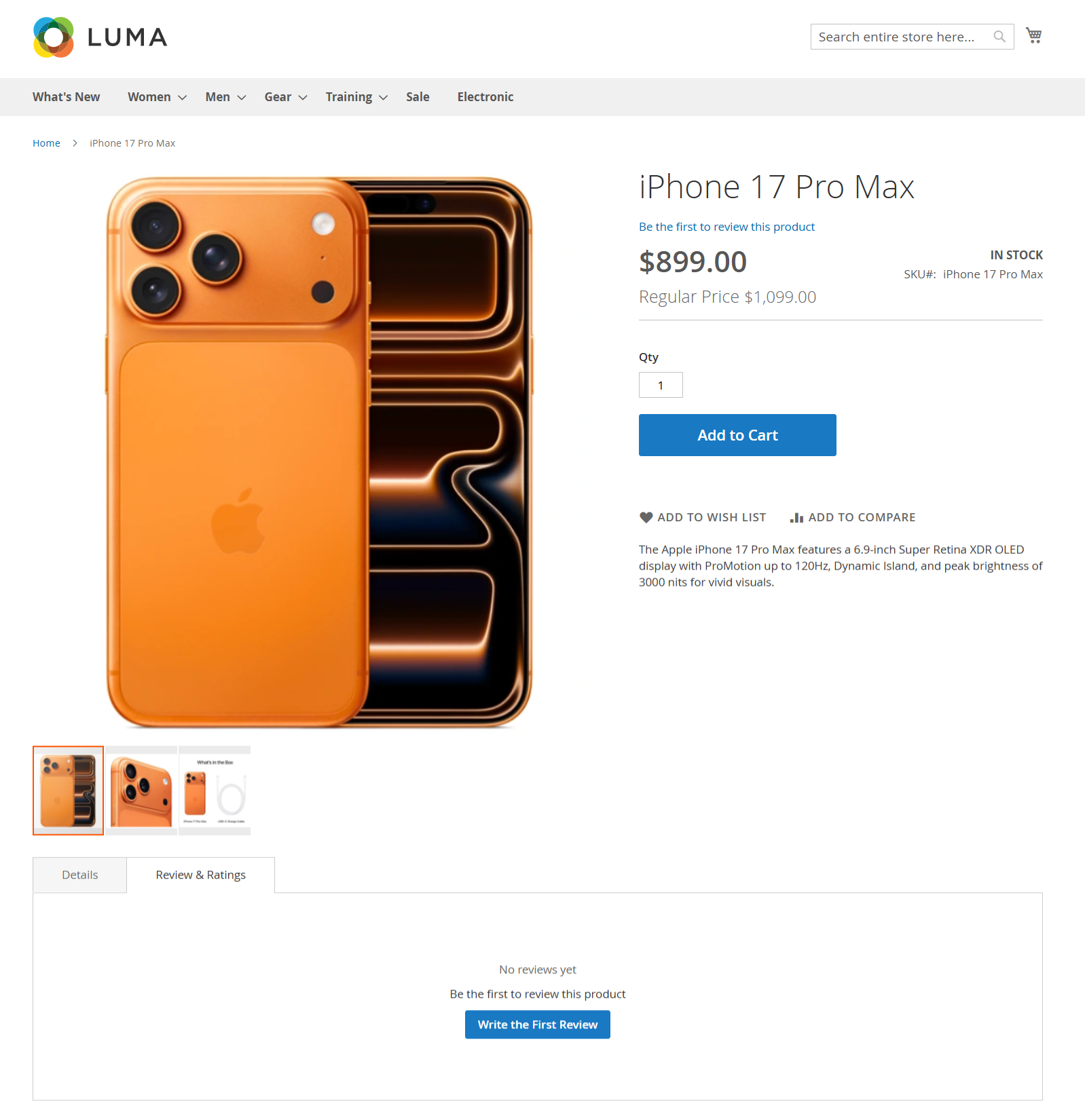
How to Write a Product Review
Customers can submit a review for a product in two different ways on the product detail page:
Method 1: “Be the first to review this product” (Product Summary Section)
On the product detail page, below the product name and price, click the “Be the first to review this product” link.
This action will directly open the review submission form.
Method 2: “Write the First Review” (Reviews & Ratings Tab)
Scroll down to the Reviews & Ratings section on the product page.
If no reviews are available, a message saying “No reviews yet” will be displayed.
Click the “Write the First Review” button to open the review submission form.
Both options lead to the same review form, allowing customers to rate the product and share their feedback.
Product Review Submission Form
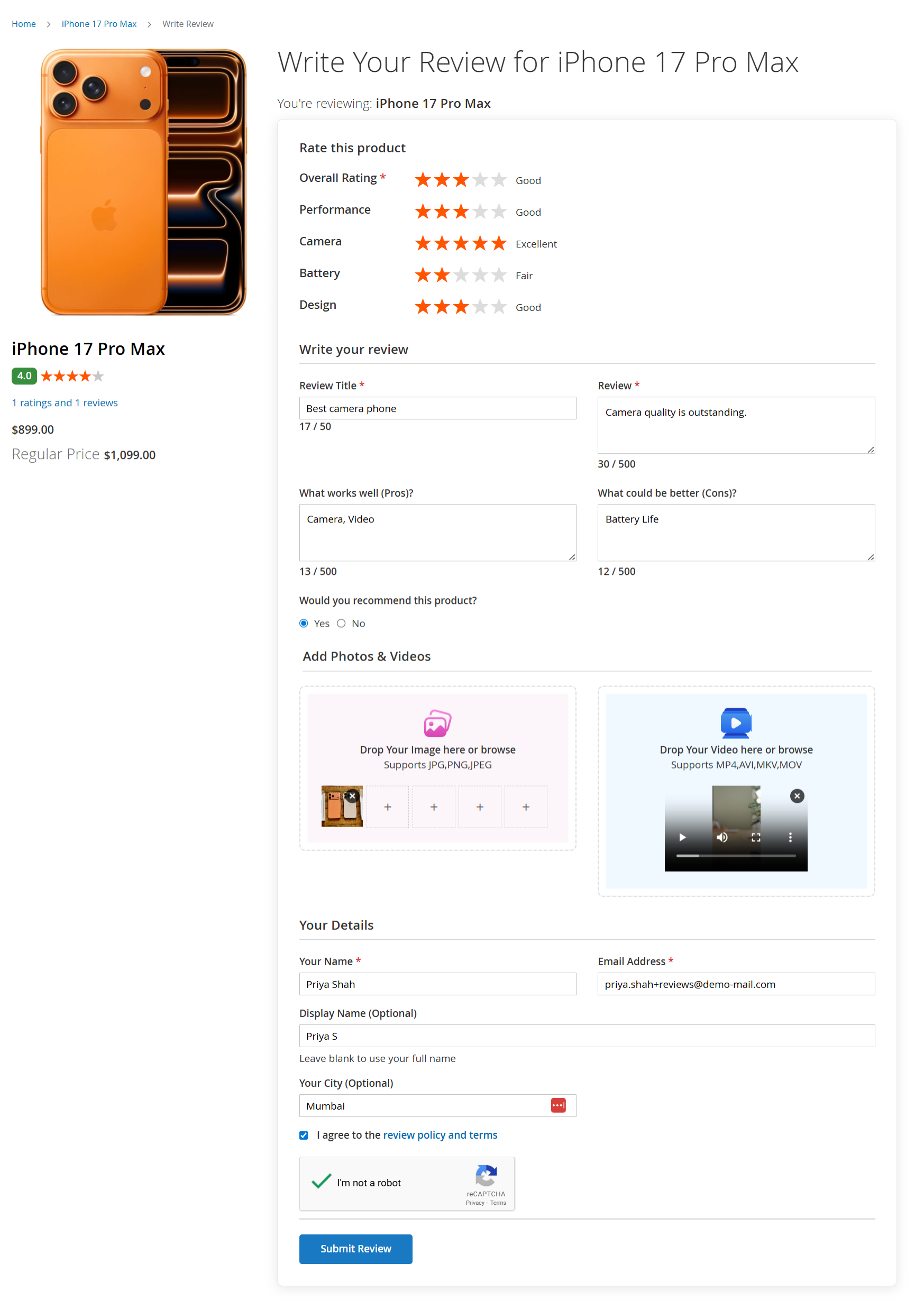
Write a Product Review
After clicking “Be the first to review this product” or “Write the First Review”, customers are redirected to the Write Review page.
Rate This Product
Customers can rate the product by selecting star ratings.
An Overall Rating is required.
Additional rating criteria such as Performance, Camera, Battery, and Design may be displayed.
Each rating shows a visual star selection along with a text indicator (e.g., Good, Excellent).
Write Your Review
Review Title: Enter a short summary of your experience.
Review: Share detailed feedback about the product.
Character limits are displayed below each field to guide users.
Pros & Cons
What works well (Pros?): Highlight the positive aspects of the product.
What could be better (Cons?): Mention areas where the product can improve.
Product Recommendation
Customers can choose whether they recommend the product by selecting Yes or No.
Add Photos & Videos
Customers can upload product images by dragging and dropping files or browsing from their device.
Supported image formats are displayed on the screen.
Customers can also upload a video review, with supported video formats mentioned in the upload area.
Your Details
Your Name and Email Address are required.
Display Name is optional and will be shown publicly if provided.
City can be added optionally.
Customers must agree to the review policy and terms.
A CAPTCHA verification is required to submit the review.
Submit Review
After completing all required fields, click Submit Review to send the review for processing.
Review Policy and Submission Terms
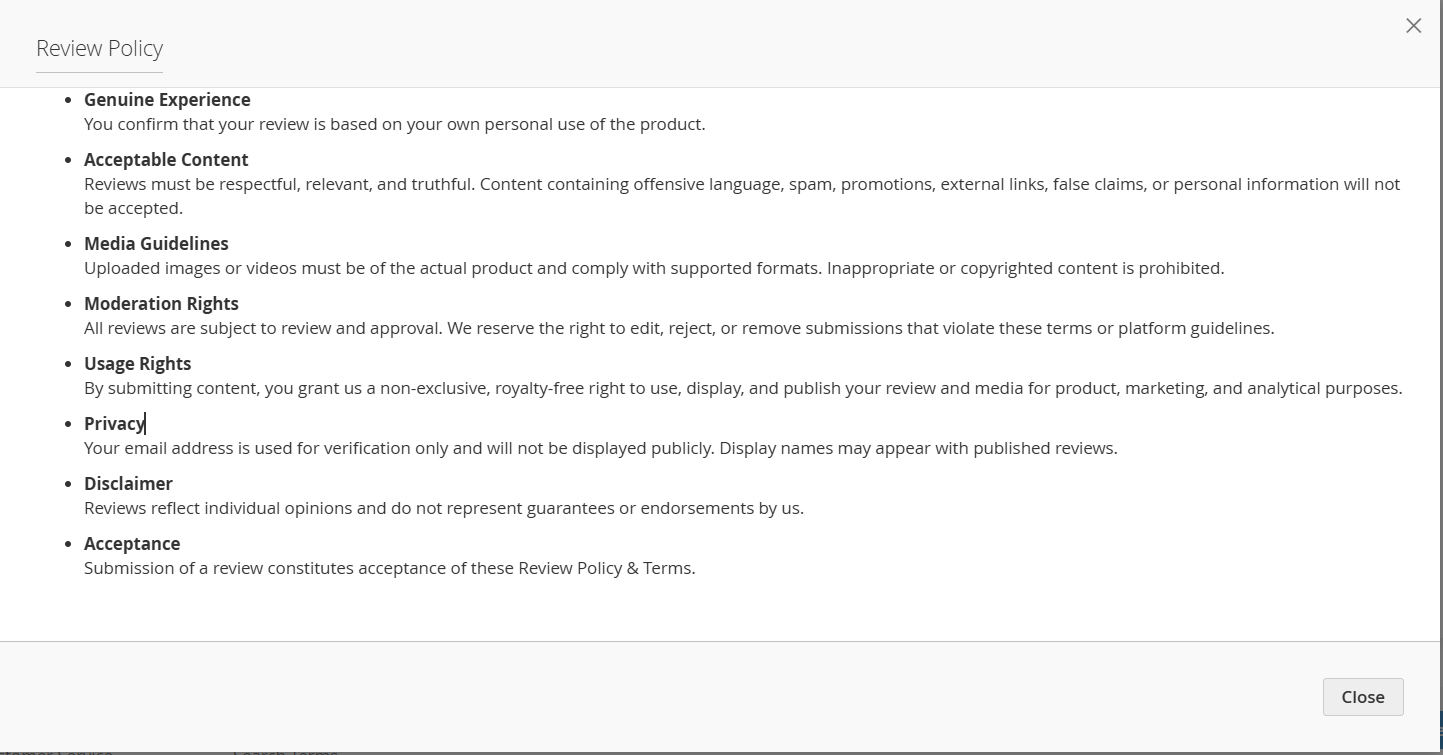
When customers click on “review policy and terms” while submitting a product review, a policy window is displayed outlining the rules and guidelines for posting reviews.
This section informs customers about:
Submitting reviews based on genuine personal experience
Content guidelines, including acceptable language and prohibited material
Rules for uploading images and videos with reviews
Review moderation and approval process
Usage rights for submitted reviews and media
Privacy handling of customer information
Legal disclaimers related to review content
Customers must agree to these terms before submitting a review. Submitting a review confirms acceptance of the review policy and submission guidelines.
Product Rating Summary Overview
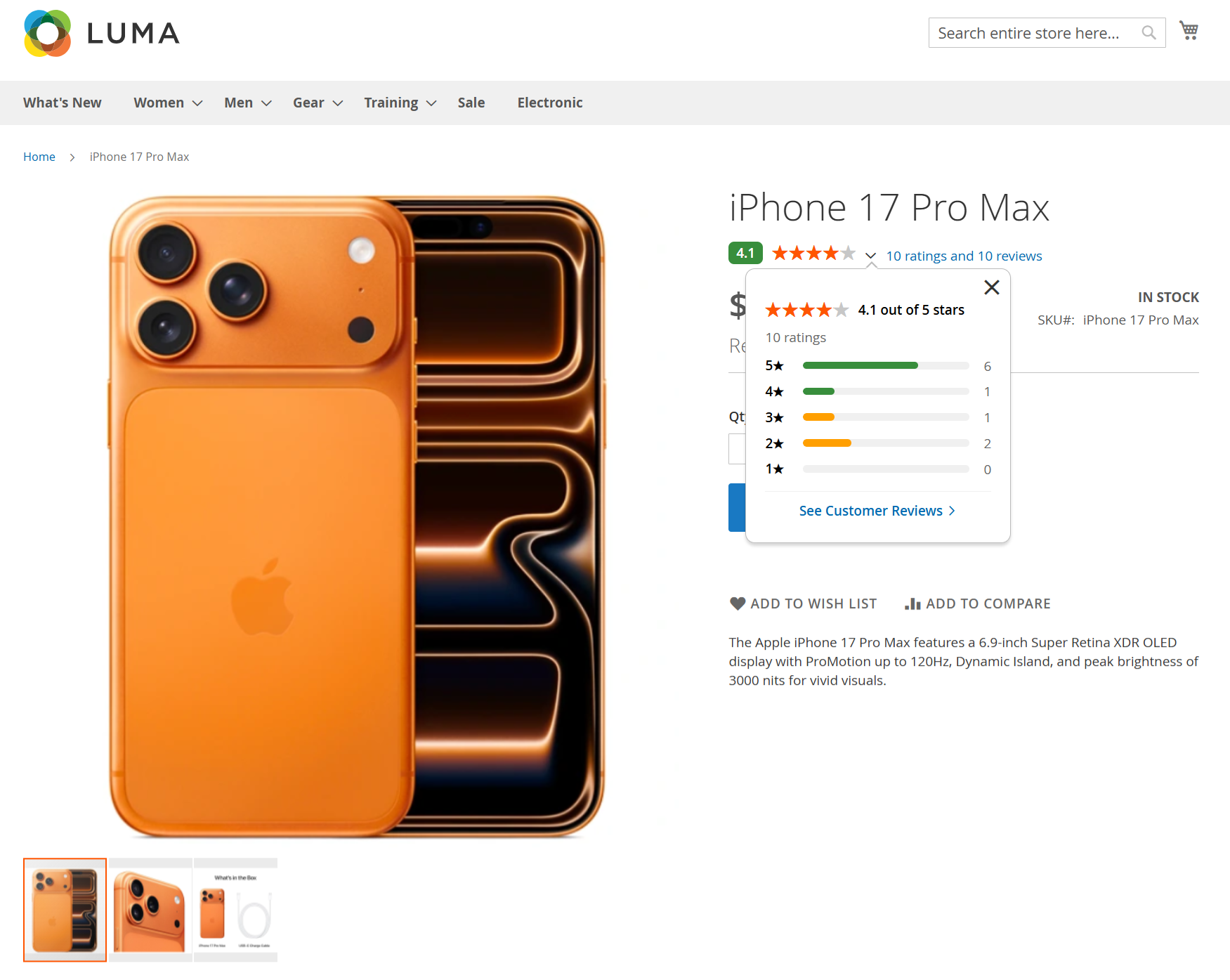
The Product Rating Summary is displayed on the product detail page next to the product name. It provides customers with a quick overview of the overall product rating based on submitted customer reviews.
When customers click on the rating summary:
A detailed rating breakdown is displayed in a popup
The popup shows the average rating, total number of ratings, and star-wise distribution (5-star to 1-star)
Each rating bar represents how many customers rated the product at that level
Customers can click “See Customer Reviews” to navigate to the full Reviews & Ratings section
This feature helps customers quickly evaluate product quality and make informed purchase decisions before viewing detailed reviews.
Reviews & Ratings Section
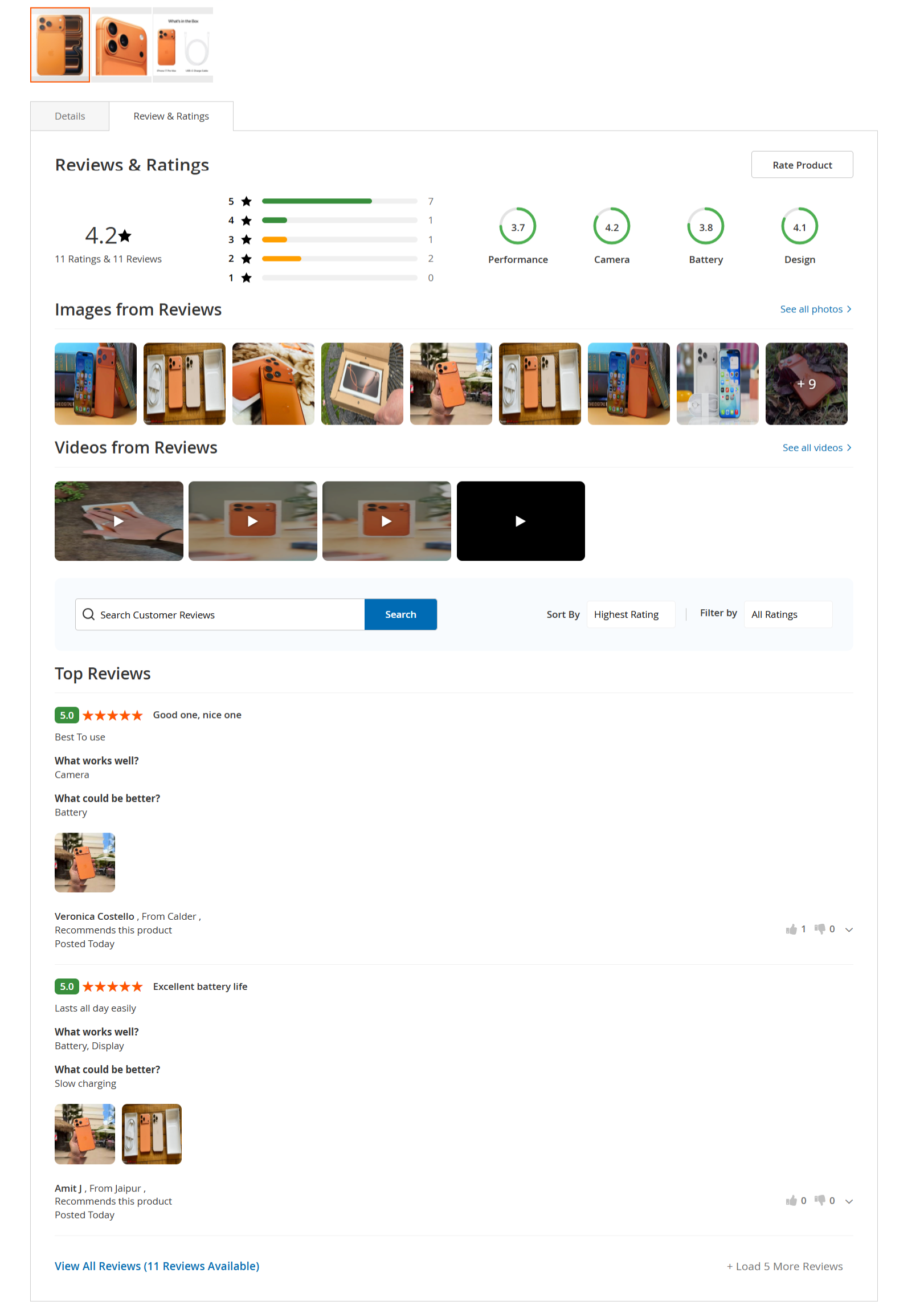
The Reviews & Ratings section displays all customer feedback submitted for the product in a structured and easy-to-understand format.
This section allows customers to:
View the overall product rating along with the total number of ratings and reviews
See a star-wise rating distribution (5-star to 1-star)
View attribute-based ratings such as Performance, Camera, Battery, and Design
Browse images and videos uploaded by customers with their reviews
Click “See all photos” or “See all videos” to view media in detail
Search customer reviews using keywords
Sort reviews by rating (e.g., Highest Rating)
Filter reviews based on selected rating levels
Read highlighted Top Reviews with pros, cons, recommendation status, and reviewer details
Click “View All Reviews” to load additional customer reviews
Use the “Rate Product” button to submit a new review
This section helps customers evaluate real user experiences and make informed purchase decisions.
All Media Reviews – Review Images
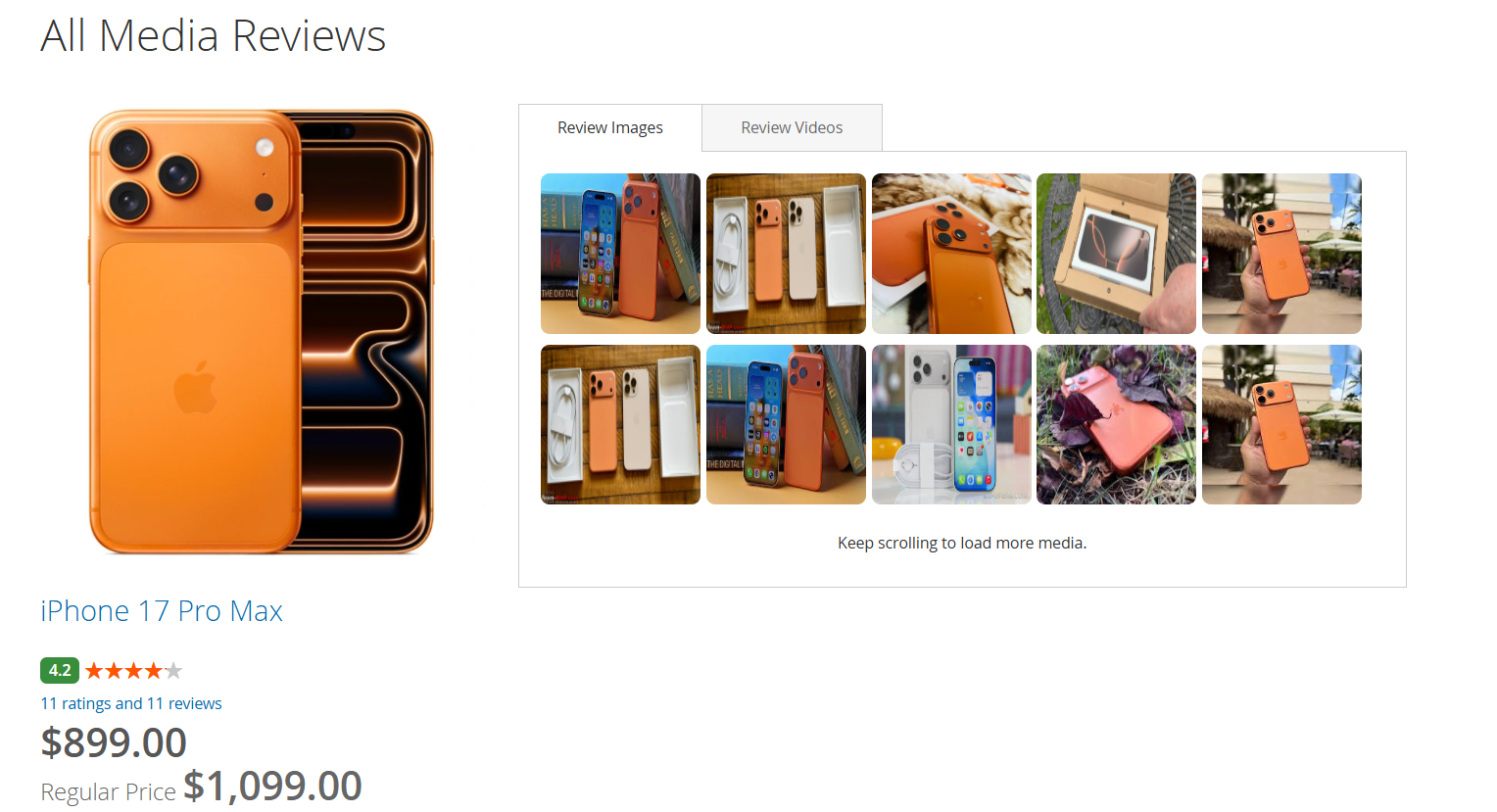
When a customer clicks on “See all photos” from the Reviews & Ratings section, they are redirected to the All Media Reviews page.
This page displays:
All images uploaded by customers as part of their product reviews
A tab-based view to switch between Review Images and Review Videos
Media displayed in a grid layout for easy browsing
Product details such as product name, price, and overall rating for reference
Automatic loading of additional media as the customer scrolls
This section allows customers to visually explore real customer-submitted images and videos, helping them better understand the product through real-world usage before making a purchase decision.
All Media Reviews – Review Videos
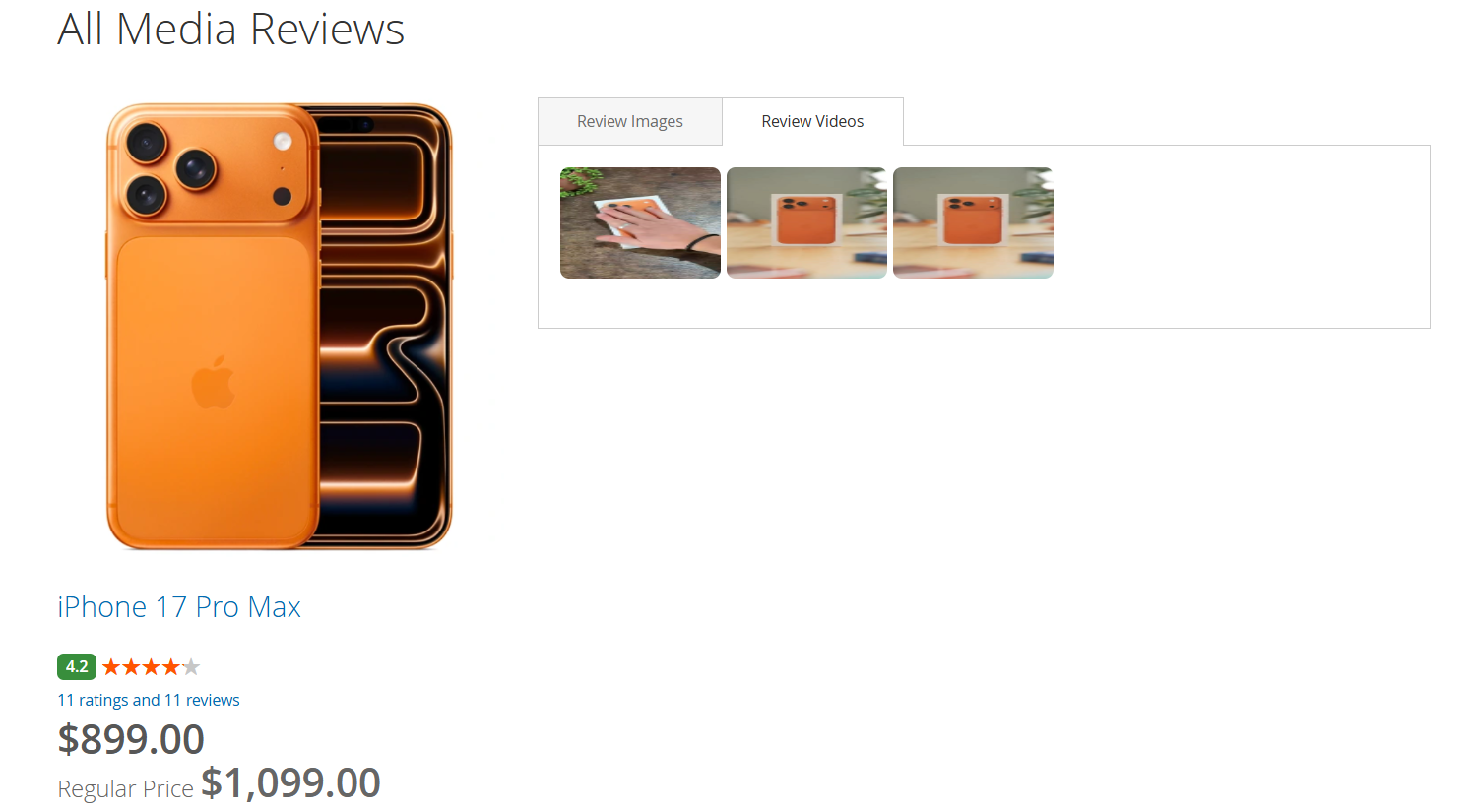
When a customer clicks on “See all videos” from the Reviews & Ratings section or switches to the Review Videos tab on the All Media Reviews page, all customer-submitted review videos for the product are displayed.
This page allows customers to:
View videos uploaded by customers as part of their product reviews
Switch between Review Images and Review Videos using tabs
Play videos directly from the media grid
See related product information such as product name, price, and overall rating
Scroll through available review videos in a structured layout
This section helps customers understand the product through real customer video experiences, providing additional confidence before making a purchase.
Review Actions: Permalink and Report
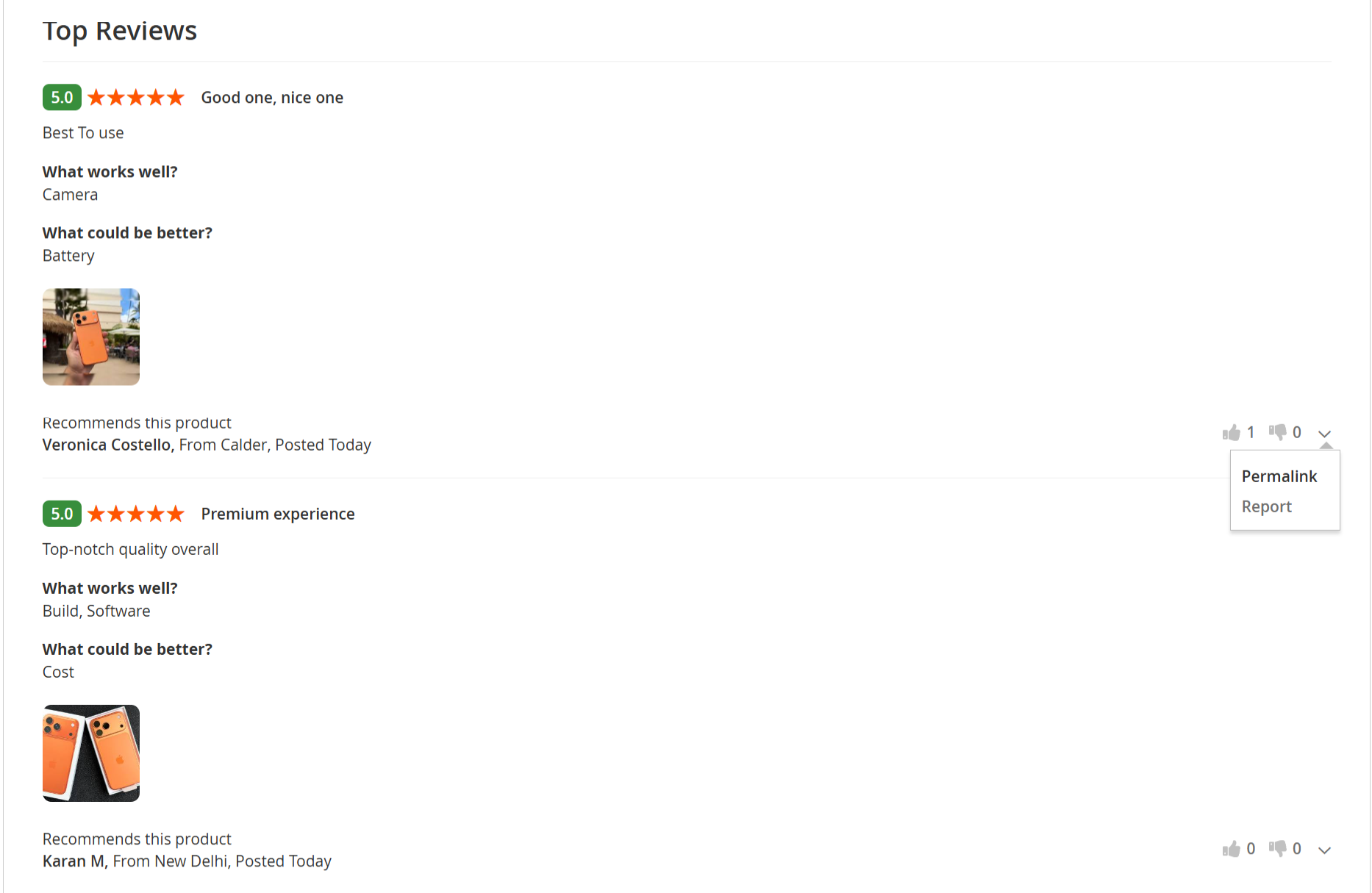
Each customer review includes action options that allow users to interact with individual reviews.
From the review action menu, customers can:
Permalink
Select Permalink to open a unique URL for the specific review. This allows customers to copy and share the direct link to a particular review or access it independently.Report
Select Report to flag a review that is inappropriate, misleading, or violates review guidelines. Reported reviews are submitted for moderation and review.
Additionally, customers can:
Mark reviews as helpful or not helpful using the thumbs-up and thumbs-down icons
See the total count of helpful and unhelpful votes for each review
These actions help maintain review quality, transparency, and usability across the storefront.
Individual Review Permalink View
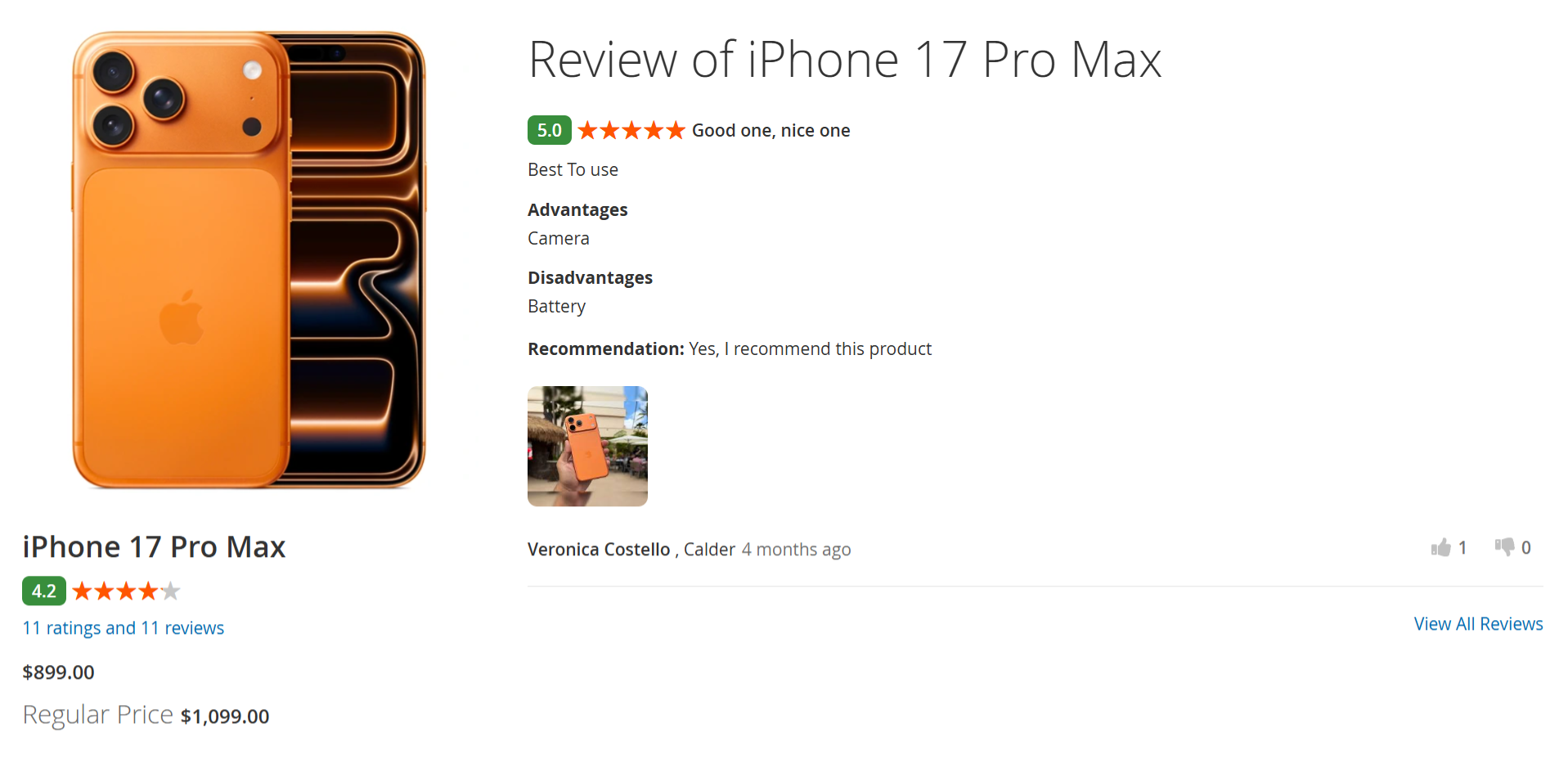
When a customer clicks Permalink on a specific review, they are redirected to a dedicated page displaying that individual product review.
This page shows:
The selected review with its rating, title, and review content
Advantages (Pros) and Disadvantages (Cons) provided by the reviewer
The reviewer’s recommendation status
Any images uploaded with the review
Reviewer details such as name, location, and posting date
Product information for reference
A “View All Reviews” link is available to navigate back to the complete list of product reviews.
This functionality allows customers to share, bookmark, or reference a specific review directly.
Report Review
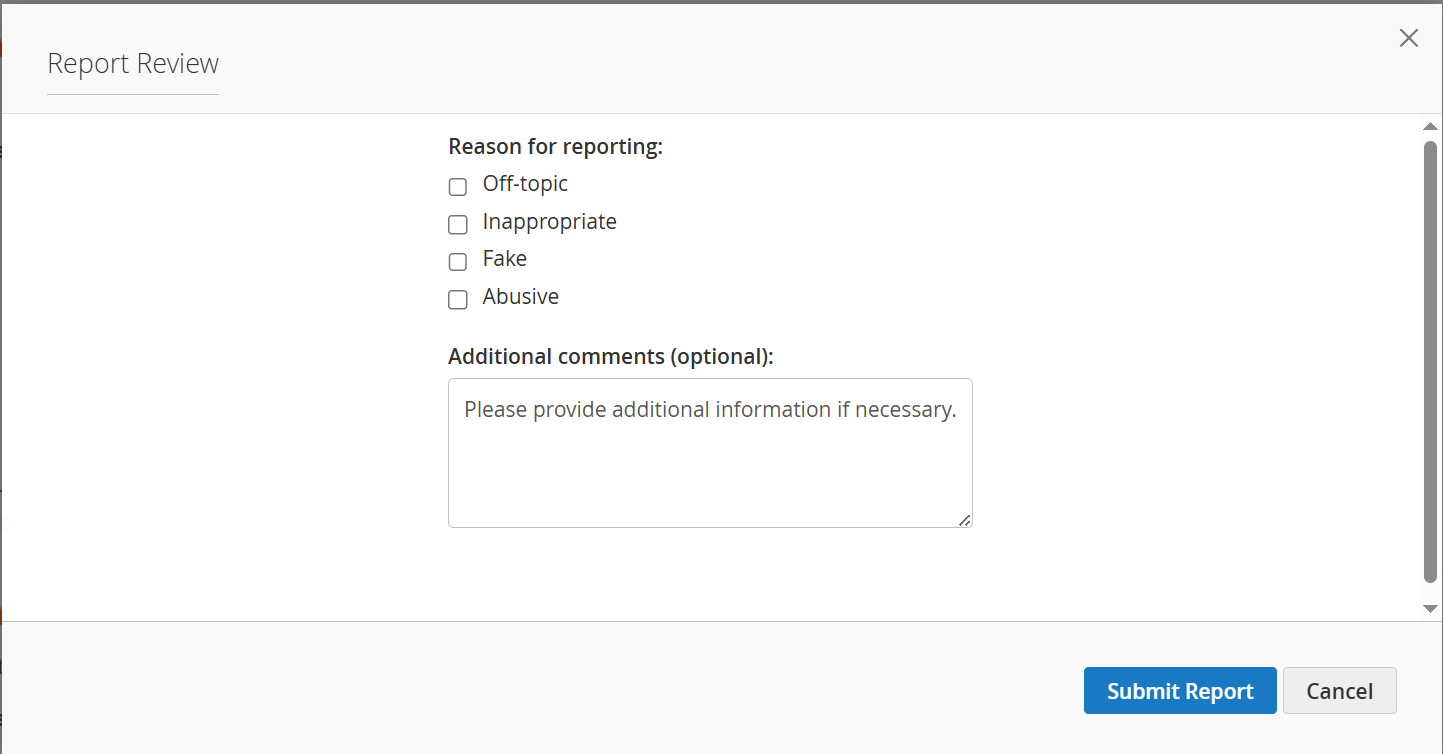
When a customer clicks Report on a product review, a Report Review popup is displayed.
This popup allows customers to:
Select a reason for reporting the review, such as:
Off-topic
Inappropriate
Fake
Abusive
Add additional comments (optional) to provide more context
Submit the report using the Submit Report button
Cancel the action by clicking Cancel or closing the popup
Submitting a report flags the review for further review and moderation, helping maintain accurate, relevant, and appropriate customer feedback on the storefront.
All Customer Reviews Page
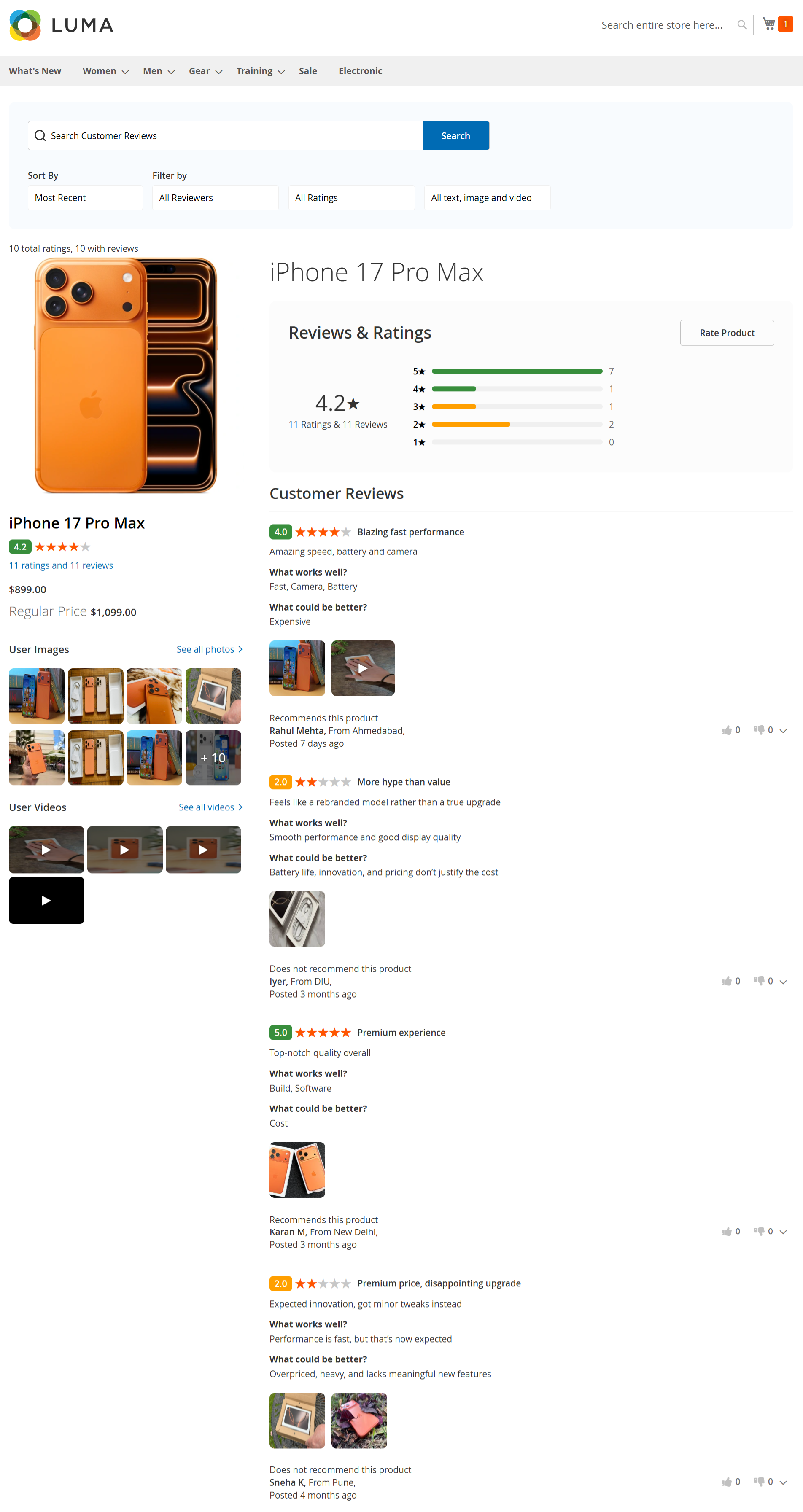
When a customer clicks “View All Reviews” on the product detail page, they are redirected to a dedicated page displaying all reviews for the selected product.
This page allows customers to:
View the complete list of customer reviews for the product
See the overall rating summary with star-wise distribution
Search reviews using the Search Customer Reviews field
Sort reviews by options such as Most Recent
Filter reviews by:
Reviewer type
Rating level
Review content type (text, image, or video)
View customer-submitted images and videos associated with reviews
Read detailed reviews including:
Review title and rating
Pros (What works well)
Cons (What could be better)
Recommendation status
Reviewer name, location, and posting date
Use the Rate Product button to submit a new review
This page provides a focused view of all customer feedback, helping users evaluate the product in detail before making a purchase decision.
My Product Reviews (Review Your Purchase Page)
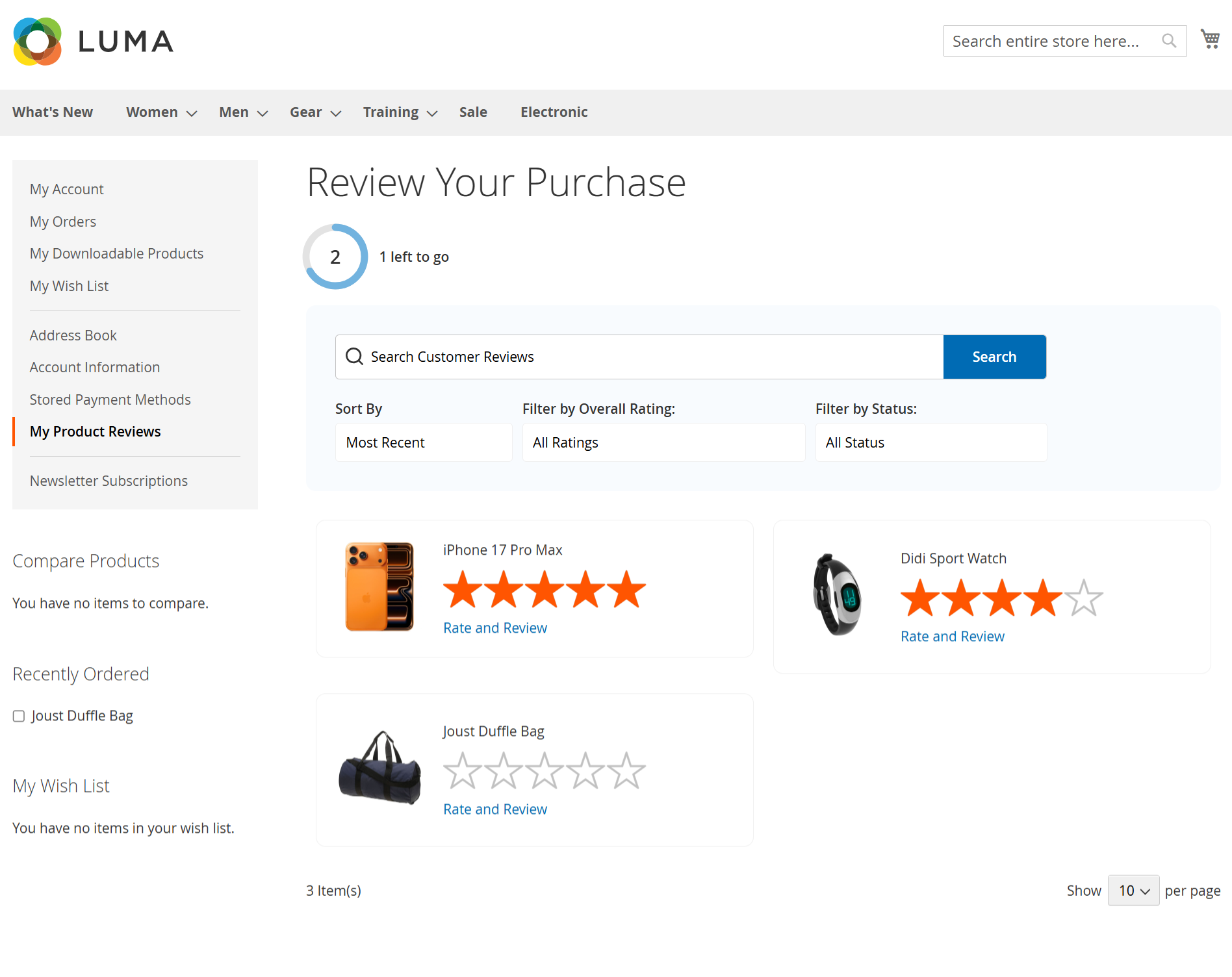
The My Product Reviews page allows logged-in customers to view and manage reviews for products they have purchased.
From this page, customers can:
View a list of previously purchased products eligible for review
See the review status for each product (reviewed or pending)
Click Rate and Review to submit a new review for a purchased product
Track progress using the review completion indicator (e.g., “1 left to go”)
Search reviews using the Search Customer Reviews field
Sort reviews by Most Recent
Filter reviews by:
Overall rating
Review status (submitted, pending, etc.)
Review products directly from their account without navigating back to the product page
This page helps customers easily complete pending reviews, manage submitted feedback, and share their purchase experience.
Thank you for choosing MageDelight!