Versions Compared

Key

  • This line was added.
  • This line was removed.
  • Formatting was changed.

...

Section

Installation


Include Page
Installation Steps
Installation Steps


Section

Installation with Composer


Composer repository using this command:

composer config repositories.magedelight-repo composer https://packages.magedelight.com/


Replace repo public key and private key with your public and private key

composer config http-basic.gitlab.magedelight.com $PUBLIC_KEY $PRIVATE_KEY


composer require mage_delight/storelocator_module:*

composer require mage_delight/storelocatorgraphql:*

Note

To obtain your public and private keys, please navigate to the "My Account" section. In the "Download Extension Packages" tab, you will find the keys available for your access.


Section

Backend Configuration (Admin side)


Section


Panel

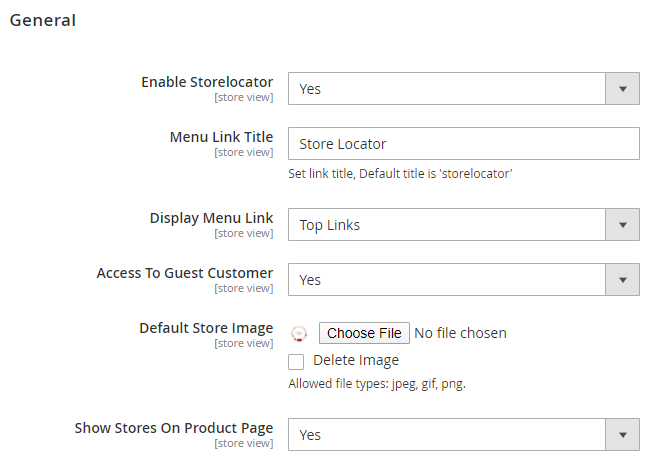
  • Enable Store locator: Enable/Disable the store Locator extension
  • Menu Link Title: Store locator page link title
  • Display Menu Link: To show store locator link on Top Link or Top Navigation menu
  • Access to Guest Customer: Set access limit to allows store locator to guest customer or not
  • Default Store Image: You can upload default image to be shown, if particular store don’t have uploaded store image
  • Show Stores on Product Page: Select "Yes" to to display list of stores on product details page.


Section


Panel

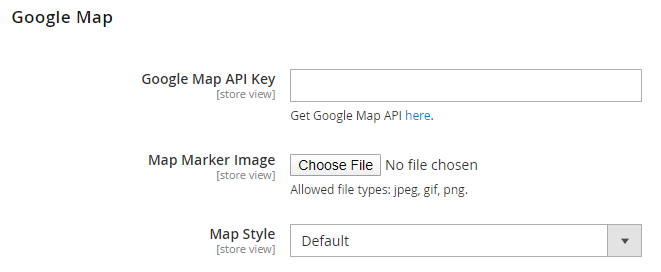
  • Google Map API Key: Defined Google map API key.

  • Map Marker Image: To upload Google map marker image if needs to show specific image. Else default Google map marker image would be used.

  • Map Style: Select Google Map Style/Theme to display map on store front.


Section


Panel

  • Default Radius for Search: To define default radius of distance to be cover while searching store on Google Map.

  • Maximum Radius for Search: Set maximum radius limit user can search store from his current location

  • Distance Unit: Distance unit while search on Google map. Options can be Kilometers or Miles.


Section


Panel

  • Page Title: Define Store locator page title

  • Page URL: Define Store locator page URL

  • Page URL suffix: Store locator page URL suffix
  • Meta Description: To define Meta description for store locator page
  • Meta data: To define Meta data for store locator page


Section


Panel


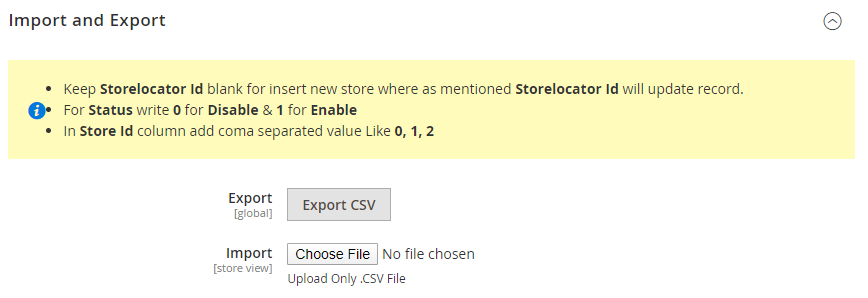
  • Export: Click on "Export CSV" button to export existing stores data to CSV file. You can use same file to import store.
  • Import: Upload CSV file to import stores from CSV file. You can get sample CSV file by exporting CSV file.

...