...
| Section | ||||||||||||||
|---|---|---|---|---|---|---|---|---|---|---|---|---|---|---|
|


| Section | ||||||||||||||
|---|---|---|---|---|---|---|---|---|---|---|---|---|---|---|
Installation
Run command as per below sequence,
| ||||||||||||||
| Section | ||||||||||||||
License Configuration
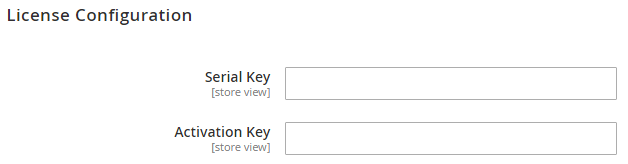
After successful installation of Store Locator extension, you are now required to configure the license key in the admin configuration section. You can set it from: Step 1: Go to, Admin Control Panel > Stores > Configuration > Magedelight > Store Locator > License Configuration. You will find two text boxes asking for Serial Key and Activation Key, which you received on email upon the purchase of extension. See screenshot below:
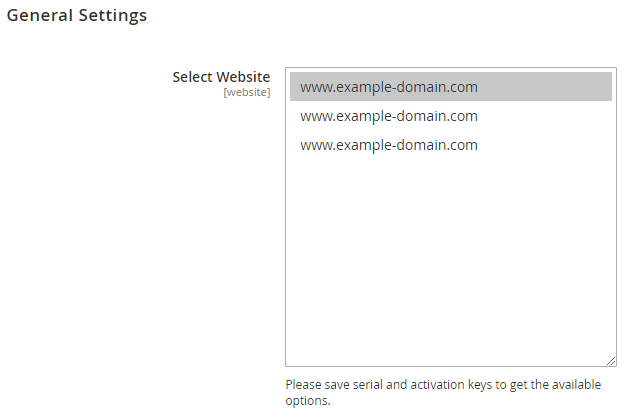
Step 2: Expand “General Configuration” tab, you will find a list of domains for which license is purchased and configured, now select the domain you are going to use, you can select multiple domains by clicking “Ctrl + Select”.
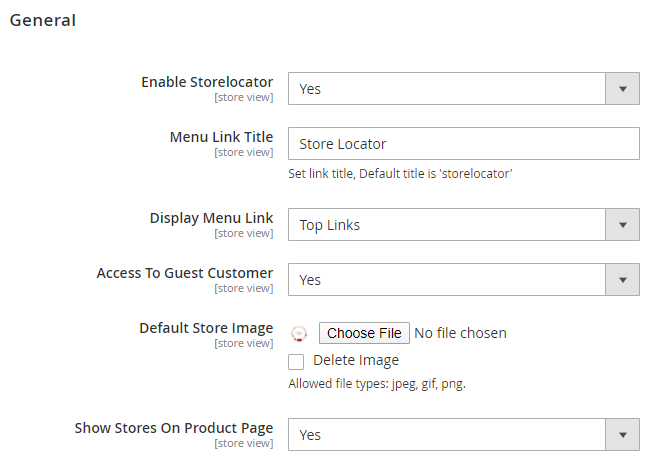
Step 3: Now, select “Yes” from “Enable Module” to enable extension and again click on “Save Config” button on the top right.
|

| Section | ||
|---|---|---|
Installation with ComposerComposer repository using this command: composer config repositories.magedelight-repo composer https://packages.magedelight.com/ Replace repo public key and private key with your public and private key composer config http-basic.gitlab.magedelight.com $PUBLIC_KEY $PRIVATE_KEY composer require mage_delight/storelocator_module:* composer require mage_delight/storelocatorgraphql:*
|
| Section | |||||||||||||||||||||||||||||||||||
|---|---|---|---|---|---|---|---|---|---|---|---|---|---|---|---|---|---|---|---|---|---|---|---|---|---|---|---|---|---|---|---|---|---|---|---|
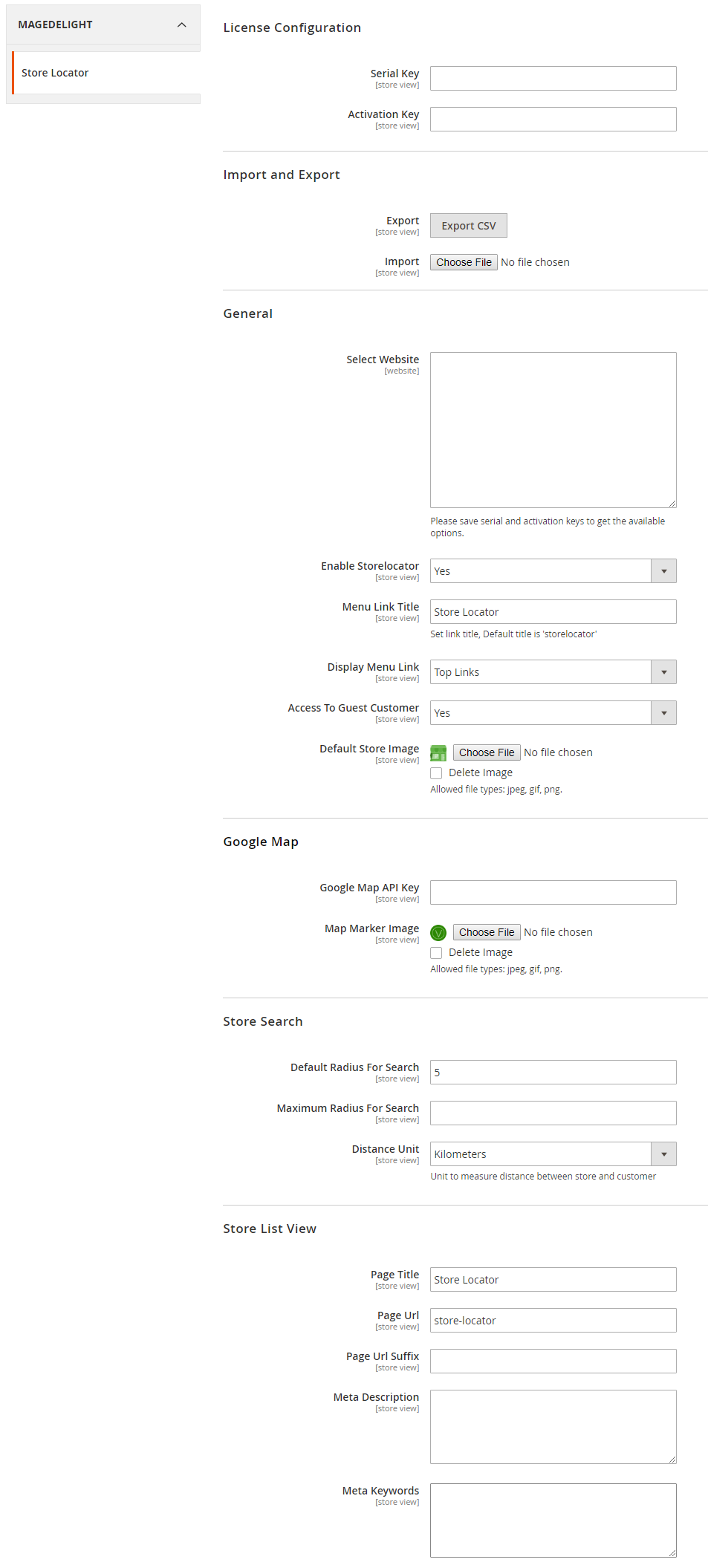
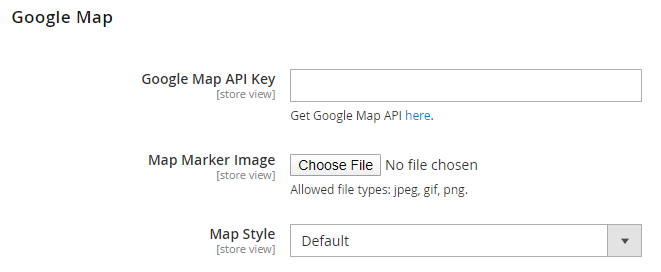
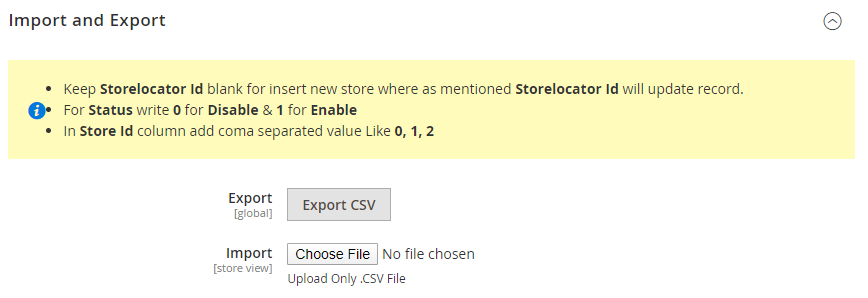
Backend Configuration (Admin side)
|


| Section | ||||||||||||||||||||||||||||||||||||||||||||||||||||||||||||||||||||||||||||||
|---|---|---|---|---|---|---|---|---|---|---|---|---|---|---|---|---|---|---|---|---|---|---|---|---|---|---|---|---|---|---|---|---|---|---|---|---|---|---|---|---|---|---|---|---|---|---|---|---|---|---|---|---|---|---|---|---|---|---|---|---|---|---|---|---|---|---|---|---|---|---|---|---|---|---|---|---|---|---|
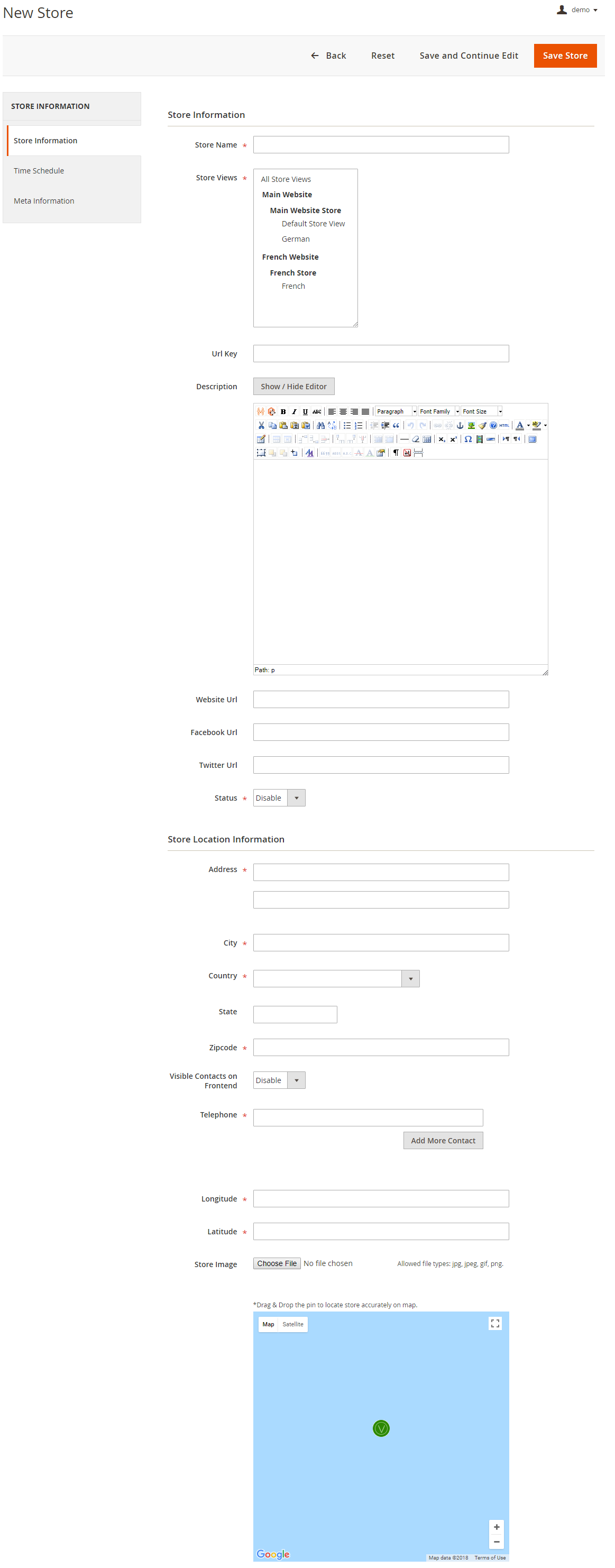
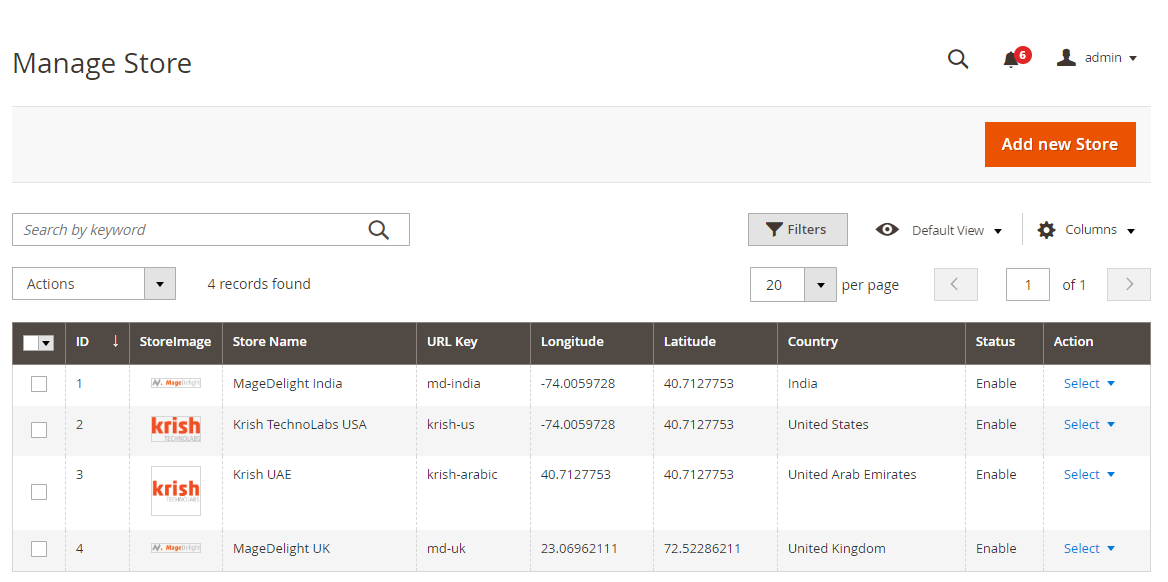
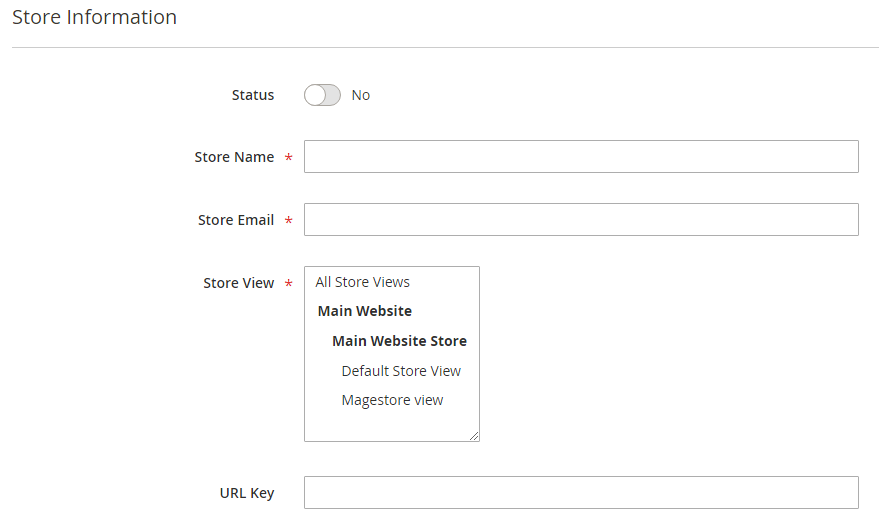
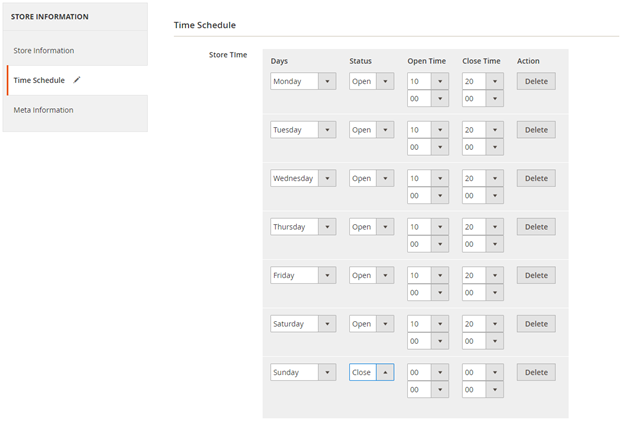
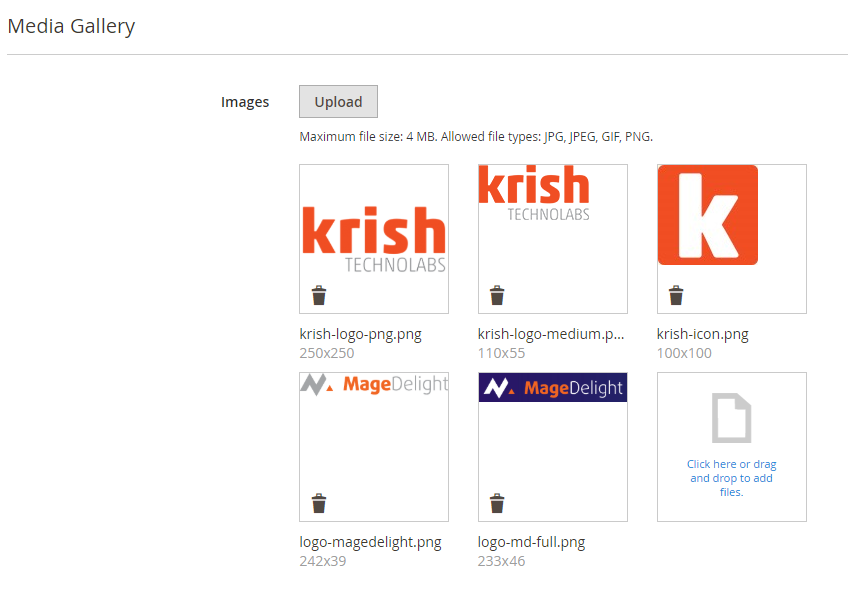
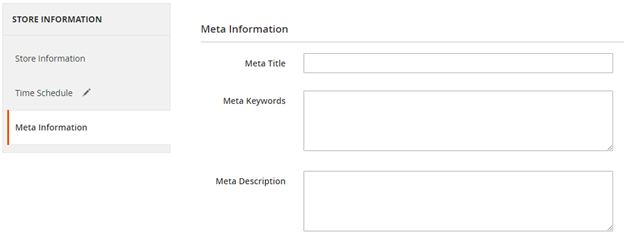
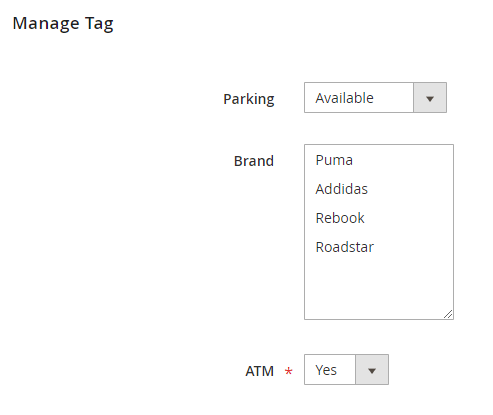
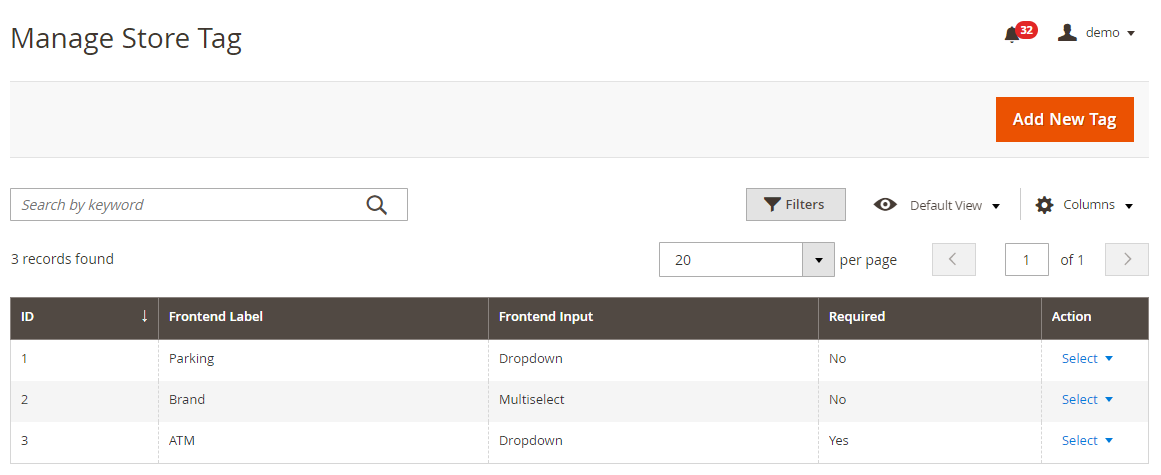
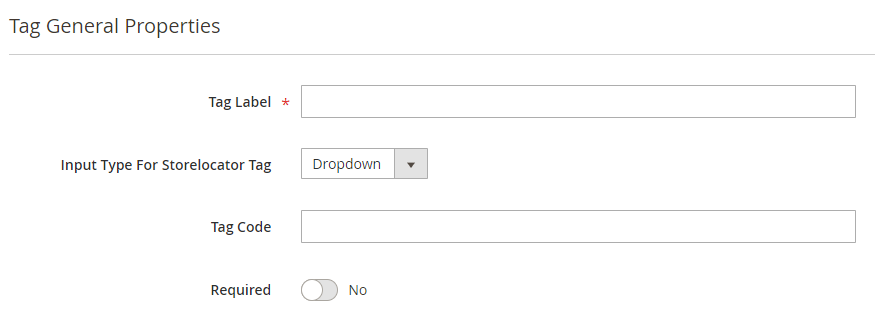
Backend FunctionalityAdd newStore Management
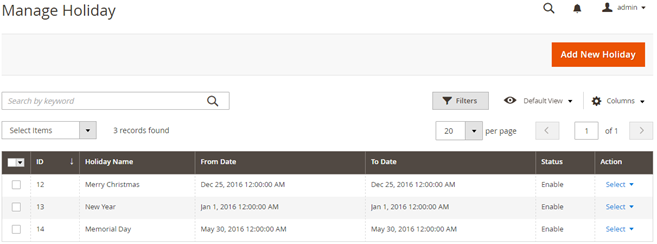
Manage Holiday
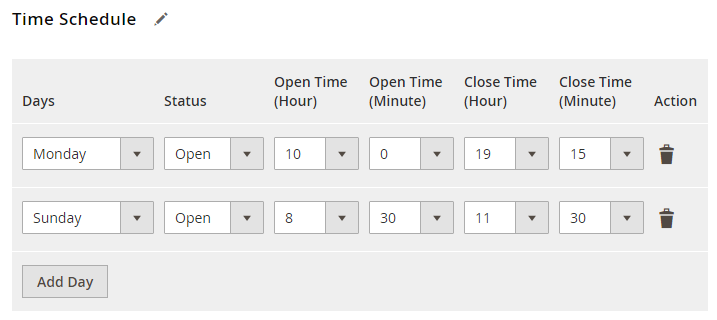
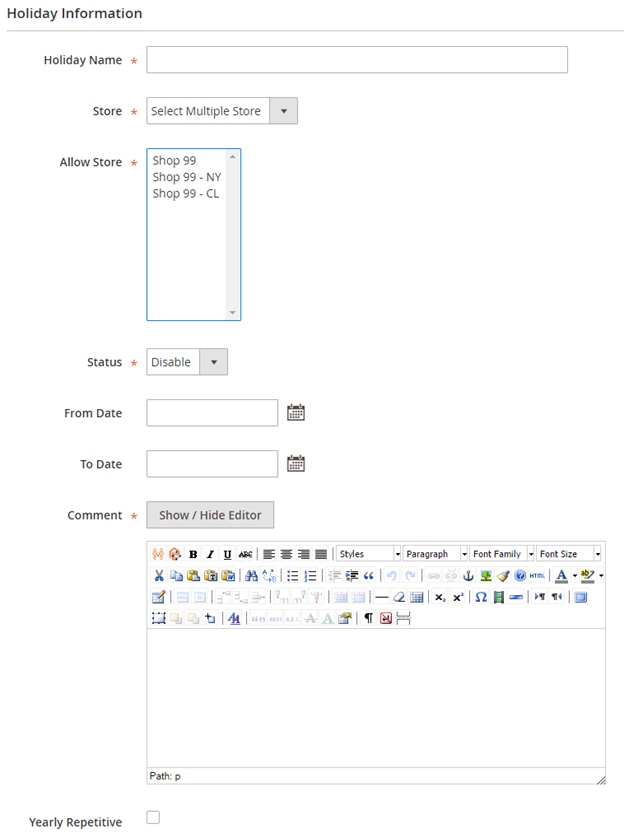
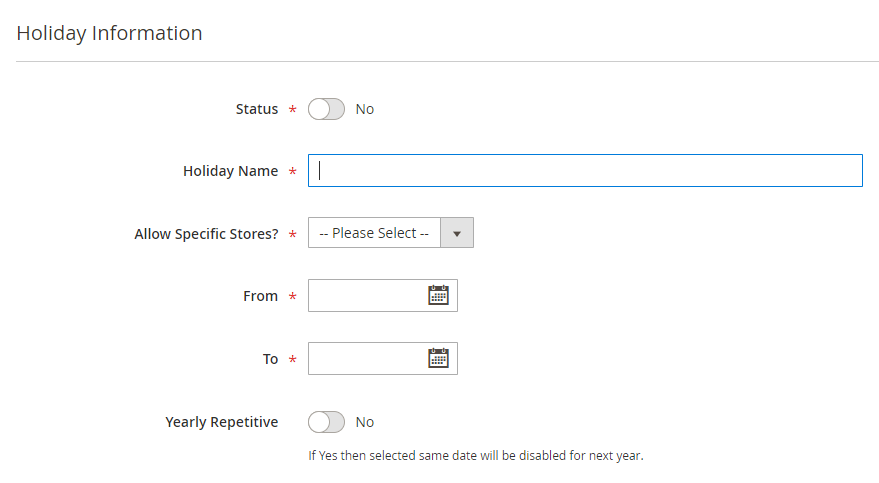
Add New Holiday
|







| Section | ||||||||||
|---|---|---|---|---|---|---|---|---|---|---|
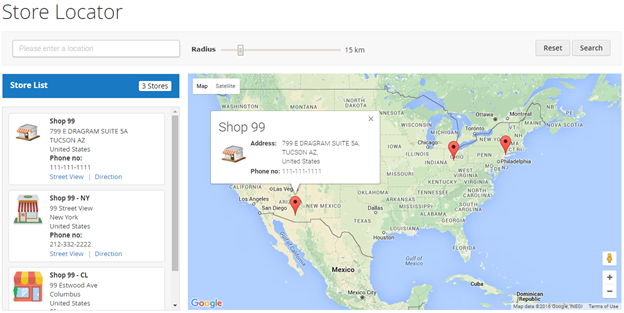
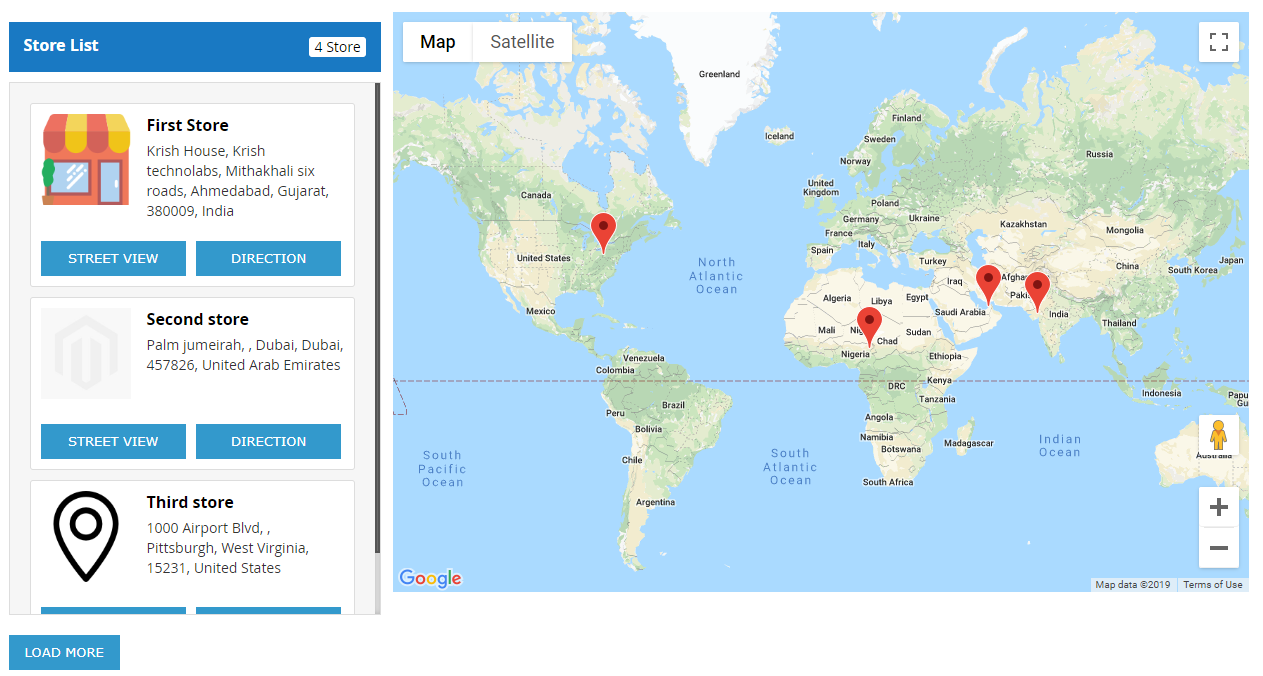
Frontend FunctionalityOnce you configured the extension and create stores, the store will be listed on store locator page. The store locator link will be displayed on top links or with top menu, based on how it configured. Store locater locator page will be look linklike,
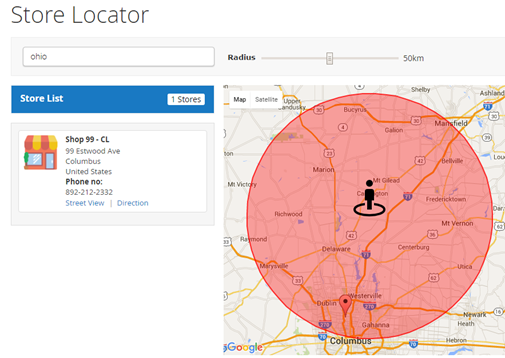
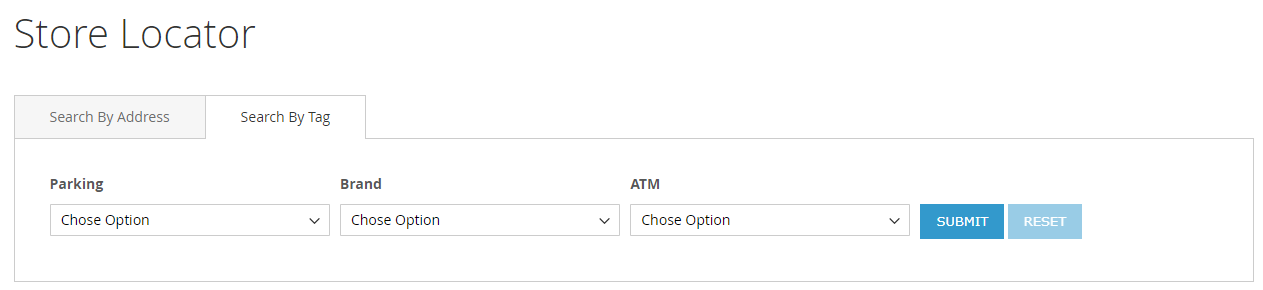
Search Store You can search nearest store with store search feature, user can use radius from to find nearest store from his current location. As shown with below location. You can search store using tags, too.
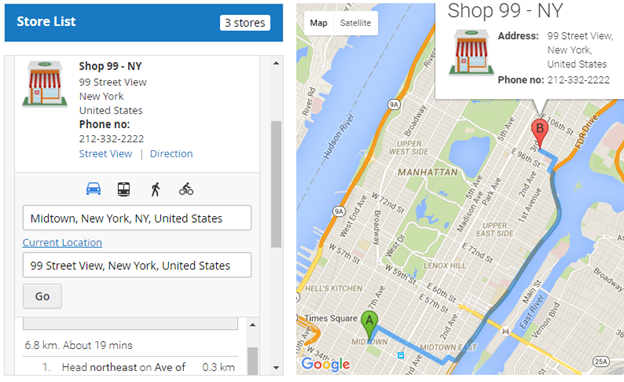
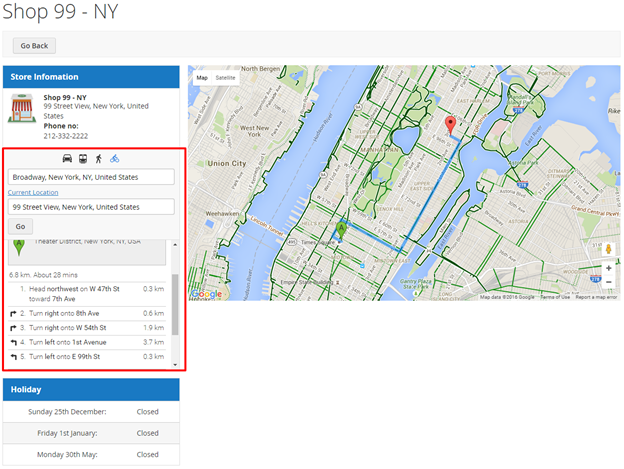
It also helps to find direction from your current location or from particular location to particular store. Refer below image,
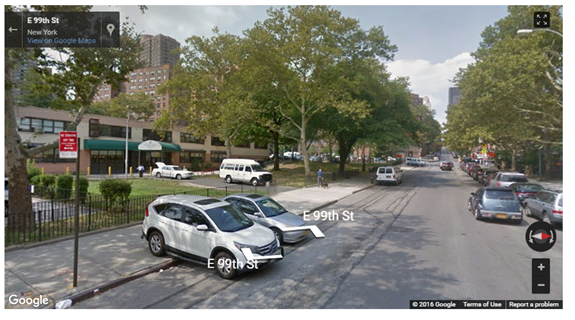
Street view That also supports street view of store, as show with below image Street view
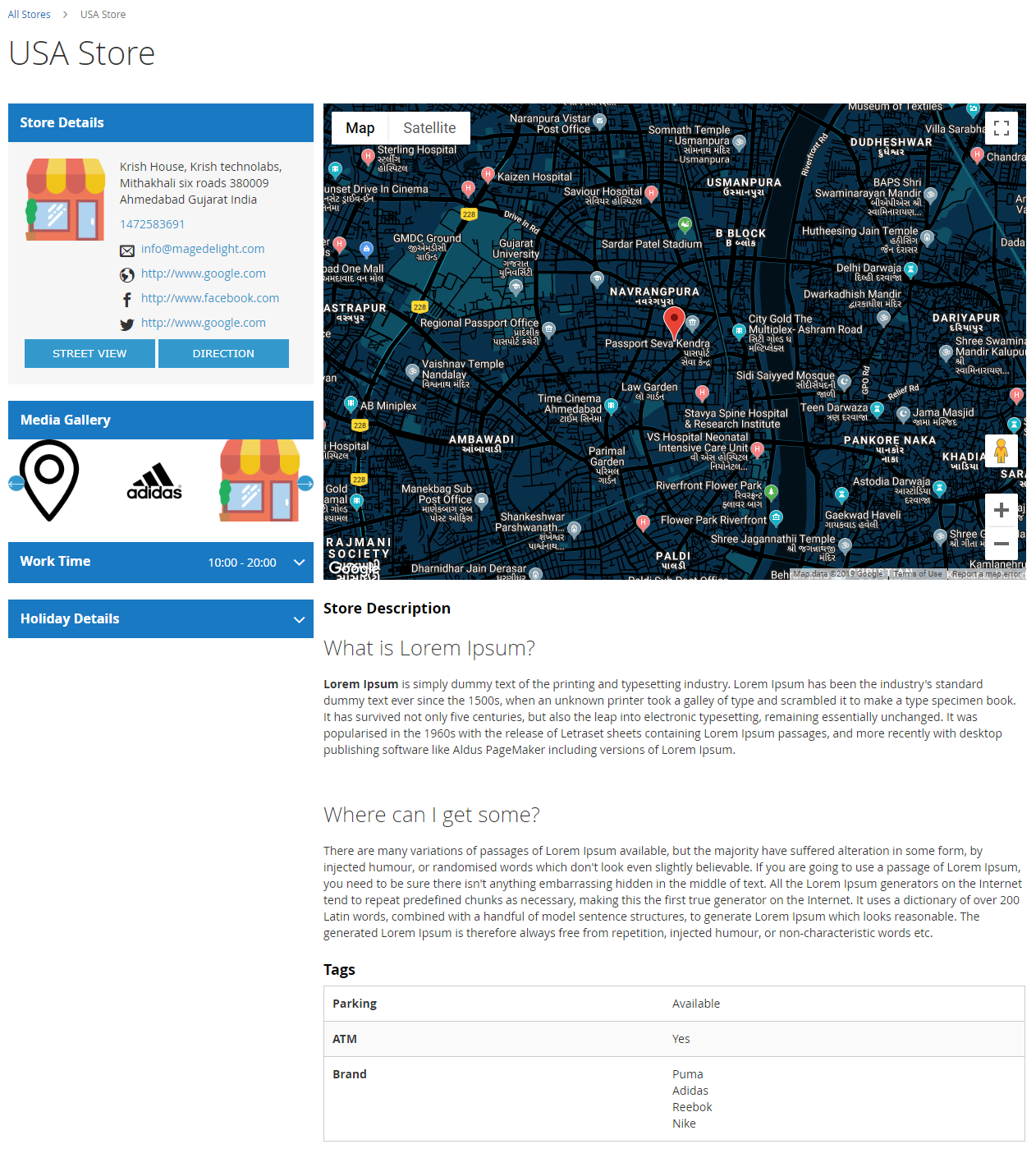
Store page Store page will contain details of particular store with store description, address. You can also have the direction finder supported by map. It also includes working days & , time details , and upcoming holiday list. DemoClick here to visit product detail page.
| ||||||||||
| Section | ||||||||||
|

| Section |
|---|
Developer AccountThe three API's you have to enable in Google API Key for the correct work of the extension,
To configure these settings, please follow the link, https://console.cloud.google.com/apis/library/places-backend.googleapis.com |
| Section | ||||||||||||||||||
|---|---|---|---|---|---|---|---|---|---|---|---|---|---|---|---|---|---|---|
API
rest/V1/magedelight-storelocator/
|
| Section |
|---|
DemoClick here to visit frontend. Click here to visit backend admin panel. |
| Section |
|---|
FAQsClick here to visit FAQs. |
| Section |
|---|
SupportClick here to raise a support ticket using your MageDelight account. |
...