Backend FunctionalityAdd new Store
Store Management| Section |
|---|
| Panel |
|---|
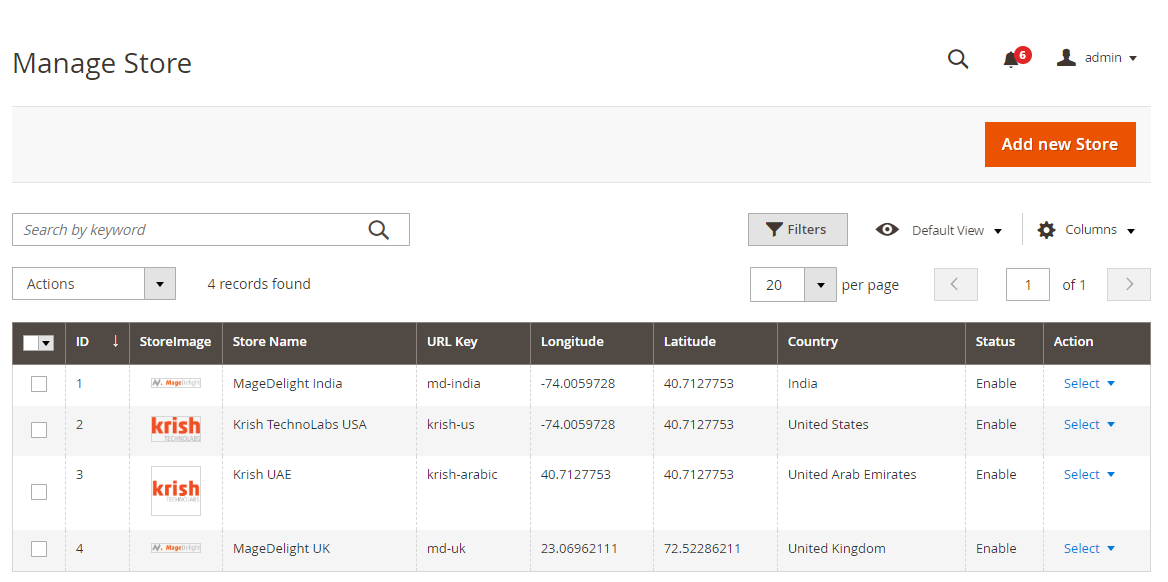 Image Added Image Added
|
|
| Section |
|---|
| Panel |
|---|
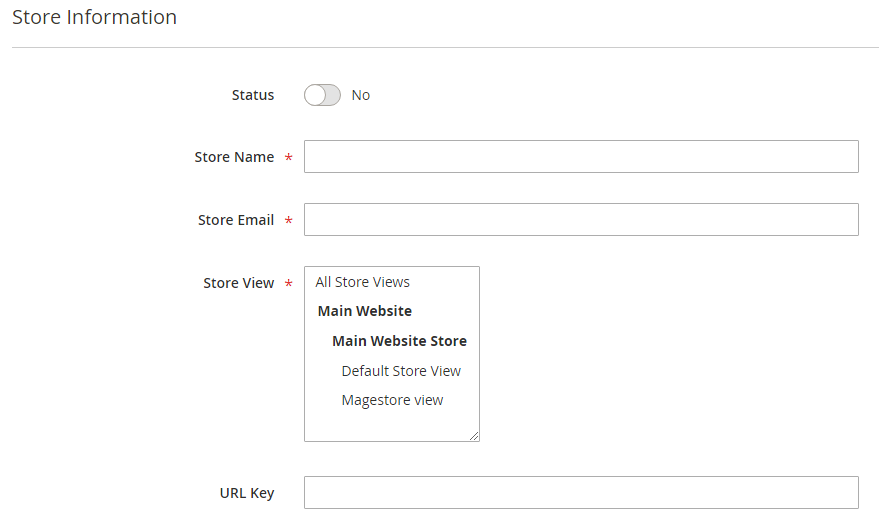 Image Added Image Added
|
|
| Section |
|---|
| Panel |
|---|
 Image Added Image Added
|
|
| Section |
|---|
| Panel |
|---|
 Image Added Image Added
|
|
| Section |
|---|
| Panel |
|---|
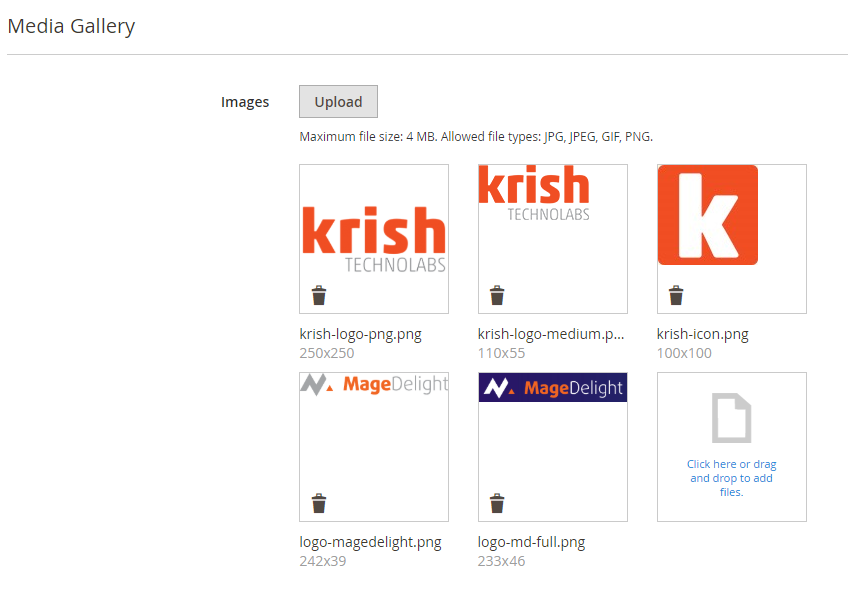 Image Added Image Added
|
|
| Section |
|---|
| Panel |
|---|
 Image Added Image Added
|
|
| Section |
|---|
| Panel |
|---|
 Image Added Image Added
|
|
| Section |
|---|
| Panel |
|---|
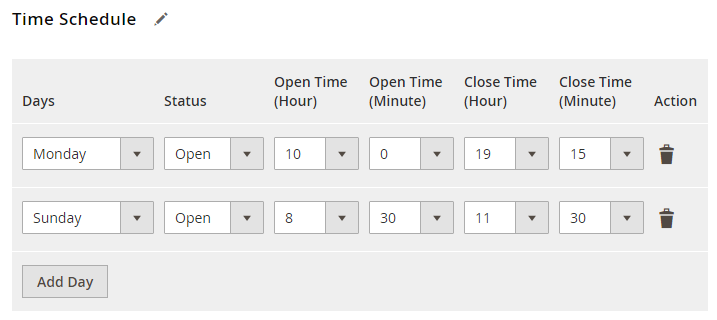 Image Added Image Added
|
|
| Section |
|---|
| Panel |
|---|
 Image Added Image Added
|
|
| Section |
|---|
| Panel |
|---|
 Image Added Image Added
|
|
| Section |
|---|
| Panel |
|---|
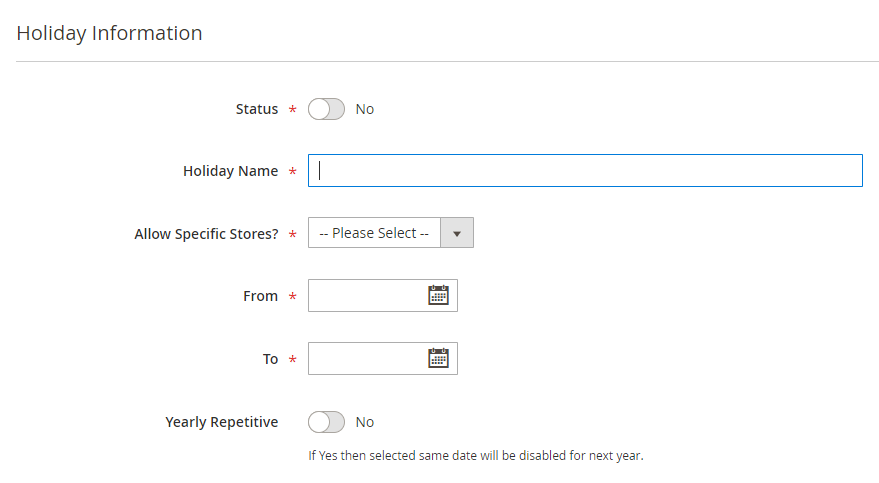 Image Added Image Added
|
|
| Section |
|---|
| Panel |
|---|
 Image Added Image Added
|
|
| Section |
|---|
| Panel |
|---|
 Image Added Image Added
|
|
| Section |
|---|
| Panel |
|---|
 Image Added Image Added
|
|
| Section |
|---|
| Panel |
|---|
 Image Added Image Added
|
|
| Panel |
|---|
|
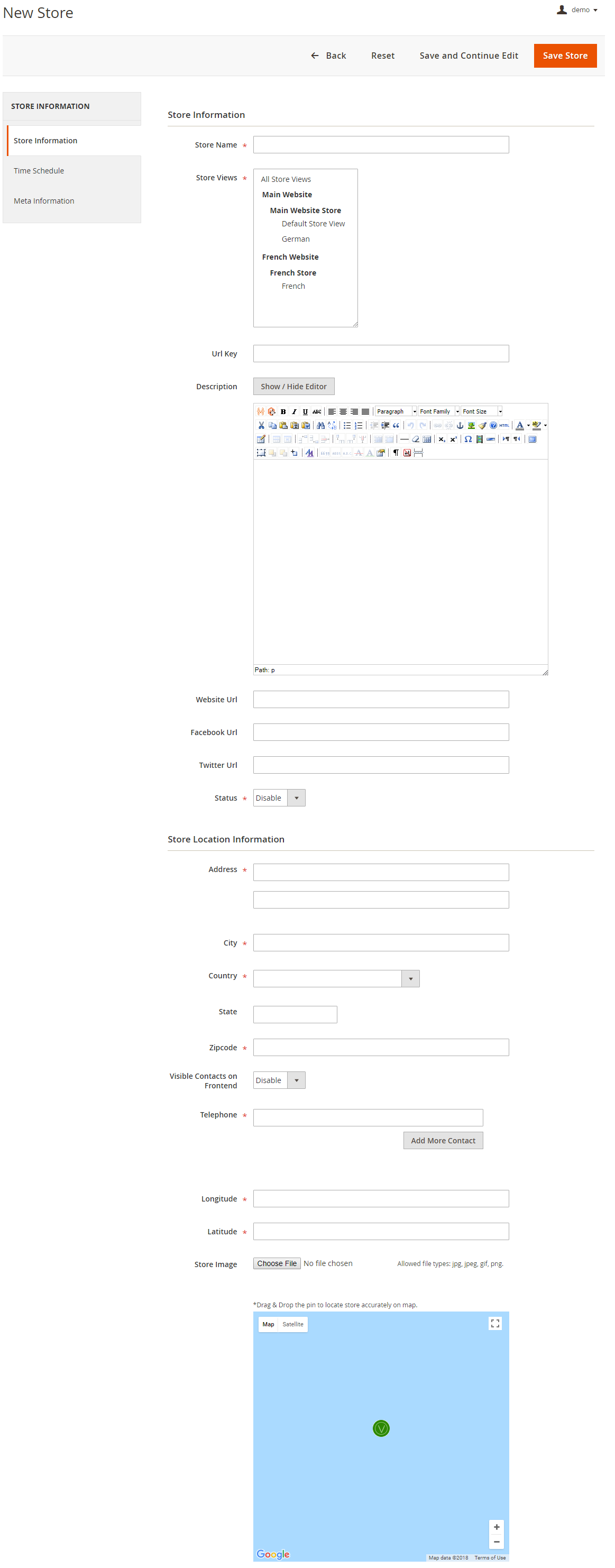
- Store Name: Define store name
- URL Key: Define SEO friendly URL key for store details page. If not defined, it would be auto generated from store name
- Store Description: Describe store details to be shown on store detail page
- Website URL: Store website URL if have any
- Facebook URL: Facebook page to show link on store details page
- Twitter URL: Twitter URL to show link on store details page
- Status: To Enable/Disable the store
- Address: Define store address details with city, state, country, zip code. Based on given address, store will be located on Google map
- Telephone: You can add multiple phone number for store
- Visible contact on frontend: Set visibility of phone number at frontend
- Store Image: upload store image/icon
- Google Map: Based on given address store will be located on Google map. However you can use drag & drop feature to show map accurately on map
- Longitude & latitude: Its value will be automatically set based on the store locate on Google map. However you can edit if needed
| Panel |
|---|
|
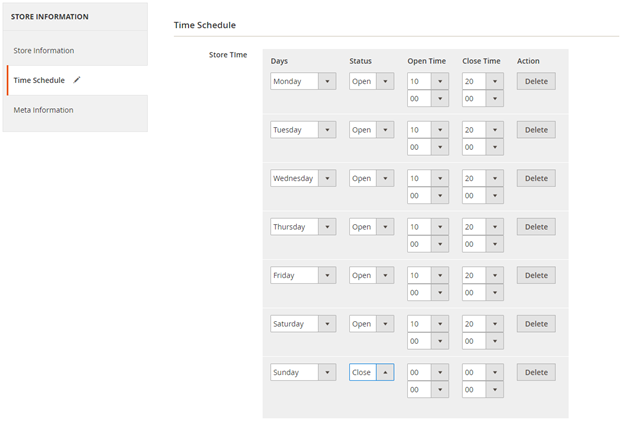
- Time Schedule: Here you can define the stores working days and working time of the store. You can define working time for each week day or even set close time too. As shown with below image
| Panel |
|---|
|
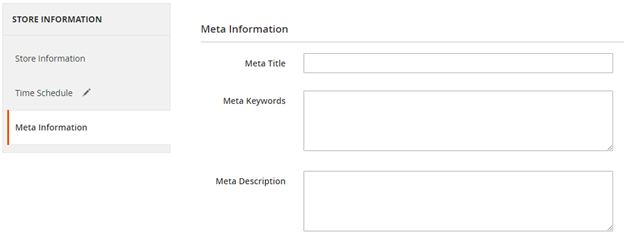
- Meta data: You can define Meta title, Meta keywords and Meta description for SEO purpose for each store detail page at frontend. As shown with above image
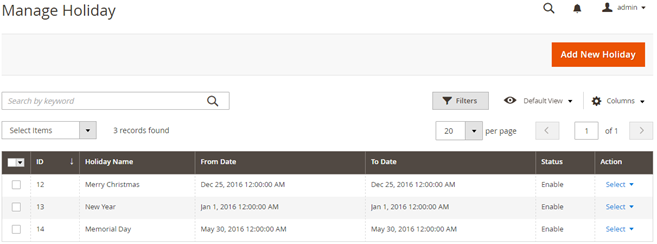
Manage Holiday You can manage holidays for each individual store or all stores. You can create holiday for one day or vacation period for multiple days. Refer below image, | Panel |
|---|
|
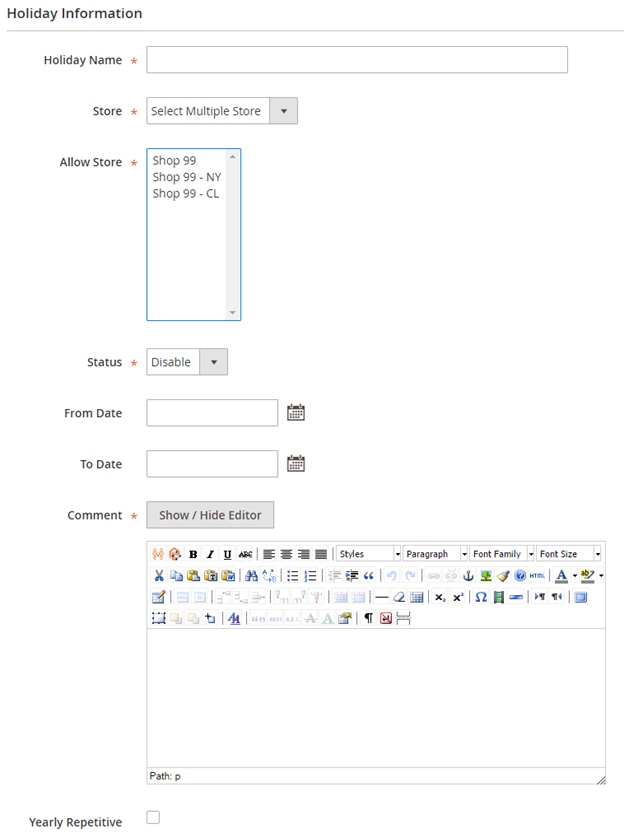
Add New Holiday | Panel |
|---|
|
- Holiday Name: Define as per your need
- Store: All Stores/Selected stores. You can have holiday for all store or select multiple stores.
- Status: Enable/Disabled holiday.
- From Date: Select holiday start date.
- To date: Select holiday end date.
- Comment: Specific not for holiday if have any.
- Repeat Yearly: If you check this check box, particular holiday will repeat every year on same date. For example you can define 1st Jan New Year holiday, and mark this day to repeat every year.
|