| Section |
|---|
| Column |
|---|
| 
|
|
| Section |
|---|
Installation
| Warning |
|---|
Before installing the extension, please make sure to Backup your web directory and store database |
- Unzip the extension package file into the root folder of your Magento 2 installation.
- Connect to SSH console of your server:
- Flush store cache
- log out from the backend and log in again
|
| Section |
|---|
License Configuration
| Note |
|---|
License activation is not required for extension purchased from Magento Marketplace. |
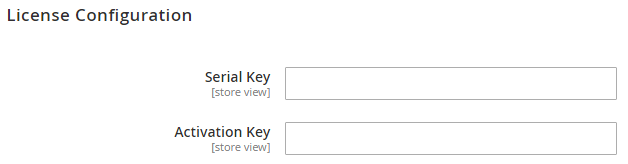
After successful installation of Store Locator extension, you are now required to configure the license key in the admin configuration section. You can set it from: Step 1: Go to, Admin Control Panel > Stores > Configuration > Magedelight > Store Locator > License Configuration. You will find two text boxes asking for Serial Key and Activation Key, which you received on email upon the purchase of extension. See screenshot below: | Panel |
|---|
|
- Serial Key: Enter Serial Key
- Activation Key: Enter Activation Key
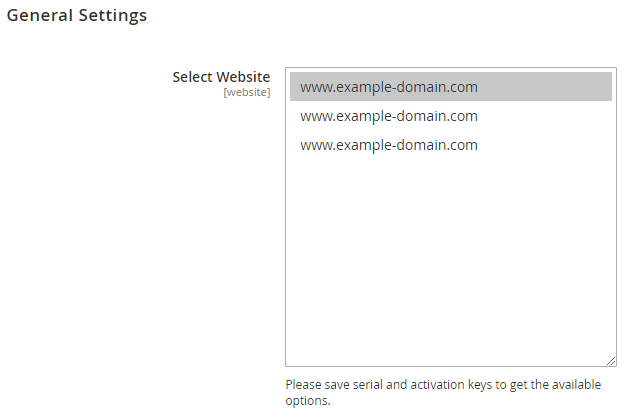
Step 2: Expand “General Configuration” tab, you will find a list of domains for which license is purchased and configured, now select the domain you are going to use, you can select multiple domains by clicking “Ctrl + Select”. | Panel |
|---|
|
Step 3: Now, select “Yes” from “Enable Module” to enable extension and again click on “Save Config” button on the top right. | Panel |
|---|

|
|
| Section |
|---|
Backend Configuration (Admin side)
| Panel |
|---|

|
- Enable Store locator: Disable store locator extension.
- Menu Link Title: Store locater page link title.
- Display Menu Link: Where to show store locater link? Options can be Top Link or Top Navigation menu.
- Access to Guest Customer: Set access limit to allows store locator to guest customer or not.
- Default Store Image: You can upload default image to be shown, if particular store don’t have uploaded store image.
|
| Section |
|---|
Backend Functionality
|
| Section |
|---|
Frontend Functionality
|
| Section |
|---|
Support
Click here to raise a support ticket using your MageDelight account. |
| Section |
|---|
Additional Services
Click here to get the customized solution for this extension. |
Thank you for choosing MageDelight!