Backend Functionality
MCP Users| Panel |
|---|
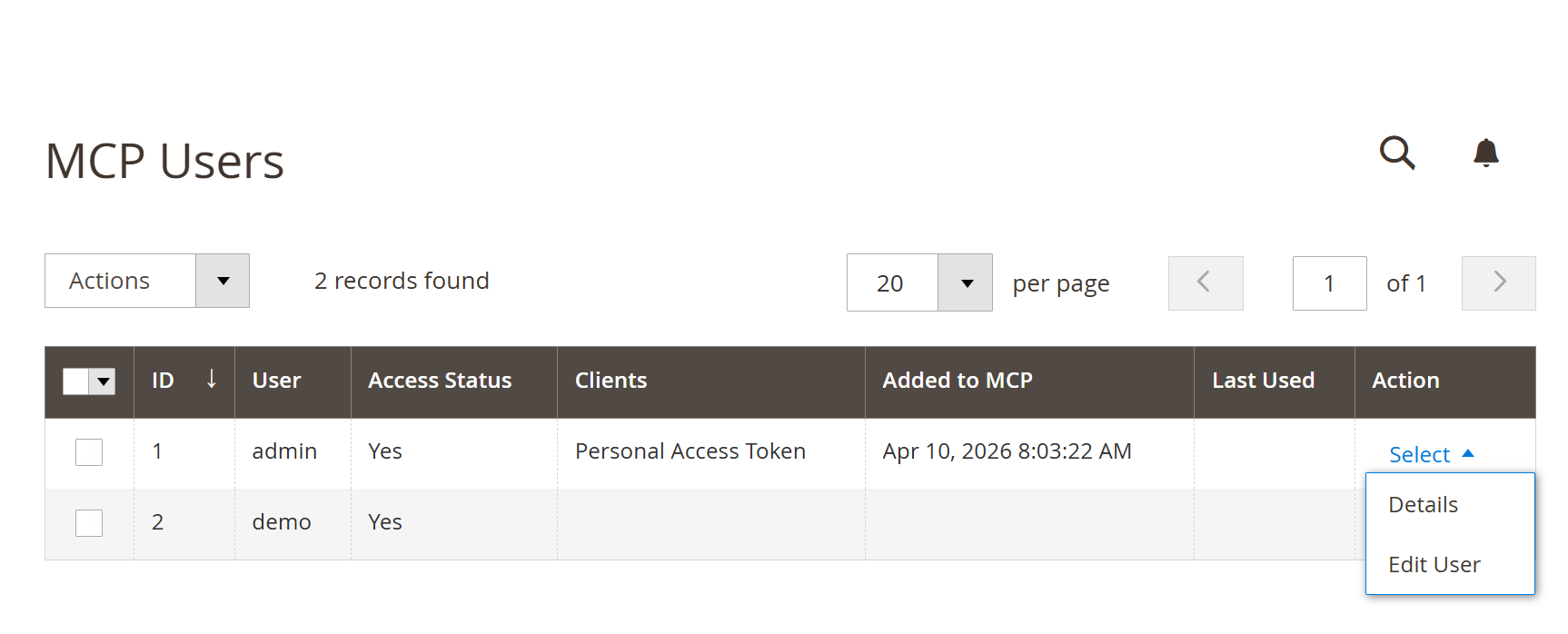 Image Added Image Added
|
- The MCP Users grid is the central admin section for viewing and managing users who have access to the MCP Server. It gives administrators a quick overview of user access status, connected client types, and usage activity in one place. From this grid, admins can also take direct actions to review user connection details or open the user profile for further management.
| Field | Description |
|---|
| ID | Displays the unique record identifier for each MCP user entry. | | User | Shows the admin username associated with the MCP access record. | | Access Status | Indicates whether MCP access is currently enabled or disabled for the user. This helps administrators quickly identify which users are allowed to connect. | | Clients | Displays the connected client type associated with the user, such as a Personal Access Token or other authorized client connection. | | Added to MCP | Shows the date and time when the user was first added to the MCP system. | | Last Used | Displays the most recent date and time the user or connected client interacted with the MCP Server. | | Action | Provides row-level management options for the selected user, such as viewing connection details or opening the related user record for further changes. | | Actions | The top-left mass action control allows administrators to apply bulk operations to selected user records. | | Records Found | Displays the total number of MCP user records currently available in the grid. | | Per Page | Lets administrators control how many records are shown in the grid at one time. | | Pagination | Allows navigation across multiple pages when the number of MCP users exceeds the selected per-page limit. |
User Details| Panel |
|---|
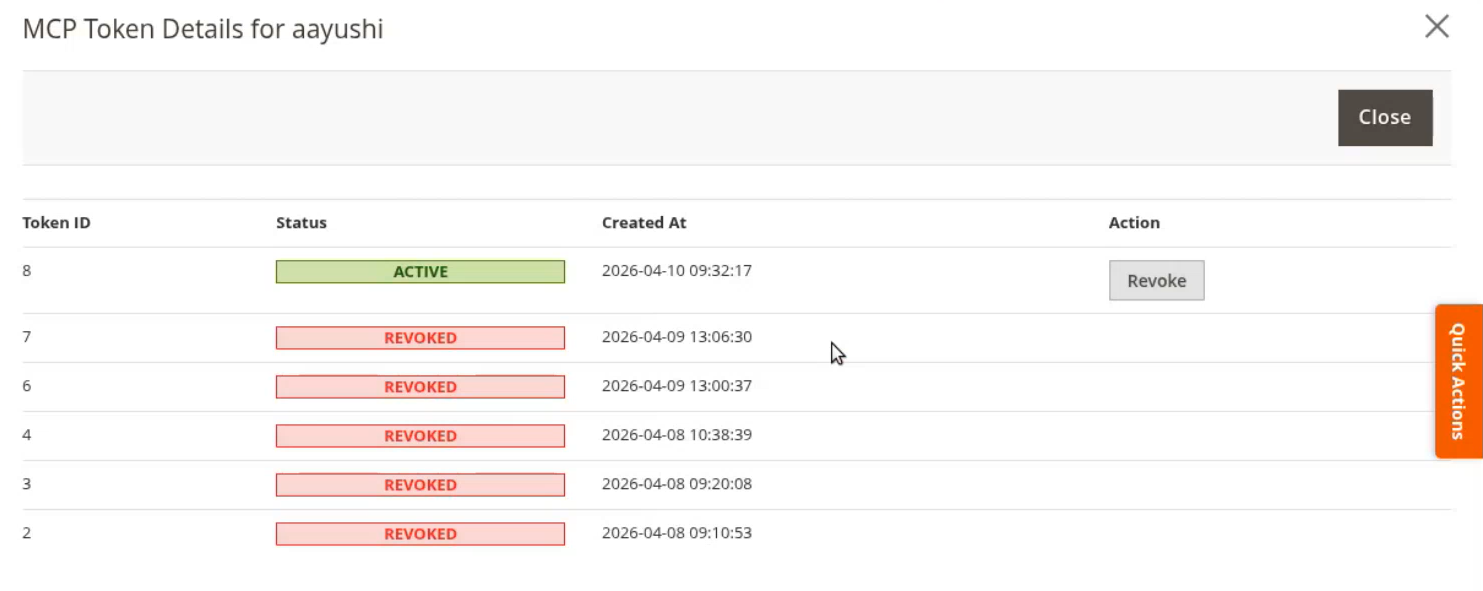 Image Added Image Added
|
- When the Details option is selected from the Action column in the MCP Users grid, a token details popup is opened for the selected user. This popup allows administrators to review all token records linked to that user, including their current status and creation date. It also provides a direct option to revoke an active token when required.
| Field | Description |
|---|
| MCP Token Details | Displays a popup window containing the token history and status details for the selected MCP user. | | Token ID | Shows the unique identifier assigned to each token record. | | Status | Indicates the current state of the token, such as Active or Revoked. | | Created At | Displays the date and time when the token was generated. | | Action | Provides token-level management actions for the selected record. | | Revoke | Allows administrators to manually revoke an active token to immediately disable its usage. | | Close | Closes the popup window and returns to the MCP Users grid. |
Edit User| Panel |
|---|
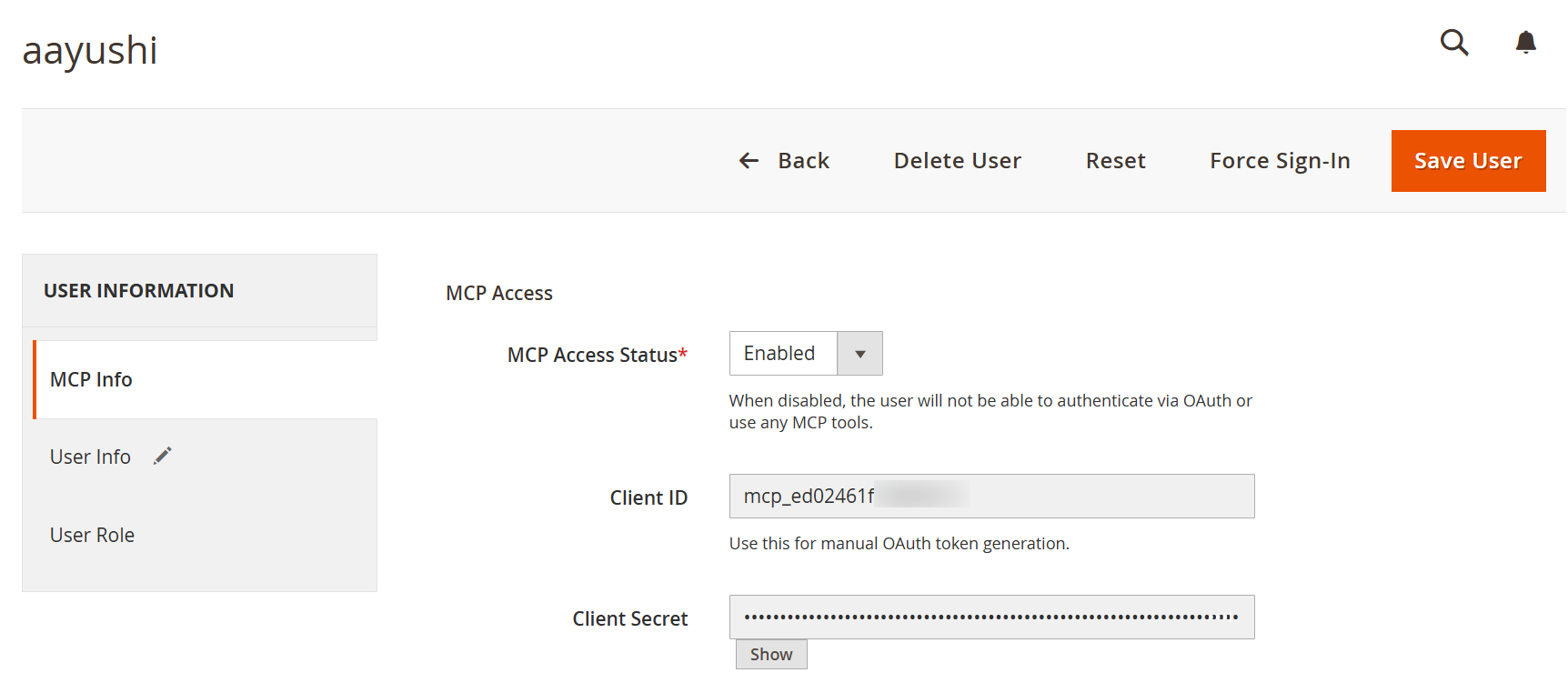 Image Added Image Added
|
- The Edit User screen opens when the administrator selects Edit User from the Action column in the MCP Users grid. This section is used to manage MCP access for a specific admin user and review authentication-related details linked to that user. It also allows the administrator to update the access status, view client credentials, and save changes directly from the user profile.
| Field | Description |
|---|
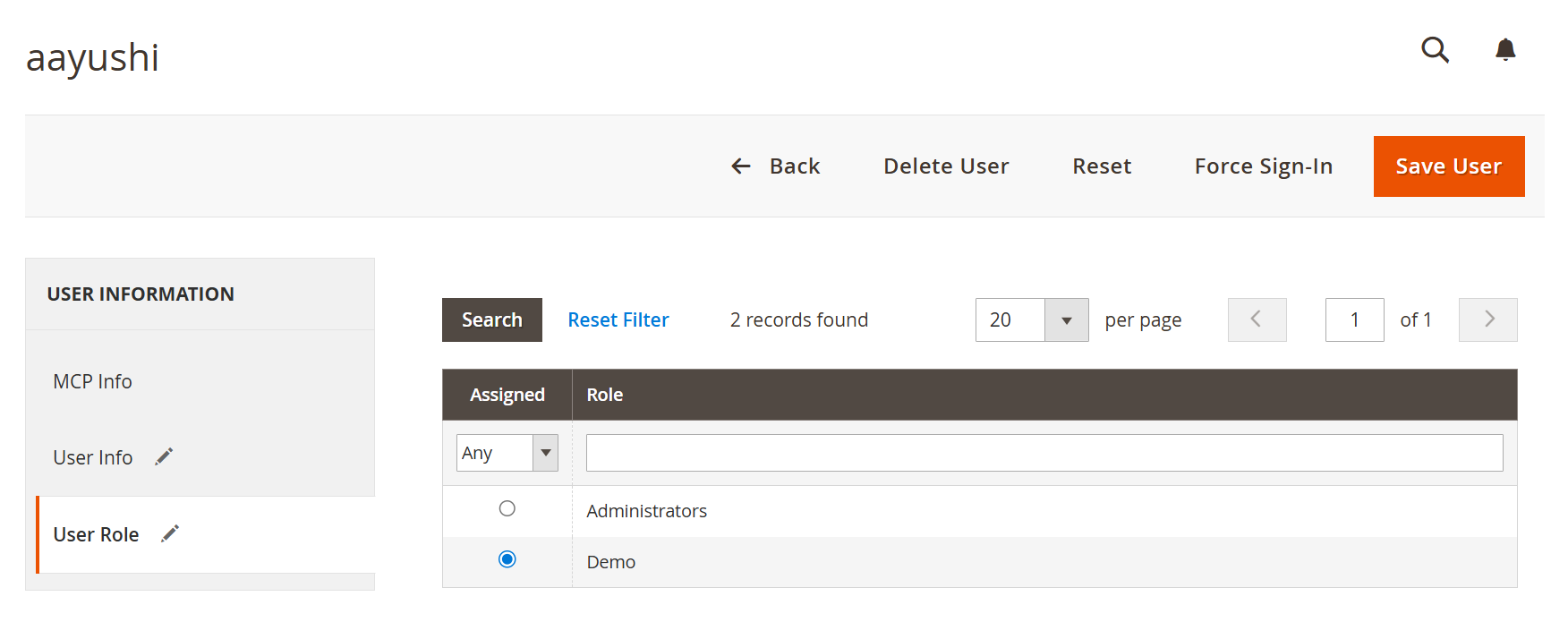
| MCP Access | Displays the MCP-related settings section for the selected admin user. | | MCP Access Status | Allows the administrator to enable or disable MCP access for the user. When disabled, the user will not be able to authenticate through OAuth or use MCP tools. | | Client ID | Shows the unique client identifier assigned to the selected user for MCP authentication. This value can be used for manual OAuth token generation. | | Client Secret | Displays the secret key linked to the selected MCP client. It is masked by default for security purposes. | | Show | Reveals the hidden client secret so the administrator can review it when needed. | | Save User | Saves all changes made to the selected user profile. | | Back | Returns to the previous screen without making further changes. | | Delete User | Removes the selected admin user from the system. | | Reset | Discards unsaved changes and restores the current form values. | | Force Sign-In | Forces the selected user to sign in again for security or session control purposes. | | MCP Info | Opens the MCP-specific configuration tab for the selected admin user. | | User Info | Opens the general account information section for the selected user. | | User Role | Opens the role assignment section where the administrator can manage permissions for the selected user. |
| Panel |
|---|
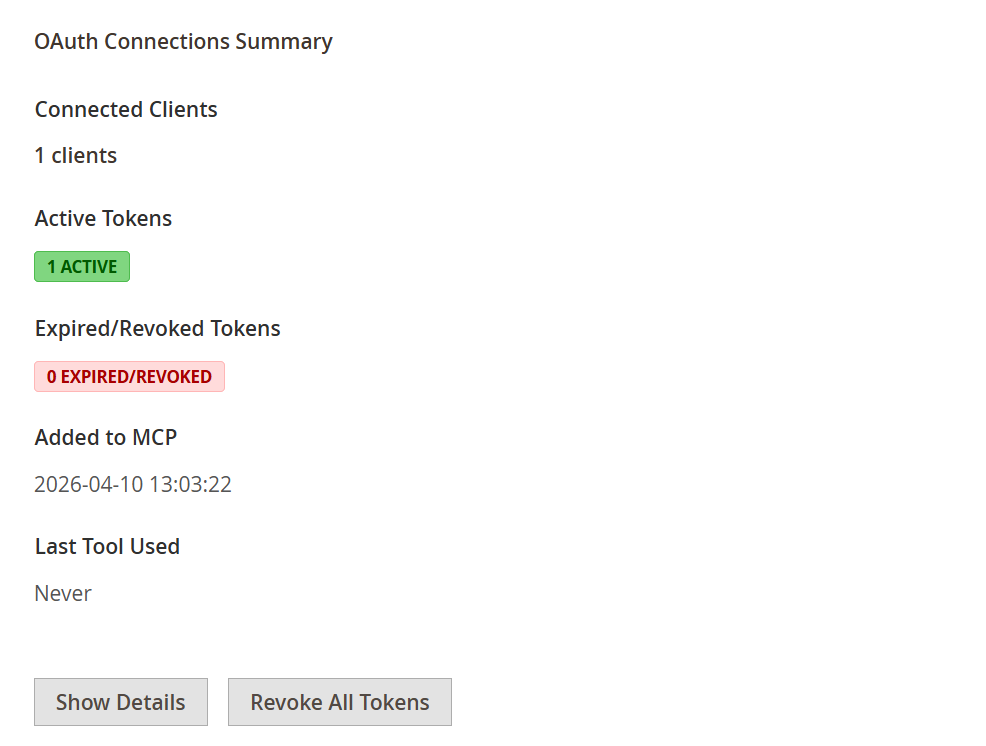 Image Added Image Added
|
- The OAuth Connections Summary section under MCP Info gives administrators a quick overview of the selected user’s MCP connection activity. It shows how many clients are connected, the current token status, when the user was added to MCP, and the latest usage activity. This section also provides direct actions to review token details or revoke all active tokens for that user.
| Field | Description |
|---|
| Connected Clients | Displays the total number of AI clients currently connected for the selected user. | | Active Tokens | Shows the number of currently valid and usable tokens linked to the user. | | Expired/Revoked Tokens | Displays the total number of tokens that are no longer active due to expiration or manual revocation. | | Added to MCP | Shows the date and time when the user was first added to the MCP system. | | Last Tool Used | Displays the most recent MCP tool usage activity for the selected user. If no action has been performed yet, it shows Never. | | Show Details | Opens the detailed token view for the selected user, where token-level records can be reviewed. | | Revoke All Tokens | Revokes all active tokens associated with the selected user to immediately disable existing MCP connections. |
| Panel |
|---|
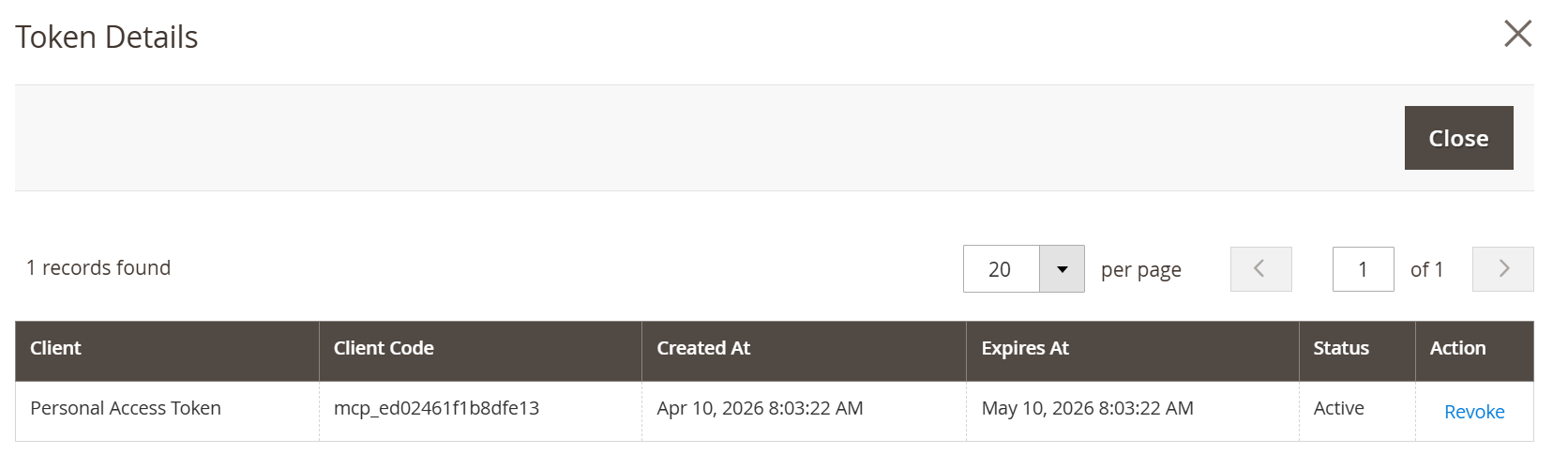 Image Added Image Added
|
- When the Show Details button is clicked in the OAuth Connections Summary section, a Token Details popup opens for the selected user. This popup provides a record-wise view of all connected MCP clients and their token information, helping administrators review token validity, expiry, and status from one place. It also allows direct revocation of an active token when required.
| Field | Description |
|---|
| Client | Displays the type or name of the connected client associated with the token, such as a Personal Access Token. | | Client Code | Shows the unique code assigned to the connected client for identification purposes. | | Created At | Displays the date and time when the token was created. | | Expires At | Shows the date and time when the token will expire and become unusable. | | Status | Indicates the current condition of the token, such as Active or Revoked. | | Action | Provides token-level actions for the selected client record. | | Revoke | Allows administrators to immediately deactivate the selected active token. | | Close | Closes the popup window and returns to the previous screen. | | Records Found | Displays the total number of token records shown in the popup. | | Per Page | Allows administrators to choose how many token records are displayed per page. | | Pagination | Helps navigate between multiple pages if more token records are available. |
| Panel |
|---|
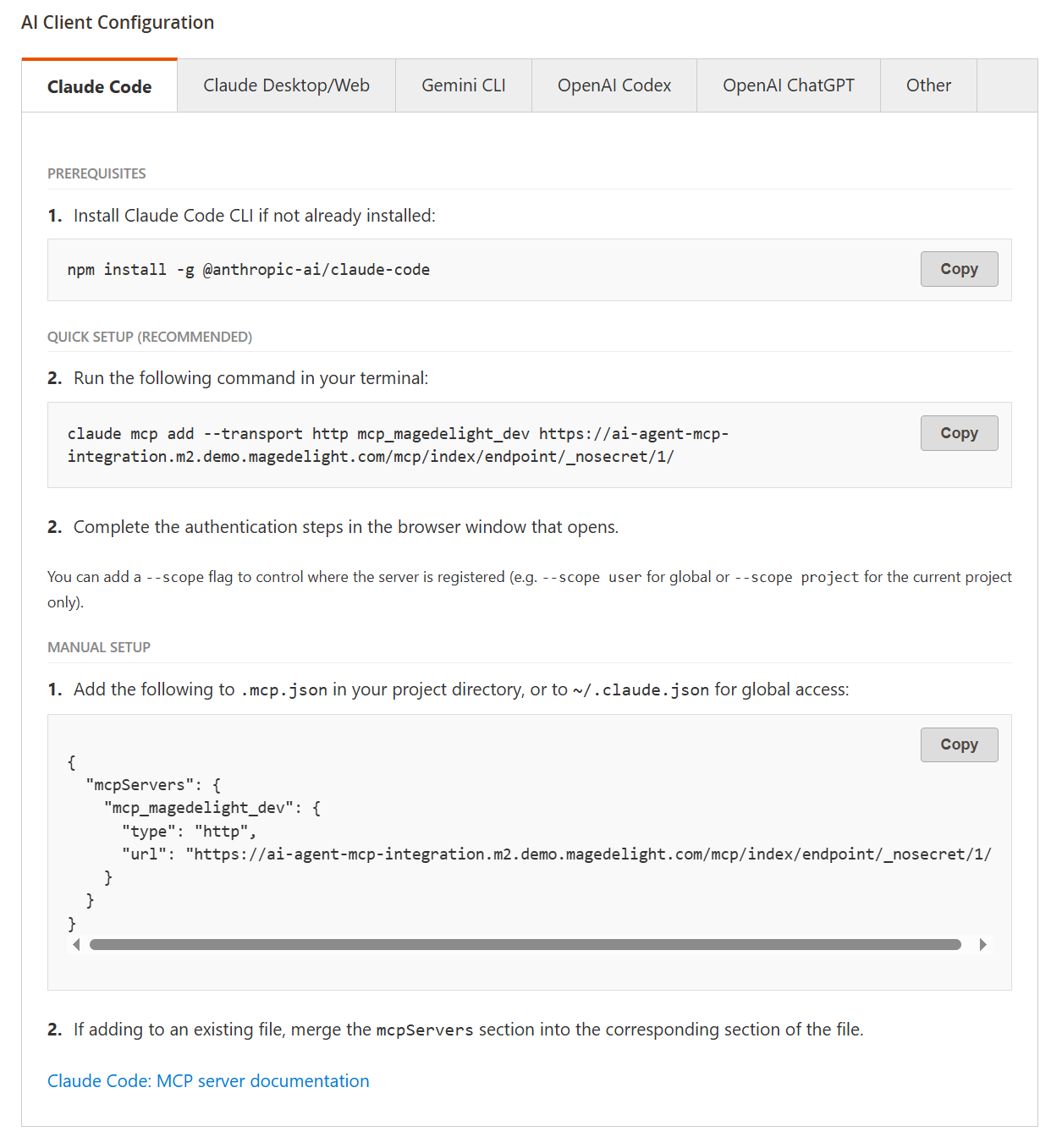 Image Added Image Added
|
- The AI Client Configuration section under MCP Info provides ready-to-use connection instructions for supported AI clients in a tab-based layout. It helps administrators quickly connect an AI client by using prefilled server details, one-step setup commands, and manual configuration snippets. This makes the client onboarding process simpler and reduces the chance of configuration errors.
| Field | Description |
|---|
| AI Client Configuration | Displays client-specific connection instructions for integrating supported AI tools with the MCP Server. | | Claude Code | Shows setup instructions for connecting the store with Claude Code using command-line configuration. | | Claude Desktop/Web | Provides guided connection details for Claude Desktop and Claude Web clients. | | Gemini CLI | Displays setup instructions for connecting the store with the Gemini command-line client. | | OpenAI Codex | Provides connection details for configuring the OpenAI Codex client with the MCP Server. | | OpenAI ChatGPT | Shows setup instructions for connecting ChatGPT through the supported app-based MCP flow. | | Other | Provides generic MCP connection details for other compatible AI clients. It can also be used for clients that require alternative connection handling. | | Prerequisites | Lists any required tools, packages, or conditions that must be completed before configuring the selected AI client. | | MCP Server URL | Displays the prefilled MCP endpoint URL for the current store, which is used during client setup. | | OAuth Authorization URL | Shows the authorization endpoint required for authenticated client connection. | | Quick Setup Command | Provides a ready-to-copy command that allows the selected client to be configured in a single step. | | Manual Setup Configuration | Displays the configuration snippet or structured setup block that can be added manually to the client configuration file. | | Copy | Copies the related command, URL, or configuration block for faster setup. | | Documentation Link | Opens the related client documentation for additional reference or advanced setup guidance. |
| Panel |
|---|
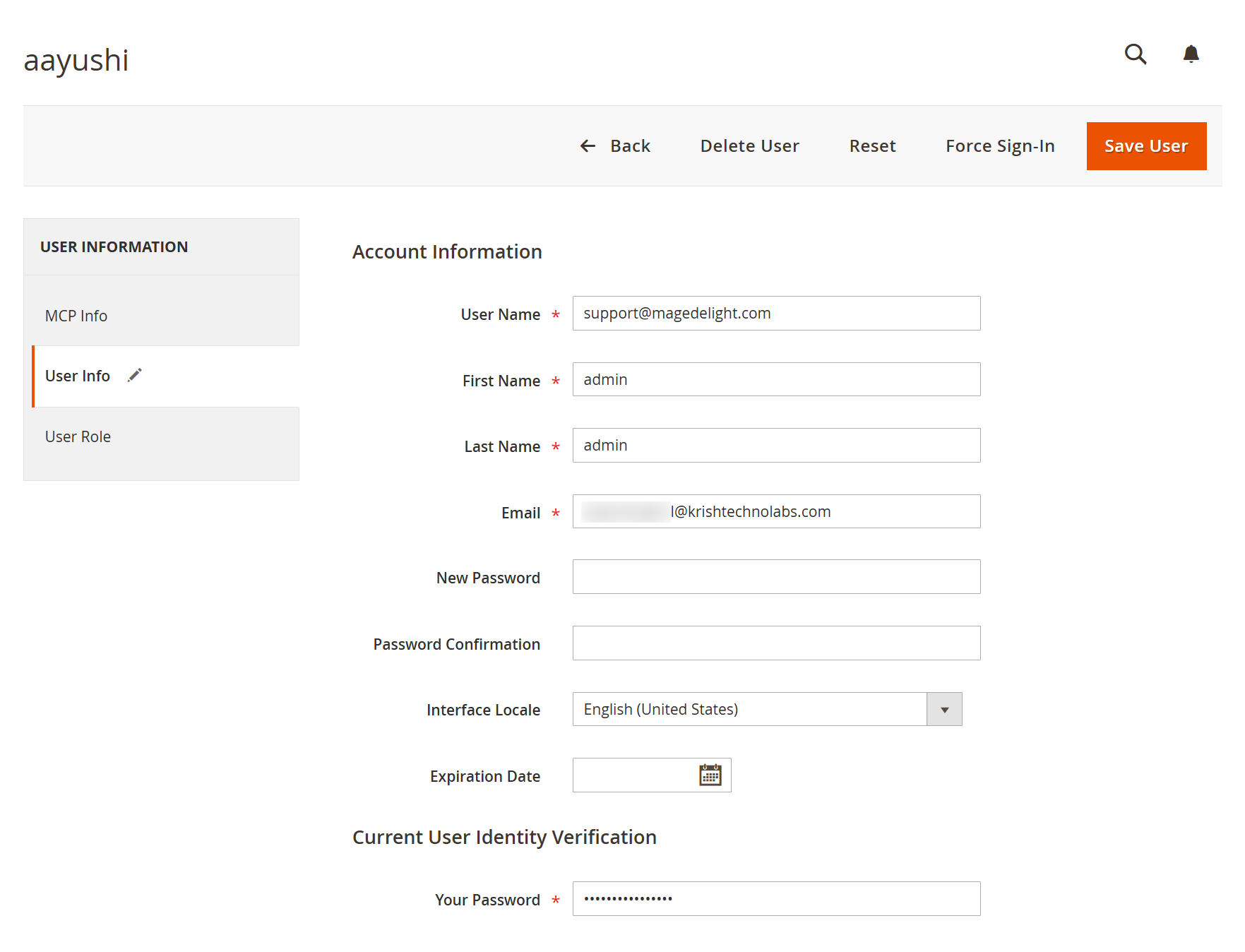 Image Added Image Added
|
- The User Info tab is part of the admin user edit screen and is used to manage the selected user’s general account details. Unlike the MCP Info tab, which focuses on MCP access and connection settings, this section
|