Versions Compared

Key

  • This line was added.
  • This line was removed.
  • Formatting was changed.

...

Section

Installation


Include Page
Installation Steps
Installation Steps


Section

Installation with Composer


Composer repository using this command:

composer config repositories.magedelight-repo composer https://packages.magedelight.com/


Replace repo public key and private key with your public and private key

composer config http-basic.gitlab.magedelight.com $PUBLIC_KEY $PRIVATE_KEY


composer require mage_delight/spin-wheel-module

composer require hyva-themes/magento2-magedelight-spin-wheel


Note

To obtain your public and private keys, please navigate to the "My Account" section. In the "Download Extension Packages" tab, you will find the keys available for your access.


Section

Backend Configuration (Admin side)


Panel


FieldDescription
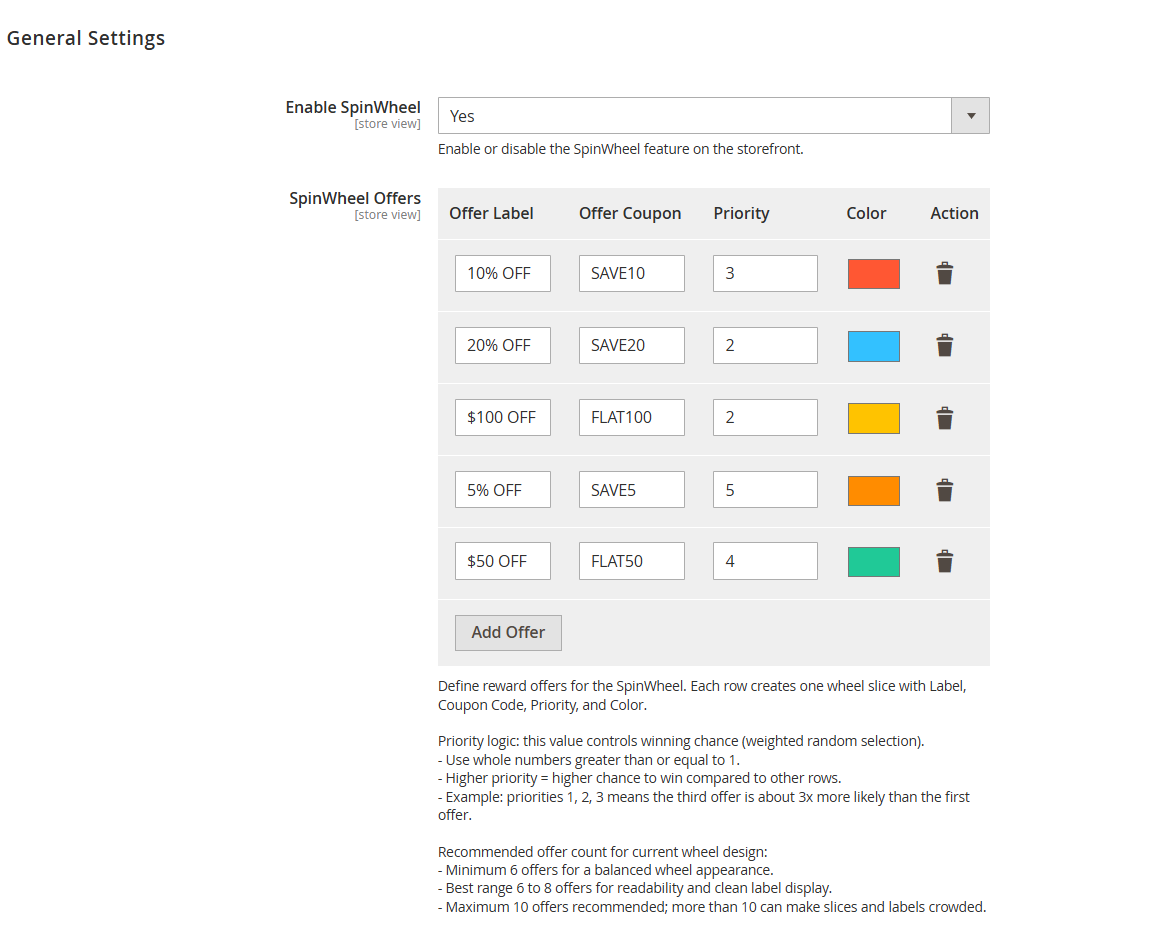
Enable SpinWheel

Enables or disables the Spin Wheel functionality on the storefront. When enabled,

users will see the spin wheel popup based on configured conditions.

SpinWheel Offers

Section to configure reward segments displayed on the spin wheel. Each row

represents one slice of the wheel.

Offer LabelDefines the display text shown on the spin wheel segment (e.g., 10% OFF, $50 OFF).
Offer Coupon

Specifies the coupon code assigned to the selected offer. This coupon will be provided

to the user upon winning.

Priority

Determines the probability of an offer being selected. Higher values increase the

chances of that offer being won.

ColorSets the visual color of the wheel segment for better differentiation and UI presentation.
ActionAllows deletion of a specific offer row from the configuration.
Add OfferAdds a new offer row to define an additional wheel segment.
Priority Logic

Explains how priority values influence winning probability. Higher priority means higher

chances in weighted random selection.

Recommended Offer Count

Suggests optimal number of offers for better UI and user experience

(minimum 6, recommended 6–8, maximum 10).


Panel


FieldDescription
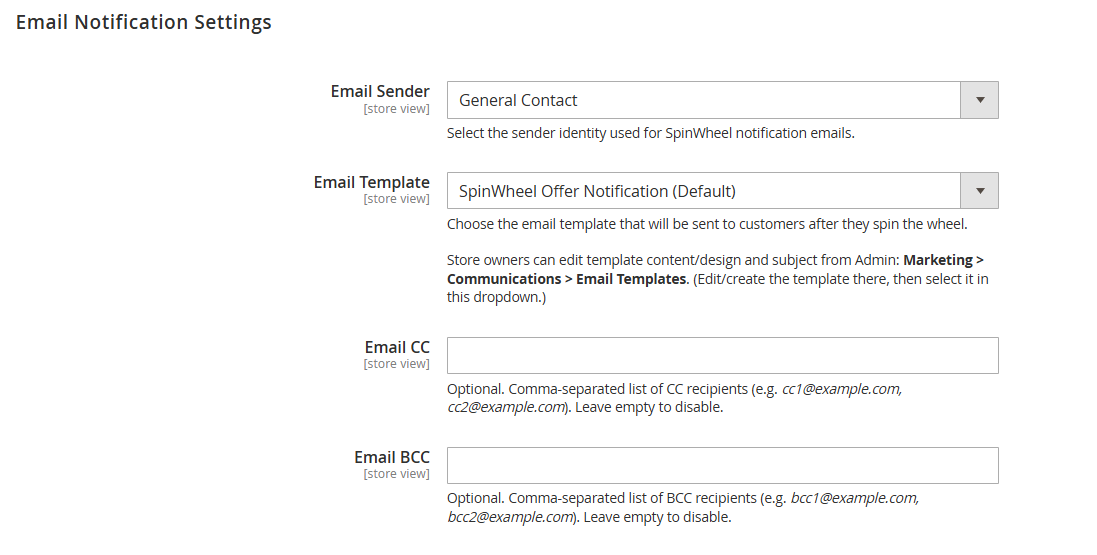
Email Sender

Selects the sender identity used for Spin Wheel notification emails. This defines the “From” name

and email address visible to recipients.

Email Template

Specifies the email template sent to customers after they spin the wheel. Templates can be

customized from Marketing → Communications → Email Templates.

Email CC

Allows adding additional recipients (carbon copy) who will receive the same email. Multiple

email addresses should be separated by commas.

Email BCC

Allows adding hidden recipients (blind carbon copy) who will receive the email without being

visible to other recipients. Multiple email addresses should be separated by commas.


...